◦ Comprehensive security
◦ 24/7 support
WordPress widgets: How to add and use them

WordPress widgets are one of the most useful tools WordPress provides. The process of adding widgets to your website is highly intuitive and does not require any code knowledge. The codeless website building that WordPress offers is one of the main reasons why millions of website owners continue to give preference to the platform.
In this article we’ll list the best WordPress widgets. We’ll also cover how to add a widget in WordPress, and we’ll review any potential issues you may encounter in a step-by-step manner.
What is a WordPress widget?
A WordPress widget is an element that allows you to add specific content to your website. They can be placed to certain areas of your website outside the body of a post. Widgets allow you to add extra content to your website to encourage your visitors to get information or take action.
These elements are so common that you probably have seen them a million times visiting different blogs. Recent post lists, shopping carts, search bars — these are just some of the examples of what you can place on your WordPress website with the help of widgets.
Where can I place WordPress widgets?
Widgets are usually placed in special content areas such as headers, sidebars, or footers. The list of areas you can choose to add a widget to can differ depending on the WordPress theme you are using.
Generally, you can put a widget almost anywhere. You can also choose if you want widgets to appear on every page of your website or specific pages only.
You will find that some types of widgets are better off placed in the sidebar for your visitors to notice them easily, while others can be placed in the footer, such as a social media feed.
How many widgets are available?
WordPress comes with a list of default widgets, but the choice may be limited. To get more customized widgets, you can install different plugins — there are a lot of them to make use of. Some unique widgets specific to your WordPress theme of choice may also be available to you.
How to add a widget in WordPress
Now that we have learned what WordPress widgets are , let’s review the steps we need to take to add a widget to our website.
1. Log into your WordPress dashboard
Adding a widget to a website requires access to the WordPress admin area. You can open your WordPress dashboard by opening your-website.com/wp-admin/ in any browser.

2. Choose the Appearance tab from the left menu and click Widgets
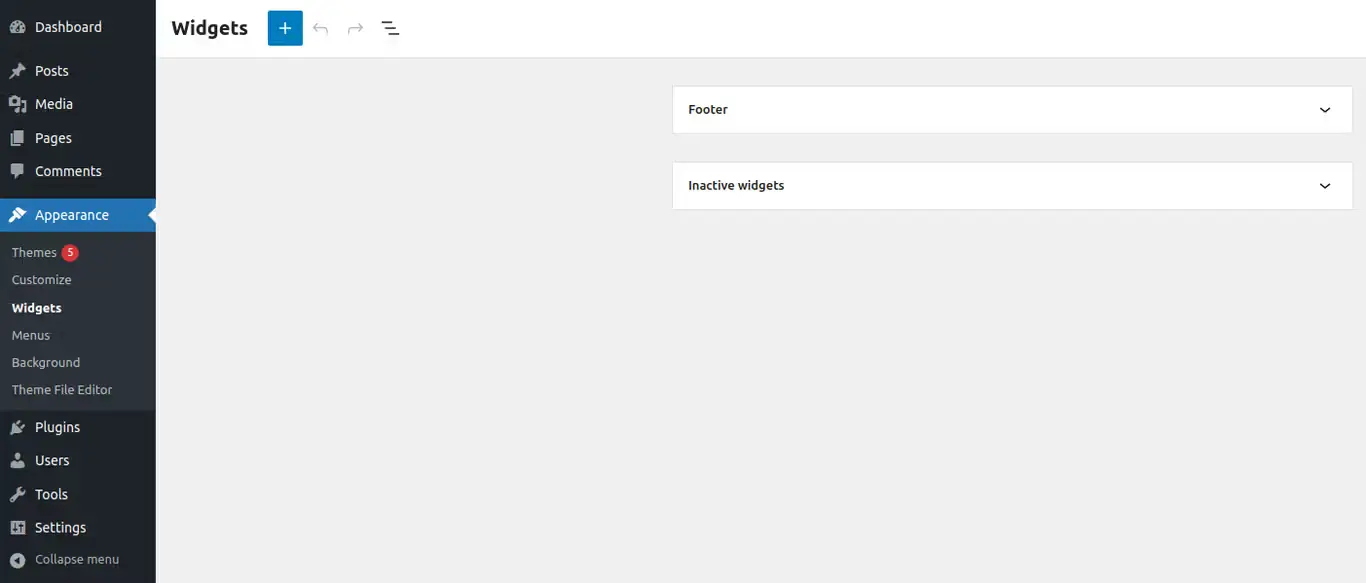
It will take you to the new widgets screen that first appeared when WordPress 5.8 was introduced. On the right side of the screen, you can see the list of areas you will be able to add a widget to.
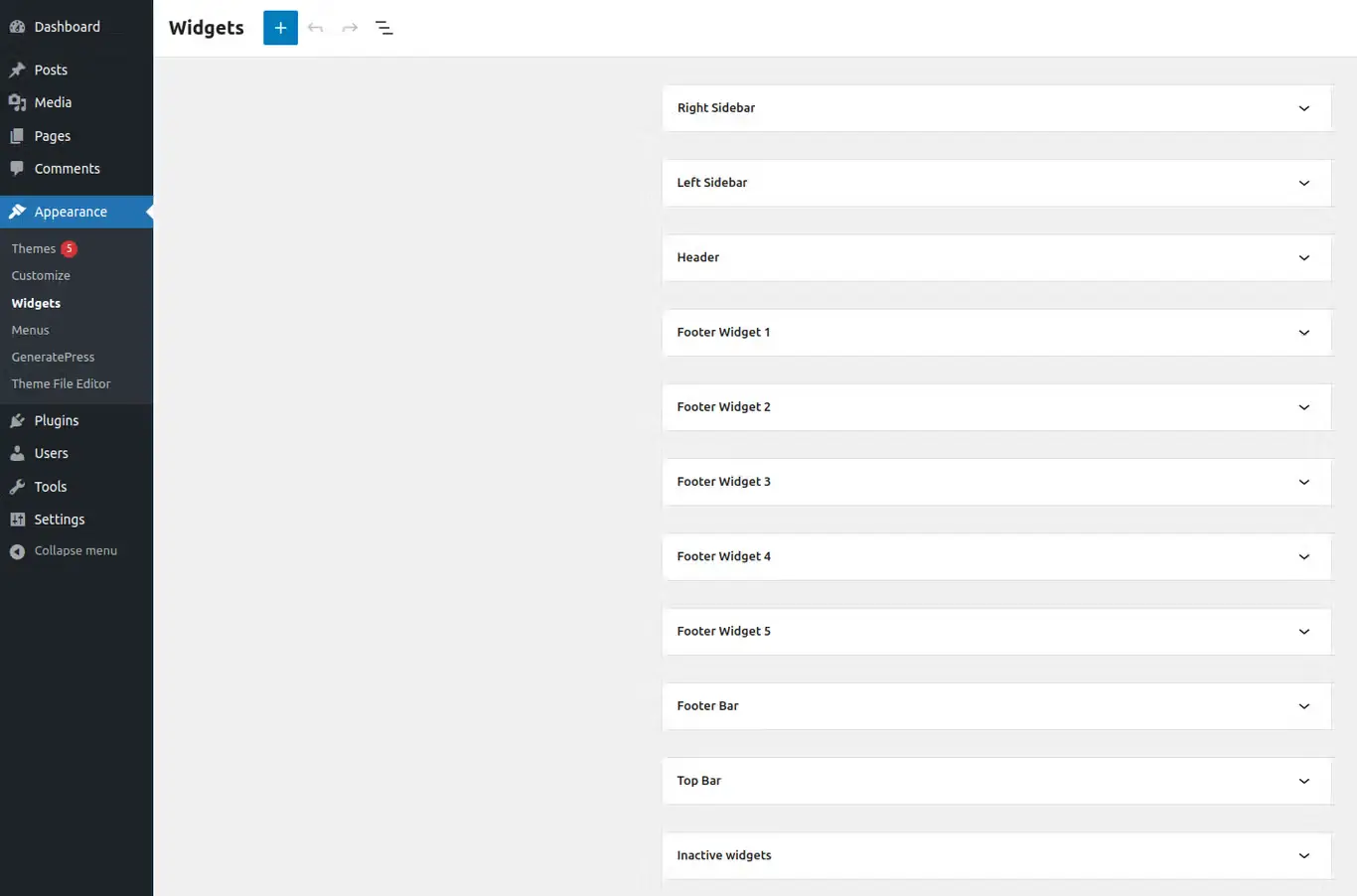
Take a look at the two screenshots below. In the first one, you can see just one widget area defined — Footer. This is what you will see if you have the Twenty Twenty-One WordPress theme activated.
Here we are using another popular theme, GeneratePress. You can see that now we have 11 areas available for us to add new widgets to. Different WordPress themes define a different number of widget areas.
3. Click on the chosen widget area
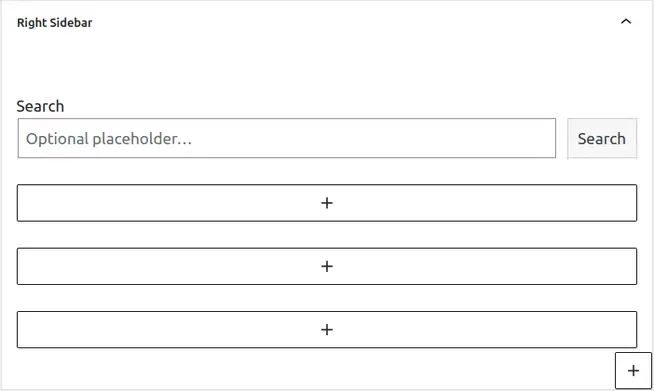
Once you click on the area we would like to add a widget to, you will see a real-time preview of the added widgets. From here you will be able to add all kinds of widgets and modify them to create your unique style. If you have a new WordPress installation you have not yet started working with, you may see that there are some standard elements already added to certain widget areas.
4. Click on the plus [+] button next to widgets
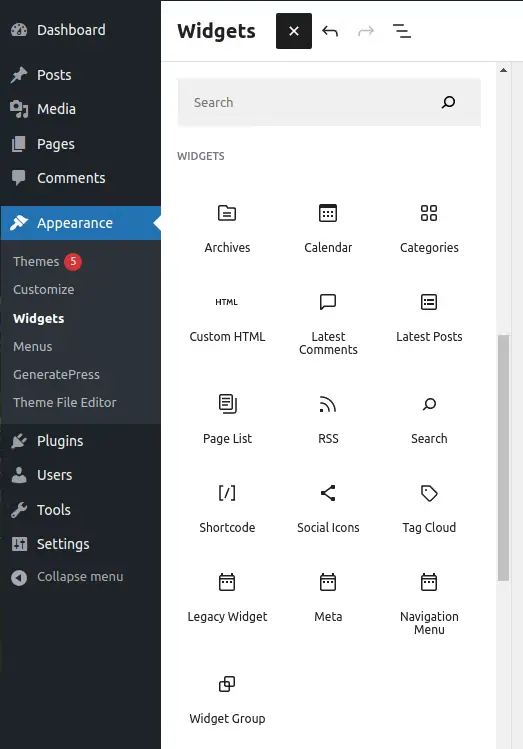
After you click on the plus button in the top left corner, you will see a long menu presenting all types of widgets and other elements available to add to the chosen widget area. If you scroll down to the widgets, you’ll see all the default ones that can be used. If you installed any plugins that provide additional widgets, you will see all of them in the menu.
5. Add the chosen WordPress widget
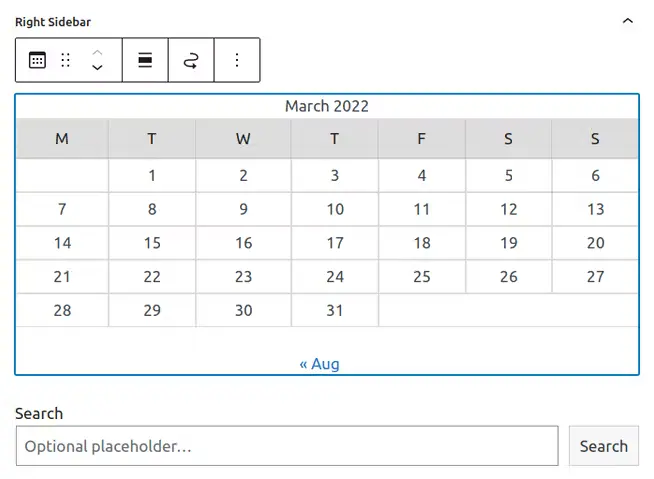
You can scroll through the elements to choose one that you would like to add or use the search bar to find what you are looking for. Once you have chosen what widget you will place on your website, you can simply click on it, and it will appear in the selected widget area. You can also drag and drop the element to put it exactly where you need it to be. In the example below, we have added the default calendar widget to our right sidebar.
Now we know how to add a widget to WordPress websites — it’s easy and intuitive.
How to edit WordPress widgets
It is important to understand how to edit WordPress widgets in case you would like to change their order or the way they are displayed on the website.
We can edit all WordPress widgets we have added from the same screen. All we need to do is click on the widget we added and make use of the editing features available. If you installed some new widgets to extend the list of the default ones, editing them will be possible from the interface of the plugin that provided a certain widget.
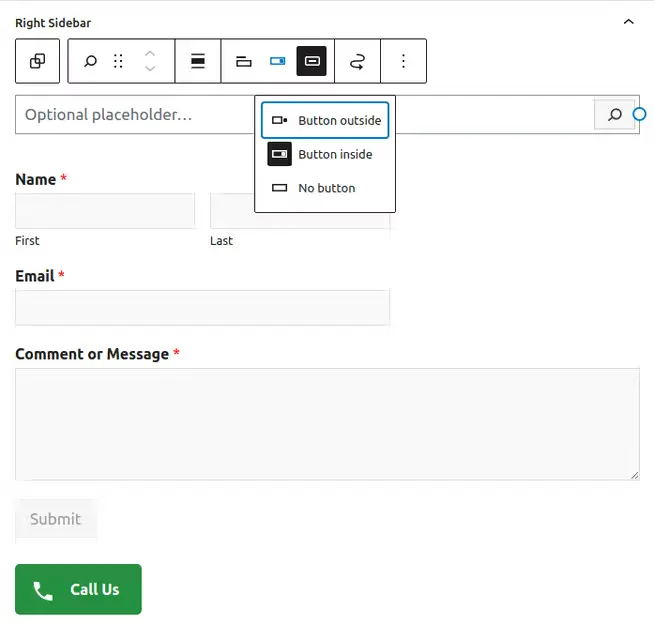
Let’s take a look at the screenshot below. We have installed two popular widget plugins, WPForms and WP Call Button, and added the widgets they provide to our right sidebar.
We can edit the default search bar we added before. For example, we can change the button type and its position. We can also change the positions of widgets and their sequence. If we want to change the way the contact form and the Call Us button look, we would need to do so from the plugins menus before having these widgets added to the sidebar again. We typically can not edit custom widgets from the WordPress widgets screen.
What to do if your WordPress widget is not showing
Sometimes the process of adding widgets does not go smoothly. Having added new cool widgets to your website and being ready to present them to your visitors, you may notice that it is not showing where it needs to be. Let’s review some of the most common reasons for WordPress widgets not showing.
Reason 1: You have not saved the changes
When you add new widgets to any area of your website from the widgets screen, changes do not get saved automatically for you. You need to click Update to make changes to the live website.
How to solve: Simply get in the habit of saving all changes you make to the website every step of the way. You will need to add the widgets you wanted again and make sure you do not leave any unsaved changes before leaving the widgets screen.
Reason 2: You have some incompatible plugins and/or themes
Every WordPress plugin or theme is essentially blocks of code written by its developer. Sometimes some pieces of code can conflict with each other, or some plugins can be incompatible with the PHP version you are using. Your widgets may not be displayed on the website at all or they may be displayed incorrectly if there are incompatibility issues.
How to solve: Plugin incompatibility is not easy to address. You can try deactivating plugins one by one to see which ones are causing issues, but it’s best if you contact a professional, for example, your WordPress hosting technical support.
Reason 3: Your WordPress installation has suffered a failed update
Failed updates lead to WordPress core files being saved incorrectly — or some of them may even be missing afterwards.
How to solve: We recommend backing up your WordPress website before making any major changes, and that includes WordPress version updates. You can restore your website from a backup to a functional condition. But without knowing why the update did not go well in the first place, we can not really consider the issue solved.
Generally, we need to try to understand when the elements were last seen working correctly and what changes might have been made to the website that led to the WordPress widgets not showing.
Knowing what happened — and when it did and how — will help us find the right solution and get the issue addressed quickly. Unfortunately, all websites can be prone to technical issues of different kinds, and there is no one universal solution.
Getting started with WordPress widgets
Widgets are an amazing solution for your website, and no matter what content you’re hosting, you can pretty much add anything you can think of. Start by considering what your site needs from those widget areas, and fill in the gaps.
Getting familiar with a new platform takes time and effort. And it’s not enough to just create something amazing — you need to make sure it stays available at all times, secured from various attacks, and backed up regularly. It is not easy to take care of all that yourself.
That’s where fully managed WordPress hosting comes in. Fully managed hosting means you don’t have to worry about that — your website is in the hands of hosting experts.
Liquid Web offers WordPress hosting for every need and skill level. If managed hosting sounds like a weight off your shoulders, our WordPress experts can take care of the technical server work for you.
But if you’re confident — or you want learn — self-managed WordPress VPS options are available too. Either way, you’re getting the very best server performance, so your WordPress site stays fast, available, and secure.
Additional resources
What is WordPress? →
A complete beginner’s guide to basic WordPress options
How to build a WordPress site →
9 detailed steps to help walk you through the initial setup
A complete guide to WordPress shortcodes →
Shortcodes make life easier. Learn how to get started!

Kiki Sheldon works as a Security Specialist for Liquid Web with extensive knowledge of popular Content Management Systems (CMSs). She keeps up with technology and always looks to improve her technical skills. In her free time, she enjoys reading, especially classic books and detective stories.