◦ Comprehensive security
◦ 24/7 support
WordPress Guide → WooCommerce → Shipping Options
How to set up shipping options in WooCommerce
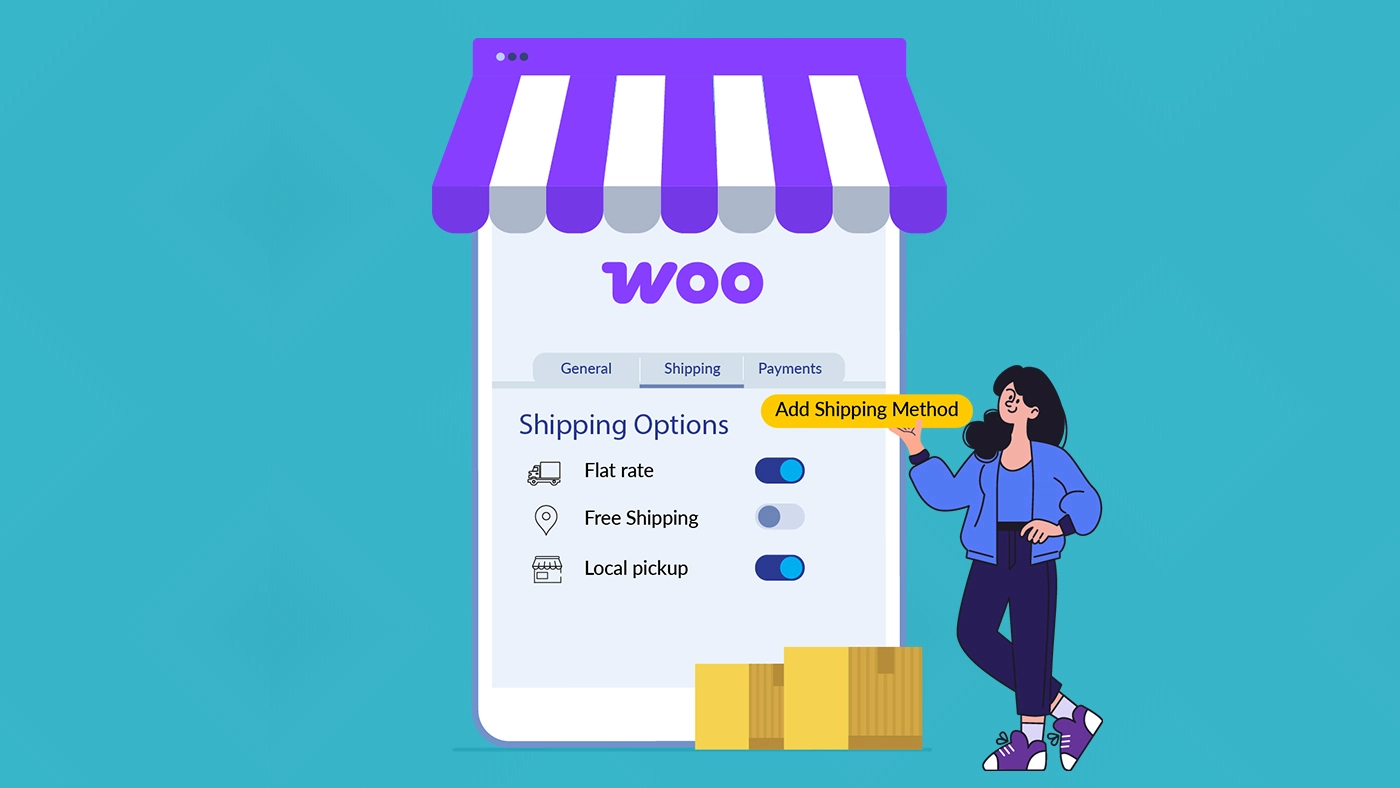
Shipping is one of the most critical aspects of running a successful WooCommerce store. A smooth shipping setup ensures that customers receive their orders promptly, shipping costs are calculated correctly, and your store can scale without logistical headaches. Yet, many store owners struggle with configuring shipping options effectively.
In this guide, we’ll walk through WooCommerce’s built-in shipping capabilities, explain common challenges, and explore ways to extend functionality for more complex shipping needs.
Get fast, reliable WooCommerce hosting
Power your site with the industry’s fastest web hosting built specifically for WordPress and WooCommerce
Understanding WooCommerce’s built-in shipping foundation
Before exploring complex setups, it’s essential to understand WooCommerce’s core shipping system, built around Shipping Zones and Shipping Methods.
Shipping zones
Shipping zones are geographic regions you define, to apply specific shipping options. For example:
- Domestic zone: Your home country
- Neighbouring countries zone: For nearby markets
- International zone: A “Rest of the World” category
A customer’s shipping address determines the zone they fall into, which in turn controls the shipping options displayed at checkout.
Shipping methods
Within each zone, WooCommerce provides three main shipping methods:
- Flat Rate: Charge a fixed fee per order or per item (e.g., $5 per item).
- Free Shipping: Offer complimentary delivery universally or based on conditions like minimum order amounts or coupons.
- Local Pickup: Allow customers to collect orders directly from your store, saving shipping costs.
For small stores, this setup is sufficient. You can charge $7.99 for domestic orders, offer free shipping over $50, and set a flat international rate. It’s straightforward and manageable.
Step-by-step: configuring your core shipping setup
Here’s a practical guide to getting started with WooCommerce’s shipping settings.
How to check and fix:
1. Navigate to your shipping settings
Go to WooCommerce → Settings → Shipping in your WordPress admin.

2. Create your first shipping zone
- Click Add shipping zone
- Name it descriptively (e.g., “United States Domestic”)
- Select the region(s) it will cover—states or postal codes for granularity

3. Add shipping methods
- Click Add shipping method
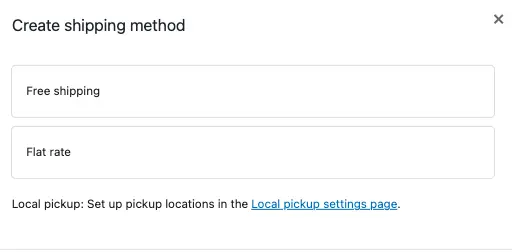
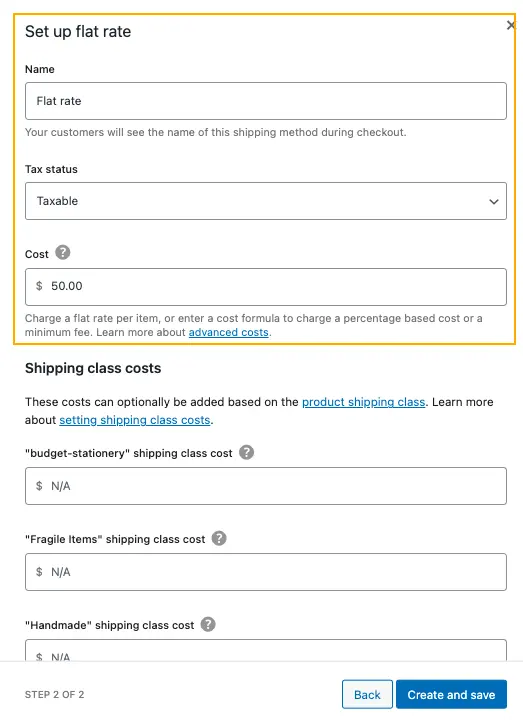
- Choose Flat Rate and configure the cost (e.g., 7.99). For more advanced calculations, you can use formulas like 5 + (2 * [qty]) for a $5 base plus $2 per item.
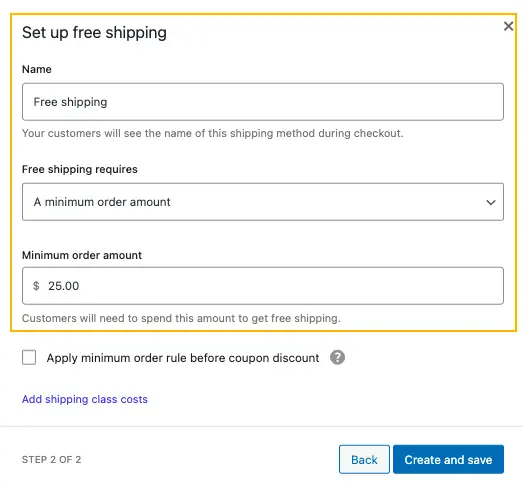
- Optionally, add Free Shipping and set conditions, such as a minimum order amount ($25, for example).
4. Repeat for other zones
Create additional zones for Canada or other international destinations, adjusting rates to protect margins.
This basic setup gives you predictability. However, as your store grows, you may find that manual management becomes increasingly inefficient.
When built-in shipping isn’t enough
As your store scales, you may encounter challenges that the default WooCommerce setup cannot handle:
- Real-Time Carrier Rates: Customers expect accurate shipping costs from USPS, FedEx, or DHL. Manual flat-rate updates are impractical.
- Multi-Carrier Complexity: Different product types may require different carriers (e.g., UPS for heavy items, USPS for envelopes).
- International Shipping Costs: Duties, taxes, and country-specific rules complicate pricing.
- Conditional Logic: Complex rules like “free shipping for t-shirts over $50, but not for bulk orders” are difficult to implement natively.
Spending hours calculating shipping or watching customers abandon carts due to high flat-rate estimates is a clear signal that your store has outgrown basic tools.
Extending WooCommerce with purpose-built shipping solutions
This is where specialized shipping plugins become a logical extension of WooCommerce. Solutions like PluginHive are designed to address these gaps while staying fully aligned with WooCommerce’s native shipping workflow.
What advanced plugins offer
- Real-Time Carrier Rates: Fetch accurate shipping rates from USPS, FedEx, UPS, and more at checkout.
- Shipping Method Control and Rate Adjustments: With the PH Hide WooCommerce Shipping Methods and Rate Adjustment plugin, you can control which shipping methods appear at checkout and make targeted rate adjustments, helping keep shipping options clear and relevant for customers.
- International Shipping Support: Handle customs documentation, duties, and taxes automatically.
These plugins are not “extras”; they are operational tools that let your store scale efficiently and professionally, much like switching from a spreadsheet to accounting software as your business grows.
Best practices for a shipping strategy that converts
Regardless of the tools you use, these principles will keep your shipping strategy healthy:
- Be transparent, Not surprising: Clearly show shipping costs and expected delivery timelines early. Displaying estimated delivery dates using PluginHive’s Estimated Delivery Date for WooCommerce plugin helps set clear expectations and reduces last-minute cart abandonment.
- Balance cost and& speed: Offer a range of options. A free or economy option (5-7 days) captures price-sensitive customers, while a paid express option (1-2 days) serves those willing to pay for speed. This simple choice can increase your average order value.
- Make free shipping work for you: Never just “eat the cost.” Use a minimum order threshold that protects your margin and incentivizes larger purchases. Promote it clearly on product and cart pages.
- Test everything: Place test orders from different locations. See exactly what your customers see. Ensure your rules aren’t conflicting and that rates display correctly on mobile and desktop.
- Review and refine quarterly: Shipping costs and carrier services change. Audit your shipping data every few months. Are you consistently over- or under-charging on certain routes? Adjust your rules or flat rates accordingly.
Building a shipping foundation for growth
Starting with WooCommerce’s core shipping zones and methods provides essential control for new stores. But as your business grows and customer expectations rise, the complexity of real-world shipping demands automation and integration.
By mastering the basics, testing your configuration, and incorporating carrier-aware tools when needed, you can create a checkout experience that is reliable, transparent, and profitable. Shipping becomes a seamless engine behind your business, not a constant puzzle.
With the right foundation and scalable tools, your WooCommerce store can handle growth smoothly, reduce abandoned carts, and deliver on the promise of every purchase.
Get fast, reliable WooCommerce hosting
Power your site with the industry’s fastest web hosting built specifically for WordPress and WooCommerce
WooCommerce shipping FAQs
Additional resources
WordPress for dropshipping: how to get started →
Discover how to start a dropshipping store without managing products.
A beginner’s guide to dropshipping with WooCommerce →
Launch a dropshipping store and sell products without holding inventory.
Starting a WooCommerce subscription box service →
Start a WooCommerce subscription box service with the right setup for recurring revenue.
PluginHive is a WooCommerce and Shopify solutions provider, trusted by thousands of merchants worldwide. We build powerful plugins that simplify shipping, bookings, and payments to help businesses scale with confidence.