Google Shopping & WooCommerce: listing products
Grow your business by listing your products on Google Shopping with ease! Indeed, Google Shopping-WooCommerce integration is a snap! Read now to learn how!
Get fast, reliable hosting for WordPress
Power your site with the industry’s fastest, most optimized WordPress hosting
Google Shopping & WooCommerce: listing products
More likely than not, you have searched for a product on Google and noticed a Shopping section. Maybe you’ve even wondered how you can get your products out there with Google Shopping. While there are many ways to market your online store, not many people utilize the Google Shopping-WooCommerce integration, which can give you an edge over the competition and bring a whole new audience to your store.
We’re going to be discussing the basics of Google Shopping-WooCommerce integration, which Google Shopping plugins there are for direct integration with WooCommerce, and how to easily manage and list the products on your WooCommerce-to-Google Shopping feed. Let’s get started!
Google Shopping & WooCommerce setup
If you’re not already familiar with the setup, we have an extensive set of guidance given in the Google Shopping with WooCommerce article to help you get started. Starting with creating your accounts, you’ll need to take required four steps.
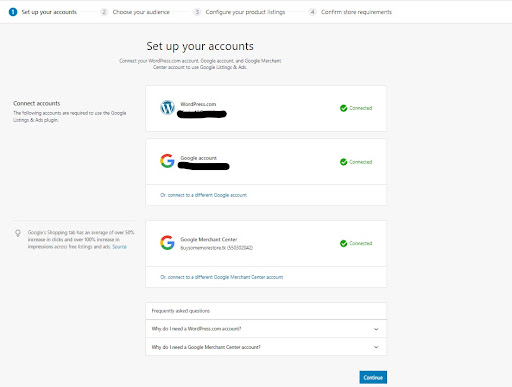
Google Shopping & WooCommerce setup step #1: set up your accounts
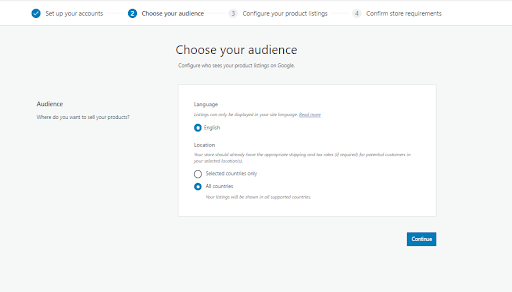
Google Shopping & WooCommerce step #2: choose your audience
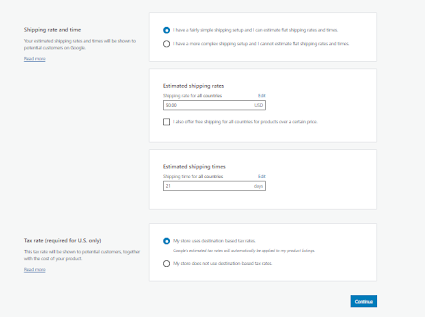
Google Shopping & WooCommerce step #3: configure your product listings
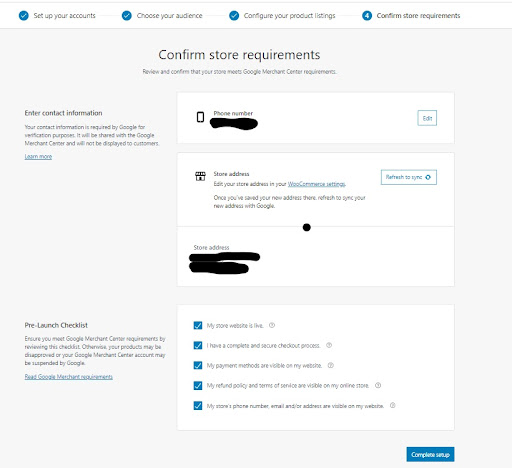
Google Shopping & WooCommerce step #4: confirm store requirements
WooCommerce & the Google Shopping feed
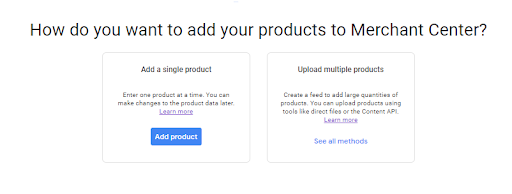
A feed is a file containing a list of the products your store would like to list and advertise. If you’d like to manually create them one by one or import them from the export of your WooCommerce store in CSV or XML formatted files, you’re free to do so! In addition, you can manage the list of attributes for the products and reuse the finished feeds for many other features Google Merchant Center has to offer. Google can even generate feeds for you using schema.org markups.
Your WooCommerce-to-Google Shopping feed is made to fit various types of retailers, so feel free to review and pick the kind that would best suit your needs:
- Primary Feed (recommended) – These are the main sources that ideally contain a complete inventory of your items.
- Supplementary Feed – These are used to update existing product data in Primary feeds.
For more technical users, there are also advanced options:
- Multi-Source Feeds – Build a feed using product data from various sources.
- Google Content API for Shopping – Allows developers to integrate their applications with Google Shopping Ads.
- Regional product inventory feeds – Allows you to override your existing product data in the primary feed to show regional pricing or availability (currently only available in the United States, and beta sign-up in Germany, France, and Australia).
Google Merchant Center interface
The interface is not only very clean and intuitive, but powerful, so even with little to no experience, you’ll have no issues adding products into your feed.
Google Merchant Center – Services to Promote Your Products
WooCommerce & the Google Shopping plugins
You may be thinking that all of this is useful but managing your products on two separate platforms may sound like it’s a bit of a nuisance. Luckily, your Google Shopping-WooCommerce integration setup allows for a complete deep interoperability directly within your WooCommerce Administrator area using plugins! We’ll discuss a few as well as their pros and cons.
Plugin option #1: Google Listings & Ads
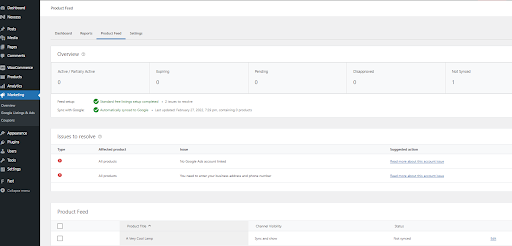
Google Listings & Ads is probably the best plugin out there to use for seamless integration and a variety of options. It allows you to run ad campaigns directly from your WooCommerce Dashboard. The products, once connected, will show up across Google Search, Google Images, and the Google Shopping tab with the free listings option, and in Gmail, YouTube, and the Google Display Network with Paid Campaigns. Want to know how your campaign is doing? The plugin automatically tracks and reports on clicks and impressions for your products. You can also get free customer support from the WooCommerce Plugin Team if you’re stuck.
Description Google Listings & Ads makes it simple to showcase your products to shoppers across Google. Whether you’re brand new to digital advertising or a marketing expert, you can expand your reach and grow your business, for free and with ads. Sync your store with Google to list products for free, run paid ads, and track performance straight from your store dashboard. With Google Listings & Ads: – Connect your store seamlessly with Google Merchant Center. – Reach online shoppers with free listings. – Boost store traffic and sales with Smart Shopping Campaigns.
Google Listings & Ads plugin installation
Log in to your WooCommerce Dashboard, navigate to the Plugins Menu > Add New.
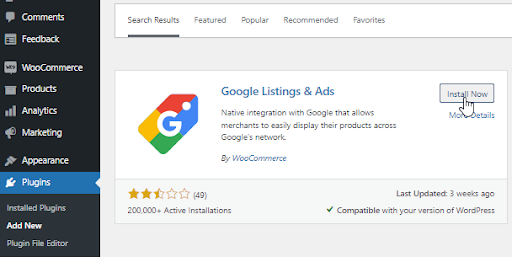
Once installed, you can immediately click on Activate, which will get you back on the plugin list. Next, you can either select Settings from the Plugins listing or navigate to Marketing > Google Listings & Ads. A WordPress.com account, Google Account, and Google Merchant Center Account will need to be linked for the plugin to work. If you run into any issues, the plugin will let you know what needs to be resolved and where to look to have the ads visible and synced with your Google Shopping-WooCommerce
Additional resources
Starting a WooCommerce subscription box service →
Learn how to start a subscription box service with confidence.
How to import WooCommerce products with WP all import →
Discover how to import products quickly to save time and scale your store.
What is managed WooCommerce hosting? →
Choose managed hosting for faster, more reliable store performance.
