WooCommerce Export Orders — DB | Export WooCommerce Settings
Export WooCommerce orders to new sites. Learn to adjust export WooCommerce settings properly. And learn how to export WooCommerce orders from the database here.
Get fast, reliable hosting for WordPress
Power your site with the industry’s fastest, most optimized WordPress hosting
Are WooCommerce Orders Stored in the Database?
Yes, they are stored in the wp_posts table. WooCommerce orders are a Custom Post Type (CPT) so they’re located in the wp_posts table. If you search the post_type field for ‘shop_order’, your SQL query will retrieve all your WooCommerce orders.
How Do You Export a Catalog of Products from WooCommerce?
WooCommerce Admins wishing to export their catalog of products can generate a CSV using the Product Importer/Exporter feature: 1. Navigate to WooCommerce > Products. 2, Select Export. 3. Select to Export All Columns. 4. Select to Export All Products. 5. Select to Export All Categories. 6. Proceed the export.
Exporting Orders from Your Online Store
Nexcess Cloud clients can transfer WooCommerce orders to new sites and export their WooCommerce settings. This article explains how to move your WooCommerce orders in the case where you are migrating them to a new site. Other use cases include:- Providing your order data to third-party dropshipping companies.
- Backing up your order data.
- Analyzing your order data
What You Need
You need the following items to export order data from your online store hosted with Nexcess:- An active Managed WooCommerce or StoreBuilder plan.
- Access to the wp-admin area of your WooCommerce website. If you do not have credentials for it, please get in touch with our Nexcess Support Team via chat, phone, or ticket.
Step #1: Installing the Plugin
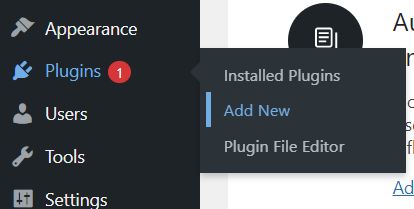
The Advanced Order Export For WooCommerce plugin can be downloaded from its directory at WordPress.org. Once you have downloaded and installed the plugin, log into your wp-admin area using your admin credentials.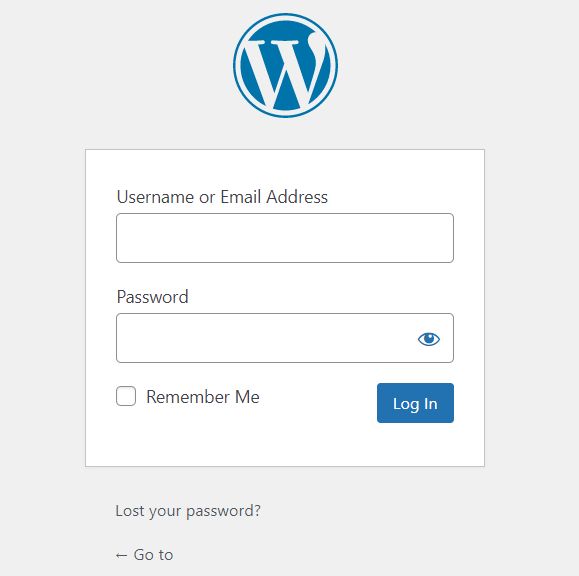
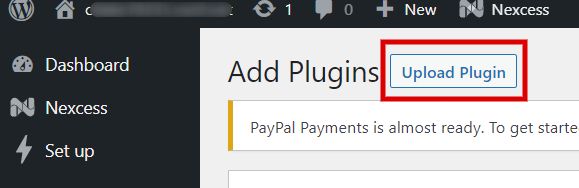
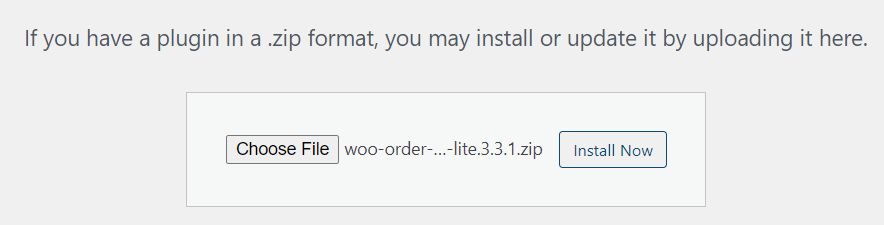
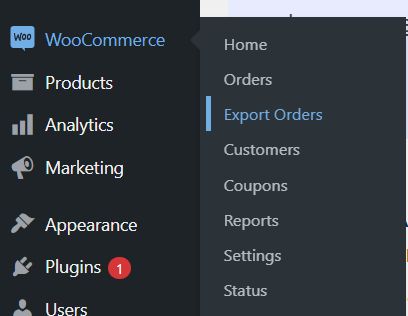
Step #2: Configuring Filters
To migrate WooCommerce orders to a new site, it is necessary to configure all the filters so that the export file does not lack any critical information. On the other hand, some fields can be omitted for convenience. For example, if you are analyzing coupon usage, you might not need data that is not directly associated with it, such as a customer’s phone.Date Filtering
The first filter option by date or date range. Depending on what data you are interested in, you can filter your orders by Order Date, Modification Date, Paid Date, and Completed Date. Additionally, date and orders (Order ID) ranges can be configured to get a more specific list.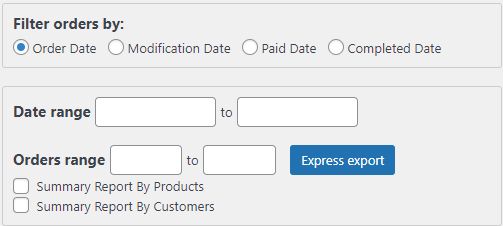
Additional Filtering
Another filtering option this plugin offers is filtering by a specific attribute.Filter by Order
It allows you to include or leave out orders with certain statuses and add custom fields to specify your filtering needs more precisely. If you are to analyze the percentage of refunded orders, check the “Export refunds” box.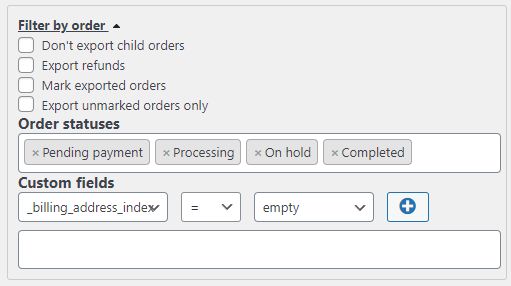
Filter by Product
This filtering option allows you to export orders containing specific products. Alternatively, it is possible to export orders for any product, but with omitting any products you are not interested in. This can be achieved by filling out the “Products” or “Exclude Products” fields, respectively. “Product SKU” (stock keeping unit) is a helpful option if you need to export data for a specific SKU.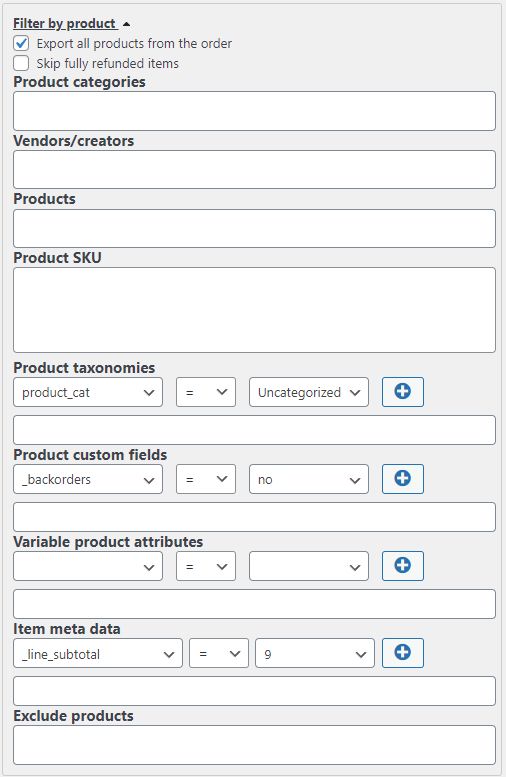
Filter by Customer
Filtering by customer allows you to export WooCommerce orders based on customers’ usernames and roles. It can be useful if you need to check orders made by several selected customers.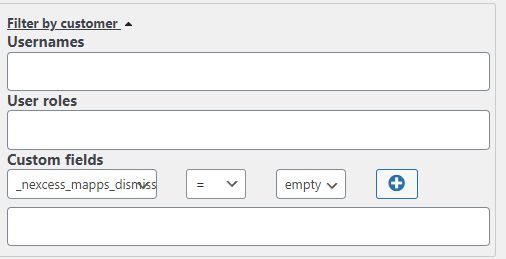
Filter by Coupon
This option allows you to filter your orders based on coupon usage. You can specify if you need data on all the orders made with coupons or if you want to know more about specific coupons. The latter can be helpful if you assess the effectiveness of one of your promos.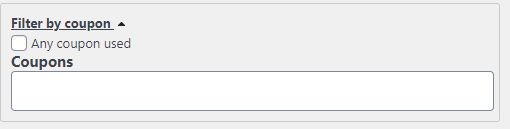
Filter by Billing
Billing filtering allows you to filter your orders based on your customers’ billing information (city, state, postcode, or country). Different payment methods can also be taken into account. This attribute can help you determine the most active customers and most used payment methods. You can use this information to explore the possibility of opening a physical store in that location or finding equivalents for the most used payment methods in case they fail.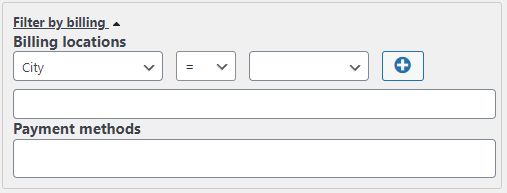
Filter by Shipping
Filtering by shipping can help you analyze the most frequently used shipping locations and methods. Using this information, you can evaluate if better shipping terms can be arranged or if self-pickup points can be established for these locations.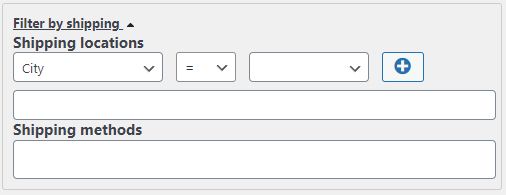
Filter by Item & Metadata
This section contains miscellaneous and some additional filtering options.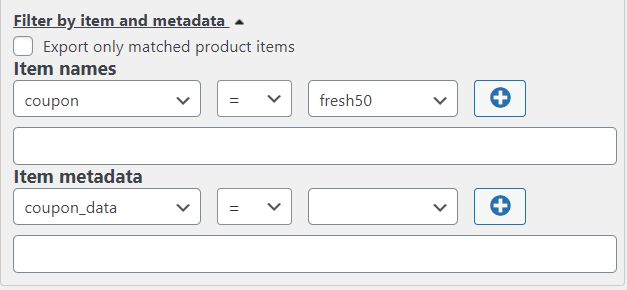
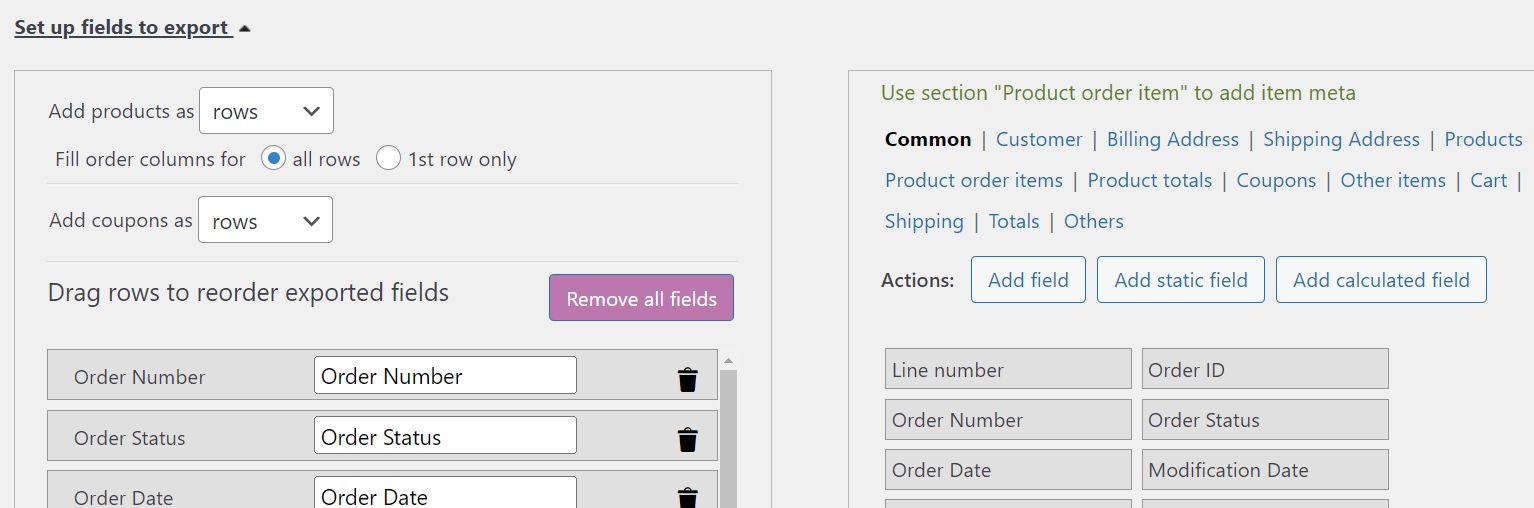
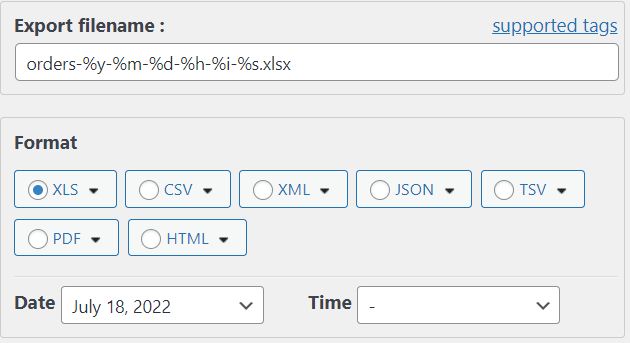
Step #4: Configuring Exporting Options
Finally, the plugin allows you to choose the format for the file and generate a filename based on tags. Default tags are:- %y – current year
- %m – current month
- %d – current day
- %h – current hour
- %i – current minute
- %s – current second
Step #5: Finishing Up
The last step to export your WooCommerce orders is to click the “Export” button, as shown below. Depending on the number of orders being exported, the process may take some time.
Consider Managed Hosting with Nexcess
Explore the best Managed Managed WordPress and Managed WooCommerce Hosting with Nexcess today! The platform was designed with speed, performance, and security in mind. All plans are fully managed 24/7 by the experienced Nexcess Support Team who are always ready to assist you with any questions you may have. On top of that, we offer automatic core and plugin updates, 30-day automatic daily backups, SSL, and an excellent staging environment for you to test any changes before you apply them on your live site. Free migrations included. Check out our plans to get started today.Recent Articles
- Migration Guide: Transfer a Shopify Store to Nexcess | Nexcess
- How to Configure Your GitHub Account with Nexcess | Nexcess
- MariaDB Databases & MariaDB Setup in the Nexcess Cloud | Nexcess
Related Articles
- WooCommerce & Amazon Integration: Listing Products
- Walmart Marketplace Integration & WooCommerce: Listing Products
- Google Shopping & WooCommerce: Listing Products
Additional resources
What is managed WordPress hosting? →
Get details and decide if managed WordPress hosting is right for you.
Must-have web development plugins to create WordPress websites at scale →
Explore the best web development plugins to enhance functionality, improve performance, and streamline your WordPress site.
A complete guide to WordPress shortcodes →
Shortcodes make life easier. Learn how to get started!
