

◦ Comprehensive security
◦ 24/7 support
WordPress Guide → Theme → Child Theme
What is a WordPress Child Theme?

Wondering what a WordPress child theme is? It’s a tool that lets you safely customize your site’s design without losing your changes when your theme updates.
We know that a WordPress theme controls how your site looks. At some point, though, most site owners want to tweak something about their theme, like a CSS change or an added section.
The problem is that any change you make directly to a theme gets wiped out the next time the theme updates. This is where a WordPress child theme comes in. A child theme is a separate theme that sits on top of your main one (called the parent theme). This holds your customizations safely. The parent theme can update without touching your changes, because your changes live in the child theme instead.
So let’s go into WordPress child themes in a little more detail. This guide covers:
- What a WordPress child theme is and how it works.
- When you actually need one, and when you can skip it.
- How child themes work with classic themes vs block themes.
- How to create one using Kadence as the working example.
By the end, you’ll have a clear picture of whether a child theme is right for your site and a starting point for setting one up.
What is a WordPress child theme?

A child theme depends on a parent theme to function. When you activate it on your site, WordPress checks the child theme folder first for the file it needs to load. If the file is there, WordPress uses it. If not, WordPress loads the equivalent file from the parent theme instead.
This setup means you can override specific parts of the parent theme without changing the parent itself.
Some things you might override in a child theme include:
- CSS. You can add custom CSS to the child theme’s style.css to change colors, fonts, spacing, or anything else about how the site looks.
- Template files. You can copy a file like footer.php or single.php from the parent theme into the child theme, then edit your copy of it. WordPress uses your version instead of the parent’s.
- PHP functions. You can add custom functions to the child theme’s functions.php to add menus, hook into WordPress actions, or change how the site behaves.
- theme.json values. For block themes, you can override the parent’s global styles by adding a theme.json file to your child theme with the values you want to change.
How child themes work technically
A child theme is its own folder in your WordPress install at wp-content/themes/. The folder contains at least two files: a style.css file that sets the theme and includes any custom CSS, and a functions.php file that loads the parent theme’s stylesheet and any custom PHP functions.
When WordPress loads a page, it first looks in the child theme’s folder for the file it needs. If the file exists, WordPress uses it. If not, WordPress falls back to the parent theme. This is why a child theme can be very small (just a style.css and a functions.php) and still work. Anything you haven’t overridden comes from the parent.
The one exception to this fallback rule is functions.php. Unlike other files, the child theme’s functions.php loads in addition to the parent theme’s, rather than replacing it. This means you can add functionality to your child theme without losing what the parent theme provides.
When you need a WordPress child theme
A child theme is the right choice in a handful of specific situations.
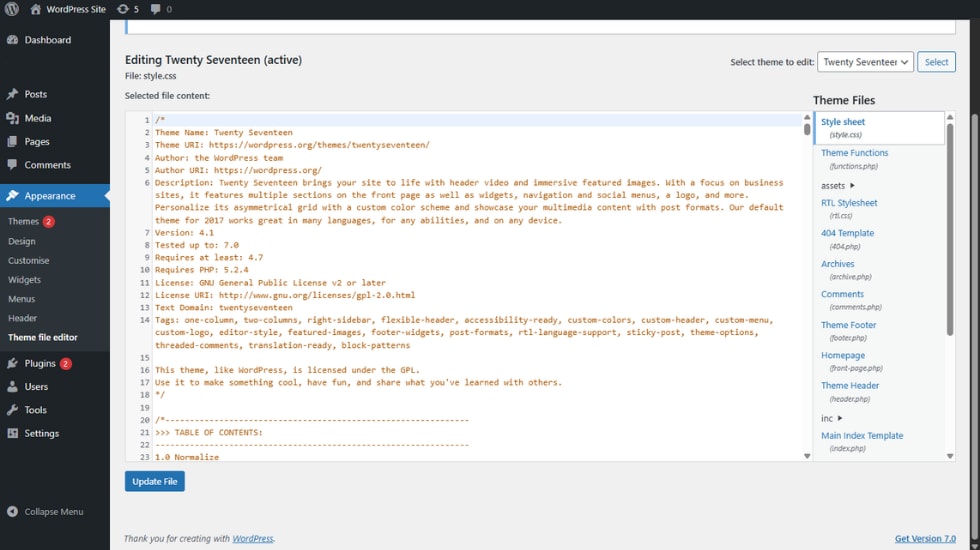
When you’re modifying template files
If you want to change anything in the parent theme’s PHP files (the layout of a single post, the structure of the header, the way archives are displayed), a child theme is the standard way to do it. You copy the file you want to change from the parent theme into the child theme, make your edits, and WordPress will use your version instead.
This is the main reason most developers reach for child themes. Without one, every parent theme update wipes out your work.
When you’re adding custom PHP functions
If you want to register custom menu locations, add image sizes, hook into WordPress actions, or write any custom PHP, the child theme’s functions.php is the right place to put it. The code lives separately from the parent theme and survives updates.
You could put this kind of code in a custom plugin instead, and that’s a valid alternative we’ll cover further down. But for code that’s specifically tied to your theme’s design or behavior, a child theme is often the simpler option.
When you’re making substantial CSS changes
If you’re adding more than a handful of CSS rules (restyling whole sections, adding custom layouts, building out a new design system on top of your parent theme), a child theme makes sense. Putting that much CSS into the theme customizer’s ‘Additional CSS’ box gets unwieldy quickly, and the customizer also has size limits you can hit on bigger projects.
A child theme’s style.css gives you proper structure, version control friendliness (if you use Git), and a clean separation between the parent theme’s styles and your customizations.
When you don’t need a WordPress child theme
A child theme is overkill for plenty of common changes. Here’s when to skip it.
For small CSS changes
If you just want to tweak a few colors, change a font size, or hide an element on certain pages, you don’t necessarily need a child theme.
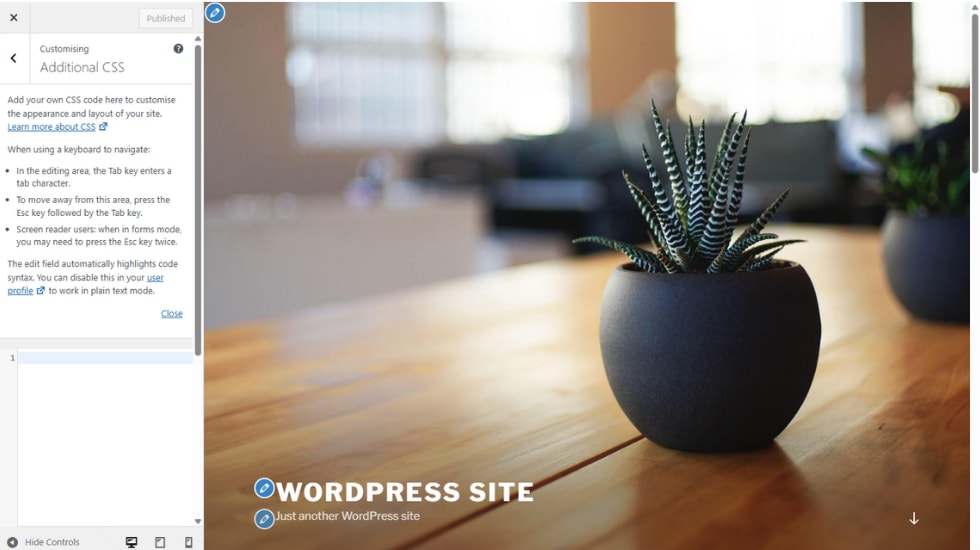
WordPress now gives you a few places to add custom CSS directly:
- The Customizer’s ‘Additional CSS’ box. Found under Appearance > Customize > Additional CSS on classic themes. Good for site-wide tweaks that affect every page.
- The Site Editor’s Styles panel. For block themes, the Site Editor (under Appearance > Editor) lets you add custom CSS through the Styles panel. The CSS you add applies globally, like the customizer’s version.
- Per-block custom CSS. Introduced in WordPress 7.0, you can add custom CSS to a specific block in the block editor through that block’s settings. This is a good fit for one-off styling on a particular section of a page.
All three options save your CSS in the database, so your changes survive theme updates without requiring a separate theme folder.
When you can use your theme’s own settings
Most modern themes, including Kadence, offer extensive customization options through the WordPress dashboard. Colors, typography, layout choices, header and footer structures, and dozens of other settings can be changed without touching any code. Before reaching for a child theme, look at what your parent theme already offers in its settings panel.
When a plugin fits better
For functional changes that aren’t tied to your theme’s design, a custom plugin might be a better choice than a child theme.
Say you want to register a custom post type for testimonials, or add a shortcode that displays your latest tweets, or set up a custom REST API endpoint. None of these are visual changes, so putting them in a child theme means they disappear the moment you switch themes. Putting them in a custom plugin keeps them with you, no matter what theme you’re using.
When you’re using a block theme without much custom work
We’ll cover this in detail in the next section, but block themes often don’t need a child theme for design changes. The Site Editor handles most customization directly, and theme.json gives you global control over styles without writing any CSS.
Child themes and block themes
WordPress has two main types of themes today: classic themes and block themes. Child themes work differently for each, and the difference matters.
Classic themes
Classic themes are the older standard. They use PHP template files (single.php, page.php, header.php, footer.php) and style.css to control your site’s appearance. Most established themes still use this approach, and child themes for classic themes work the way they have for years: override a file in the child theme, and the parent’s version is ignored.
If you’re working with a classic parent theme, the child theme workflow we’ll cover below applies directly.
Block themes
Block themes are like the one used by the current default theme (Twenty Twenty-Five). Instead of PHP templates, block themes use HTML template files alongside a theme.json file that sets global styles.
For block themes, child themes still work, but the approach is different:
- Customize styles through theme.json. A child theme can override the parent’s theme.json with its own values, controlling colors, typography, spacing, and layout globally without writing any CSS.
- Override templates as HTML files. Block theme template files (single.html, page.html, etc.) live in a /templates/ subfolder. To override one, you copy it into the same path in your child theme.
- Template parts override the same way. Header and footer template parts in /parts/ work the same as templates.
For a lot of block theme work, you don’t actually need a child theme at all. The Site Editor lets you customize templates and styles visually, and your changes are saved in the database rather than in theme files. A child theme becomes useful for block themes mainly when you’re building reusable customizations you want to distribute or when you need custom PHP functionality.
How to create a basic WordPress child theme
Setting up a basic child theme takes about five minutes for a classic theme, slightly longer for a block theme. Here’s the high-level process.
Step 1: Create the child theme folder
In your WordPress installation, navigate to wp-content/themes/ over FTP or your hosting provider’s File Manager. Create a new folder for your child theme.
The convention is to use the parent theme’s folder name with -child appended. For Kadence, you’d create a folder called kadence-child.
Step 2: Create the style.css file
Inside your child theme folder, create a file called style.css. At the top of the file, add a comment block that tells WordPress what the theme is and which theme it depends on:
/*
Theme Name: Kadence Child
Theme URI: https://yoursite.com/
Description: Child theme for Kadence
Author: Your Name
Author URI: https://yoursite.com/
Template: kadence
Version: 1.0.0
*/
The two required fields are Theme Name (the name shown in your dashboard) and Template (the exact folder name of the parent theme, which is case-sensitive). Everything below the comment block is custom CSS for your child theme.
Step 3: Create the functions.php file
In the same folder, create a file called functions.php. This is where you load the parent theme’s stylesheet so your site still looks right. The current best practice is to use the wp_enqueue_scripts hook:
<?php
function kadence_child_enqueue_styles() {
    wp_enqueue_style( 'parent-style', get_template_directory_uri() . '/style.css' );
    wp_enqueue_style( 'child-style', get_stylesheet_uri(), array('parent-style'), wp_get_theme()->get('Version') );
}
add_action( 'wp_enqueue_scripts', 'kadence_child_enqueue_styles' );
This loads the parent theme’s stylesheet first, then your child theme’s stylesheet, with the parent declared as a dependency, so the load order is correct.
Note: the old @import url(“../parent-theme/style.css”) method that some older tutorials still recommend is deprecated. According to the official WordPress Theme Handbook, this approach causes performance issues because stylesheets can’t load in parallel. Always use wp_enqueue_style instead.
Step 4: Activate the child theme
Log in to your WordPress dashboard, go to Appearance > Themes, and you should see your child theme listed there. Click Activate.
Your site will now use the child theme, and you can start adding your customizations to the child theme’s style.css and functions.php files.
Step 5: Add your customizations
From here, anything you put in your child theme’s style.css will override the parent’s CSS. Any template files you create in the child theme will be used instead of the parent’s. And anything you add to the child theme’s functions.php will run alongside the parent’s functions.
Using a child theme with Kadence
Kadence is a strong choice for a parent theme because it’s built specifically with extensibility in mind. The theme is lightweight, has extensive customization built into the dashboard, and works equally well as a standalone theme or as a foundation for a child theme.
When to use a child theme with Kadence
For many Kadence users, a child theme isn’t necessary. Kadence Theme’s built-in customizer covers a huge range of design changes without writing any code. Colors, typography, header and footer layouts, page-by-page settings: most of what site owners want to change is already available through the dashboard.
A child theme makes sense for Kadence when you’re:
- Adding custom PHP functions specific to your theme.
- Making substantial CSS changes that go beyond the customizer’s ‘Additional CSS’ panel.
- Overriding Kadence’s template files for a custom layout the theme doesn’t otherwise support.
- Building a child theme to sell or distribute as a starter for other sites.
Kadence’s Child Theme Builder
Kadence offers a Child Theme Builder (included in the Kadence Essentials plan and above) that creates a properly configured child theme with a few clicks. The generated child theme includes the right enqueue setup, the correct theme headers, and a clean structure to start customizing from.

For users who want a child theme with Kadence, the Child Theme Builder handles the boilerplate setup so you can focus on the customizations themselves. The plugin also supports exporting child themes as importable Starter Templates, which is useful if you want to package an entire site design (including customizer settings and demo content) for deployment elsewhere or for sale to other site owners.
Customizing without a child theme
If you don’t need template overrides or custom PHP, the Kadence theme customizer is often a faster way to make changes than a child theme. The customizer covers colors, fonts, header layouts, footer settings, page-specific design choices, and dozens of other options through visual controls in the WordPress dashboard.
For light CSS additions, the ‘Additional CSS’ panel in the customizer (under Appearance > Customize > Additional CSS) is the right place. Your CSS is stored in the database and survives theme updates without needing a child theme at all.
Common questions about WordPress child themes
A parent theme is a complete, standalone WordPress theme like Kadence, Twenty Twenty-Five, or Astra. Any of these can be activated on their own. A child theme is a theme that depends on a parent theme to function. The child theme inherits the parent’s files and lets you override specific files (like style.css, templates, or theme.json) without modifying the parent. When you activate a child theme, your site uses the child theme’s files where they exist and falls back to the parent theme for everything else.
Not always. You need a child theme when you’re modifying the parent theme’s files directly, adding custom PHP, or making substantial CSS changes. You don’t need one for light CSS tweaks (use the customizer’s Additional CSS panel), for functional changes that work better as a plugin, or when your parent theme’s built-in customization options cover what you want to do.
That’s exactly what a child theme is designed for. As long as your customizations live in the child theme (in its style.css, its functions.php, or its template files), updating the parent theme won’t affect them. The parent theme update only replaces the parent’s files; your child theme stays untouched. This is one of the main reasons child themes exist.
Only when you need to override files inside those folders. If the parent theme has its templates in /templates/, and you want to override one of those templates, create a /templates/ folder in your child theme with the file you’re overriding. You don’t need to recreate the entire folder structure. Only create the parts you’re customizing.
Once the child theme is active, you customize it by editing its files directly. Add CSS rules to the child theme’s style.css. Add PHP functions to its functions.php. Copy template files from the parent theme into your child theme to override them. Each change you make in the child theme overrides the parent’s equivalent, and your changes survive parent theme updates.
Get to grips with WordPress child themes
A child theme is one of the most reliable tools WordPress gives you for safe customization. When you’re modifying templates, adding PHP, or making significant CSS changes, a child theme is the right choice. When you’re tweaking a color or adjusting a font size, the customizer is usually faster.
For sites built on Kadence, the Child Theme Builder handles the setup for you when you do need a child theme. For most other customizations, Kadence’s built-in customizer already covers what you want to do.
Additional resources
How to change WordPress themes the right way and avoid potential problems→
We’ll go over some reasons why you may want to switch to a new theme and how to prepare your website. Then, we’ll show you a few ways to change your WordPress theme.
A beginners guide to WordPress custom CSS →
This beginner’s guide to WordPress CSS will give you a walk-through on how to edit CSS in WordPress to help you build a more beautiful, intuitive, and better-performing website.
5 awesome ways to customize a WordPress dashboard→
We’ll go over the importance of WordPress dashboard customization, how to do it, and the common challenges you might face.