◦ Comprehensive security
◦ 24/7 support
WordPress Guide → SEO → Security
WordPress security best practices — WordPress Admin Panel

The WordPress Admin Dashboard Panel serves as your website’s command-and-control center. It’s where you can upload and manage content, add functionality in the form of plugins, modify styling in the form of themes, and so much more. By preventing unauthorized access to the WordPress administration area, you may stop numerous typical security threats.
In this article, you will get an overview of WordPress security and setup along with some of the WordPress security best practices that will help you to secure your WordPress administration login area.
An overview of WordPress security
Every WordPress website should have web security as a constant and continuing concern. Unfortunately, there is always room for improvement, no matter how many measures you have taken. This need is because there is no such thing a website being 100% secure. Additionally, it would be best to always be on alert because hackers are active around the clock.
Please be aware that exploiting vulnerabilities in third-party applications is how hacking, injecting phishing content, or other suspicious activities happen. The best approach to avoiding problems like this is to follow the WordPress security best practices mentioned in this article and keep all of your software updated to avoid any risk of exploitation.
Additionally, you should check to see if any malicious or weak plugins or themes have been installed on your WordPress website. Hackers focus on vulnerabilities such as an outdated Content Management System (CMS), weak passwords, and so on. Regular hacking can be avoided if we can avoid all of these possibilities and follow WordPress security best practices. Unfortunately, because they are constantly looking into ways to attack websites, we cannot predict how or when the hackers will gain access.
About your WordPress security setup
The backbone of your WordPress website is your WordPress administration area. You may access customer information, communicate with visitors, install new plugins, change the code of your website, and much more by logging into your WordPress administration account.
Suppose a hacker gains access to your WordPress administration login area. In that case, they may take valuable client data, install malicious software, lock you out of your own account, or even erase your entire website. Therefore, you must follow WordPress security best practices for your WordPress administration area to help protect your visitors, data, and content.
One key WordPress security best practices you can use to protect your WordPress administration area is to never use the default WordPress Admin Username. Furthermore, you should always set a strong password for your admin account. This important WordPress security best practice along with nine others are documented in the sections that follow.
Due to the fact that the WordPress Admin User and WordPress administration login URL are set to the same value for each installation by default, WordPress is particularly susceptible to brute-force assaults. If you are utilizing these defaults, a hacker simply needs to guess your WordPress administration password.
Best practice #1. Using a more secure WordPress Admin User account
If you are currently using admin as your WordPress administration username, it is strongly advised that you change it. You can create a new WordPress Admin User with a strong password and delete the current WordPress Admin User from your WordPress Administration Panel.
Creating a new WordPress Admin User
To create a new WordPress Admin User, you can follow these steps:
1. From your WordPress Admin Panel, go to Users > All Users.
2. Click the Add New button and fill out the necessary details for the new user:
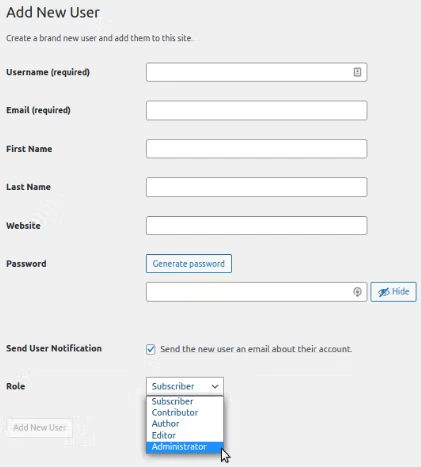
3. Choose the role value of Administrator for the new user’s role in the Role field’s dropdown menu.
4. Once finished, create the user by clicking the Add New User button.
Deleting the old WordPress Admin User
To delete the old WordPress administrator user, you can follow these steps:
1. From your WordPress Admin Panel, go to Users > All Users. You can find the list of users created on this site.
2. Find the old admin username and click the red Delete link:
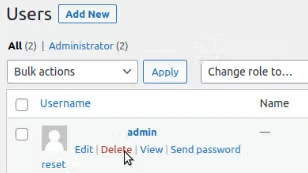
3. You will be prompted to choose what to do with the content created by this admin user on the next screen. Choose the radio button Attribute All Content To and select the username for the new WordPress administrator user from the dropdown menu. If you select the Delete All Content radio button, all of the user’s content and the account will be deleted:
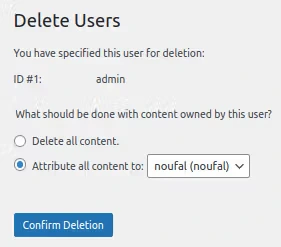
4. Click on the Confirm Deletion button.
Best practice #2. Implementing a secure WordPress administration URL
By default, the URL used to log in to all WordPress websites is your site’s primary administration URL, followed by wp-login.php or wp-admin. So accordingly, you default login URL will be yourdomainname.com/wp-login.php or yourdomainname.com/wp-admin. Hackers now this, and changing this URL will make it more difficult for them to gain access to your website.
Creating a custom login URL using the WPS Hide Login plugin
Using the WPS Hide Login plugin, you may create a custom WordPress administration login URL.
You can follow the below steps to create a custom login URL using the WPS Hide Login plugin:
1. Once installed, go to Settings > WPS Hide Login from the dashboard menu.
2. Add a new URL entry in the Login URL field and set the Redirection URL value if anyone tries to access the wp-login.php or wp-admin page. For example, you can set the Login URL field to private and the Redirection URL field to is set to 404:
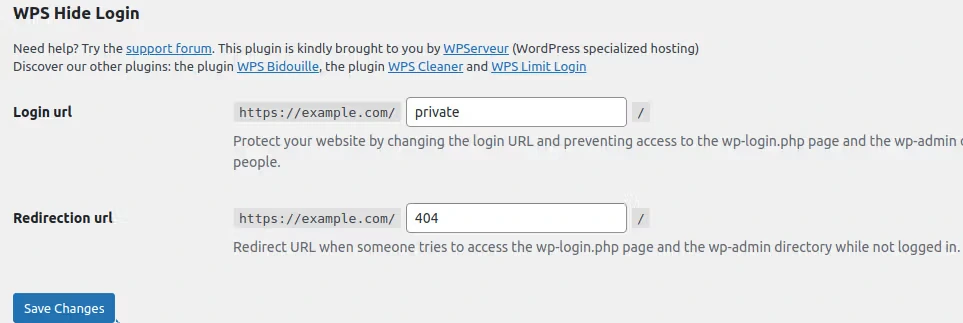
3. Click on Save Changes to save your changes. Your WordPress administration area will now be available solely through this new URL. The login screen will be inaccessible to hackers, even if they have your username and password.
Best practice #3. Using password protection for your wp-admin folder
You can add an extra layer of security to the WordPress administration login page by enabling password protection for the WordPress wp-admin directory. These small security measures will halt any hacking attempt and give you time to block the attack.
To enable password protection for the WordPress wp-admin directory, follow the below steps:
1. Adding the code below to the .htaccess file of wp-admin directory and saving the file will turn on password protection. If there is no .htaccess file, you can create a new .htaccess file under the wp-admin folder and add the following code:
AuthName "Admins Only" AuthUserFile <Document_root>/wp-admin/.htpasswd AuthGroupFile /dev/null AuthType basic require user username
2. You can replace AuthUserFile and require a user as per your requirements.
3. Create a .htpasswd file under the folder wp-admin and add your username and password in the following format and save the file:
username:password
Best practice #4. Setting up Two-Factor Authentication (2FA)
Two-Factor Authentication is one of the most secure methods of protecting your website from hackers. It functions in addition to your existing login and password. Once you’ve entered your credentials, a code is created on a device you own, most likely your smartphone.
You can access the site only after entering this code. You can add it to your WordPress account with the help of a security plugin like Google Authenticator, Duo Two Factor Authentication, Solid Security Pro, etc.
Best practice #5. Limiting the number of login attempts
WordPress does not prevent users who attempt unsuccessfully to log in to their accounts. Therefore, you must restrict access to your administration area and temporarily block the user, or else they will try unsuccessfully to guess the password for your WordPress blog or website many times until successful. Use plugins like Wordfence Security, WP Limit Login Attempts, etc. for to create this limit.
You can access the site only after entering this code. You can add it to your WordPress account with the help of a security plugin like Google Authenticator, Duo Two Factor Authentication, Solid Security Pro, etc.
Best practice #6. Restricting login access to specific IP addresses
You can update the .htaccess file on your website to restrict logins to particular IP addresses if just few users need access to your WordPress administration area. This setup allows you to restrict people from all unknown IP addresses.
1. You can add the following code in the wp-admin/.htaccess file to restrict WordPress Admin Panel access:
AuthUserFile /dev/null AuthGroupFile /dev/null AuthName "WordPress Administration panel Access Control" AuthType Basic <LIMIT GET> order deny,allow deny from all # whitelist IP address allow from xx.xx.xx.xx </LIMIT>
2. Replace xx.xx.xx.xx with your IP address. Users can now access your WordPress administration area only from the IP addresses indicated above.
Best practice #7. Forcing secure protocols be used for login pages and the administration area
There are instances when you need to access your WordPress website via a public network. This scenario is one of the situations in which you may be vulnerable to “Man-in-the-Middle” attacks. Hackers can monitor traffic and gain access to your HTTP request. They can read your WordPress credentials in plain text after accessing your HTTP request as you communicate with WordPress. By using a Transport Layer Security (TLS)/Secure Sockets Layer (SSL) login, this can be avoided. SSL login allows your WordPress website to be accessed through HTTPS.
If your website has an SSL certificate and uses HTTPS, you can follow these steps:
1. Open your wp-config.php file and add the following code to it:
// Use SSL (HTTPS) for the login page. define('FORCE_SSL_LOGIN', true); // Use SSL (HTTPS) for the whole admin area. define('FORCE_SSL_ADMIN', true);
2. The FORCE_SSL_LOGIN constant ensures the login page only loads when HTTPS is enabled. And the constant FORCE_SSL_ADMIN ensured a secure connection in the WordPress admin area.
Best practice #8. Adding other WordPress security plugins, including Solid Security Pro
Many websites add plugins that can augment your web presence with a deeply enhanced WordPress security implementation. In addition to hardening overall security, they include firewall protection, virus scanning, blacklisting and whitelisting of IPs, user activity monitoring, audit logging, and user activity monitoring. Several plugins offer login security, including Wordfence, Solid Security Pro, and All in One Security and Firewall — among others.
Of the list of WordPress security plugins in the previous paragraph, we will take a closer look at the Solid Security Pro plugin (a $140/year value), since it is provided at no extra cost for Liquid Web customers with Managed WordPress and Managed WooCommerce hosting plans.
Best practice #9. Enabling Google reCAPTCHA or other captcha plugins for the WordPress administration login page
Using a CAPTCHA in the WordPress administration section helps limit hacking efforts by preventing automated scripts from brute-forcing or other automated attacks on your WordPress administration login page. Google reCAPTCHA is one of the plugins that can be used to secure the WordPress administration login page. Additionally, you can use captcha plugins like Really Simple CAPTCHA, reCaptcha, etc.
Best practice #10. Update WordPress to the latest version
Maintain the most recent version of WordPress because, after each release, WordPress also releases the problems and exploits from the previous version, putting WordPress administration area at risk if you don’t upgrade.
Getting started with WordPress security best practices
Although the WordPress core software is inherently secure, you and your website users may not always choose strong usernames and passwords. Therefore, you must tighten WordPress security to protect your site from unauthorized access, especially regarding your WordPress Admin Panel.
Liquid Web has been leading the industry in WordPress hosting for decades. And if you select managed WordPress hosting, our team of experts will manage server IT for you — so you can focus on growing your brand.
Click below to explore options or start a chat with one of our WordPress hosting experts now to get answers to your questions and further guidance.
Additional resources
Comprehensive guide to securing WordPress with ModSecurity
→
This guide provides a comprehensive overview of how to use ModSecurity to enhance the security of your WordPress site.
Best Practices: Enabling Automatic Updates in WordPress→
The top two ways to best keep your CMS secure, is to make sure that all themes and plugins are up-to-date. The most preferred method for keeping your sites up-to-date is to enable automatic updates for your themes and plugins.
Why security matters for WordPress enterprise hosting
→
Use the blog as your guide to attacks to watch out for, security best practices, and steps to improve the WordPress protection you already have.

Mohammed Noufal is a B.Tech graduate with a decade of experience in server administration and web hosting. He is a father to two daughters and finds fulfillment in their growth. In his free time, he enjoys blogging, sharing experiences, and listening to music. With a strong technical background, family commitment, and creative outlets, he represents a well-rounded life journey.