

◦ Comprehensive security
◦ 24/7 support
WordPress Guide → Post → vs Pages
WordPress page vs post: what’s the difference?
If you’re new to WordPress, the WordPress page vs post distinction is one of the first things that confuses people, and it stays confusing because the two look almost identical when you’re creating them.
Both have a title, a body, an editor that works the same way, and a publish button. Yet WordPress treats them as different content types in your dashboard, and choosing the right one does matter for how your content gets organized, displayed, and found by search engines.
So, in this guide, we’ll aim to clear up the confusion by walking you through:
- What pages and posts actually are in WordPress.
- The technical differences between them.
- When to use each, with concrete examples.
- How custom post types fit into the picture.
- How the choice affects your SEO.

Get fast, reliable hosting for WordPress
Power your site with the industry’s fastest, most optimized WordPress hosting
What is a WordPress page?
A WordPress page is a piece of static content that lives at a fixed location on your site. Pages are designed for content that doesn’t change often and isn’t part of a chronological feed. Common examples are your home page, your about page, your contact page, and any legal pages like Privacy Policy or Terms of Service.

Pages have a few defining characteristics:
- They’re hierarchical. A page can have a parent page or child pages, which lets you build out a nested structure like Services > Web Design > Ecommerce Stores.
- They don’t show a publication date by default. WordPress stores the date a page was created and modified, but most themes don’t display it.
- They don’t appear in your RSS feed. Pages are excluded from the RSS feed by default since they aren’t chronological content.
- They can use different templates. Most WordPress themes provide multiple page templates (full-width, with sidebar, landing page, etc.) that you can choose from when editing a page.
- They support custom URLs. You have full control over the permalink structure for pages, which is useful for short, memorable URLs.
Pages are best for the parts of your site that act as permanent fixtures. The about page, the homepage, the contact form, the FAQ section: these are evergreen content that visitors will look for, that needs to be findable, and that should look polished without being tied to a publication date.
What is a WordPress post?
A WordPress post is a piece of dynamic, time-based content that’s part of a chronological feed. Posts make up the blog portion of your WordPress site. If you’re publishing news updates, articles, tutorials, or any kind of content that benefits from being organized by date, you’re working with posts.
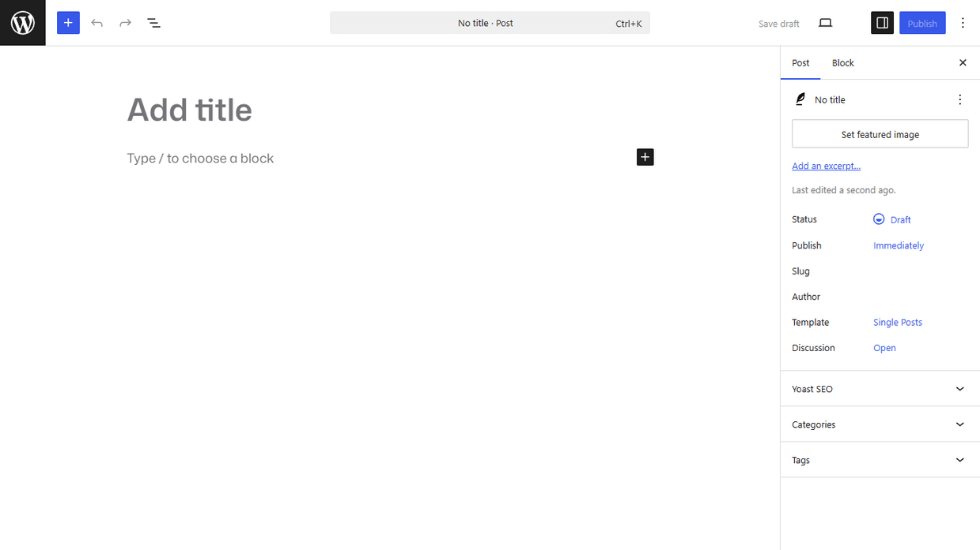
Posts have their own characteristics:
- They’re listed in reverse chronological order. By default, your blog page shows the most recent posts first.
- They can have a visible publication date and author. Both are shown by default on most themes.
- They can be categorized and tagged. This is the main way you organize posts thematically.
- They appear in your RSS feed. Posts are the primary content type for RSS subscribers.
- They support comments by default. Comments can be turned off, but the default is on.
- They can be marked as ‘sticky’. A sticky post stays pinned to the top of the blog feed even as newer posts are published.
- They can have featured images. Most themes use the featured image for blog thumbnails and social sharing previews.
Posts work best for content where time matters. A blog article published this week is different from one published two years ago, and posts let your readers see what’s new while still being able to browse the archive.
WordPress page vs post: at a glance
Here’s a side-by-side comparison of the key features of each.
| Features | Pages | Posts |
|---|---|---|
| Comments | Yes (but not shown) | Yes |
| Author | Yes (but not shown) | Yes |
| Publish Date | Yes (but not shown) | Yes |
| Categories & Tags | No | Yes |
| Archive Ability | No | Yes |
| “Sticky” | No | Yes |
| Post Format | No | Yes |
| RSS Feed | No | Yes |
| Static Pages | Yes | No |
| Custom Ordering | Yes | No |
| Custom URL Structure | Yes | No |
The features themselves give you a clear signal about what each content type was designed for. Pages have hierarchies and templates because they’re meant to be structural. Posts have dates and categories because they’re meant to be discoverable through time and topic.
How to decide which to use: WordPress page vs post?
Most WordPress content fits cleanly into one bucket or the other once you know what to look for. Here are some practical guidelines.
Use a page when
- The content will stay roughly the same for the life of the site (about, contact, FAQ, legal pages).
- The content doesn’t have a publication date that matters (services pages, landing pages, sales pages).
- The content needs a unique design or layout (landing pages, sales pages, portfolio overviews).
- The content sits in your main navigation menu (most navigation items should be pages).
- The content acts as a hub linking to other content (a category overview page or a course homepage).
Use a post when
- The content is time-sensitive or dated (news, announcements, event recaps).
- You plan to publish more content like this over time (blog articles, tutorials, case studies).
- You want to categorize or tag the content (any content that fits into thematic groupings).
- You want the content in your RSS feed for subscribers.
- You want readers to comment and discuss the content.
- The content benefits from being part of an archive (any kind of ongoing series).
When it could go either way
Some content sits awkwardly between the two. A few examples of these include:
- Customer case studies. These could be posts (if you publish them regularly) or pages (if you treat them as portfolio pieces). Either works.
- Product reviews. Same dynamic as case studies. If you publish regularly and want them in an archive, posts. If they’re permanent reference content, pages.
- Resource libraries. Individual resources are often pages (they’re permanent), but the index that lists them all is sometimes a post if you want it categorized alongside related content.
When in doubt, ask yourself: ‘Will I publish more content like this in the future, and would it make sense to see them in a chronological feed?’ If yes, post. If no, page.
What about custom post types?
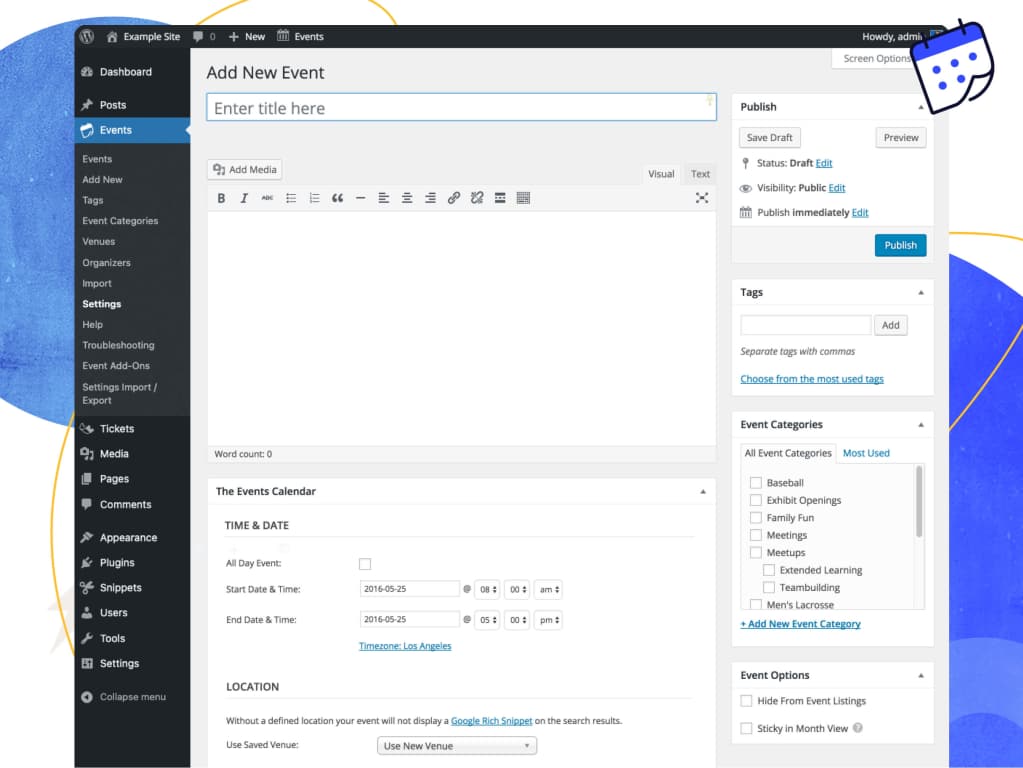
WordPress isn’t limited to just pages and posts. Custom post types let you create new content categories with their own settings, templates, and behavior. Most modern WordPress sites use them extensively for content that doesn’t fit neatly into the default page/post structure.
Common examples include:
- Products (used by WooCommerce for ecommerce stores).
- Events (used by The Events Calendar and similar plugins).
- Portfolio items (used by portfolio themes and plugins).
- Testimonials (used by many business sites).
- Team members or staff profiles.
- Courses or lessons (used by LMS plugins like LearnDash).
Custom post types are usually added by your theme or a plugin, rather than created manually. If you’ve installed WooCommerce, you’ll see a ‘Products’ menu in your WordPress dashboard. If you’ve installed The Events Calendar, you’ll see an ‘Events’ menu. Each of these is a custom post type with its own setup.
You can also create custom post types if you have content that doesn’t fit into pages or posts. The most common scenario is when you have ongoing content that needs a different structure or different visibility settings than blog posts. For example, a recipe site might create a ‘Recipes’ custom post type to handle recipe content separately from the regular blog. A real estate site might create a ‘Listings’ custom post type for property listings.
For most site owners, custom post types come with the plugins you install rather than something you build yourself. But it’s worth knowing they exist because they’re often the right answer for content that doesn’t fit neatly into a page or a post.
How WordPress page vs post affects SEO
The choice between pages and posts affects how WordPress presents your content to search engines, but neither is inherently better for SEO. What matters is matching the format to the content type, since search engines reward content that’s organized in a way that makes sense.
Things to actually pay attention to
A few general principles apply regardless of whether you’re publishing a page or a post.
- Content quality and depth. Search engines prioritize content that genuinely answers the searcher’s question. A 300-word page that doesn’t address the topic well will rank below a 2,000-word post that does, and vice versa.
- Search intent alignment. Different queries match different content types. Informational searches (‘how to fix WordPress error’) usually match posts. Navigational searches (‘Acme Corp about page’) usually match pages. Transactional searches (‘buy WordPress hosting’) usually match pages or product custom post types.
- Internal linking. Both pages and posts benefit from strong internal linking. Posts often link to each other automatically through tags and categories, while pages need manual linking. Don’t skip this. Internal links are among the strongest signals of how content connects on your site.
- Featured images and metadata. Both pages and posts support featured images, meta descriptions, and structured data. Use all of them, regardless of which content type you’re publishing.
When posts work better for SEO
Posts are often the better choice when:
- The content is time-sensitive, and search results benefit from showing a publication date.
- You’re targeting long-tail keywords with a series of related articles.
- The content is part of a topic cluster strategy with categories and tags doing the organizational work.
- You want social sharing and comments to contribute engagement signals.
When pages work better for SEO
Pages are often the better choice when:
- You’re targeting brand-name searches or short-tail commercial keywords.
- The content needs a unique design or layout that’s hard to achieve in a post template.
- The content is part of your main site navigation and should stay there permanently.
- You want full control over the URL structure for cleaner permalinks.
Most well-built WordPress sites use both, with each playing to its strengths. Pages anchor the core navigation and conversion content. Posts handle the ongoing blog and topic-coverage work.
Adding posts to pages
A common question is whether you can mix the two. For example, you might want to display recent blog posts on your homepage or show a category archive on a custom page. The answer is yes, and there are a few ways to do it.
Built-in approaches
WordPress includes several block editor blocks that display posts inside any page or post:
- The Latest Posts block shows a configurable list of your recent posts.
- The Query Loop block gives you more control over which posts to display and how to lay them out.
- The Post Categories and Post Tags blocks display category or tag lists.
To use any of these, edit the page where you want the posts to appear, click the + button to add a block, and search for the block by name. You can then configure how many posts to show, which categories to filter by, and how the layout should look.
Plugin approaches
If you need more control than the default blocks offer, several plugins extend this functionality. Plugins built around showing posts inside pages typically offer features like custom layouts, advanced filtering, and pagination.
Custom development
For very specific layouts, a developer can create a custom page template that includes a custom WordPress loop pulling in the posts you want. This is more work than the block approach but gives you complete flexibility.
For most sites, the built-in blocks (especially the Query Loop block) handle the vast majority of post-on-page scenarios.
FAQs about WordPress page vs post
Common questions about how to use each content type effectively.
No. Categories and tags are post-specific features designed to organize blog content thematically. Pages don’t use them by default, and there’s no real benefit to adding category or tag support to pages through plugins. If you find yourself wanting to categorize a piece of content, that content probably belongs as a post rather than a page.
For most sites, the answer is no. The defaults (pages, posts) plus the custom post types that come with plugins you’ve installed (products, events, etc.) cover almost every content need. Create a custom post type only when you have ongoing content that genuinely doesn’t fit either pages or posts and that you’d benefit from organizing separately. Examples include recipes for a food site, listings for a real estate site, or case studies for a business site that wants them displayed separately from the blog.
The WordPress dashboard doesn’t include a built-in option to convert a page to a post or back again. A few plugins (like Post Type Switcher) handle this conversion safely. The alternative is manual: copy the page content, create a new post, paste the content, set up categories and tags, and redirect the old page URL to the new post URL using a redirect plugin to preserve any backlinks. The redirect is the part you don’t want to skip, since broken URLs cost you SEO equity.
Getting started with WordPress page vs post
WordPress pages and posts cover different jobs, and getting the choice right makes everything downstream easier: navigation, SEO, content organization, and visitor experience. Pages are your site’s structural backbone. Posts are your site’s ongoing content engine. Custom post types handle specific cases that don’t fit the default.
If you’re building a new WordPress site, the practical sequence is usually: set up your core pages first (home, about, contact, services, legal), then start publishing blog posts as part of your content strategy. Custom post types come in later when your needs outgrow the defaults.
For everything else, Liquid Web’s managed WordPress hosting gives you the infrastructure to run a WordPress site without managing servers yourself. If you’d like guidance on structuring your content for SEO and growth, our team is happy to help.
Additional resources
What is WordPress? →
A complete beginner’s guide to WordPress.org
How to improve blog posts so they turn readers into action takers →
Learn how to create high-converting blogs with effective strategies, engaging content, and SEO best practices.
Beginner’s Guide to WordPress themes →
Learn how they work, what to look for, how to choose, and more