◦ Comprehensive security
◦ 24/7 support
WordPress Guide → Post → Custom Post
How to create a custom post template in WordPress

Sometimes you want a post to look and feel completely different from your default design. Maybe it’s a product review, a podcast episode, or a photo story—whatever the case, WordPress gives you the tools to create custom templates that change how individual posts are displayed.
You don’t have to build an entirely new theme or hire a developer. Whether you’re comfortable editing code or prefer using plugins, there are flexible ways to build custom post templates that fit your content.
Get fast, reliable hosting for WordPress
Power your site with the industry’s fastest, most optimized WordPress hosting
What is a WordPress post template?
A WordPress post template is a file that controls how a single blog post is displayed on the front end of your site. It’s separate from the content of your post—it determines layout, style, and what elements show up.
Templates are commonly used when:
- You want certain posts to use a different layout or design.
- You want to show custom fields or unique formatting.
- You want to build reusable designs for posts in specific categories or formats.
These templates are especially helpful when the default single.php file doesn’t fit every type of content you publish.
When to use a custom post template
Use a custom post template when you need a layout that differs significantly from your main post template but don’t want to create a full new post type or theme. For example:
- A category of posts needs a sidebar removed.
- Author interviews need a special header layout.
- You’re showcasing testimonials in a grid format.
It’s ideal for one-off designs or layouts tied to specific categories or tags, and gives you more flexibility without overcomplicating your theme.
Method 1 – Create a reusable, custom, single post template manually
This method involves creating a PHP template file inside your theme folder.
1. Create a new template file in your theme
- Access your WordPress site’s files using FTP or your hosting file manager.
- Navigate to /wp-content/themes/your-theme/ (or your child theme if you’re using one).
- Create a new file and name it something like single-custom.php.
- Open that file and paste in the following code:
<?php

/**

* Template Name: Custom Post Template

* Template Post Type: post

*/

get_header(); ?>

<main id="primary" class="site-main">

    <?php

    while ( have_posts() ) :

        the_post();

        the_content();

    Endwhile;

    ?>

</main>

<?php get_footer(); ?>
This code registers the file as a selectable post template. The comment block at the top (Template Name and Template Post Type) is required for WordPress to recognize it.
2. Customize the layout
Now you can build out the structure using:
- Custom HTML and CSS
- Conditional tags
- Theme functions like get_post_meta() or the_post_thumbnail()
You’re in full control of what displays and how.
3. Assign the template in the WordPress editor
- Open the post you want to apply the template to.
- In the sidebar under “Template,” choose your new template from the dropdown.
- Update or publish the post.
If you don’t see the Template dropdown, make sure you’re using a block-based theme or that your theme supports post templates for the post type.
Method 2 – Use conditional logic inside single.php
For developers who prefer automation over manual assignment, you can use conditionals in single.php to dynamically load different layouts.
Example:
if ( in_category('reviews') ) {
    get_template_part('single', 'review');
} else {
    get_template_part('single', 'default');
}
This tells WordPress to load single-review.php for posts in the “reviews” category. You can base it on tags, post ID, author, or even custom fields.
It’s a good method for bulk rules, but less intuitive for non-dev users.
Method 3 – Create custom templates using a plugin
Not comfortable editing code? There are plugins that let you create and assign custom layouts visually—no PHP required.
Option 1: Block Visibility

Block Visibility plugin helps you show or hide individual blocks based on conditions like user role, post type, category, and more.
Use it to build multiple “versions” of a post layout, all within the same template.
- Install and activate the plugin from your WordPress dashboard.
- Edit the post you want to customize in the Block Editor.
- Add blocks as usual (headers, text, images, etc.).
- Select a block and go to the “Visibility” settings in the sidebar.
- Set conditions like:
- Only show this block on posts in the “Case Studies” category
- Hide this block from logged-out users
- Only show this block on posts in the “Case Studies” category
- Repeat for other blocks to control how the post displays.
While this isn’t a full template system, it’s ideal for granular control when you don’t want to write code or manage separate files.
Option 2: Custom Layouts – Post + Product Grids Made Easy
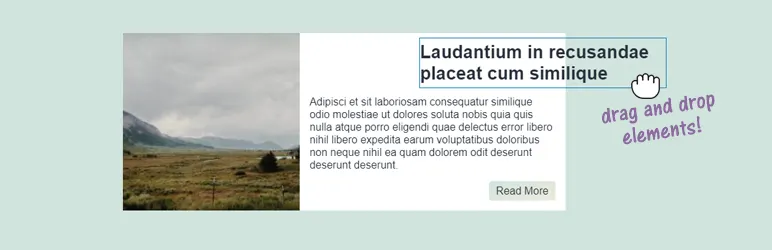
Custom Layouts lets you design custom layouts for displaying multiple posts—great for category archives, featured sections, or even replacing your blog page.
- Install and activate the plugin.
- Go to “Custom Layouts” in your dashboard menu and click Add New.
- Choose whether you’re building a layout for posts, products, or another post type.
- Use the block editor or shortcodes to customize the layout.
- Include titles, thumbnails, excerpts, custom fields, and more.
- Choose grid, list, or custom flexbox layout options.
- Include titles, thumbnails, excerpts, custom fields, and more.
- Assign your layout to:
- Specific categories
- Custom taxonomies
- Pages or templates
- Specific categories
You can then insert these layouts using the Custom Layouts block or shortcode anywhere on your site.
This method is especially useful if your goal is to display groups of posts with a custom look—like a portfolio, testimonial wall, or team directory.
Working with block themes and full site editing
If your site uses a block-based theme (like Twenty Twenty-Four), you can build post templates right inside the Site Editor.
- Go to Appearance → Editor.
- Click the template dropdown and select Add New Template → Single.
- Choose the post or condition you want to customize (e.g. a specific post or category).
- Use blocks to design your layout.
- Save and publish.
Block themes make this process visual, but they’re not as flexible as PHP-based templates for developers. Consider hybrid approaches if you need both power and ease.
Tips for better template design
- Use consistent class names to keep styles manageable. Naming your CSS classes consistently (e.g. custom-post-header, custom-post-meta, etc.) helps you target elements easily across different templates and avoid confusion. It also makes your stylesheet easier to navigate, especially if you’re collaborating with others or plan to reuse styles.
- Leverage reusable blocks for content repeated across templates. If you’re using the Block Editor, reusable blocks let you create a section (like a disclaimer, call-to-action, or author bio) once and place it in multiple templates. Any edits you make to the reusable block update everywhere it’s used—great for saving time and avoiding inconsistencies.
- Use Advanced Custom Fields (ACF) or get_post_meta() to dynamically display extra data. If you want to include unique information for certain post types—like ratings, dates, or extra descriptions—custom fields are the way to go. ACF makes it easy to create these fields through the admin dashboard. Then, you can display the values in your custom template using the_field() or get_post_meta() in your theme.
- Test across screen sizes for responsive design. A layout that looks great on desktop might break on tablets or phones. Use your browser’s responsive view (in dev tools) to preview how your custom template performs on different screen sizes. Keep layouts flexible by using percentage widths, flexbox, or grid instead of fixed pixels.
- Preview templates on multiple posts before going live. Even if your new template looks perfect on one post, small layout issues can pop up with longer titles, missing thumbnails, or odd content blocks. Test it with several real posts from your site—including ones with edge cases—so you can catch layout bugs before publishing it site-wide.
Troubleshooting custom templates
- Template not showing up? Check that the file is in your active theme folder and that the comment block is correct.
- Dropdown missing in the editor? Your theme might not support Template Post Type: post.
- Nothing changes on the front end? Clear any caching plugins or browser cache.
- Using a child theme? Make sure the template is placed in the child theme’s root folder, not the parent.
Next steps for creating custom post templates
Custom post templates let you shape how content is displayed without redesigning your whole site. They’re perfect for building a polished, professional layout for interviews, portfolios, reviews, and more.
If you’re comfortable with code, use PHP templates and the WordPress template hierarchy. If you’d rather stay in the dashboard, plugins like Block Visibility and Custom Layouts make it easy to control layout without touching code.
Ready to upgrade your WordPress experience? Professional hosting improves speeds, security, and reliability for a website and a brand that people find engaging and trustworthy.
Don’t want to deal with server management and maintenance? Our fully managed hosting for WordPress is the best in the industry. Our team are not only server IT experts, but WordPress hosting experts as well. Your server couldn’t be in better hands.
Click through below to explore all of our hosting for WordPress options, or chat with a WordPress expert right now to get answers and advice.
Additional resources
What is WordPress? →
A complete beginner’s guide to WordPress.org
How to add WordPress related posts →
Discover how to display related posts in WordPress to boost engagement and improve user experience.
Beginner’s Guide to WordPress themes →
Learn how they work, what to look for, how to choose, and more