◦ Comprehensive security
◦ 24/7 support
WordPress Guide → Post → Blog Layout
13 WordPress blog layout techniques for better engagement
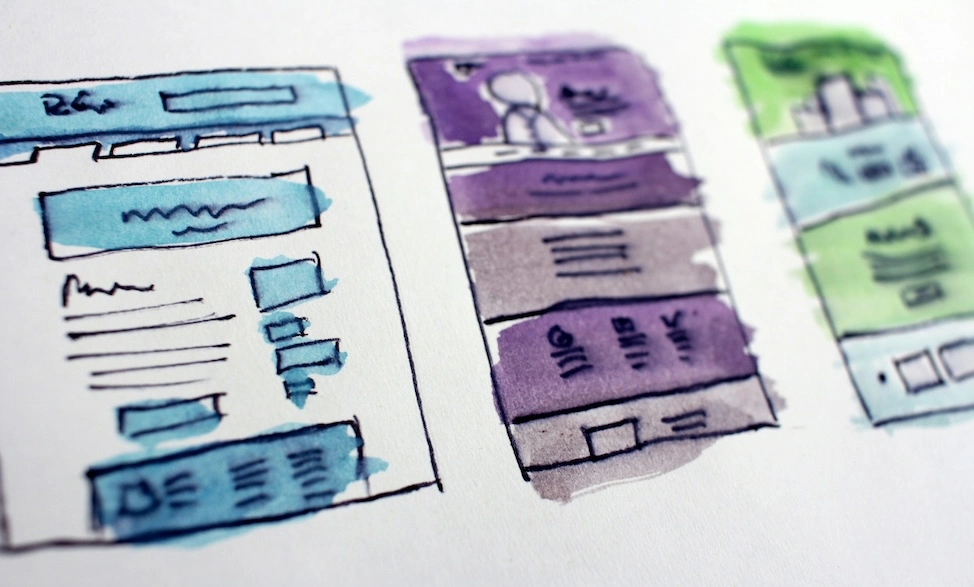
Design matters, especially when it comes to your WordPress blog layout.
A WordPress blog layout is the visual arrangement and structure of blog elements, including posts, sidebars, headers, footers, and navigation menus. You can create and publish the best blog content in the world, but if your blog is difficult to read and looks amateurish, your readers will leave and never come back.
With more than 36 million WordPress blogs on the internet, your blog must stand out — and that starts with good layout design and a pleasant user experience (UX).
Let’s take an in-depth look at why good WordPress blog layouts matter. We’ll also give you 13 tips on how to change your blog post layout in WordPress for the better.
Get fast, reliable hosting for WordPress
Power your site with the industry’s fastest, most optimized WordPress hosting
Why does your WordPress blog layout matter?
Design may not seem like a big deal when launching your new WordPress blog, but starting with the right blog post layout design can dramatically increase your chances of success.
Humans are naturally visual creatures, which means we rely on visual cues for both basic and complex adaptive behaviors.
When the visual cues of your blog layout are unclear, cluttered, or inconsistent, users will have a difficult time navigating it. A well-design blog post layout has the opposite effect, offering three key benefits:
- Improve UX: A good blog post layout makes it easy for visitors to enjoy your blog. Good UX design should be almost invisible, inviting your visitors to focus on your words instead of struggling to understand your layout.
- Keep visitors on your blog: A poor WordPress blog page layout will drive visitors away. If your blog is difficult to navigate or read, visitors will simply leave. A well-designed blog will increase your users’ average time on site.
- Increase chances of a conversion: Whether a conversion means purchasing a product or service, clicking on an ad, or signing up for your newsletter, your blog readers will be more likely to act if they enjoy being on your blog. A good blog post layout will keep readers interested and engaged. Happy readers will be glad to buy your products, sign up for more information, or support your cause.
Types of WordPress blog layouts
Understanding different blog layout options helps you choose the right structure for your content and audience. WordPress offers several popular layout styles, each serving different purposes.
A grid layout displays blog posts in a grid format with multiple columns, making it perfect for visual-heavy blogs or portfolios.
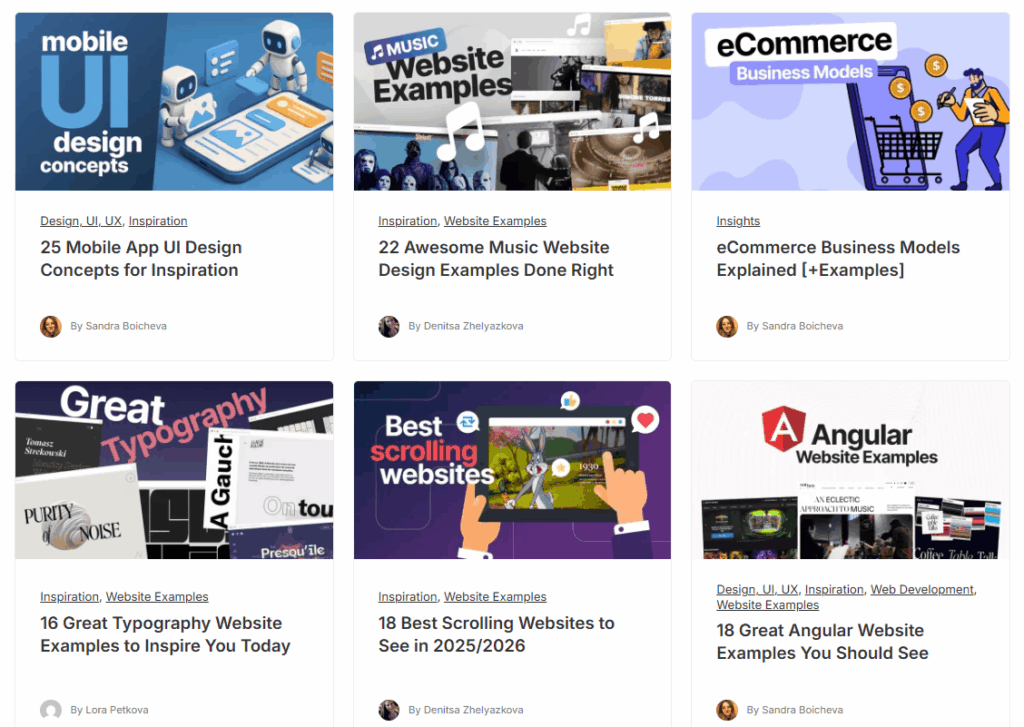
A list layout presents posts in a vertical list with featured images and excerpts, providing a traditional blog reading experience that works well for text-focused content.
Magazine layouts feature a hero section for important articles and various content sections, ideal for news sites or blogs with diverse content categories.
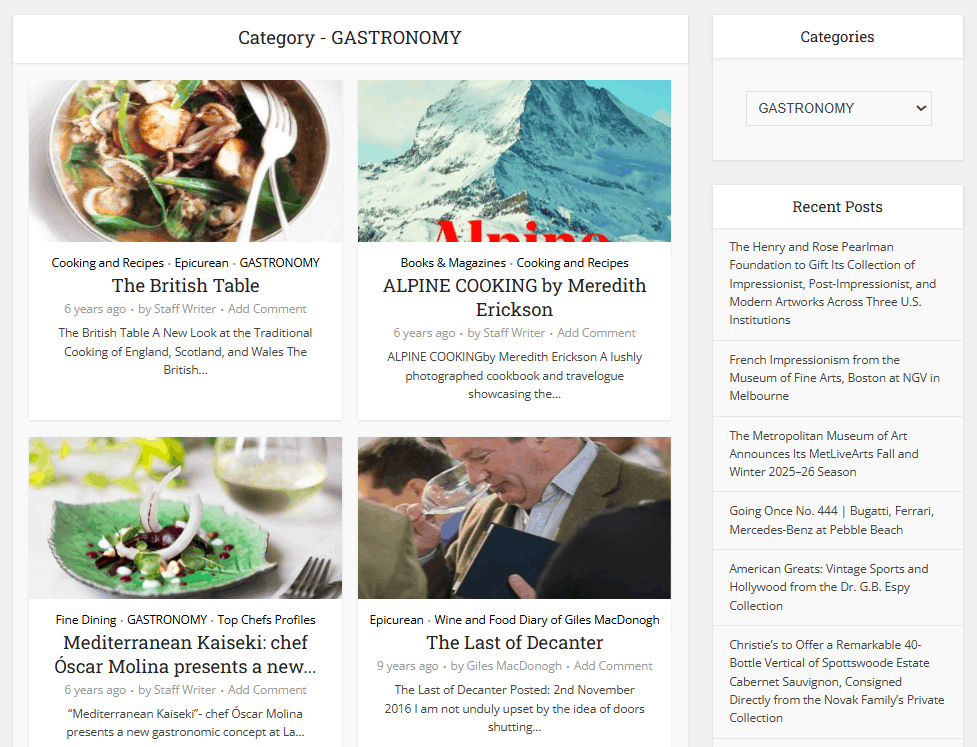
A masonry layout uses varying heights for posts to create a dynamic arrangement, similar to Pinterest’s design.
For those preferring simplicity, a minimalist layout focuses on ample white space and clean typography.
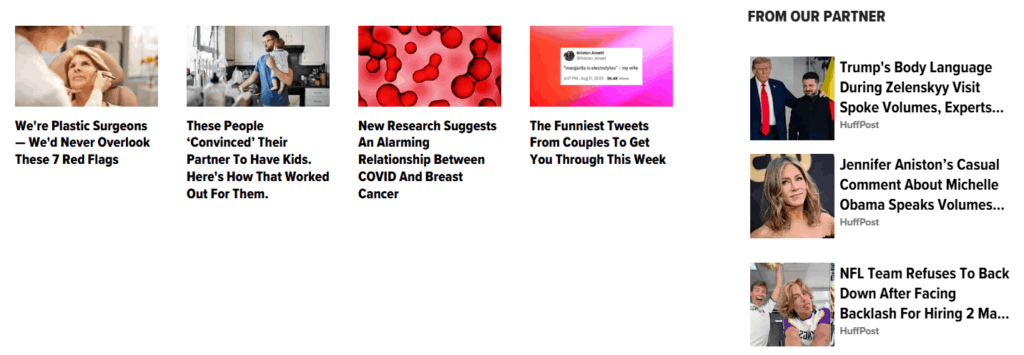
A single-column layout centers content for focused reading, while a sidebar layout includes additional content alongside main posts, offering readers supplementary navigation and information.
Key elements of a WordPress blog layout
Every WordPress blog layout consists of four fundamental components that work together to create a cohesive user experience. The header serves as your blog’s navigation hub, containing your logo, navigation menu, and search functionality to help visitors find what they need. Below that, the content area displays your blog posts, featured images, and main content – this is where readers spend most of their time.
Many layouts include a sidebar that houses widgets, categories, archives, and supplementary information, providing additional navigation options and context. Finally, the footer anchors your layout at the bottom, including contact details, copyright information, and additional links. These elements form the structural foundation of any WordPress blog, regardless of which layout style you choose.
How to make a blog layout in WordPress
Creating a blog layout in WordPress is straightforward and doesn’t require coding knowledge. Start by choosing a WordPress theme with your desired layout – whether that’s a grid, list, magazine, or minimalist style. Free and premium themes offer different layout options, so browse through several before deciding.
Navigate to Appearance > Themes in your dashboard to access the theme library. Here you can browse installed themes or add new ones from the WordPress repository. Preview and activate your chosen theme by hovering over it and selecting the respective buttons. This immediately applies the theme’s default layout to your blog.
For customization of themes, go to Appearance > Customize to access the WordPress Customizer. Most themes offer layout settings where you can select your layout options, such as sidebar position (left, right, or no sidebar) and display format (grid vs. list). Experiment with different configurations using the live preview. Once satisfied, save your changes to make them permanent.
13 tips to improve your WordPress blog layout
Before putting in all the time, effort, and resources it takes to start a great WordPress blog, give it the best chance possible to succeed. Here are 13 powerful tips to improve your WordPress blog layout.
Note: WordPress makes it easy to update and redesign your blog. If you aren’t sure how to change a blog layout in WordPress, we’ll provide helpful resources at the end of each tip.
1. Choose the right WordPress blog templates
WordPress blog templates are pre-designed layouts that determine the structure and visual arrangement of your blog. The WordPress blog theme you use will significantly influence the look and feel of your blog. WordPress offers over 31,000 themes, including 9,000 free themes for bloggers on a budget.
Look for WordPress templates designed for blogs and with a layout that is easy to navigate. Choose simplicity over an overly busy or confusing template.
Remember, you can always add elements back in as you build your site. Block themes support Full Site Editor (FSE) for complete layout control.
WordPress suggests choosing a blog template that features:
- High-performance
- Responsiveness
- Adjustability
- Accessibility
- Design and updates support
- Positive reviews
Choose responsive themes that adapt to all screen sizes for optimal mobile experience. Not sure where to start? Check out Kadence.
2. Choose the right colors for your blog
Colors play a huge role in how people feel about your blog. For example, humans associate warm colors with passion, comfort, and anger, while cool colors create feelings of calmness, serenity, and sadness.
Look for colors that match the theme and character of your blog. For example, a high-fashion blog may include the color black in their layout, as people sometimes associate black with feeling of luxury or elegance.
On the other hand, a hiking blog may include hues of green and brown in its layout, which are reminiscent of natural earth tones.
It’s a good idea to change the color palette at the template level of your WordPress blog, so you won’t have to change it every time you create a new blog post.
Here’s how to customize your theme’s colors.
3. Choose the right fonts for your blog
When it comes to choosing a font for your blog, simple is better. It may be tempting to try to stand out with a frilly or wacky font, but your priority should always be clarity.
A stylized font may be appropriate for your logo or header, but users can have a difficult time reading them as body text.
Instead, choose a sans-serif font for your body text, such as:
- Arial
- Verdana
- Open Sans
- Roboto
- Lato
- PT Sans
- Montserrat
- Raleway
Here’s how to set the fonts of your WP theme.
4. Add a navigation menu
A navigation menu is a collection of links that helps visitors browse different sections of your blog. Having one at the top of your blog makes it easy for your visitors to find what they’re looking for on your website. Most WordPress blog templates make it easy for you to create a menu.
You might want to add sections, such as:
- Home
- Blog
- About Us
- Products/Services
- Portfolio
- Resources
- Contact Us
A sticky navigation menu remains fixed at the top of the screen while users scroll, sometimes called a “sticky header”. You’ve probably seen a sticky header on many of your favorite websites.
Some WordPress templates automatically create a sticky navigation menu, but if yours doesn’t, you can create your own.
5. Add sidebars to your blog
Sidebars are vertical columns alongside main content that display additional information and navigation options. Well-designed WordPress blog layouts give visitors options for navigating a site. One way to do that is through sidebars.
Through a sidebar on your blog, you can:
- List your most popular blog posts.
- List your most recent blog posts.
- Show recent social media posts.
- Include recommended products related to a post.
- List blog categories.
- Show relevant ads.
Here’s how to add a sidebar to your WordPress blog.
6. Use headings and subheadings in your blogs
Headings and subheadings are structural elements that break content into scannable sections and establish clear information hierarchy. No one likes to look at a huge block of uninterrupted text, and internet users are famous for their habit of scanning content.
Have you noticed how this blog uses headings and subheadings to keep content short and concise?
Whenever you move to a different topic or subtopic within your content, consider adding a new heading (for main topics) and subheadings (for sub-topics).
Here’s an example header structure that could help break up your blog copy and establish information hierarchy. The “H” in each header tag below stands for “heading element.”
- H1: Title
- H2s: Main topics
- H3s: Sub-topics of main topics
- H4s: Subtopics of subtopics
It’s important to note that blog content is rarely in-depth enough to warrant header tags beyond H4s. Try to keep your blog header structure between H1 to H4 to maintain proper formatting.
See how to create headings and subheadings in your WordPress blog.
7. Add main feature images
A featured image is the primary visual associated with a blog post that appears in previews, social shares, and alongside the post title. Humans are highly visual creatures. The right image can captivate visitors and draw them into your blog.
WordPress gives you the ability to link a featured image to your blog post. This image will show with the title of your blog post on your home page or when you share links to your social media channels and on other sites.
You should (nearly) always use a main featured image with each new blog post.
Choose your images carefully. A boring or generic stock image won’t impress your readers. Consider a unique and well-designed stock image or a high-resolution picture you took (especially if you are the subject of your blog).
Another newer option to explore is AI-generated images. AI image generators are coming into their own and offer you nearly limitless options when it comes to image topics, designs, and artistic styles.
Here’s how to add a featured image to your WordPress blog.
8. Add more images
Don’t just stop with adding a featured image to your blog post. Include images throughout your post. These visual cues will help break up your content and add captivating visual elements to your post.
Since humans process images faster than text, images can help readers understand your content more easily.
A good rule of thumb is to try to add an image every 350 words, but be sure to incorporate as many visuals as you need to relay your information clearly.
Learn how to add images to your WordPress blog.
9. Write short paragraphs
You don’t want your blog post to feel like a novel. Instead, make your content inviting with short paragraphs and succinctly capture each idea you want to convey.
How short should your paragraphs be?
Ann Wylie, president of Wylie Communications, analyzed The New York Times and found that the average paragraph in the paper’s news stories contained 2.4 sentences and 36 words.
As Ann wrote in her article, “Hey, if it works for the Times, it works for me.”
You don’t have to stick to these numbers like glue.
After all, you don’t want your paragraphs to look identical. Use this research as a rule of thumb and try to hit the averages more often than not.
10. Add internal links to your posts
Internal links are hyperlinks that connect related content within your website, helping readers discover more relevant posts and increasing time on site. Chances are that, if you write your blog on a particular topic, several of your posts will overlap in some capacity.
If your visitors read a specific blog post, they’ll probably be interested in what else you’ve written about on that topic.
Don’t be afraid to link to other blog posts or pages on your website that naturally fit together, but be sure to incorporate these links naturally.
The anchor text you attach links to must be clear, concise, and let the reader know where they will land if they click on the link.
For example, if you are writing a review of a pair of boots for your fashion blog, consider linking to other articles you’ve written about boots.
Your readers will appreciate more of your insights, and you’ll keep them on your blog longer.
Here’s how to add an internal link to your WP posts.
11. Incorporate social media into your blog
Social media embeds are integrated posts from platforms like Instagram, Twitter, and TikTok that add visual variety and connect your blog to social channels. A great way to grow your social media audience is to connect your social media posts to relevant blog posts.
Many WordPress templates allow you to insert Tweets, Facebook posts, Instagram Posts, and TikToks.
Are you writing a blog post on how to build decks? If you’ve recently posted pictures on Instagram of your latest deck-building project, add those to your blog.
Readers will enjoy the visual aspect of the images and you’ll have another way to break up your content.
Best of all, your readers might migrate to your social media channels.
Learn how to embed your social media posts into your blog.
12. Add visual elements to your blog
Images aren’t the only way to break up the content blocks of a blog post. Adding other visual elements to your post can make your blog easier to scan and more enjoyable for your readers.
Just a few examples include:
- Bulleted lists
- Pull quotes
- Colored boxes
Bulleted lists make it easier for readers to understand and scan the main points of a topic, especially when you’re listing out three or more related things. Pull quotes can help you highlight your best and snappiest points. Boxes are another way to highlight an important point. You can also use boxes to add an aside or to quickly summarize a section of a longer blog.
Here’s what you need to know about adding a bulleted list, pull quote, or a feature box to your WP blog. You might also want to explore custom CSS for advanced styling options.
13. Add Gravatars to your blog
Globally Recognized Avatars (Gravatars) are the images that represent you, other writers on your blog, or commenters. If you don’t enable this feature, the default Gravatar is a bland, gray image. Spice up your blog by adding a fun and recognizable Gravatar for yourself and your other writers and give your commenters the ability to create their own Gravatars.
How does this improve your WordPress blog layout? Gravatars personalize your blog. They also help readers connect specific posts with their authors. Anything that helps build a relationship between you and your readers is a good thing.
How to change your WordPress blog layout
Changing your existing WordPress blog layout is simple and can dramatically improve your site’s appearance and functionality. Start by accessing Appearance > Customize in your WordPress dashboard to open the live customizer, where you can make changes while seeing them in real-time.
Look for Layout or Blog settings in the customizer menu – the exact name varies by theme. Some themes label this as “Blog Options” or “Archive Settings.” Once located, you’ll find various layout choices. Choose between grid, list, or masonry layouts depending on your content style and preferences. Grid layouts work well for image-heavy content, while list layouts suit traditional blog posts.
You can also adjust sidebar position, choosing left, right, or removing it entirely for a full-width layout. The customizer lets you preview changes before publishing, ensuring everything looks perfect. Experiment with different configurations to find what works best. When satisfied with your new layout, click “Save and Publish” to make the changes live.
What is the best layout for a blog?
The best blog layout depends on your content type and audience – there’s no one-size-fits-all solution. Understanding your blog’s purpose and your readers’ preferences will guide you to the optimal choice.
Magazine layouts work well for news and media sites that publish diverse content frequently. These layouts highlight featured stories while organizing various categories, making them perfect for high-volume publishers covering multiple topics. Minimalist layouts suit personal blogs and long-form content where readers come for in-depth articles. The clean design removes distractions, keeping focus on your writing.
Grid layouts are ideal for visual content like photography, fashion, or food blogs. They showcase images prominently while maintaining an organized structure. List layouts work best for traditional blogs with varied post lengths, offering a familiar reading experience that readers immediately understand. They’re particularly effective for tutorial sites, business blogs, or any content where excerpts help readers decide what to read. Consider your content’s nature and your audience’s browsing habits when making your selection.
Getting started with blog layout
A well-designed WordPress blog layout enhances readability and user engagement. These 13 tips on improving your WordPress blog layout will help you start your blog on a sturdy foundation.
When you’re ready for professional hosting, Liquid Web can help. Our WordPress hosting options configure business-class servers and support plans specifically for WordPress websites.
Click through below to explore all of our WordPress hosting options, or chat with a WordPress expert right now to get answers and advice.
Additional resources
What is WordPress? →
A complete beginner’s guide to WordPress.org
WordPress pages vs posts →
Learn the key differences between WordPress posts and pages to structure your website effectively.
Beginner’s Guide to WordPress themes →
Learn how they work, what to look for, how to choose, and more