

How to use the TranslatePress plugin on your site

Setting up multi-language support on a website can be a complex project. Learn how to use the TranslatePress plugin, one of the easiest options for multi-language support on a WordPress website.
Get fast, reliable hosting for WordPress
Power your site with the industry’s fastest, most optimized WordPress hosting
Using TranslatePress plugin
Setting up multi-language support on a site can be a complex project. One of the easiest options for multi-language support on a WordPress site is the TranslatePress plugin.
After you have installed and activated the plugin, it will add a new settings admin item. The free version of TranslatePress includes support for up to two languages — the base default language of the site and the other language version.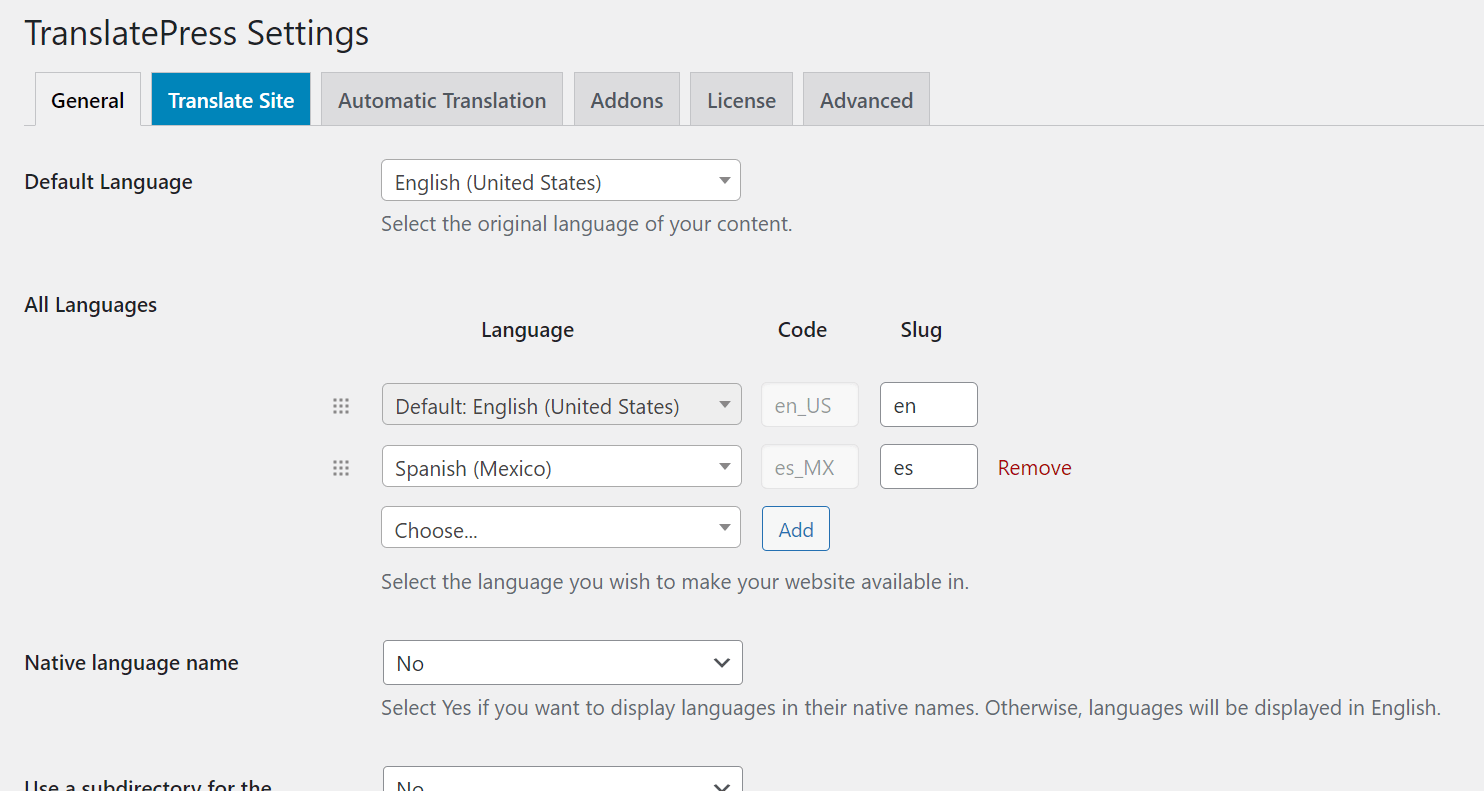
TranslatePress will work with WooCommerce, Elementor, and Beaver Builder plugins and a number of other plugins.
To use TranslatePress is very intuitive. Go to the page or post that you wish to translate and then select the string that you want to add the translation to and then save that change.
TranslatePress includes a language switcher for selection of the other language versions, either in the widget from a shortcode, in the menu, or as a floating language selection
If you do not want to manually add all of the secondary language translations you can use two of the automatic language translations using either Google Translate or DeepL APIs.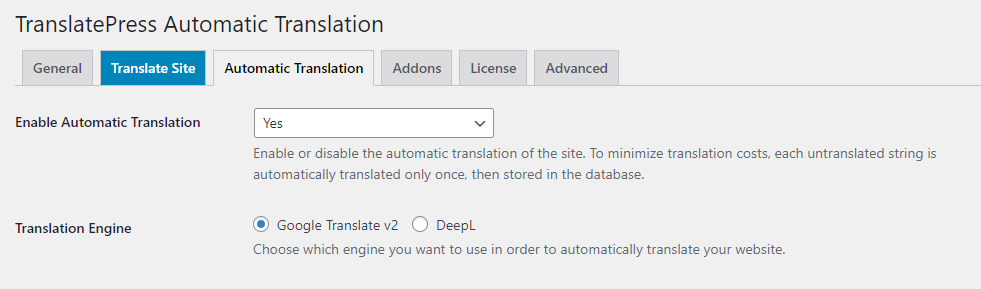
TranslatePress does not cause performance problems like certain other multilanguage plugins and the free version includes all of the features to get started on your site.
For 24-hour assistance any day of the year, contact our support team by email or through your Client Portal.
Additional resources
How to send reliable emails →
Find WordPress transactional email plugins to help keep store messages reliable.
How to configure the Restrict Content Pro plugin →
Discover Restrict Content Pro for memberships and gated WordPress content.
5 best seo plugins for WordPress →
Learn how to change WordPress SEO plugins while protecting rankings.
