◦ Comprehensive security
◦ 24/7 support
WordPress Guide → Pages → Restore Deleted Post or Page
How to restore a deleted page or post in WordPress

To err is human. Creating a post or a page on your WordPress site can take hours, but mere seconds are needed to delete them.
However, chances are they are not lost forever, and there are possibilities to restore your WordPress pages and posts if you accidentally delete them.
This article covers how to restore a WordPress page or post through a number of methods.
Get fast, reliable hosting for WordPress
Power your site with the industry’s fastest, most optimized WordPress hosting
Restoring WordPress pages and posts
1. Recover WordPress posts and pages from trash
If you accidentally delete a post or page, it goes to the Trash folder, which works as a Recycle Bin on the computer.
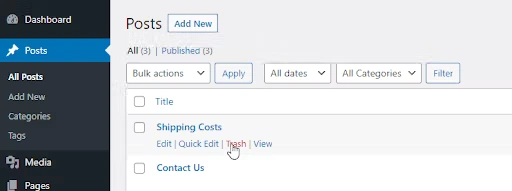
By default, WordPress keeps deleted items for 30 days, but this value can be changed in the Settings > General area, if you want to store deleted items longer.
To restore a deleted page or post, you need to navigate to the Pages or Posts menu and click on Trash. There you will see all the posts and pages you deleted recently. Next, hover the mouse over the posts and pages you want to recover and click Restore.

For bulk recovery, check the boxes for all the items you want to recover and click the Restore button.
Note that if you accidentally deleted a post or page, it is possible to restore it immediately by clicking the Undo button. If you leave the page without clicking it, you will find the deleted item in the Trash area and be able to restore them using the instructions above.
2. Recover WordPress posts & pages using backups
If you fail to restore the content from the trash folder, it gets permanently deleted. In this case, you can resort to backups — it is generally recommended to keep a couple of backups remotely and update them regularly (or at least after a major update) to mitigate possible data loss incidents.
There are a few ways to make WordPress site backups — by using backup plugins, SFTP-originated backups and phpMyAdmin-originated backups. Restoration processes vary depending on the origin of the backup, but one of the most easy-to-use ways is via a backup plugin such as Solid Backups.
It allows you to restore the entire website in a few clicks. Naturally, some newly added content may be missing, however, that is the only downside of this method.
3. Recover WordPress posts & pages using Google Cache
Google uses bots, known as web crawlers, to analyze web pages for new content — it helps their search engine generate relevant search queries. As a result, Google saves snapshots of analyzed pages in the cache.
To access the cached version of the page, type “cache:” before in front of the URL — for example, “cache:https://wordpress.com/” would be the text string typed. Alternatively, if the page can still be found via Google, you can click on a small triangle icon next to it and click Saved copy.
As a result, you will see this header and how the site looked like on the timestamp indicated in the header.
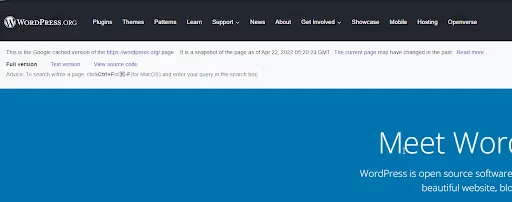
While this cached version of the page cannot be directly used to restore the deleted content, it is possible to recreate it using the cached text and images.
However, bear in mind that these snapshots are not always up-to-date, and they will show the version that was analyzed by Google’s web crawlers the last time.
4. Recover WordPress posts & pages using Archive.org
Archive.org is a non-profit organization that works on creating a web repository for digitized content, including websites. Similar to Google, they also use web crawlers to create snapshots of the sites they visit.
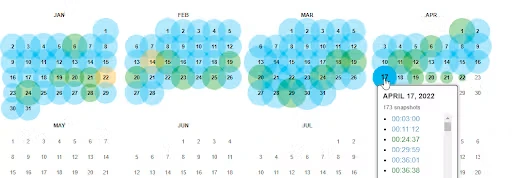
Pleas type the needed URL in the field on their website, and the results will return available snapshots.
The difference between the previous method and the method illustrated below is that they may store several snapshots, and it is possible to choose the timestamp you need. That is, of course, the case if the bots crawled your WordPress page more than once.
5. Recover WordPress posts & pages by using Liquid Web backup policy
Per our Liquid Web Backup Policy, we provide 30-day automatic backups of all your WordPress sites. They are stored off-server and can be used to restore your WordPress files. Additionally, full manual backups are available, but please note they are stored locally and use storage allocated to your plan.
Our backups give you options of restoring files only, databases only, or both.
You can take advantage of this feature by following the steps outlined in the Restoring a Site from a Backup in Managed WordPress and WooCommerce Portal article or contact our Support Team by email or Liquid Web Live Chat/Phone/Support Ticket.
Getting started with deleting page or post in WordPress
When you’re ready for professional hosting, Liquid Web can help. Our WordPress hosting options configure business-class servers and support plans specifically for WordPress websites.
Click through below to explore all of our WordPress hosting options, or chat with a WordPress expert right now to get answers and advice.
Additional resources
What is WordPress? →
A complete beginner’s guide to WordPress.org
14 strategies for your next WordPress post launch plan →
Discover essential post-launch strategies for WordPress websites to optimize performance, security, and growth in this ebook.
Beginner’s Guide to WordPress themes →
Learn how they work, what to look for, how to choose, and more

Andrew Reynolds is a Solutions Consultant for the Liquid Web Family of Brands, helping prospects choose the best solution. He is a technology enthusiast and is always looking for ways to expand his knowledge in different areas. Andrew has a passion for languages — both programming and human.