◦ Comprehensive security
◦ Support
WordPress Guide → Local → LocalWP.com
How to set up local WordPress development with LocalWP
Setting up a local WordPress site for development presents lots of challenges for users. Specifically, configuring a local WordPress database, setting up the correct version of PHP, and installing a WordPress site that mimics the production site can be a good amount of work. Furthermore, there are detailed setup tasks involved.
But, with the right tools and help, developing your WordPress site locally can be quite beneficial. Therefore, let’s look at one good option for local WordPress development: LocalWP.
Why choose Local (localwp.com) for local WordPress development?
LocalWP, usually just called Local, is a tool created to help simplify the process of spinning up a local WordPress server on a Mac, PC, or Linux for local WordPress development.
Installing Local provides many crucial features for running a WordPress site on your local computer, including:.
1. Configurable environment
Local provides two types of servers capable of running PHP:
- Apache
- NGINX
By default, Local assumes you’re using NGINX but you can always change the web server used to process your requests.
Additionally, Local handles spinning up an isolated MySQL database and configuring your wp-config.php file to connect to it automatically. With these two environment factors handled, you’re practically done setting up a proper environment for local WordPress development.
2. Hot swappable features
When you set up a site, you need to decide which version of PHP you’d like to use, and it can be challenging to install PHP on your local machine. Local handles isolating its installation of PHP and provides a select box to swap out different versions quickly.
If you’re working on a local WordPress installation and want to test if your site is compatible with PHP version 8, you can select PHP 8 on your site, and Local will install and configure it automatically. Local also provides the ability to switch between an Apache server and NGINX.
3. Add-on ecosystem
Local allows developers to create addons that can supercharge Local to do some cool things. Although there is only a handful of addons at the moment, they are still very powerful in what they let you accomplish locally.
Here are two of the most popular addons created by the team working on Local:
- Image Optimizer helps you optimize the images you’re using locally. Then, when you’re ready to push images up to your production environment, you can be sure you are using optimized images.
- Link Checker allows you to scan your local site for broken links or links to pages that will result in the user seeing a “404: Not Found” error.
These are just a few reasons Local makes local WordPress development easy, and the official website provides a complete list of features.
4. Site sharing and collaboration
LocalWP nails remote collaboration with its Live Links feature, letting devs share local WordPress sites via persistent URLs rather than live deployments.
This means clients and teammates can view your work in real time, right from your machine. The tech behind it is a Pinggy integration that uses secure SSH tunneling to spin up stable, accessible subdomains that stick around between sessions.
5. Developer-focused tools
Built-in WP-CLI support lets you manage WordPress from the terminal, while Xdebug integration means real-time PHP debugging is just a toggle away.
You get full log access for fast issue tracking and Blueprint templates to standardize setups across projects.
For database work, Local swaps in Adminer, a leaner, faster alternative to phpMyAdmin, giving you direct access to database structures without any unnecessary overhead.
Setting up Local
Installing local is like installing any other program on your computer. You can download the application for Mac, PC, or Linux straight from the homepage.
Minimum requirements
To install Local and create a few local WordPress sites, you’ll need a computer with at least the following resources.
- 4 GB of Ram
- 1.5 GB of free disk space
Step 1: Set up a new WordPress Site
When you initially start Local and don’t have a site set up yet, it will prompt you to create your first Local WordPress site:
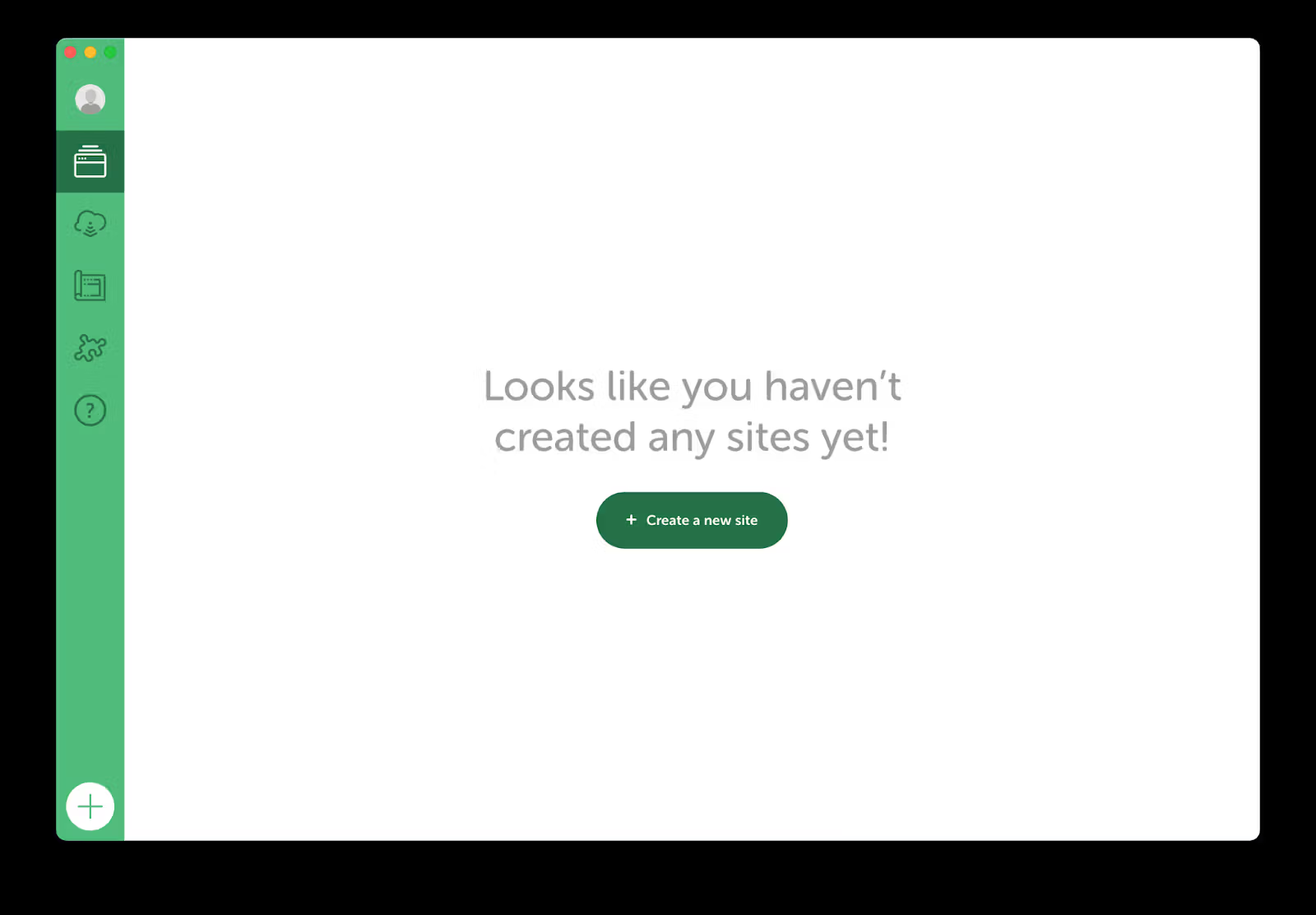
Clicking Add New site or using the plus sign (“+”) in the bottom left corner of the application will present you with two options. You can “Create a New Site” or choose “Create a New Site from Blueprint” as the next step:
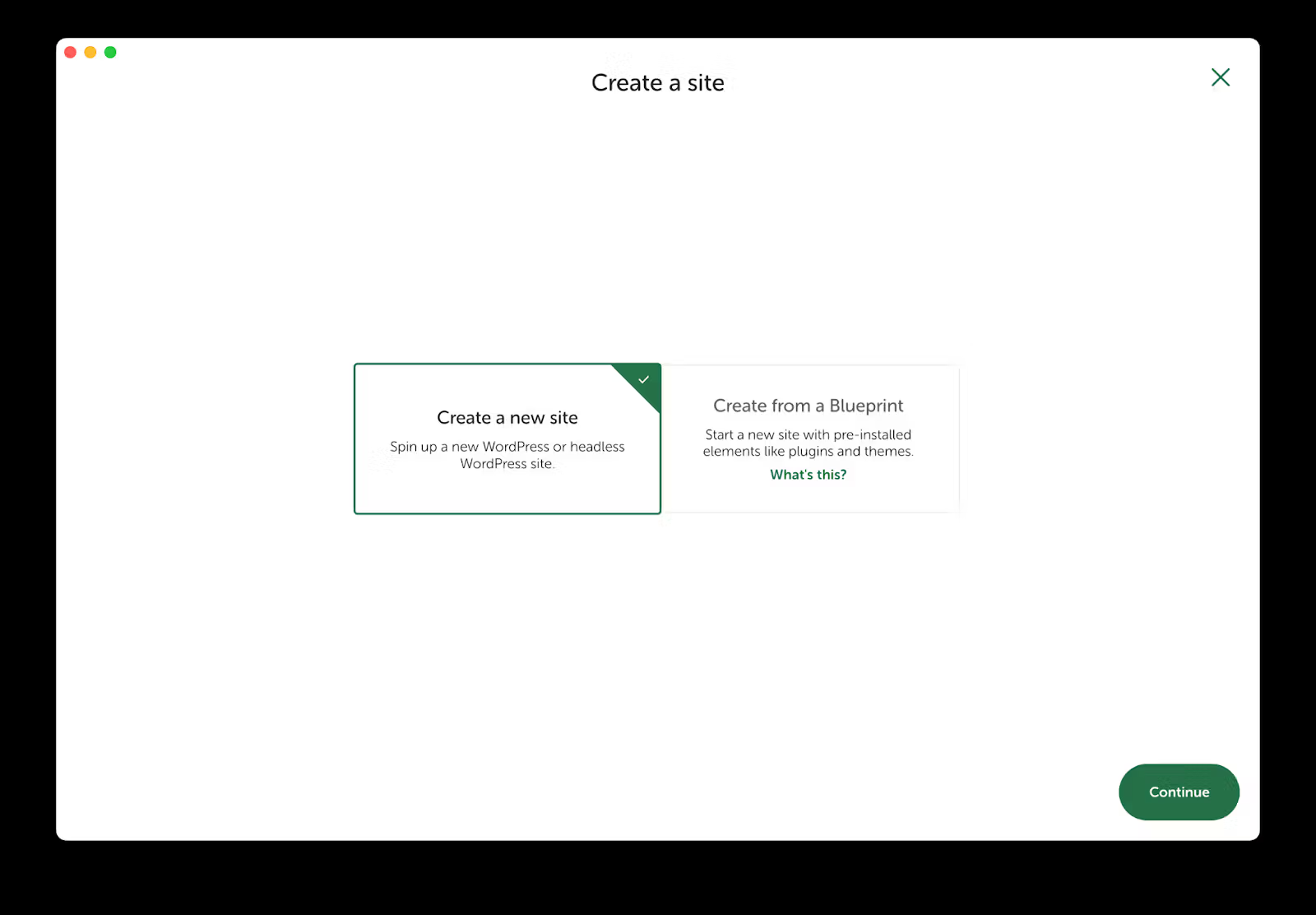
Blueprints are handy because you can save an existing site as a blueprint to rapidly create similar sites with pre-installed themes and plugins.
Once you have chosen an option, Local will guide you through three more steps to create your local WordPress site.
Step 2: Choose a name and domain for your local WordPress site
The next step is to choose a name for your site and a domain name you’d like to use for viewing the site locally. You can also choose where you would like Local to place the files it will use to run your site:
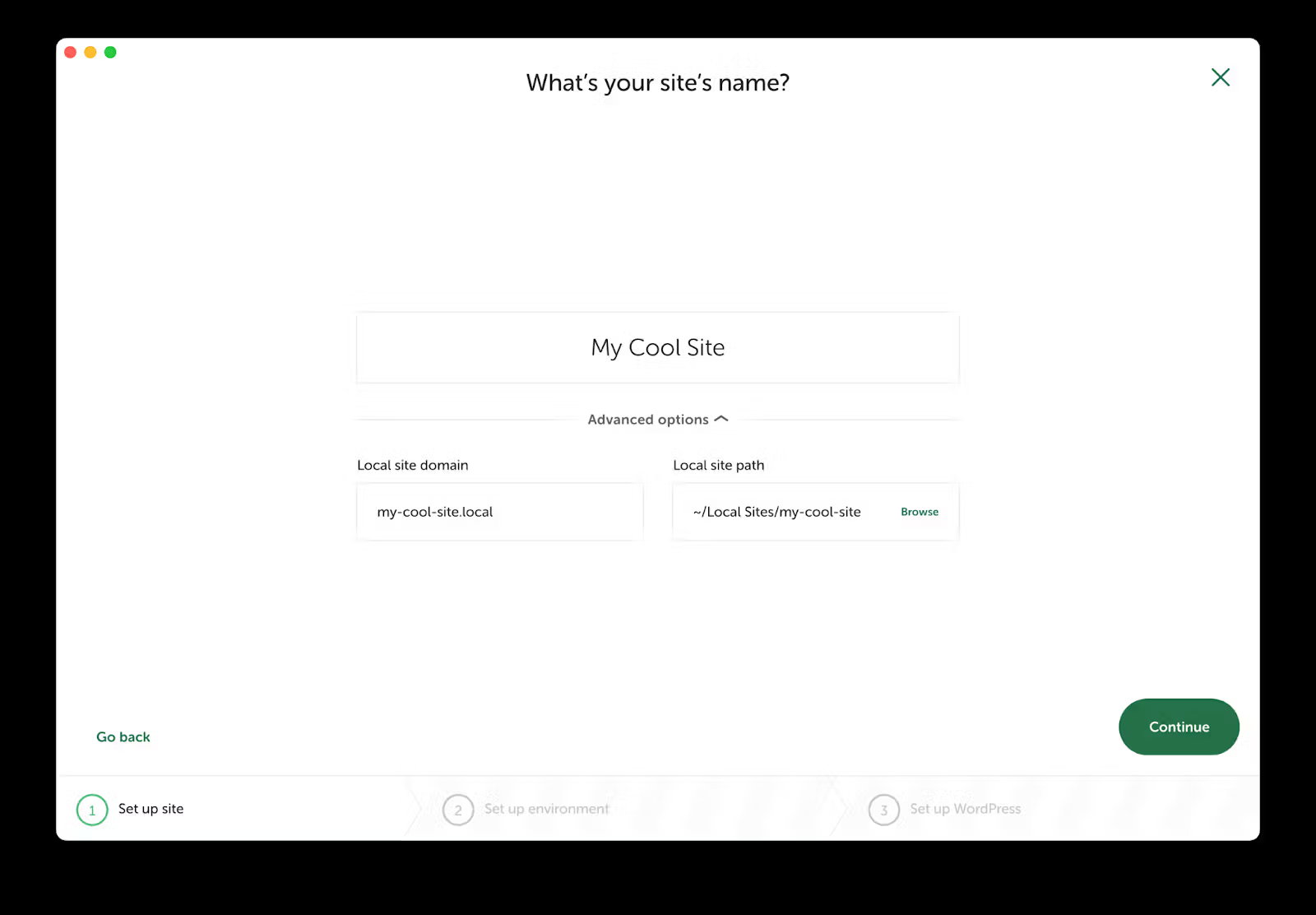
Pick a name for your site that will help you identify it in the future. For example, if you’re setting up a local version of your current site, you could just use the domain name.
You’ll also want to configure your domain to be something memorable. Local will try to guess what your domain should be based on your chosen name. But you don’t have to use it.
Clicking the Advanced link will expand your options so you can customize your domain to be whatever you want. We recommend keeping the .local TLD, as this will keep you from running into hard-to-debug issues when working with your new local site.
Just like a server, your site files should be in a convenient location if you want to edit them in the future. It is also a good idea to create a folder on your computer that you will use to store all your local site files.
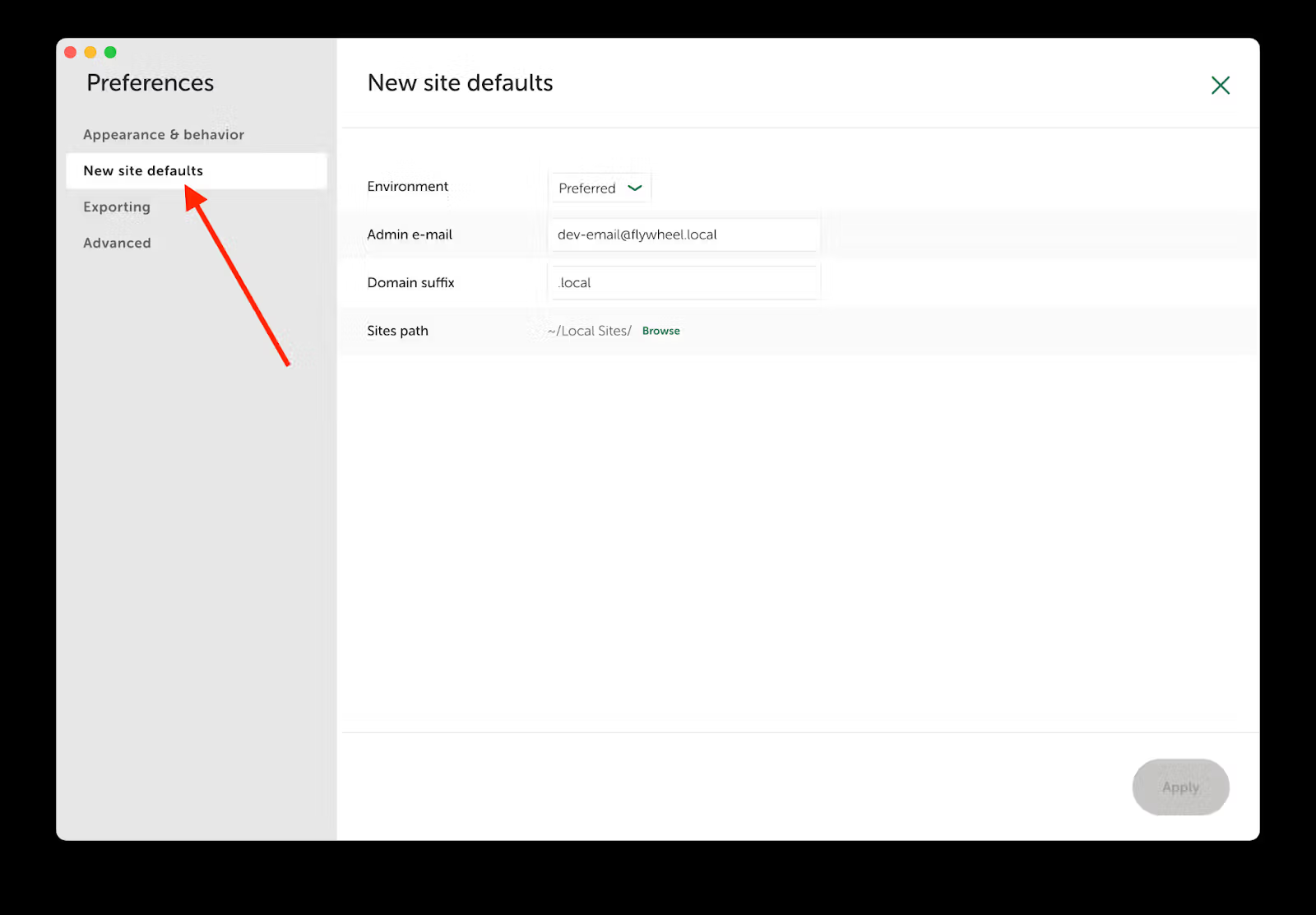
You can set a default folder in the preferences of Local by clicking the user icon in the top left corner of the application and navigating to New Site Defaults:
Local User Interface > Top Left Corner > Preferences
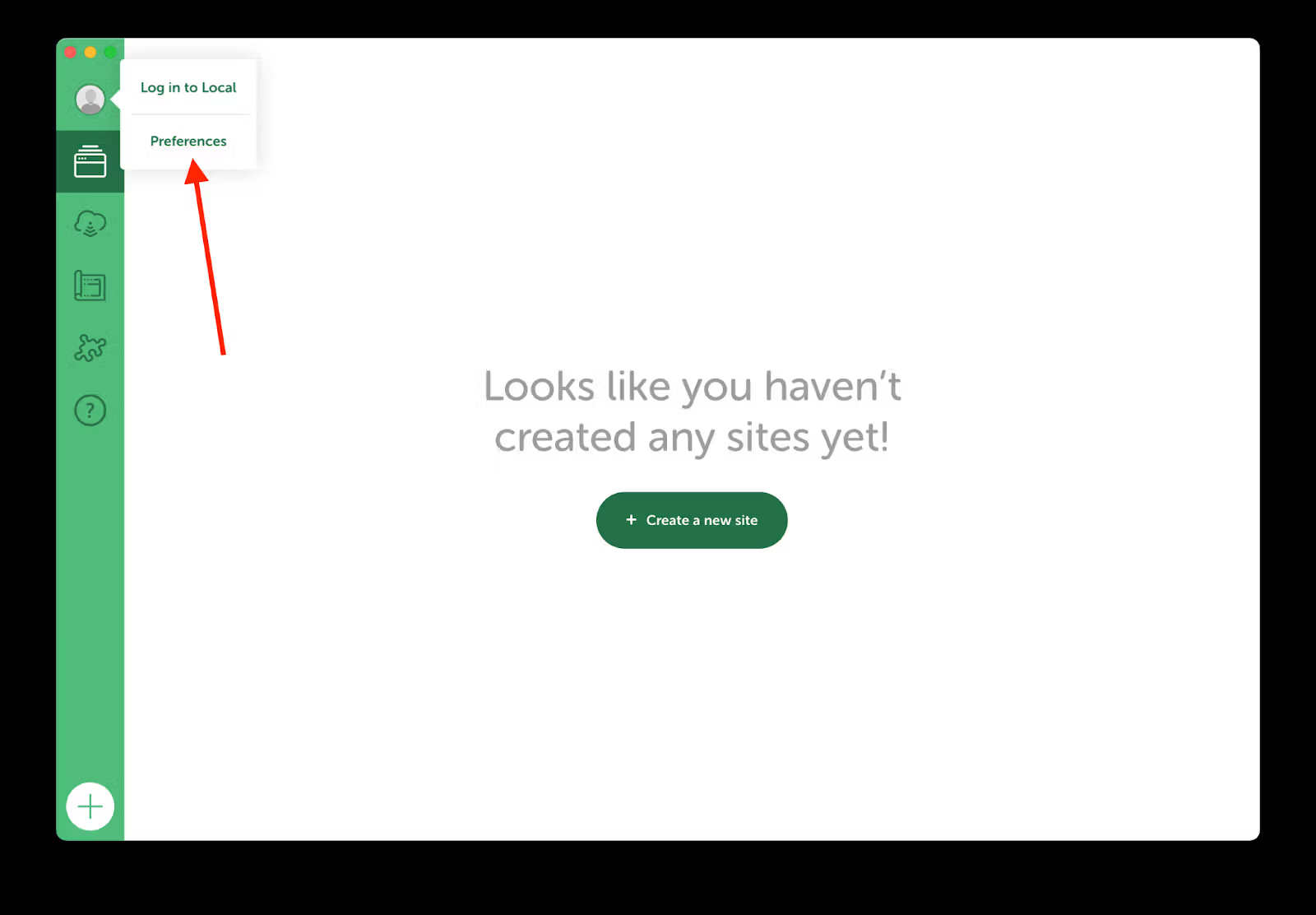
Local User Interface > Top Left Corner > Preferences > New Site Defaults
Step 3: Choose your local WordPress site’s server configuration
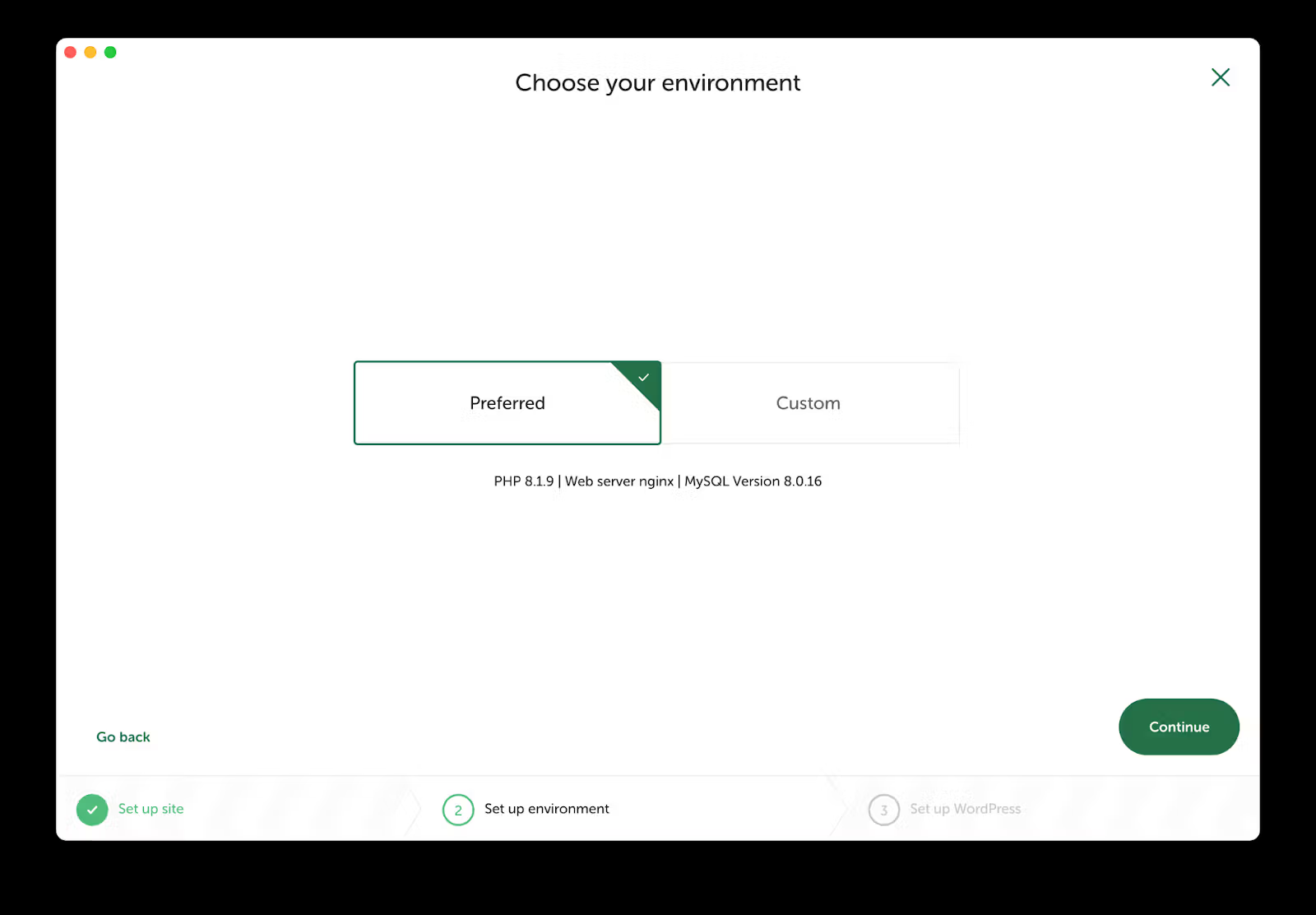
Once you have chosen a name, domain, and location for your local site, the next step is to decide how you want Local to run your local WordPress site.
Local presents two options in this step: Preferred and Custom. In most cases, you should choose Preferred, which uses the latest versions of PHP and MySQL running on the NGINX web server:
If you choose Custom, Local allows you to select each option individually. You could use this to match your current site’s server resources and configuration:
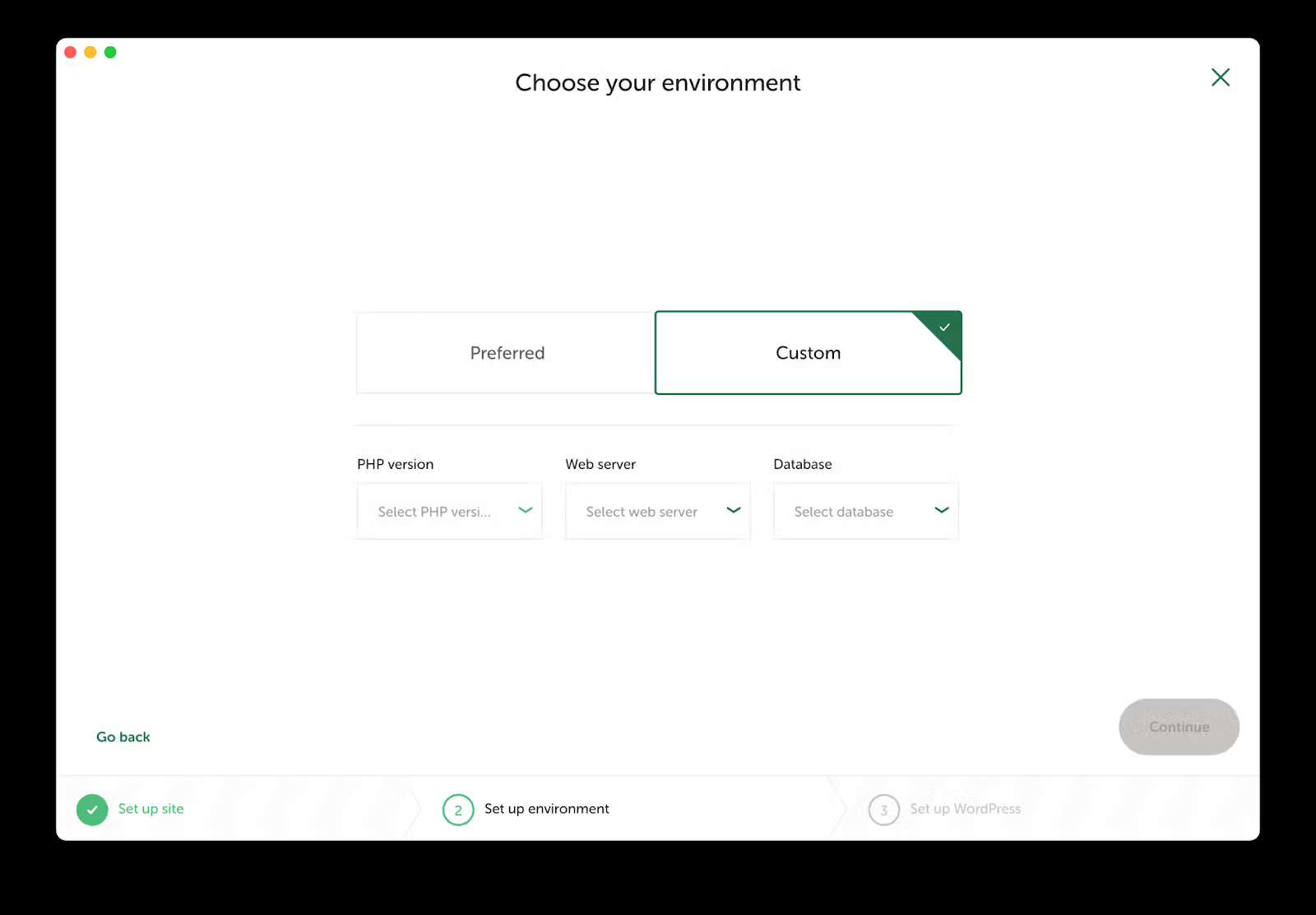
You can choose the version of PHP you want your website to use. This option is useful if you want to run your site on a different version than your live site for testing purposes. PHP 8 is the current version of PHP, so we recommend starting with the highest version Local supports.
Additionally, you can choose the MySQL version you want to use. Unless you have a specific reason to use anything other than the latest versions of PHP and MySQL, we suggest using the Preferred option in this step.
Step 4: Create a default user account
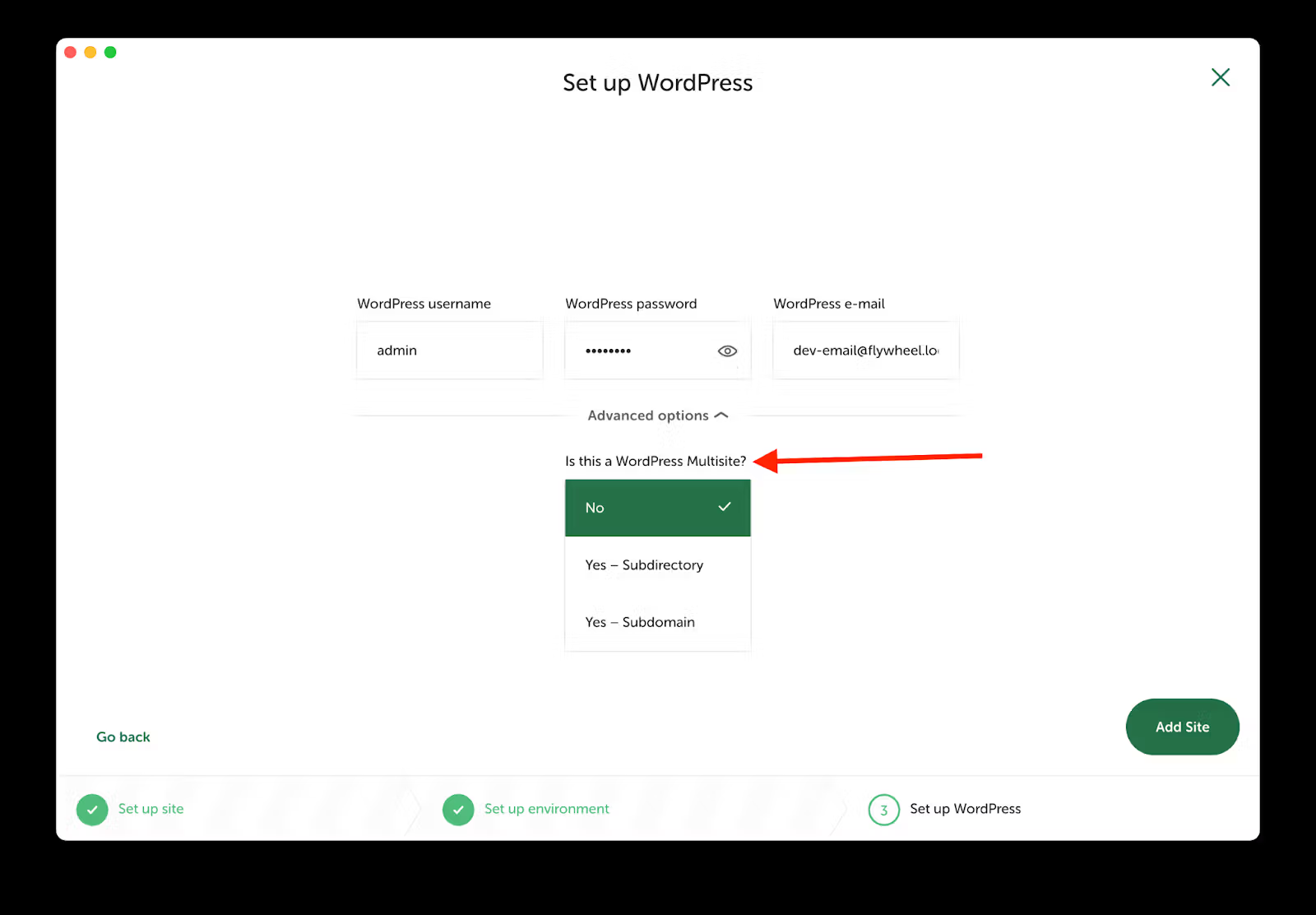
In this step, you can create the default admin account you will use to log into your local WordPress site. These credentials can be anything you want, but be sure to make note of them, as you’ll need them once your site has been created:
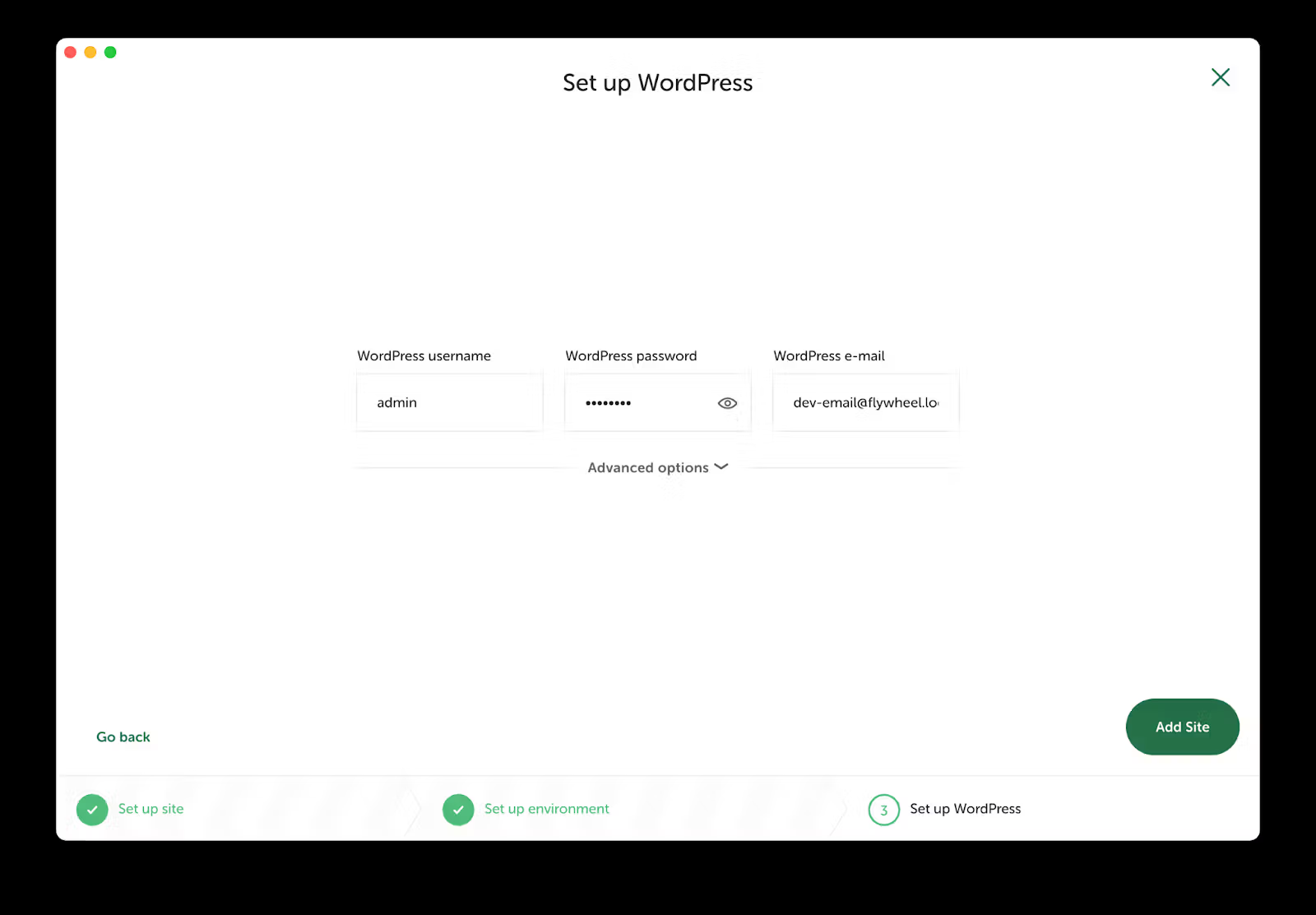
Additionally, if you want to set up a multisite installation of WordPress, you can choose this in the Advanced tab below, where you added your WordPress Admin Account information:
Step 5: View your new local WordPress site
Once you’ve configured your site, Local will begin spinning up the site and installing the latest version of WordPress:
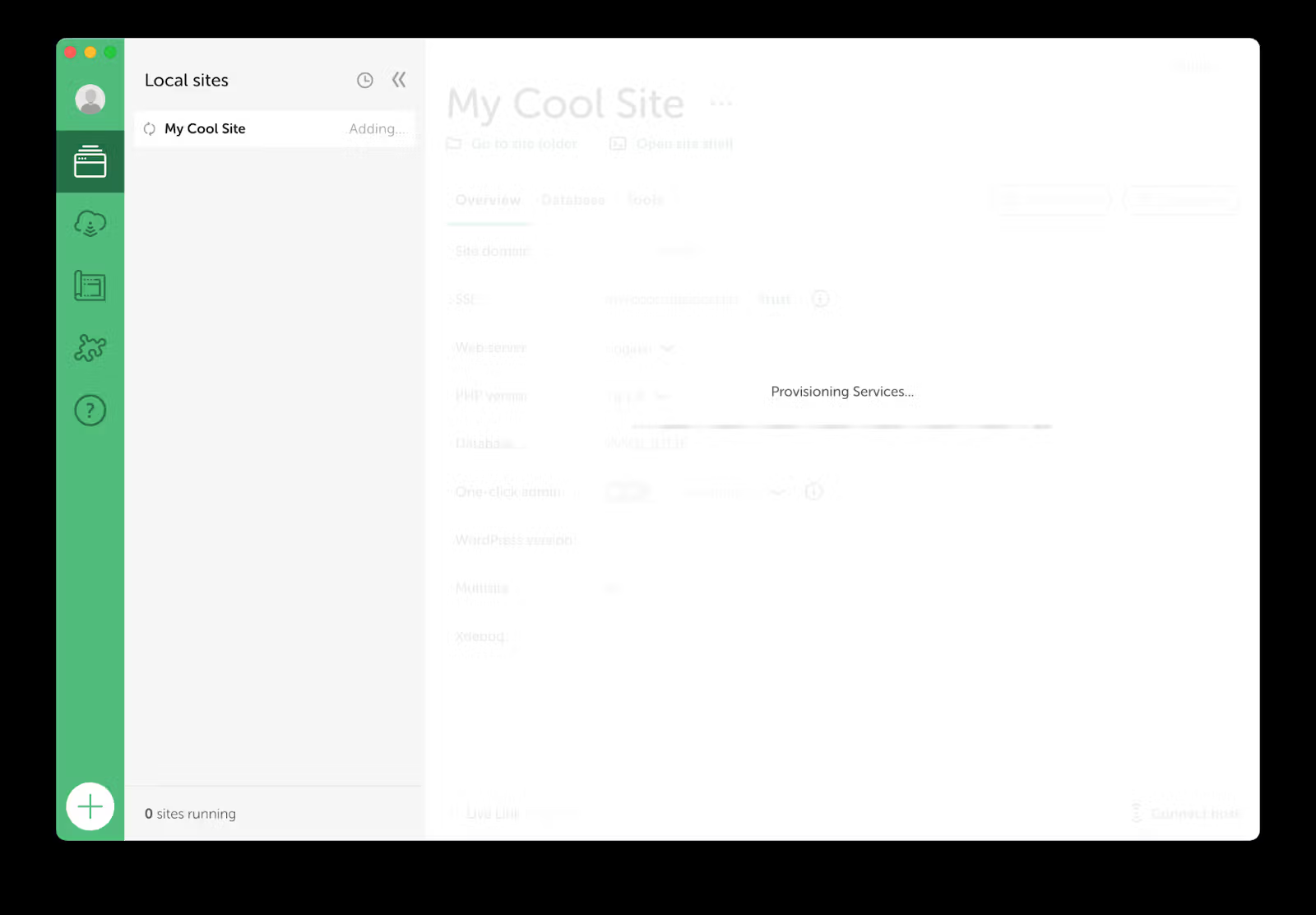
Once it has finished installing, navigate to the domain you configured for the site, and you should now see a fresh instance of WordPress in your browser.
How to copy a local WordPress site to a hosting server
Now that you have a local WordPress site running, the next step is to export it and migrate it to a production environment. Below is how it works on Liquid Web/Nexcess. Check with your hosting provider, if it’s not us … or upgrade to Liquid Web.
1. Export your site from Local
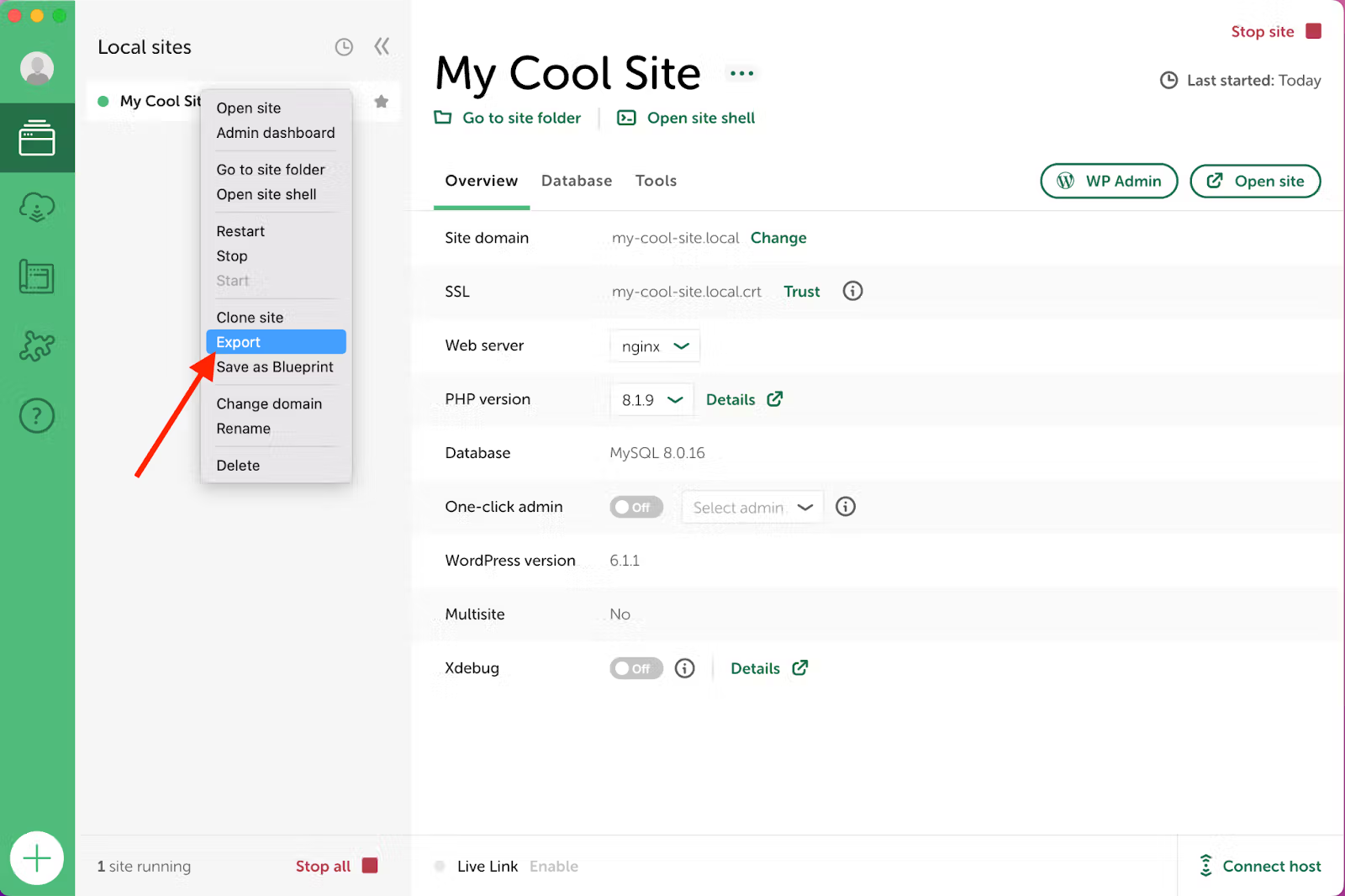
The first step is to export your site files from Local. Right-click on the site that you want to export and click the Export menu option (the site has to be running to be able to export it):
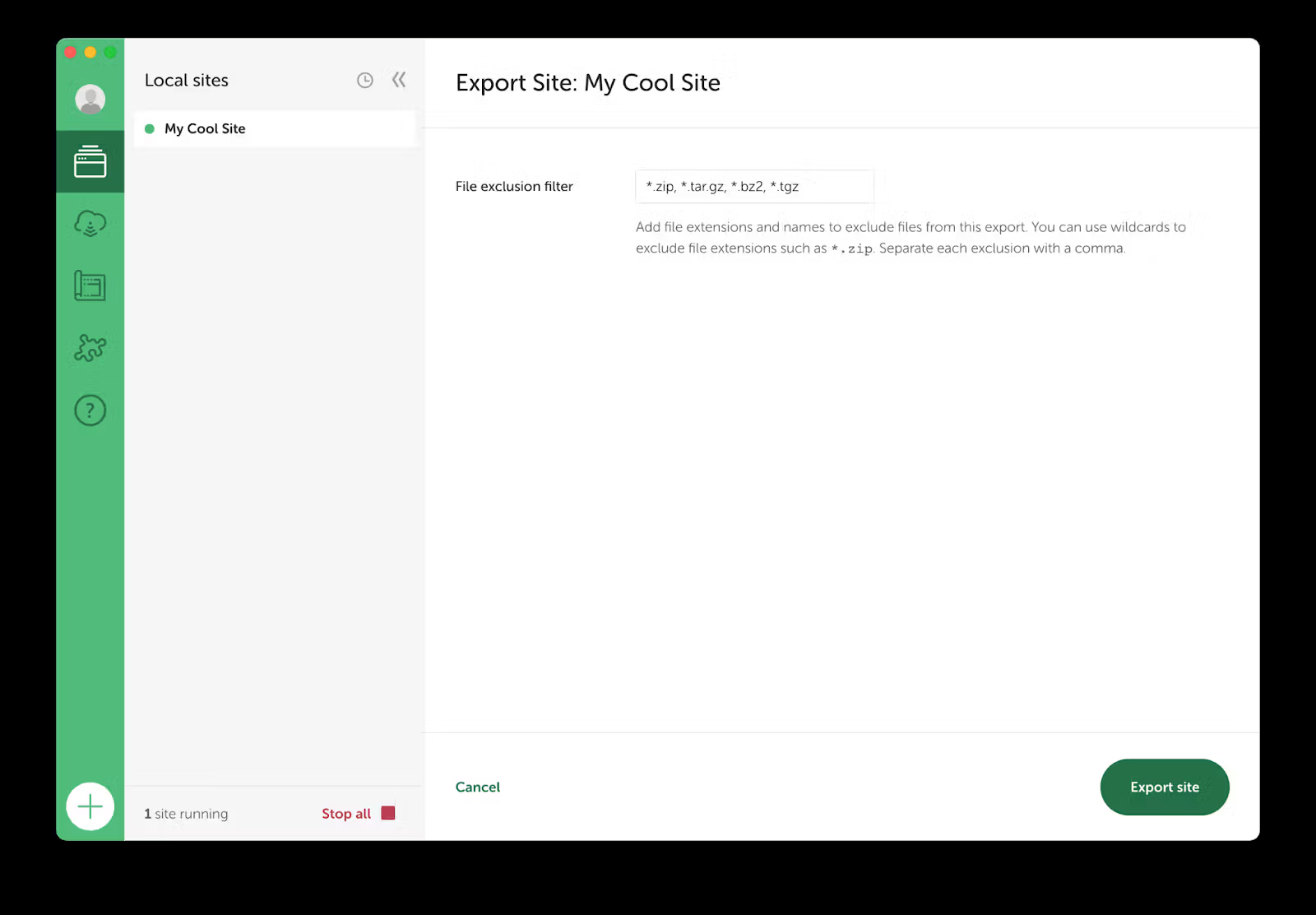
Local will show you a screen that lets you filter out specific types of files from the export. The filter defaults to excluding ZIP and compressed files such as plugin or theme zipped files. You can modify this if you want, but the defaults should be enough for most exports:
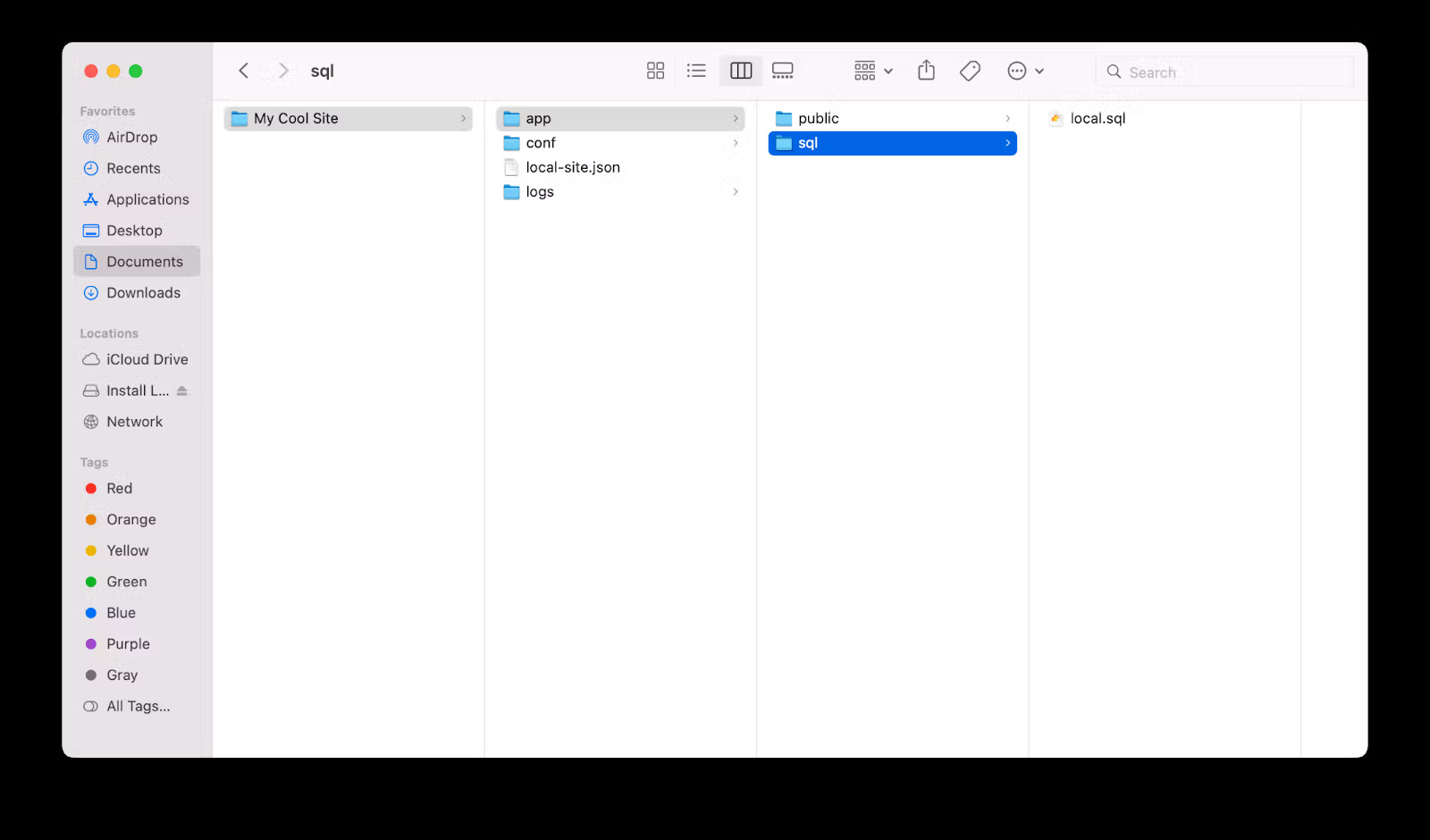
When you export your site from local, you’ll end up with a ZIP file that, when uncompressed, will be a folder of the entire site that includes your WordPress installation.
Within the app/sql folder will be a local.sql file with the entirety of your local database. You can use that file to migrate content you’ve made locally to your production environment:
2: Set up SFTP credentials in your hosting plan and upload your local export’s public folder
The next step of the process is to upload your site files to your hosting plan and set up a new WordPress website.
Once your site is set up, you’ll need to set up SFTP or FTP credentials and log into your site’s home directory. From there, copy all the files except wp-config.php in the public folder from your Local export and upload them to the server in the public_html folder.
3. Import your local WordPress database
Now that your site files have been imported, your database also needs to be imported into the site database on your WordPress plan.
Using SSH access, log into your server and run the following commands.
a. Import the local database into your site’s database:
wp db import ~/public_html/wp-content/your-local-site-domain.sqlb. Next run the search-replace command to find all instances of your local URL (that probably ends with .local) and update it to your actual site domain:
wp search-replace <local-site-domain> <server-site-domain> -dry-runThis command searches the database, converts all instances of your local site domain, replaces it with the new domain. For example, if your local site had the domain boom.local and your server domain was boom.com, you would enter those in the command:
wp search-replace boom.local boom.com --dry-runThe –-dry-run option searches but won’t replace anything, so you can review the replacements before it does anything.
Typically, you’ll want to use the dry-run option initially, and when you feel good about what it will replace, you can remove the option to run the search and replace officially. Here’s what you might run with the boom.local example:
wp search-replace boom.local boom.comNow that you’ve replaced the database domain, you should be able to navigate to your server domain and see your site.
LocalWP FAQs
What does LocalWP do?
LocalWP is a local development tool specifically for WordPress, allowing users to create, manage, and test WordPress sites on their computer without needing a live server.
It provides a user-friendly interface with features like one-click site creation, SSL support, and local database management.
Is LocalWP better than XAMPP?
LocalWP is better suited for WordPress development due to its tailored features like automatic WordPress installation and site management tools.
XAMPP is more general-purpose, requiring manual configuration for WordPress and lacking WordPress-specific conveniences.
Is Local WordPress free?
LocalWP is entirely free to use. In 2021, the company behind it made all previously premium Local Pro features, such as Live Links, MagicSync, Cloud Backups, Link Checker, and Instant Reload, available for free to all users with the release of Local 6.0.
How to install Local WP?
Download the installer from the official LocalWP website, choose your operating system, and run the installer. Follow the prompts to complete the installation, and then launch the app to start creating local WordPress sites.
What alternatives are there for local development?
- There are several LocalWP alternatives for installing WordPress locally.
MAMP focuses on simplicity by providing a local Apache, MySQL, and PHP stack ideal for beginners and quick setups. - Docker allows advanced users to create isolated, customizable development environments using containers for each WordPress component.
- Finally, Laravel Valet is tailored for macOS and prioritizes speed and minimal setup, making it ideal for developers comfortable with the command line.
Getting started with Local
Local is an effective and easy way to spin up local WordPress sites on your computer for updating content, building new sites, or debugging issues on current sites. We’ve reviewed the features and the steps required to get your local WordPress server running.
We’ve even walked through exporting your local site and uploading it to a managed WordPress hosting plan. Local is a great tool you can use every day to quickly spin up local WordPress sites and one application that many WordPress admins use every single day, given its worthwhile capabilities.
And if you’re looking for a more advanced hosting solution, check out Liquid Web’s range of WordPress server hosting now:
Additional resources
How to install WordPress on localhost →
… in five simple steps
Running WordPress locally with VVV →
See why VVV is a good option for a dev-focused environment
What is managed WordPress hosting? →
Discover what it covers, how it helps, and if it’s a good fit

Tanner Record is a Senior Backend Engineer at Modern Tribe, living in North Carolina. Before joining Modern Tribe, he worked professionally as a WordPress developer for nearly a decade. When he’s not working or writing about WordPress, you can find him hanging out with his family or cooking up a new recipe.