◦ Comprehensive security
◦ 24/7 support
WordPress Guide → Errors → Why is My Site Down?
Why is my WordPress Site Down? (How to Diagnose and Fix)
When your WordPress is down, it’s the same as suddenly locking your doors at your brick-and-mortar store in the middle of a sales day.
A down website turns away customers, impacts brand reputation, loses sales, damages search engine optimization (SEO), and can have lasting effects long past the actual downtime.
A 2024 Uptime Institute report found that 54% of website outages cost over $100,000. While managed WordPress hosting services can help you prevent downtime from happening, there are steps you can take on your own to diagnose and fix downtime issues for your WordPress website.
WordPress.com vs self-hosted WordPress sites
Before you start troubleshooting why your WordPress site might be down, it’s important to know which type of WordPress site you’re running: WordPress.com or self-hosted WordPress (WordPress.org). While both use the same core software, they offer very different experiences and troubleshooting steps.
WordPress.com is a fully hosted platform where all the technical aspects — like hosting, backups, and security — are managed for you. This makes it a user-friendly option, but it also comes with limitations on customization, plugins, and themes, especially on the free or lower-tier plans. If your site is on WordPress.com, you don’t have access to your server or files, and your ability to install custom themes or plugins is restricted.
In contrast, a self-hosted WordPress site uses the free software from WordPress.org, which you install on your own web hosting account. This gives you complete control over your site’s files, themes, plugins, and monetization options, but it also means you’re responsible for maintenance, updates, and troubleshooting.
If your site is on WordPress.com and you suspect an outage, start by checking the global WordPress.com server status. You can visit the WordPress.com status page or use third-party monitoring sites like Downdetector to see if there are widespread issues affecting the platform. If no issues are reported, the problem may be specific to your site or account.
How to check if your WordPress website is down
Sometimes called the white screen of death, a blank white screen announces that a website can’t be loaded. But even if you can’t reach your WordPress website from your computer, or you get a report of it being down from a customer, it might not actually be down. If you suspect your WordPress site is down, here’s how to quickly investigate the extent of the issue.
Clear your browser cache
Occasionally, a caching error can make it appear your website is down when nothing is actually wrong. Clear your browser cache and try reloading your website.
Check your network
Sometimes your individual computer will have issues connecting to your website even though the website itself is functioning correctly. If you can’t access any other websites, the problem could be your computer or internet connection.
You can check your network connection by pinging it from the command prompt or by using the network troubleshooting feature of your system.
Check for more reports of downtime
If other websites load fine, use a downtime detector tool like DownDetector or Down For Everyone or Just Me to see if the problem is being reported by others. You can also check with others in your organization to see if they can access the website.
Identify why WordPress is not working
After confirming your WordPress website is down; you’ll need to identify and diagnose the problem. Most WordPress website outages are the result of hosting issues, technical errors, or security threats like a distributed denial of service (DDoS) attack.
Hosting service issues
Your WordPress hosting is the first place to look for the cause of the downtime. Too much data usage, scheduled maintenance downtime, or even power outages at the server location could cause issues.
- Check your hosting service provider’s status page: Your WordPress host could be experiencing a server outage or planned maintenance. Check your host’s server uptime status page for live uptime and downtime information. Some service providers also notify customers via email notifications or social media posts of downtime updates and scheduled maintenance.
- Check your plan maximums: If you’ve recently uploaded new videos, changed to a graphic-heavy WordPress theme, or had a recent increase in traffic, it’s possible you’ve exceeded your hosting plan bandwidth or storage maximums. If you’re exceeding your resources, you may consider upgrading to a dedicated WordPress server or a virtual private server for WordPress.
- Check for traffic spikes: If your site experiences a sudden traffic spike, it can trigger safety protocols from your host and be mistaken for a DDoS attack. In that case, your website might have been taken offline temporarily to prevent further damage. If you are using shared hosting, traffic spikes for any website on the server may result in slow loading times or outages for everyone.
Technical issues
Technical errors in your website coding, server misconfiguration, plugin Internal server errors, plugin conflicts, WordPress theme errors, domain name service (DNS) errors, and moved files can all cause downtime for all or part of your WordPress website.The most common technical issues that can bring your WordPress website down include:
- Domain name system (DNS) configuration issues
- Plugin conflicts
- Theme conflicts
- Out-of-date plugins or themes
- Missing or moved files
- Custom coding and CSS
Security threats
Cyberattacks and security threats, especially against financial data, continue to rise. As cybercrime targets more businesses, security threats become a more common reason that WordPress websites experience downtime.Common avenues and types of security threats are:
- Outdated or poorly coded themes and plugins
- Poor password management by your staff
- Hacking attempts from bad actors, including brute force and DDoS attacks
- Ransomware
How to fix a broken WordPress website
Once you confirm your WordPress website is offline or broken, you need to organize a response. If the site is still online but experiencing slow speeds or other errors, temporarily place your website in maintenance mode to pause access while you work on it.
1. Fix WordPress plugin and theme conflicts
Plugins power functionality for many websites, but sometimes they fail, or two plugins don’t play nicely with each other (or the WordPress theme).
To quickly diagnose if the issue is related to a plugin, disable all plugins using FTP or the file manager. If the website reappears, then the issue is plugin related, and you can reactivate plugins one at a time to pinpoint which plugins are causing the issue.
2. Fix a corrupted update
Sometimes, a theme or plugin update doesn’t work properly. There may be an error in the code, or it might be infected with malware. Rolling back the update is the fastest fix for these issues.
You can also use a plugin like Plugin Detective to find both plugin conflicts and problems from updates.
3. Fix DNS configuration errors
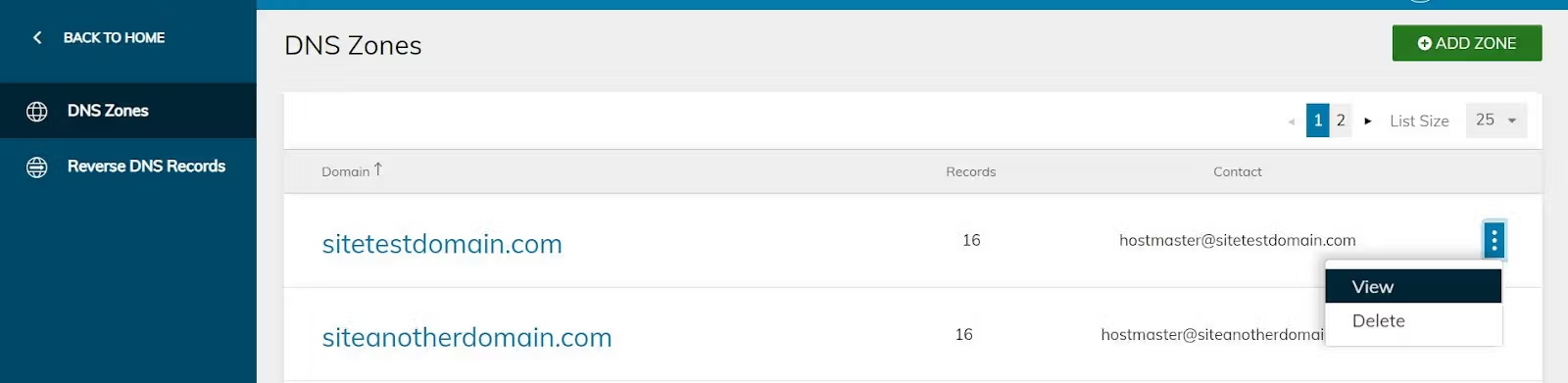
If your domain name system (DNS) information is not configured correctly, no one will be able to find your website, and it will appear to be down. Use a DNS checker to quickly identify if there is an issue with your DNS.
Each web host includes instructions for how to point your website address correctly on their service. Generally, this is done from your client portal and allows you to set zones and records.
4. Fix PHP memory limit issues
If you run into a PHP memory limit issue, it’s the equivalent of your store not having enough staff. PHP workers are bits of code that do the heavy lifting of transferring data between your host and your website visitor.
To fix a PHP memory limit issue, add the following code to your wp-config.php file:
define('WP_MEMORY_LIMIT', '256M');5. Fix a corrupted database
If you suspect your WordPress database is corrupted, run a consistency check by turning on the WP_DEBUG feature in your WordPress configuration file.
If errors are detected, repair the database using the built-in repair functionality of MySQL, the database management system (DBMS) for WordPress. Check that your directory and file permissions are set correctly.
6. Combat security attacks
Identify the type of attack that has occurred using security plugins like Wordfence or Sucuri to scan your website for malware and vulnerabilities.
Note: Solid Security Pro is provided at no cost to Liquid Web managed WordPress customers.
To troubleshoot this error, you can open the file or files mentioned in the error message and remove the extra space from the files. Also, make sure that the first line in the file is <?php and that there is no space before this line.
Malware
If you’ve identified malware, quarantine infected files to prevent them from spreading to other parts of your website and replace them with clean copies from a backup or a trusted source.
Unauthorized access
Changing your WordPress login, FTP passwords, and database passwords is a quick fix if you suspect unauthorized access.
Once you’ve stopped the unauthorized access, you’ll need to undo the damage. Restoring your website from your latest backup can restore it to a previous state where it worked correctly. In some cases, you may need to revert to an older backup if there was an issue you did not diagnose quickly.
However, reverting means losing any changes, updates, or content added after the backup. You’ll need to update WordPress, your theme, and any plugins again after restoring the backup. If you’re facing a serious security threat that you cannot resolve alone, contact your hosting provider for assistance. If you use shared hosting, you may need to contract outside help. Managed hosting providers can usually provide more help than shared hosting.
Top ways to protect your WordPress website
Downtime prevention saves you time and money in the long run. A few simple steps will help protect your WordPress website from downtime.
WordPress security protections
- Keep WordPress updated.
- Keep WordPress themes updated.
- Keep WordPress plugins updated.
- Backup your website.
- Use security plugins.
- Use SSL certificates.
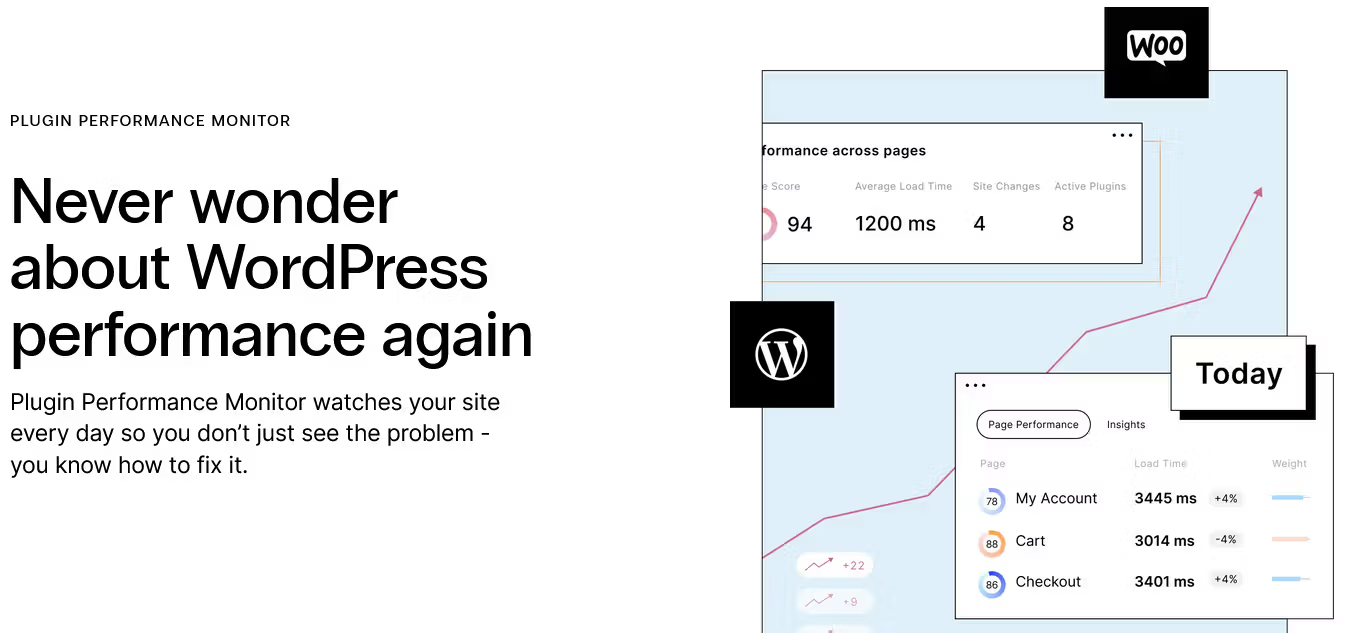
Scheduling routine maintenance tasks and updates to plugins, themes, and your WordPress core simplify the progress. You can do this manually or with automated APIs. Some hosts also offer WordPress plugin performance monitoring tools.
WordPress performance and uptime protections
- Use a caching plugin.
- Use a content delivery network (CDN).
- Use an automatic uptime monitor tool like Pingdom, or the one provided in Solid Central which is included in Liquid Web managed WordPress plans
- Choose a reliable managed WordPress hosting plan.
A poor hosting plan can result in slow loading times, website crashes, and security breaches. When choosing a hosting plan and a service provider, check for server reliability, bandwidth capacity, and security.
Upgrade your WordPress.org hosting
Every website experiences downtime. The goal is to minimize that downtime by planning ahead and maintaining your website. Keep frequent backups, update software, and keep contact details for technical support. Knowing what to do beforehand helps minimize downtime and ensures your website stays up and running.
If you find yourself struggling with your WordPress site more than you’d like, it might be time to upgrade your hosting. A good hosting provider will help keep your site secure and online—and offer 24/7 expert support. If you need even more help, a managed WordPress hosting arrangement might be a good solution.
Liquid Web has been leading the industry in web hosting for WordPress sites, for decades. Our server speeds are lightning fast, our uptime is unbeatable, and our support team is unrivaled. Click below to learn more, or start a chat right now to get answers and guidance just for you.
Additional resources
Diagnosing WordPress errors on your site →
Even more common errors, how to troubleshoot them, and how to solve them
Comprehensive WordPress security checklist →
18 tasks that anyone can do, to keep your WordPress site secure
What is managed WordPress hosting? →
What it means, what it includes, and how to decide if it’s right for you

Maddy Osman is a WordPress expert, WordCamp US speaker, bestselling author, and the Founder and SEO Content Strategist at The Blogsmith. She has a B.A. in Marketing from the University of Iowa and is a WordCamp Denver organizer.