◦ Comprehensive security
◦ Support
WordPress Guide → Errors → Critical Error
How to fix “There has been a critical error on this website” in WordPress
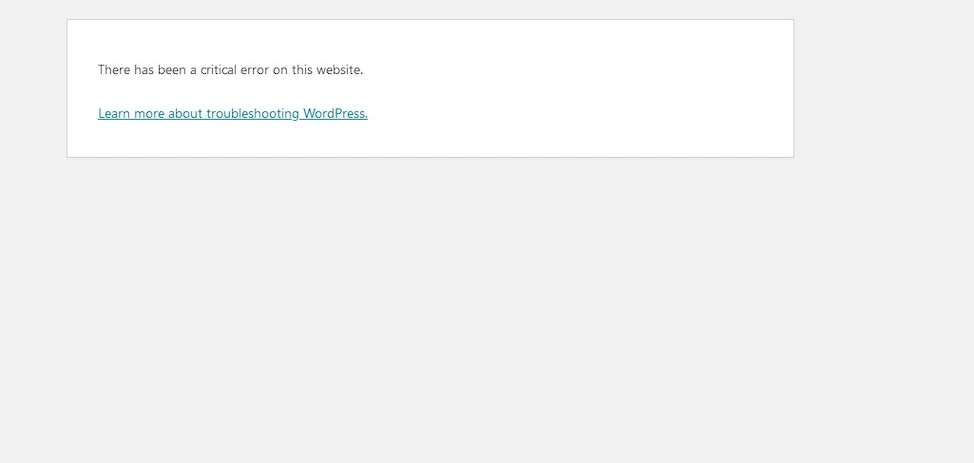
The “critical error on this website” message is a standard WordPress error you will encounter while working with WordPress sites. Critical errors should never be ignored. Let’s assess how to address them.
This article will explain the nature of the “critical error on this website” message, the root cause of the error or errors involved, and how to resolve them. In addition, a number of other valuable WordPress fixes are provided by HTTP error code or other error condition encountered.
Get fast, reliable hosting for WordPress
Power your site with the industry’s fastest, most optimized WordPress hosting
What this critical error actually means
This message appears when WordPress hits a fatal PHP error that stops the page from loading. It hides the specific issue for security reasons, so beginners often feel stuck without knowing what triggered the failure.
Critical errors usually follow plugin conflicts, broken themes, corrupted files, or server misconfigurations that force PHP to quit mid-process.
Common reasons this error happens
Most critical errors come from a handful of common issues, so identifying them early helps you troubleshoot faster.
- Plugins and themes often conflict when one receives an update that the other cannot handle.
- Corrupted core or plugin files break PHP execution and stop WordPress from loading.
- Memory limits, outdated PHP versions, incorrect permissions, and database issues all create conditions where WordPress cannot complete its tasks.
- Malware or injected code can also break PHP and produce the same error.
Quick pre-checks before you start
These quick checks save time and avoid unnecessary troubleshooting.
- Reload the page and clear your browser cache in case you’re looking at outdated data.
- Open an incognito window to verify that cached files aren’t masking the real problem.
- Check with your hosting provider or status page to make sure the server isn’t down.
- Look for an email from WordPress labeled “Your Site is Experiencing a Technical Issue,” which includes recovery mode details and a reference to the plugin or theme that triggered the error.
Step 1. Enable WordPress debugging to reveal the actual error
Debugging lets WordPress show you more meaningful messages instead of the generic warning. Open your wp-config.php file and add or modify the following lines to turn on debugging:
define( ‘WP_DEBUG’, true );
define( ‘WP_DEBUG_LOG’, true );
define( ‘WP_DEBUG_DISPLAY’, false );
Save the file, reload your site, and open the /wp-content/debug.log file. You’ll see error messages pointing to the file, plugin, or function that caused the crash. This gives you a strong starting point for the next steps.
Step 2. Check your server’s error logs
Your hosting control panel or SFTP access gives you the full set of server logs that WordPress debugging doesn’t show. PHP error logs reveal fatal errors, memory exhaustion messages, or missing files.
- Web server logs tell you when requests fail before WordPress loads.
- Access logs help you confirm whether the issue started after a specific update or visitor action.
Match the timestamps with when the error first happened to identify the problem quickly.
Step 3. Disable all plugins manually
Plugins cause most critical errors, especially after updates or new installations.
- Connect to your site via SFTP or your hosting File Manager and open /wp-content/.
- Rename the plugins folder to something like plugins-disabled. This forces WordPress to deactivate everything at once.
- Reload your site to see if the error disappears.
- If it loads again, rename the folder back to plugins and reactivate plugins one by one in the dashboard until you find the one that triggers the error.
If you cannot access the dashboard, rename each plugin folder individually to isolate the culprit.
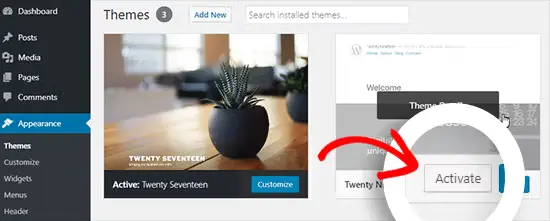
Step 4. Switch to a default WordPress theme
Themes break sites when they rely on outdated code, untested updates, or customizations that introduce syntax errors.
- Connect via SFTP, go to /wp-content/themes/, and rename your active theme’s folder.
- WordPress falls back to a default theme like Twenty Twenty-Five if it exists.
- If no default theme exists, upload a clean copy.
- Reload your site to confirm whether the theme caused the crash.
Step 5. Increase the PHP memory limit
WordPress needs enough memory to run page builders, ecommerce platforms, and heavy plugins. When it hits the ceiling, PHP stops processing and returns a fatal error. Open wp-config.php and add:
define( ‘WP_MEMORY_LIMIT’, ‘256M’ );
You can also adjust memory from your hosting control panel or .htaccess file. If your host supports higher limits, increase to 512M for large sites or WooCommerce stores.
Step 6. Update PHP to a modern version
Outdated PHP versions cause compatibility issues and break modern plugins or themes. Most hosts let you switch PHP versions from your control panel.
- Choose PHP 8.1 or newer for the best performance and security.
- After updating, reload your site and confirm that all plugins function correctly.
If anything stops working, turn debugging back on to check for compatibility warnings.
Step 7. Reinstall core WordPress files
Core files sometimes fail during updates or become corrupted by file transfer issues.
- Download a fresh copy of WordPress from wordpress.org and unzip it on your computer.
- Delete the wp-admin and wp-includes folders from your server, then upload clean versions.
Leave your wp-content folder intact so you don’t lose themes or uploads. Reload your site to confirm the repair.
Step 8. Repair the WordPress database
Database corruption causes errors like missing options, broken posts, or login failures. Add this line to your wp-config.php file:
define( ‘WP_ALLOW_REPAIR’, true );
Visit yourdomain.com/wp-admin/maint/repair.php and choose the repair option. You can also open phpMyAdmin through your host and use the “Repair table” tool. Remove the repair line from wp-config.php afterward to protect your site.
Step 9. Fix incorrect file permissions
Incorrect permissions prevent PHP from reading or executing files.
- Set folder permissions to 755 and files to 644. Most FTP clients allow bulk changes—right-click the file or folder, choose “File permissions,” and apply the correct value.
- Reload your site to confirm the fix.
Step 10. Restore a recent backup
If the error appeared after an update, migration, or large change, restoring a backup often solves the problem instantly.
- Use your hosting backup tool or your backup plugin to restore files and the database.
- Confirm that the site loads and repeat updates one at a time to avoid repeating the issue.
Step 11. Scan for malware or malicious code
Malware injections often corrupt PHP files or create conditions that trigger fatal errors.
- Use a security plugin to scan your entire installation or connect via SFTP to compare your files against a clean WordPress copy.
- Remove altered files, replace infected ones, and rotate your passwords to secure the environment.
How hosting quality affects critical errors
It’s worth noting that your hosting environment sets the foundation for WordPress stability.
Low-end shared plans often run out of memory, use outdated PHP versions, or throttle processing power. These limits create a perfect storm for critical errors, especially with heavier websites.
High-quality WordPress hosting gives you more consistent resources, faster PHP execution, built-in backups, and stronger security. You get fewer crashes, easier troubleshooting tools, and a more reliable base for plugins and themes.
When to contact your hosting support
Your host can help when you feel stuck or when the issue goes deeper than a plugin or a file.
- Share the exact time the error appeared and any updates you recently applied.
- Provide debug logs or error log snippets so the support team can identify server-related issues.
Hosts can also check processes, memory usage, file corruption, and malware that you might not see through the dashboard.
FAQ
Getting started with fixing WordPress critical errors
Critical errors look intimidating, but they usually come from fixable issues like plugin conflicts, corrupted files, or outdated PHP. With the right steps, you can get your site back online quickly.
Start by enabling debugging or checking server logs. Those clues usually point directly to the file or plugin that caused the crash and save you time during the repair.
Ready to upgrade your WordPress experience? Professional hosting improves speeds, security, and reliability for a website and a brand that people find engaging and trustworthy. Liquid Web’s WordPress hosting options configure business-class servers and support plans specifically for WordPress websites.
And if you don’t want to deal with server management and maintenance, our fully managed hosting for WordPress is the best in the industry. Our team are not only server IT experts, but WordPress hosting experts as well. Your server couldn’t be in better hands.
Click through below to explore all of our hosting for WordPress options, or chat with a WordPress expert right now to get answers and advice.
Additional resources
Diagnosing WordPress errors on your site →
Even more common errors, how to troubleshoot them, and how to solve them
Fixing the “not a valid JSON response” WordPress error →
What causes it and how to fix it, so you don’t lose work on your site!
Resolving 500 internal server errors on WordPress →
What it means, what causes them, how to fix them, and more

Mohammed Noufal is a B.Tech graduate with a decade of experience in server administration and web hosting. He is a father to two daughters and finds fulfillment in their growth. In his free time, he enjoys blogging, sharing experiences, and listening to music.