◦ Comprehensive security
◦ 24/7 support
WordPress Guide → Errors → Invalid JSON Error
Fixing the “not a valid JSON response” WordPress error

Let’s say you’ve been editing your WordPress site and just created a new post in the Gutenberg block editor. Next, you’d like to save changes and publish it. Suddenly, an orange banner appears over your screen with the following disturbing message:
“Updating failed. Error message: The response is not a valid JSON response.”
Now, you can’t save or publish the post. If you move away from the page, you may lose all your stored changes and have to start from scratch. This is a concerning situation obviously.
So, what causes the JSON response WordPress error?
And how can you fix it? Let’s take a deeper look the answers for these important questions.
Understanding how the WordPress block editor works
Before diving into what causes the “not a valid JSON response” WordPress error, let’s first explore how the block editor works.
The Gutenberg block editor first introduced in 2018, uses the WordPress REST API to establish communication between the server and itself. That’s because it’s a client-side application without direct access to the database.
For any changes you make to be stored, the block editor must use the REST API to create and update posts using the JavaScript Object Notation (JSON) format.
Using the JSON format, the block editor creates a representation of the post in a way that the WordPress REST API predetermines. When you click the Update button on the Gutenberg editor, it sends a request through the REST API to the server and receives a JSON response that updates the post.
Overview of the “not a valid JSON response” WordPress error condition
Whenever an attempt to update a post in the manner described above fails, you may encounter the “not a valid JSON response” WordPress error. It can also appear when you attempt to upload media or content to a Gutenberg block directly.
Here’s what you may see:
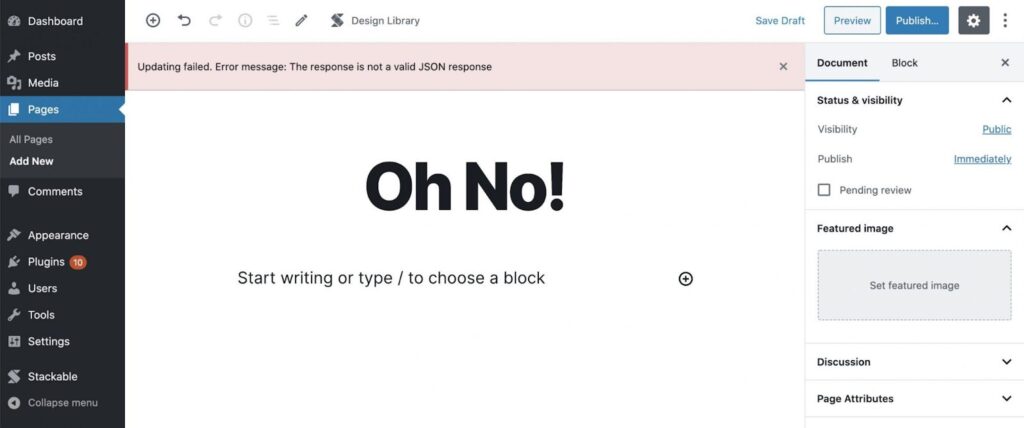
Another example of what you may see is the following:

Whenever you see this critical error, it implies a problem with the block editor and server communicating. It could be that the editor failed to send a request to the server or receive a response, or the response was in an invalid JSON format.
Fixing this problem requires reestablishing a connection with the server. To identify the particular problem facing your particular setup, you may have to identify and fix anything preventing a connection to your server.
5 common causes and how to fix them
You may encounter an invalid JSON response error in your WordPress website for many reasons. Here are some common examples of JSON response errors and actions you can take to resolve them:
1. Incorrect website address settings
Poor website address configurations are often the most common reason for invalid JSON response errors. Using the wrong address is common, especially after migrating to a new host or cloning your website.
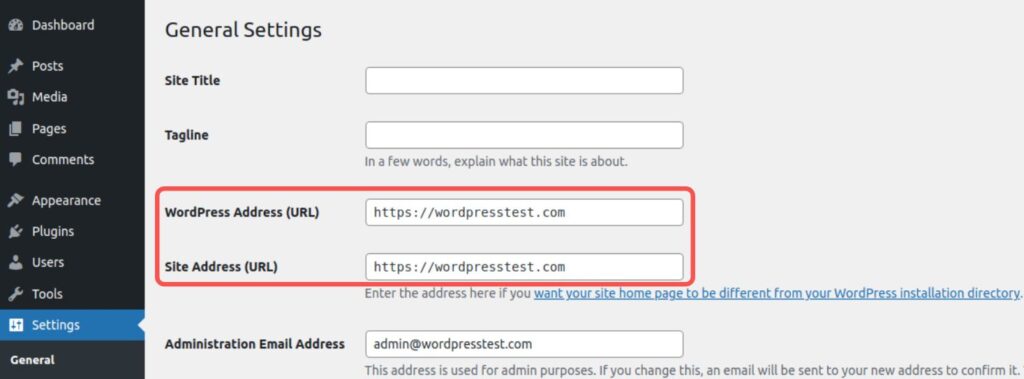
But fixing incorrect website address settings is also easy. To do so:
- Go to your dashboard and then Settings > General.
- Make sure your URLs are accurate. Check for variations in spelling and any additional punctuation marks. If you notice a problem, correct it.
- Next, check the protocol. If you use a Secure Socket Layer (SSL) certificate, ensure your addresses use https:// instead of http://.
- Save your changes to apply them across your website.
Alternatively, you can change these settings from the WordPress database directly or by changing the wp-config.php file. This option isn’t always necessary unless your URLs are hard coded to the file. If that’s the case, no changes to your General settings will take effect until you reconfigure that file.
To reconfigure wp-config.php:
- Use your File Transfer Protocol (FTP) program or your host’s cPanel or equivalent tools to open the wp-config.php file.
- Look for the code define (‘WP_SITEURL and define ( ‘WP_HOME.
- Each of these snippets will come with a URL. Ordinarily, the two URLs are identical. If you notice an issue with these URLs, you can edit or remove them. That way, your website defaults to the WordPress and site URLs defined in your General Settings.
2. Secure Sockets Layer (SSL) and mixed content issues
An SSL certificate is an excellent way to make your website trustworthy and credible. But it only offers security when it forces every resource in your website to load through a secure protocol.
If some resources load over Hypertext Transfer Protocol (HTTP), this may cause a “mixed content” error and may also throw an invalid JSON response error.
If you fixed the URLs in the General Settings to use Hypertext Transfer Protocol Secure (HTTPS), you should no longer have mixed content warnings. However, if you’re facing extra issues, you can fix them with a plugin:
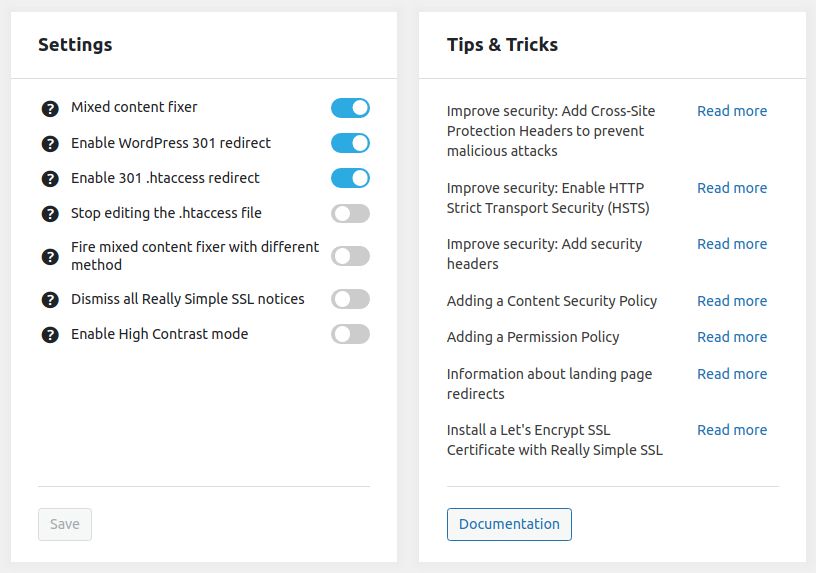
A plugin like Really Simple SSL comes with an option to fix mixed content errors.
Please note that you can only use HTTPS with a valid SSL certificate. If not, you can’t use the HTTPS protocol, which may cause further problems. Instead, use a valid SSL certificate or revert to the HTTP protocol.
3. Issues with permalinks
Another issue that is relatively easy to fix is the Permalink Structure. These are the unique URL links each page and post has, which may sometimes change:

To fix the Permalinks:
- From the WordPress Admin Dashboard, go to Settings > Permalinks.
- Determine if the Permalink Settings are in order. If not, select an option that suits your website, or create a custom structure.
- Once you’ve selected an option, save the changes.
Refresh your editor and check if you’ve fixed the error.
4. Issues with the .htaccess file
Sometimes, the .htaccess file, which allows you to make independent changes to your website’s directories, can cause invalid JSON response errors. If the file is corrupted or broken, you can delete it and force WordPress to remake it to resolve the error.
To make a new .htaccess file:
- Using the control panel or FTP, open your server and locate the file in your root folder.
- Download the file as a precaution. Then, delete the server’s copy of the file.
- Update your Permalink Settings and save the changes.
5. Firewall and security setup issues
Using firewall software can sometimes cause the “not a valid JSON response” WordPress error if restrictions set by security software prevent a connection with the server. The issue may sometimes be with your Web Application Firewall (WAF) or WordPress security plugin.
For instance, our friends at not a valid json responseNexcess uses the ModSecurity WAF to monitor incoming connections. It comes with a set of configured rules that every request must check against before accessing the server. This setup prevents potential network attacks on your server.
Once a rule is triggered, ModSecurity blocks the connection and returns an error message. Below are some examples of rules in ModSecurity:

You can also opt for a WAF that comes with your Content Delivery Network (CDN) subscription. For example, Cloudflare uses a WAF with managed rulesets that filter out multiple malicious requests before they can compromise your server.
WAF plugins like Wordfence and Solid Security Pro can provide enhanced security with their own secure rulesets.
Modern security solutions are often optimized, but sometimes, false positives can trigger these rules. Once triggered, you may receive a “not a valid JSON response” WordPress error as you update a post or a page from the administrator dashboard. This error message may recur until you fix the issue that’s causing a false positive.
You can address this challenge in several ways:
- First, deactivate any WordPress security plugin or WAF, including the Cloudflare WAF. Often, this resolves the issue.
- If it does, identify the trigger that blocked the server connection. You may have to whitelist some requests and correct others.
- If the issue persists, reach out to the Liquid Web customer support team. A qualified technician will check the server logs to see if ModSecurity might be at fault.
6. Classic editor as a temporary solution
The Classic Editor doesn’t rely on the REST API the same way the Block Editor (Gutenberg) does. The JSON error is often caused by issues related to this API, so using the Classic Editor can bypass that issue and allow you to continue editing your content without interruptions.
Here’s how to use the Classic Editor:
- Install and activate the Classic Editor plugin from the official WordPress repository.
- Go to Settings > Writing and choose the Classic Editor as the default editor.
- Edit your posts and pages without encountering the JSON error since the Classic Editor doesn’t rely on the REST API.
Important consideration: This method isn’t a permanent fix. It’s a temporary workaround to keep you working while you troubleshoot the real cause of the JSON error.
Once the root cause of the error is identified and fixed, you can switch back to using the Block Editor (Gutenberg) for a modern editing experience.
7. Resolving plugin and theme conflicts
Plugins or themes in WordPress can sometimes interfere with the proper functioning of the REST API, which is responsible for handling communication between the WordPress editor and the server. This can lead to errors, such as the “invalid JSON response error.”
To identify a problematic plugin, deactivate all plugins. Navigate to Plugins > Installed Plugins in the WordPress dashboard. Then, select all plugins and use the “Bulk Actions” dropdown to deactivate them.
Try updating your content after deactivating the plugins. If the error disappears, it’s likely that one of the plugins was causing the issue.
To pinpoint which plugin is causing the issue, reactivate each plugin one at a time, testing after each activation to see if the error reappears.
And to identify a problematic theme, try temporarily switching to a default WordPress theme, like Twenty Twenty-Five.
If switching themes resolves the error, then the issue is likely with your original theme. This means the theme may be conflicting with the REST API.
8. Using debugging to identify the error
WordPress provides a debugging feature that can log errors occurring on the site. The error log generated can offer valuable information for troubleshooting.
To enable debugging, first, use an SFTP client (like FileZilla) or your hosting provider’s file manager to access your website’s files. Then, in the wp-config.php file (located in the root directory of your WordPress site), add the following code before the line that says “That’s all, stop editing! Happy publishing”:
define(‘WP_DEBUG’, true);
define(‘WP_DEBUG_LOG’, true);
define(‘WP_DEBUG_DISPLAY’, false);
This will enable error reporting in WordPress. WordPress will start recording any errors in a debug.log file in the wp-content directory. You can access this file and review any errors logged after reproducing the issue. This file will contain error details, including information about issues related to the REST API (which is where the “invalid JSON response” error is often triggered).
Besides enabling WordPress debugging, you can use browser developer tools to inspect the network requests made by the website, especially when the error occurs. These tools are built into modern browsers like Chrome, Firefox, and Edge.
9. Alternative media upload methods
Instead of using the Block Editor’s media upload function (which is part of the editor interface), this method suggests uploading your media through the Media Library. You can do this by navigating to Media > Add New in the WordPress dashboard. This can bypass the Block Editor’s potential issues with media uploads.
Also, ensure your image filenames don’t contain special characters or spaces. Sometimes, the system fails to process media with filenames that contain special characters (such as &, %, $, etc.) or spaces. Renaming your files to have simple alphanumeric characters (and using hyphens or underscores instead of spaces) can prevent errors during the upload process.
For featured images (the primary image that represents your post or page), it’s recommended to use the Featured Image panel on the right-hand sidebar rather than trying to upload it directly through a block in the Block Editor. This avoids potential issues with the editor’s handling of featured images.
Additionally, if uploading multiple images at once causes the error, try uploading them one at a time.
Invalid JSON response FAQs
Avoid JSON errors with managed WordPress hosting
If you find yourself struggling with the technical side of your website more than you’d like, it might be time to upgrade your WordPress.org hosting. A good web host will help keep your site fast and secure—and offer 24/7 expert support. If you need even more help, a managed WordPress hosting arrangement might be a good solution.
Liquid Web has been pushing the industry forward in web hosting for WordPress sites, for decades. Our server speeds are lightning fast, our uptime is unbeatable, and our support team is unrivaled. Click below to learn more, or start a chat right now to get answers and guidance just for you.
Additional resources
Diagnosing WordPress errors on your site →
Even more common errors, how to troubleshoot them, and how to solve them
What is WordPress REST API? →
… and how do you use it? A complete beginner’s guide
What is managed WordPress hosting? →
What it means, what it includes, and how to decide if it’s right for you

Kiki Sheldon is a Security Specialist for Liquid Web with extensive knowledge of Linux System Administration and popular Content Management Systems (CMSs). Kiki’s passion for writing allows her to share her professional expertise and help others. In her free time, she enjoys reading, especially classic books and detective stories.