Fixing mixed content warnings on WordPress sites

Last year, Google announced that over 75% of Chrome traffic was protected by HTTPS, a large increase on the previous year. The pace of HTTPS adoption accelerated as the cost, complexity, and performance implications were addressed. With Let’s Encrypt, anyone can get a domain-validated SSL certificate for free. Configuring a WordPress site to use an SSL certificate is easier than ever. Performance overheads are negligible for all but the largest sites. But there are still challenges to HTTPS adoption on established WordPress sites: mixed content warnings top the list.
Get fast, reliable hosting for WordPress
Power your site with the industry’s fastest, most optimized WordPress hosting
What is a mixed content warning?
Browsers display mixed content warnings when an HTML page contains both HTTP and HTTPS content. They won’t load unsafe content in a supposedly safe environment. A fully-protected page is safe from snooping, but that can’t be guaranteed if there are non-protected elements on the same page. Browser developers want users to be aware of the risk to avoid instilling a false sense of security, so, in addition to blocking unsafe content, they display a warning. Google’s Chrome displays a warning icon in the space a padlock icon would appear for a secure site and a warning notification instructing users not to enter sensitive information such as passwords.
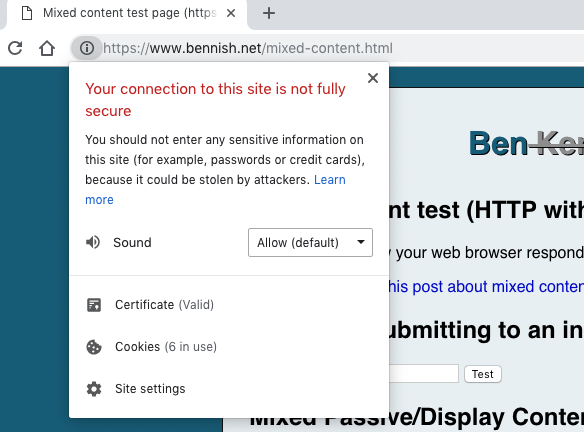
Mixed content warnings are caused by lingering HTTP links on a WordPress site that should serve content over HTTPS. It is challenging to make sure every link to every script or image is changed to HTTPS. Theme and plugin developers are sometimes less careful than they should be when including assets. A single errant image file can raise a mixed content warning and give visitors a reason to doubt the security of a page that is, in fact, perfectly secure.
Fixing mixed content warnings
The first step in solving mixed content problems is to find the offending URLs. On a WordPress site with only a few pages, it can be done manually. Open each page and look for a mixed content warning. When you trigger one, open the browser’s developer tools. In Chrome you will find them under the More Toolssubmenu of the main menu. At the far right is an indicator of errors and warnings; click on it and Chrome shows a list of errors, including the assets that caused the mixed content warning.
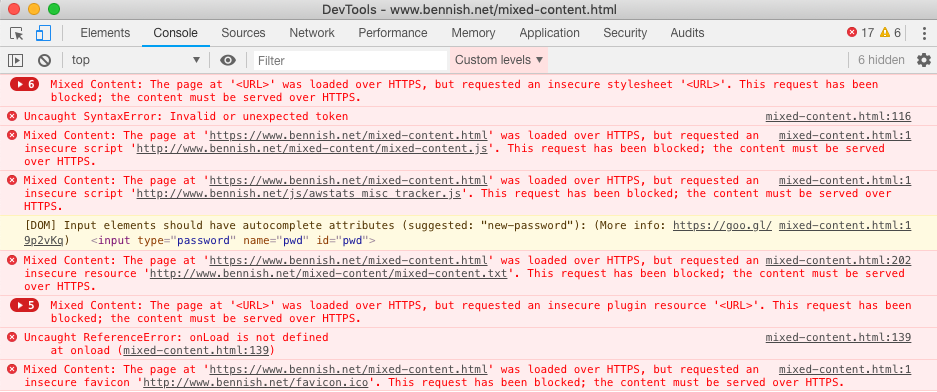
Changing the URL protocol from HTTP to HTTPS should eliminate the warnings. If the content is not available over HTTPS, which is unlikely, you will have to provide an alternative source that is available over HTTPS.
For larger sites, checking each page is not an option. Tools like the free SSL Checkcrawl a limited number of pages and identity problematic URLs. Fixing the URLs can be done via a search and replace tool such as the one built into the WP-CLI utility. Read this guideand be careful; try this out on a test installation before running it on your live site.
In most cases, the following command will do the job:wp search-replace 'http://example.com' 'https://example.com' --precise --recurse-objects --all-tables
Finally, a less permanent but easier solution is offered by the Really Simple SSL plugin, which dynamically alters URLs to include HTTP rather than rewriting database tables.
Additional resources
Build WordPress landing pages for higher conversions →
Learn how to build high-converting landing pages in WordPress.
How to create a WordPress ecommerce site →
Start your online business with this step-by-step guide on setting up a WordPress store.
How to optimize images for WordPress →
Improve your site’s loading speed and SEO by learning how to compress and resize images.