

◦ Comprehensive security
◦ 24/7 support
WordPress Guide → Errors → Login Redirect Loop
How to fix the WordPress login redirect loop

A WordPress login redirect loop is when you enter your username and password on the WordPress login screen, click Log In, and get sent right back to the same login screen instead of into your WordPress dashboard.
You’re stuck in a cycle: you enter your login details, get redirected to login, enter credentials again, same result. No error message pops up, it’s just an endless loop.
This is one of the more common WordPress login issues, and the good news is that most of the time it’s fixable once you know where to look.
This guide covers:
- What causes a WordPress login redirect loop.
- How to fix the issue in a logical order from easiest to most technical.
- How to use wp-config.php to force a fix when other methods don’t work.
- How to prevent the loop from happening again on your site.
- Answers to the most common questions about login redirect loops.
A quick note before we get started: the WordPress login redirect loop is different from the more general ‘too many redirects‘ error, even though the underlying cause can be similar. The login redirect loop affects just wp-login.php/wp-admin.php and the admin area. The ‘too many redirects’ error usually affects the whole site. Some of the fixes overlap, but the troubleshooting order is different.
Get fast, reliable hosting for WordPress
Power your site with the industry’s fastest, most optimized WordPress hosting
What causes a WordPress login redirect loop?
A WordPress login redirect loop almost always comes down to one of these causes, roughly ordered by how common they are.
Mismatched WordPress URL settings
The most common cause is a mismatch between your WordPress Address (URL) and Site Address (URL) settings, or between those settings and the URL your browser is actually requesting.
WordPress sets the login cookie for one domain (let’s say www.yoursite.com), then redirects you to a different domain (yoursite.com). The cookie doesn’t follow, so WordPress thinks you’re not logged in and sends you back to the login screen.
This often happens after switching between www and non-www, moving from HTTP to HTTPS, or migrating to a new domain.

Plugin conflicts
Plugin conflicts represent 65% of technical malfunctions reported in WordPress sites, according to industry research. Security plugins are particularly likely to interfere with login redirects since they often modify the authentication flow. Caching plugins can also cause this if they’re caching login pages they shouldn’t. A recently installed or recently updated plugin could be the reason for this happening.
Corrupted browser cookies
Sometimes the loop happens because your browser is sending bad cookie data or has cache issues. Outdated or corrupted cookies tell WordPress something inconsistent, and the login flow breaks.
Corrupt or misconfigured .htaccess file
The .htaccess file in your WordPress root directory controls server-level rewrites and redirects. A corrupted .htaccess file (often from a botched plugin install, a security tool that modified it incorrectly, or manual edits gone wrong) can send your login redirects in circles.
Theme conflicts
Less common than plugin conflicts, but a recently changed theme or a custom theme with errors in its functions.php can break the login flow.
File permission errors
Incorrect file permissions on wp-config.php or other core files can prevent WordPress from reading the values it needs to handle logins properly. The standard is 755 for directories and 644 for files, with wp-config.php ideally set to 440 or 600 for tighter security.
Server-side caching or CDN issues
If you’re using a CDN like Cloudflare or server-side caching, the login flow can be cached when it shouldn’t be. The CDN serves an older version of the response, and the login never completes.
How to fix the WordPress login redirect loop (step by step)
Work through these fixes in order. The earlier steps are the easiest and most likely to solve the problem, so don’t skip ahead to wp-config.php edits unless you’ve already tried the basics.
Step 1: Clear browser cookies and cache for your site
Start here. About a third of login redirect loops are fixed by this step.
- Open your browser’s settings.
- Find the option to clear cookies and cached data.
- Filter to only your site’s domain (otherwise you’ll log out of everything else).
- Clear the cookies and cached files.
- Restart your browser and try logging in again.
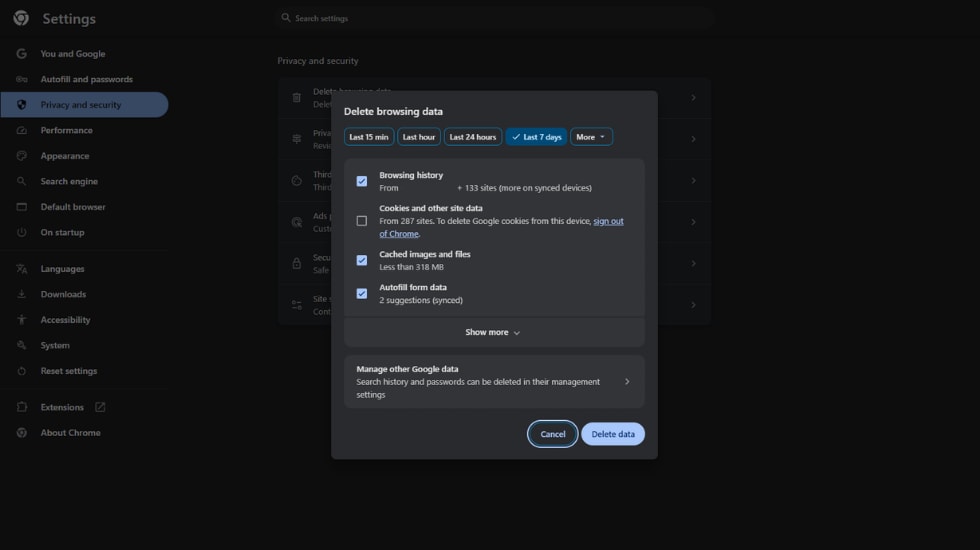
If that doesn’t work, try logging in from a different browser (Chrome if you usually use Firefox, or vice versa) or from an incognito window. If the login works elsewhere, the issue is browser-specific, and a full cache clear will fix it.
Step 2: Disable browser extensions
Some browser extensions, especially privacy-focused ones, block cookies in ways that break the WordPress login flow. Disable extensions one by one (or just use an incognito window with no extensions) to test.
Step 3: Check your WordPress URL settings
If you have access to your dashboard (sometimes the login loop only affects certain users or paths), check Settings > General and make sure the WordPress Address (URL) and Site Address (URL) both:
- Use the same protocol consistently (both HTTPS, ideally).
- Use the same www or non-www format.
- Match the URL you’re actually visiting in your browser.
If you can’t access your dashboard, jump to Step 7 to fix these values via wp-config.php instead.
Step 4: Disable plugins via FTP
If you can’t log in to disable plugins through the WordPress admin dashboard, you can disable all plugins at once via FTP or your hosting control panel’s file manager:
- Connect to your site via FTP, SFTP, or your hosting provider’s file manager.
- Navigate to /wp-content/.
- Rename the plugins folder to something like plugins-disabled.
- Try logging in again.
If the login works, one of your plugins was the cause. Rename the folder back to plugins. WordPress will recognize that all the plugins are now deactivated. Log in to your dashboard and reactivate plugins one at a time, testing the login between each one, until you find the plugin causing the issue.
The most common culprits in our experience are security plugins, caching plugins, and any plugin that modifies the login URL or adds two-factor authentication.
Step 5: Switch to a default WordPress theme
If disabling plugins didn’t fix it, the issue might be your theme.
- Connect to your site via FTP or file manager.
- Navigate to /wp-content/themes/.
- Rename your active theme’s folder to something like your-theme-disabled.
- WordPress will automatically fall back to the latest default theme (Twenty Twenty-Five at the time of writing).
- Try logging in again.
If the login works with the default theme, your custom theme is the cause and needs troubleshooting. You can usually rename the folder back, and the theme will reactivate, but check it for recent changes (especially to functions.php) before doing anything else.
Step 6: Reset the .htaccess file
A corrupted .htaccess file can cause redirect loops at the server level. The fix is to let WordPress regenerate a clean one:
- Connect to your site via FTP or file manager.
- Navigate to the WordPress root directory (the folder containing wp-config.php).
- Rename .htaccess to .htaccess.old.
- Log in to your WordPress dashboard.
- Go to Settings > Permalinks.
- Click Save Changes without changing anything. This regenerates a fresh .htaccess file with the default WordPress rules.
If you can’t log in to do step 4-6, you can create a clean .htaccess manually. Create a file called .htaccess in your WordPress root with this content:
# BEGIN WordPress
<IfModule mod_rewrite.c>
RewriteEngine On
RewriteBase /
RewriteRule ^index\.php$ - [L]
RewriteCond %{REQUEST_FILENAME} !-f
RewriteCond %{REQUEST_FILENAME} !-d
RewriteRule . /index.php [L]
</IfModule>
# END WordPress
This is the standard WordPress .htaccess content and will work for most sites using pretty permalinks.
Step 7: Update WordPress URL settings via wp-config.php
If you can’t access your dashboard and Steps 1-6 haven’t worked, you can force the WordPress URL settings through wp-config.php. This overrides whatever is in the database.
- Connect to your site via FTP or file manager.
- Open wp-config.php in the WordPress root directory.
- Find the line that says /* That’s all, stop editing! Happy publishing. */ (or similar).
- Just above that line, add these two lines, replacing the domain with your actual site URL:
define( 'WP_HOME', 'https://yourdomain.com' );
define( 'WP_SITEURL', 'https://yourdomain.com' );- Save the file and try logging in.
If this fixes the issue, once you can access your dashboard, go to Settings > General and update the URLs there to match. You can then remove the lines from wp-config.php so the database values are used again.
Step 8: Force cookie domain consistency
If you’ve tried everything above and the loop persists, add one more line to wp-config.php that forces WordPress to use a specific cookie domain:
define( 'COOKIE_DOMAIN', 'yourdomain.com' );Place this above the same /* That's all, stop editing! */ line. This is particularly useful when the loop is caused by a www/non-www mismatch that other fixes haven’t resolved.
Step 9: Check file permissions
Permissions that are too restrictive can prevent WordPress from reading the files it needs to authenticate properly. The standard:
- Directories: 755
- Files: 644
- wp-config.php: 440 or 600 (for tighter security)
If you’re not sure what your current permissions are, your FTP client or file manager will show them. Most hosting control panels include a file permissions tool. Check the WordPress root directory and wp-content folder permissions in particular.
Step 10: Disable caching and CDN
If you use a caching plugin or a CDN like Cloudflare, temporarily disable them to test:
- Caching plugins: Disable the plugin via FTP using the rename method from Step 4.
- Cloudflare: Set it to development mode (under your domain’s settings > Caching > Configuration). This bypasses caching for three hours, long enough to test the login.
- Server-side caching: Contact your hosting provider’s support team to disable any server-level caching temporarily.
Try logging in. If the login works without caching, the cache is what was causing the loop. You’ll need to clear the cache and adjust the cache rules so login pages aren’t cached.
Step 11: Contact your hosting support
If you’ve worked through all the steps above and you still can’t log in, contact your hosting provider’s support team. Server-level issues (mod_security rules, firewall configurations, DNS routing) can cause login loops that aren’t fixable from the WordPress side. Liquid Web’s managed WordPress hosting includes 24/7 support that can diagnose these issues directly on the server.
How to prevent the WordPress login redirect loop
Prevention is mostly about not letting your WordPress configuration drift out of sync over time.
Keep WordPress, plugins, and themes updated
Outdated software is the leading cause of most WordPress problems, including login issues. Auto-updates for minor releases of WordPress core, plugins, and themes catch most security and compatibility issues before they cause problems.
Test plugin and theme changes on staging first
Changing your active theme or installing a major new plugin on a live site is the fastest way to introduce a login loop. Most managed WordPress hosting providers include staging environments where you can test changes before pushing them live.
Keep your WordPress and Site Address settings in sync
When you move from HTTP to HTTPS, switch between www and non-www, or migrate to a new domain, update the URL settings in Settings > General as part of the migration process. Don’t rely on .htaccess redirects alone.
Use a security plugin that doesn’t break authentication
Some security plugins are aggressive about modifying the WordPress login flow, which can introduce login redirect loops on certain configurations. Kadence Security is built with WordPress’s standard authentication flow in mind and includes features (real-time firewall, brute force protection, two-factor authentication) that protect login pages without breaking them. The combination of these features handles most of the security needs that other plugins try to address through more aggressive (and conflict-prone) means.
Keep regular backups
Automated daily backups give you a fast path back if something goes wrong with your login. If you’ve made changes that caused a login redirect loop and you can’t fix it, restoring from a backup taken before the change is usually faster than working through every fix in this guide.
Pick the right hosting
Shared hosting environments are more likely to introduce login redirect loop issues because of how they handle server-level configurations. Managed WordPress hosting avoids most of these issues by providing optimized server configurations specifically for WordPress workloads.
Get to grips with the WordPress login redirect loop
A WordPress login redirect loop looks worse than it usually is. The cause is almost always one of a small number of common issues, and the fix is rarely more complicated than clearing cookies, disabling plugins, or making a small edit to wp-config.php.
Once you’re back into your dashboard, take a few minutes to check the things that prevent future occurrences: confirm your URL settings are correct, update any plugins or themes flagged as outdated, and consider switching to a security plugin like Kadence Security that won’t get in the way of your login flow.
If you’d rather not deal with WordPress troubleshooting at all, Liquid Web’s managed WordPress hosting includes server-level optimizations that prevent most of these issues from happening in the first place, plus 24/7 support that can resolve login issues for you when they do come up.
Additional resources
Diagnosing WordPress errors on your site →
Even more common errors, how to troubleshoot them, and how to solve them
Resolving 500 internal server errors on WordPress →
Learn the steps you can take to fix an Internal Server Error on WordPress in this blog.
What is managed WordPress hosting? →
What it means, what it includes, and how to decide if it’s right for you