◦ Comprehensive security
◦ 24/7 support
WordPress Guide → Errors → Briefly Unavailable for Scheduled Maintenance
Fix it: “Briefly Unavailable for Scheduled Maintenance …”
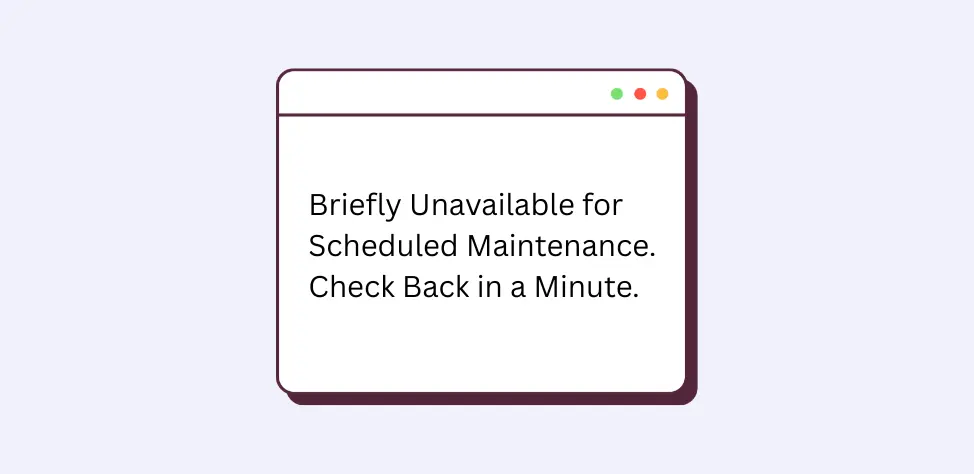
When you’re updating your WordPress site and suddenly get locked out with a vague maintenance message, it can feel like the whole site just ghosted you. No dashboard, no front end—just one line that seems stuck on repeat.
If you’ve landed here, you’re probably staring at “Briefly Unavailable for Scheduled Maintenance. Check Back in a Minute.” on another tab.
Let’s get that fixed and make sure it doesn’t happen again.
Get fast, reliable hosting for WordPress
Power your site with the industry’s fastest, most optimized WordPress hosting
What “briefly unavailable for scheduled maintenance” actually means
WordPress automatically puts your site into maintenance mode whenever you update plugins, themes, or the core software. This temporary mode normally lasts only a few seconds before WordPress exits maintenance and reactivates your site.
If the message sticks around, something interrupted that process and left your site in limbo.
Why WordPress gets stuck in maintenance mode
This happens when WordPress can’t complete an update and remove the .maintenance file it created.
Common reasons your site gets stuck
- Interrupted plugin, theme, or core update
- Closing the browser or switching tabs mid-update
- Server timeouts or slow hosting that causes updates to stall
- Updating too many plugins at the same time
- A plugin or theme that isn’t compatible with your WordPress version
How to fix the “briefly unavailable for scheduled maintenance” message
The fix is simple: remove the .maintenance file that WordPress left behind.
Method 1: Delete the .maintenance file using your hosting file manager
A hosting file manager is usually the fastest way for beginners to remove the file and restore the site.
- Log in to your hosting control panel.
- Open your File Manager tool.
- Navigate to your site’s root folder, usually named public_html or the folder where WordPress is installed.
- Turn on “show hidden files” so the .maintenance file appears.
- Find the .maintenance file and delete it.
- Refresh your website to confirm the message is gone.
Method 2: Delete the .maintenance file using FTP or SFTP
Use this method when you prefer working with a desktop app such as FileZilla or Cyberduck.
- Connect to your site using your FTP or SFTP login credentials.
- Open the root folder of your WordPress installation.
- Enable hidden files in your FTP client.
- Select and delete the .maintenance file.
- Reload your site in a browser to confirm everything is working.
Method 3: Disable maintenance mode via WP-CLI
If you have SSH access, WP-CLI offers a fast cleanup option. Run:
wp maintenance-mode deactivate
If that still doesn’t bring your site back, navigate to the root folder and manually delete the .maintenance file as described earlier.
What to do if your site is still stuck after removing the .maintenance file
Sometimes leftover cache or partial updates keep the message alive even after the file is gone.
- Clear your browser cache so you aren’t seeing an old version of the page.
- Clear any server-level or plugin-based caching, especially if you use performance tools like LiteSpeed Cache or WP Super Cache.
- Visit Dashboard > Updates to complete any plugin, theme, or core updates that didn’t finish.
- Reinstall or update any plugin or theme that shows an update failure.
- Temporarily rename your /wp-content/plugins/ folder to see if one of your plugins caused a conflict.
- Restore a recent backup if a corrupted update damaged core files.
How to prevent WordPress getting stuck in maintenance mode
Keeping updates smooth avoids this error in the future.
- Update one plugin or theme at a time so you can quickly identify compatibility issues.
- Avoid running updates during peak traffic hours when your server is working harder.
- Choose hosting that provides stable, adequate server resources so updates don’t stall.
- Back up your site before large updates so you can quickly recover from a failed update.
- Test major changes in a staging environment when possible.
- Keep the update window open and avoid multitasking until updates finish.
How hosting impacts stuck maintenance mode errors
Your hosting environment plays a bigger role in updates than many users realize.
Slow or resource-limited hosting increases the chances of a timeout or stalled update, which keeps your site stuck in maintenance mode. Hosting plans with higher PHP memory limits and stronger CPU resources reduce the risk of mid-update interruptions.
Managed WordPress hosting often provides safer updates, built-in backups, and staging environments that make fixing issues faster. When updates complete reliably, maintenance mode rarely becomes a problem.
“Briefly unavailable” FAQs
Getting started with fixing the “briefly unavailable for scheduled maintenance” error
This maintenance message looks dramatic, but it usually comes down to a single leftover file. Understanding why WordPress gets stuck like this makes the fix easier and keeps updates running smoothly in the future.
Your next step is simple: check your site’s root folder and delete the .maintenance file. Once that’s done, clear your cache and finish any incomplete updates so the issue doesn’t repeat.
Ready to upgrade your WordPress experience? Professional hosting improves speeds, security, and reliability for a website and a brand that people find engaging and trustworthy. Liquid Web’s WordPress hosting options configure business-class servers and support plans specifically for WordPress websites.
And if you don’t want to deal with server management and maintenance, our fully managed hosting for WordPress is the best in the industry. Our team are not only server IT experts, but WordPress hosting experts as well. Your server couldn’t be in better hands.
Click through below to explore all of our hosting for WordPress options, or chat with a WordPress expert right now to get answers and advice.
Additional resources
Diagnosing WordPress errors on your site →
Even more common errors, how to troubleshoot them, and how to solve them
WordPress Multisite cookie error (and how to fix it) →
Fix the WordPress multisite cookie error with these troubleshooting steps to restore seamless login access.
What is managed WordPress hosting? →
What it means, what it includes, and how to decide if it’s right for you