◦ Comprehensive security
◦ 24/7 support
WordPress → Drupal Migration
How to migrate a CMS: Drupal to WordPress

It is impossible to say which is better, Drupal or WordPress! You should pick the best CMS for your website based on feature requirements and priorities.
Get fast, reliable hosting for WordPress
Power your site with the industry’s fastest, most optimized WordPress hosting
Content Management System (CMS): Drupal to WordPress
What are Drupal and WordPress?
Drupal and WordPress are two of the most common open-source Content Management Systems (CMSs) in use on the Internet. Drupal is better suited for enterprise-level websites and web applications requiring a rich set of security features. WordPress is considered easier to use with less overhead and learning curve involved. In addition, WordPress boasts a significant worldwide user community of enthusiasts who like to extend its functionality with plugins and themes.
More about migrating Drupal to WordPress
Drupal is a flexible CMS built on the LAMP stack. Migrating your website may sound like a complicated task. However, WordPress makes it easy even for novice users to perform a full migration independently.
Drupal vs. WordPress
Before we get into the nitty-gritty specifics, let’s take a brief look at the CMS – Drupal-WordPress Comparison. We love both Drupal and WordPress. Both Drupal and WordPress have a great many community-supported plugins. Hence, it’s impossible to say whether WordPress or Drupal is “better.” It would be best if you concentrated on selecting the best tool for your project rather than trying for a blanket statement that one is always better than the other.
Drupal vs. WordPress: Who is the Winner?
| Drupal | WordPress | |
|---|---|---|
| Ease of Use | Not user-friendly to lay persons; developer assistance advised | Gets the job done easily and quickly; easy to install |
| Themes & Plugins | Not as many, harder to install | Many and easy to install |
| Security | Favored by governments; user knowledge tends to make it more resilient to attack | Each theme and plug-n is a potential vulnerability; popularity makes it a favorite target of attackers |
| Flexibility | Better at anything other than blogging, provided you have dev skills; innate mobile and multilingual functionality | Great for blogging; needs plug-ins for everything else; effective plugins can be costly |
| Access Control | Innate fine-tuned control | Limited without plugins |
| Support | Helpful community, but developers are more costly than their WordPress counterparts | Helpful community, developers are optional and less costly |
User-friendly WordPress wins for non-programmers
Drupal may be a better choice if you’re creating a site with a complicated data structure that needs to be customizable and changeable. In conclusion, Drupal is the perfect choice for developers with higher custom design needs.
However, in terms of plugin availability and variety for the current version of WordPress, WordPress wins. It’s a lot easier to go from “nothing” to a “fully functional website that looks excellent” with WordPress. WordPress is far more user-friendly, especially for those who aren’t programmers.
Step #1: Install the FG Drupal to WordPress plugin
The WordPress plugin FG Drupal to WordPress converts Drupal content, custom taxonomies, images, comments, users, and attachments to the WordPress equivalents. The free version does everything you need for a simple Drupal installation. However, it is recommended that you upgrade the plugin if you have a large business with many Drupal customizations.
The following instructions assume you’re using WordPress.org rather than a WP.com installation.
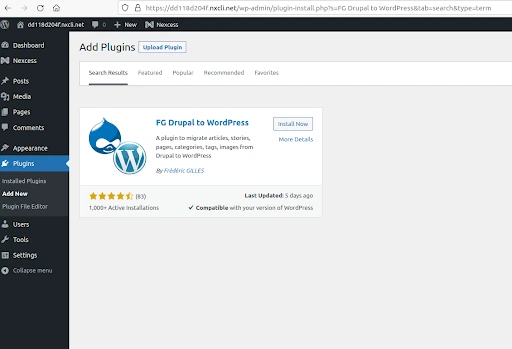
Step #2: Run importer
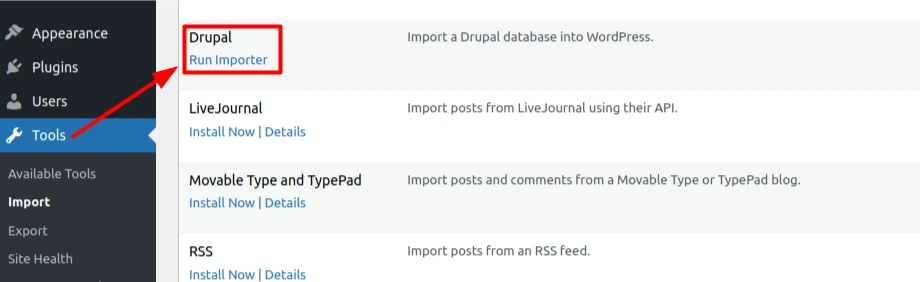
Once it is installed and activated, go to Tools > Import and just click the Run Importer link to start the import process.
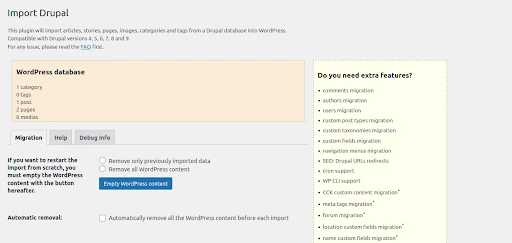
Above is the screen you will see. You will also be given the option of removing WordPress content when you import from Drupal since you are inside a WordPress installation. You can remove the WordPress contents. Please do not remove the site or installation.
You can import articles, stories, pages, images, categories, and tags from your old site with the free version of FG Drupal to WordPress. If you have custom taxonomies or want to import users, too, you can use the premium version.
Step #3: Get the Drupal website & database parameters
You can test the media connection by entering the URL of the live Drupal website.
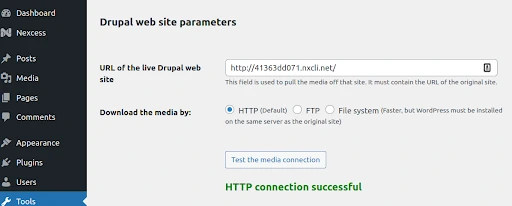
Now you will need to locate a few specific parameters. These are your Drupal username, password, hostname, and database name and prefix. You probably already know a few of these. The rest can be found by exploring your Drupal installation’s core files over FTP.
We recommend filezilla. Connect your FTP client and navigate to the /public_html/sites/default directory of your Drupal installation. There you’ll find a file called settings.php. Open settings.php, and you shall see the information you seek.
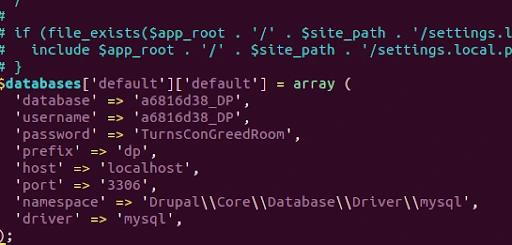
Put those values into the WP dashboard and hit the Test the Database Connection button. You should see a green “Connection Successful” message.
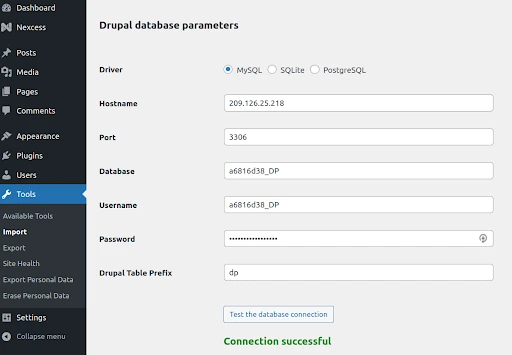
It is essential to include the underscore in the Drupal Table Prefix (just called prefix in the settings file). Without it, the connection will fail.
Step #4: Customize & import drupal to WordPress
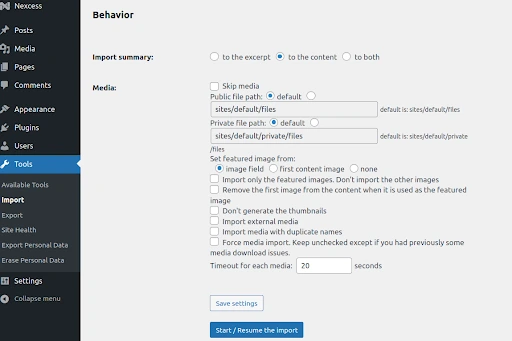
Next, you’ll need to configure how the plugin will import your Drupal post summaries and media files. You currently wind up at the Behavior segment of the relocation. Make sure everything is set up the way you want it.
When you choose Import Summary > to the Content, they will be imported as a Read More link. Choose whichever option you prefer before moving onto the Medias section.
Now coming to Medias section, tick the box next to the Skip Media option if you don’t want the plugin to import your media. You can also specify which photographs for your posts and pages should be set as featured and a few other options connected to external media.
Click the Start/Resume Import button once you’ve got everything set up.
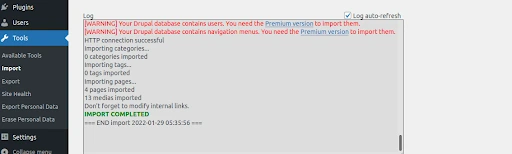
A success message “Import Completed” will display on the screen when the migration is complete.

You’ll have a detailed record of everything that transpired during the move.
Step #5: Modify internal links
Before leaving this page, scroll down to the section titled “After the Migration” and click the Modify Internal Links button.

Any internal links on your site will be updated to fit the new structure.

We recommend testing some of your pages and posts once you’ve used them to ensure that internal links are working correctly.
That’s all there is to it! You’ve completed the Drupal to WordPress migration successfully!
What should you do now that your Drupal site has been converted to WordPress? Customize!
Step #6: Customize your WordPress
Now that you’ve made the jump to WordPress, you’ll want to make the most of the platform’s features. Although all of your Drupal content has been moved to WordPress, your website is likely to look very different from before. That’s because you’re probably using one of the default WordPress themes. So firstly, we recommend you pick a stylish theme for your website.
After that, you should install any plugins that you might require. Finding the correct plugins may be just as challenging as finding the perfect theme when new to WordPress.
The tricky part is over, and now you can relax and enjoy yourself by creating the ideal WordPress website with all of the widgets and plugins you’ve always wanted.
Getting started with migrating from Drupal to WordPress
Do you have any concerns about moving from Drupal to WordPress? Let’s discuss them.
What should you do now that your Drupal site has been converted to WordPress? Customize!
Liquid Web offers WordPress hosting for every need and skill level. If managed hosting sounds like a weight off your shoulders, our WordPress experts can take care of the technical server work for you.
But if you’re confident — or you want learn — self-managed WordPress VPS options are available too. Either way, you’re getting the very best server performance, so your WordPress site stays fast, available, and secure.
Additional resources
What is WordPress? →
A complete beginner’s guide to basic WordPress options
What Is a Content Management System (CMS)? →
To build your website, consider using a Content Management System (CMS). It simplifies design and content control, suitable for beginners.
A complete guide to WordPress shortcodes →
Shortcodes make life easier. Learn how to get started!

Theertha Mohan Senior Automation Engineer at Simelabs | Appium| Mobile Testing|Pytest framework|Web Testing|Selenium | Allure Report| J Meter | Lambda test tool | Postman | Cypress | Automation| Jira|Junkins|