◦ Comprehensive security
◦ 24/7 support
WordPress Guide → Development → Push Specific Pages
How to push specific pages in WordPress
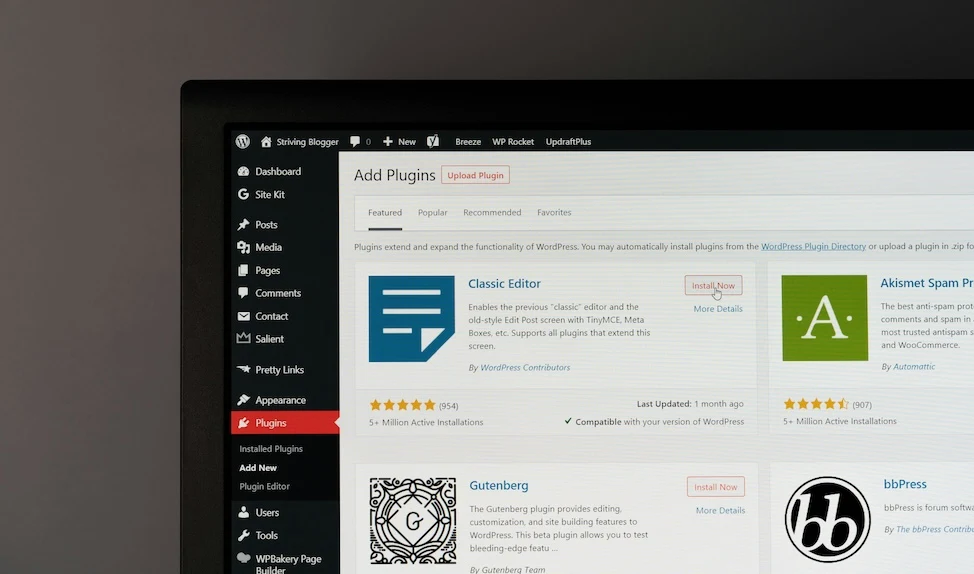
Sometimes you just need to update one page—like a product page, blog post, or contact form—without affecting the rest of your site. Whether it’s for faster caching updates, better SEO, or syncing from a staging site, learning how to “push” a specific page gives you more control and saves time.
Let’s walk through what “push” means in WordPress, and how to do it safely for each use case.
Get fast, reliable hosting for WordPress
Power your site with the industry’s fastest, most optimized WordPress hosting
What does “push a page” mean in WordPress?
The phrase “push a page” isn’t a standard WordPress term, but users often use it to describe one of these actions:
- Clearing or refreshing the cached version of a page so updates show instantly.
- Purging a specific page from a content delivery network (CDN).
- Deploying just one page from a staging site to the live site.
- Forcing Google or other search engines to recrawl an updated page.
- Manually syncing content from a plugin-based or headless WordPress setup.
Each situation has a different process, so let’s go step by step.
Clear cache for a specific WordPress page
When you update a page in WordPress, changes may not appear right away if your site uses caching. Caching saves a version of your page to speed up load times, but that can delay updates from showing to visitors.
How to clear cached pages using a caching plugin
If you’re using a plugin, you can usually clear the cache for individual pages. Here’s how:
W3 Total Cache
- Log in to your WordPress dashboard.
- Go to Performance > Page Cache.
- Scroll to the list of cached pages or posts.
- Find the specific page and click the option to “Empty cache” next to it.
This clears the saved version of that one page without clearing the entire site cache.
WP Super Cache
- In the WordPress dashboard, go to Settings > WP Super Cache > Contents.
- Use the search bar to find the specific page.
- Click “Delete” next to the URL to remove it from the cache.
LiteSpeed Cache
- Navigate to LiteSpeed Cache > Toolbox.
- Select the Purge tab.
- Choose the “Purge by URL” option.
- Paste in the full URL of the page you want to push.
- Click Purge.
This tells the plugin to re-cache a fresh version of the page the next time someone visits.
Purge a specific page from a CDN
If your site uses a CDN like Cloudflare, your updated content might not appear instantly because the CDN is showing a cached copy from its global servers.
How to purge a single URL in Cloudflare
- Log in to your Cloudflare dashboard.
- Choose the domain you want to manage.
- Click on the Caching tab in the top menu.
- Select “Configuration” or scroll to the section that says “Purge Cache.”
- Click “Custom Purge” and choose “Purge by URL.”
- Enter the full URL of the page you updated (including https://).
- Click Purge.
Cloudflare will now remove that specific page from its cache. The next time someone visits, they’ll see the most recent version.
Other CDN providers
The process is similar for other CDNs like:
- Bunny.net: Use their dashboard to purge specific URLs under the “Purge Cache” section.
- StackPath: Navigate to your site, then go to Site Optimization > Cache Settings and use the “Purge Files by URL” option.
Deploy only one page from staging to live
Some users run their WordPress site on a staging environment—a safe copy of the site for testing updates and changes. But most hosting tools push the entire site when you click “Go Live.”
If you only want to push one page, here are your options:
1. Manually copy and paste the page content
This is the safest method for beginners.
- Open the page on the staging site.
- Copy the page content from the WordPress editor (Block Editor or Classic Editor).
- Log into the live site.
- Edit the corresponding page and paste the updated content.
- Click Update.
This only changes the visible content and leaves everything else (like settings, themes, and plugins) untouched.
2. Use a migration plugin that supports selective content
Some plugins let you export and import specific posts or pages:
- WP Migrate Lite – requires manual setup and database knowledge.
- WPvivid Backup Plugin – supports partial site transfers and selective content migration.
Be cautious when using these tools. Always back up both staging and live sites before importing anything.
Push updated pages to Google (for SEO)
If you’ve updated a page’s content or SEO metadata, Google might not re-index it right away. You can speed things up by manually requesting indexing.
How to request indexing in Google Search Console
- Go to Google Search Console.
- In the top search bar, paste the full URL of your updated page.
- Press Enter.
- If the page is already indexed, Google will show the last crawl date.
- Click “Request Indexing” to prompt Google to crawl the page again.
This process usually takes a few hours but can help new or updated content appear in search results faster.
Sync or regenerate pages in plugin or headless setups
Some WordPress setups use plugins or decoupled front ends that require additional syncing steps.
Elementor (or other visual builders)
If you’re using Elementor, just clicking the blue Update button at the bottom of the editor regenerates the content.
If your page still doesn’t reflect changes:
- Go to Elementor > Tools > Regenerate CSS & Data.
- Click the button and refresh your page.
WPML or Polylang (multilingual sites)
Changes in one language don’t always sync to translations.
- Use the sync tools under WPML > Translation Management or Polylang > Translations.
- Manually update each translation if automatic syncing isn’t enabled.
Headless WordPress (REST API or GraphQL frontends)
If your site uses a static frontend (like Gatsby or Next.js):
- Trigger a new build using your hosting or deployment platform (e.g., Netlify or Vercel).
- Use a webhook or custom API call to rebuild only that specific page, if supported.
This step is technical, so consult your developer or documentation if you’re unsure.
When should you push a specific page?
You don’t always need to push content manually. But here are common situations where it’s useful:
- You fixed a typo or design issue and want it live immediately.
- You updated a product page with new pricing or availability.
- You added internal links or schema markup for SEO.
- You tested something on staging and need to transfer it over.
In general, if the change is time-sensitive or impacts visibility, it’s worth pushing manually instead of waiting for automation.
Next steps for pushing specific pages in WordPress
Being able to push individual WordPress pages gives you more control over performance, visibility, and updates. It’s especially helpful for business sites, ecommerce, or anyone managing a high-traffic page.
Start by identifying what kind of “push” you need—cache clearing, CDN purging, or SEO crawling—and then use the right tool or method to get it done.
Ready to upgrade your WordPress experience? Professional hosting improves speeds, security, and reliability for a website and a brand that people find engaging and trustworthy.
Don’t want to deal with server management and maintenance? Our fully managed hosting for WordPress is the best in the industry. Our team are not only server IT experts, but WordPress hosting experts as well. Your server couldn’t be in better hands.
Click through below to explore all of our hosting for WordPress options, or chat with a WordPress expert right now to get answers and advice.
Additional resources
What is managed WordPress hosting? →
Get details and decide if managed WordPress hosting is right for you.
How to add continuous background music to a WordPress site →
Add continuous background music to your WordPress site without interruptions during page changes.
A complete guide to WordPress shortcodes →
Shortcodes make life easier. Learn how to get started!