

◦ Comprehensive security
◦ 24/7 support
WordPress Guide → Development → Core
What is WordPress Core? WordPress Core Explained

WordPress core is the set of foundational files that make every WordPress site work. It powers your dashboard and your database connection. It handles page rendering and login sessions. And it provides the underlying logic that themes and plugins build on top of. Without it, the rest of your site has nothing to run on.
This guide covers what WordPress core is and how it interacts with themes and plugins. You’ll also learn why you should never modify core files directly, how to update WordPress safely, and how to contribute to its ongoing development.
Get fast, reliable hosting for WordPress
Power your site with the industry’s fastest, most optimized WordPress hosting
What is WordPress core?
WordPress core is the codebase you download from WordPress.org when you install WordPress. It’s an open source platform, freely available to anyone, and it’s what every WordPress site has in common.
By default, the WordPress core lets you:
- Access the WordPress admin dashboard.
- Add and edit posts and pages.
- Manage users and permissions.
- Upload media files and manage them in the library.
- Add tags, categories, and custom taxonomies.
- Embed videos from YouTube, Vimeo, and other platforms.
- Allow visitors to comment on posts.
- Set permalinks, navigation menus, and headers.
- Power the block editor (also known as Gutenberg).
- Expose data through the REST API.
To see exactly what’s included, install WordPress fresh without any themes and plugins. What’s left is the core.
You’ll notice that core alone can’t render a public-facing site, which is why every install includes a default theme. The default themes that ship with WordPress, however, aren’t technically part of the core.
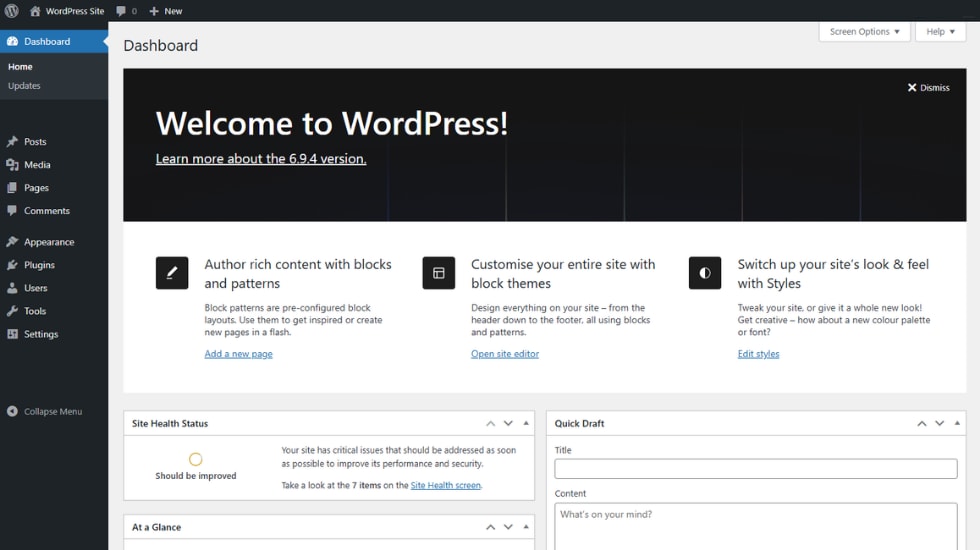
The four parts of every WordPress site
Every WordPress site is built from four parts. These are:
- WordPress core files. The foundational codebase downloaded from WordPress.org.
- The WordPress database. Where your posts, pages, users, comments, and settings are stored.
- Theme files. These control the design and layout of your site.
- Plugin files. Extend the functionality of your site beyond what core provides.
Understanding how these four pieces fit together is the foundation of working with WordPress.
WordPress core files and folders
When you unzip a WordPress download from WordPress.org and open the folder, you’ll see three top-level directories and a handful of important files.
The three core folders
The folder structure looks like this:
- /wp-admin/. This contains all the files that power the WordPress admin dashboard. It includes admin.php (the entry point to WordPress’s backend), users.php, update.php, and network.php for multisite.
- /wp-includes/. Holds the bulk of core functionality. Template tags, database functions, query classes, and over 100 individual files that handle everything from sessions to localization.
- /wp-content/. Where your themes, plugins, and media uploads live. Technically not part of core, since this is your customization space, but it’s installed alongside core in every fresh install.

The most important core files
Here are some of the most important files in WordPress core:
- wp-config.php. Holds your database connection settings, security keys and salts, table prefix, language, and ABSPATH (the absolute path to your install). The most important configuration file in WordPress.
- index.php. The default entry point for the front end of your site.
- wp-load.php and wp-settings.php. Bootstrap files that load WordPress when a request comes in.
- .htaccess. Handles permalink rewrites and redirects on Apache servers. Some hosts running Nginx don’t support this file, so the rewrites are configured at the server level instead.
- functions.php (core version). Located in /wp-includes/, this file powers fundamental operations across the platform. Note that this is different from the theme functions.php file you may have edited before.
The two functions.php files
WordPress has two files named functions.php, and mixing them up is one of the most common beginner mistakes:
- Core functions.php lives in /wp-includes/. Never edit this file. Any changes you make will be overwritten on the next core update, and a mistake can break your whole site.
- Theme functions.php lives in /wp-content/themes/your-theme/. This is the safe one. You can use it to add custom code to your site, register menus, enqueue scripts, or hook into WordPress core functionality.
For anything more substantial than a few small tweaks, use a child theme or a custom plugin instead of editing the parent theme’s functions.php directly. That way, your changes survive theme updates.
How WordPress core interacts with themes and plugins
Themes and plugins don’t run in isolation. They hook into the core to display content and add features.
- Themes use core functions like
get_header(),the_content(), and the loop to control how your site looks. - Plugins use WordPress actions and filters to modify or extend behavior without changing any core files.
This is why you can switch themes, deactivate plugins, or change templates without breaking the underlying site. The core stays consistent, and everything else plugs into it via APIs.
WordPress core APIs
WordPress has several in-built APIs that let developers add features without modifying core files. These are what make custom code, plugins, and integrations possible.
The main core APIs:
- REST API. This lets external applications read and write WordPress data over HTTP. It’s used heavily for headless WordPress, mobile apps, and integrations with services like Jetpack and other third-party tools.
- Settings API. This lets developers add custom settings pages to the admin dashboard with built-in form handling.
- Shortcode API. This lets you create reusable content snippets that work across posts and pages.
- Widgets API. Registers and controls widget areas in themes.
- Database API. This lets developers interact with the database safely using the $wpdb global, with built-in protection against SQL injection.
Using these APIs ensures your additions stay compatible across core updates. Bypassing them and editing core files directly is how things break.
Why you should never modify WordPress core files
Editing WordPress core files is the fastest way to create problems for yourself. Here are three reasons to leave these files alone:
- They update and overwrite your changes. Every core update replaces the modified files, which means your customizations won’t continue to apply.
- You’ll break the support model. When something goes wrong, troubleshooting becomes much harder because your installation no longer matches a standard WordPress environment.
- There’s almost always a better way. Hooks, filters, child themes, and custom plugins exist specifically to let you change WordPress behavior without touching the core.
Where to make changes instead:
- Hooks and filters in your theme’s functions.php or a custom plugin for behavior changes.
- Child themes for layout and styling changes that need to survive parent theme updates.
- Site-specific plugins for substantial functionality you want to keep separate from your theme.
If you absolutely must edit a core file, back up your site first with a tool like Kadence Backups so you can restore quickly if something breaks.

How to update WordPress core
WordPress regularly releases updates to fix security vulnerabilities, patch bugs, and add features. Running an outdated version of core is one of the most common causes of WordPress sites getting hacked. So doing updates when they appear is a must.
Update from the dashboard
The easiest way to update is directly in your WordPress dashboard:
- Log in to your WordPress admin dashboard.
- Look for the ‘New version available’ banner at the top of the screen, or navigate to Dashboard → Updates.
- Click Update Now.
- Wait for the update to finish. WordPress will run a maintenance routine and bring your site back online when it’s done.
Always back up your site before any major update. The dashboard update is fast and reliable, but a failed update during a power outage or hosting hiccup can leave you in a tough spot without a recent backup.
Auto-updates
WordPress applies minor and security updates automatically if you set it to do so. You can also enable auto-updates for major releases from the same Updates screen by clicking ‘Switch to automatic updates for maintenance and security releases only,’ or ‘Enable automatic updates for all new versions of WordPress.’

For most small business sites, automatic minor updates are a sensible default. Major releases (like WordPress 6.9) are often worth holding back a few days so plugin and theme developers can release compatibility patches.
Update with WP-CLI
If you manage your site over SSH, WP-CLI is the fastest way to update.
- Run:
wp core update - Then update the database schema if needed:
wp core update-db
WP-CLI is the tool of choice for developers managing multiple sites or running updates from automation scripts.
Manual update
If automatic and CLI updates aren’t available, you can update WordPress manually. You can do this by downloading the latest version from WordPress.org, deactivating your plugins, and replacing the wp-admin and wp-includes folders with the new versions over FTP or your host’s File Manager. The WordPress documentation has a full walkthrough.
This is rarely necessary on managed hosting, but it’s a useful workaround when a dashboard update fails partway through.
How to restore a corrupted WordPress core file
Sometimes, a failed update or a malware infection corrupts a core file. Restoring is straightforward if you have a backup.
The fastest method is to use a backup tool like Kadence Backups, which keeps timestamped copies of your full WordPress install. Pick the most recent clean backup and restore.
To restore manually, take the following steps:
- Make sure you have a backup of your current site, even if it’s the broken version.
- Download a new copy of WordPress from WordPress.org.
- Connect to your server with an SFTP client like FileZilla, or use your host’s File Manager.
- Replace the corrupted file in /wp-admin/, /wp-includes/, or wherever it lives, with the equivalent file from the fresh download.
- Refresh your site and check that everything works.
If you can’t identify the specific corrupted file, replacing the entire /wp-admin/ and /wp-includes/ folders with the fresh versions is a safe move. These folders only contain core files, so overwriting them won’t affect your themes, plugins, or content.
Never overwrite /wp-content/. That’s where your customizations live.
How to contribute to WordPress core
WordPress is built and maintained by a global community of contributors, and getting involved is more accessible than most people realize.
Here are some ways to contribute:
- Code. Submit patches and bug fixes through Make WordPress Core and the WordPress development repository on GitHub.
- Bug reports. File tickets on WordPress Trac when you find something broken.
- Discussions. Join the #core channel on the WordPress community Slack to follow live conversations between contributors.
- Documentation and translation. Contribute to the developer handbook or translate WordPress into your language.
- Testing. Install the WordPress Beta Tester plugin to run pre-release versions of WordPress on a staging site and report issues.
- In-person events. Attend a WordCamp and join a Contributor Day to meet core developers and contribute alongside them.
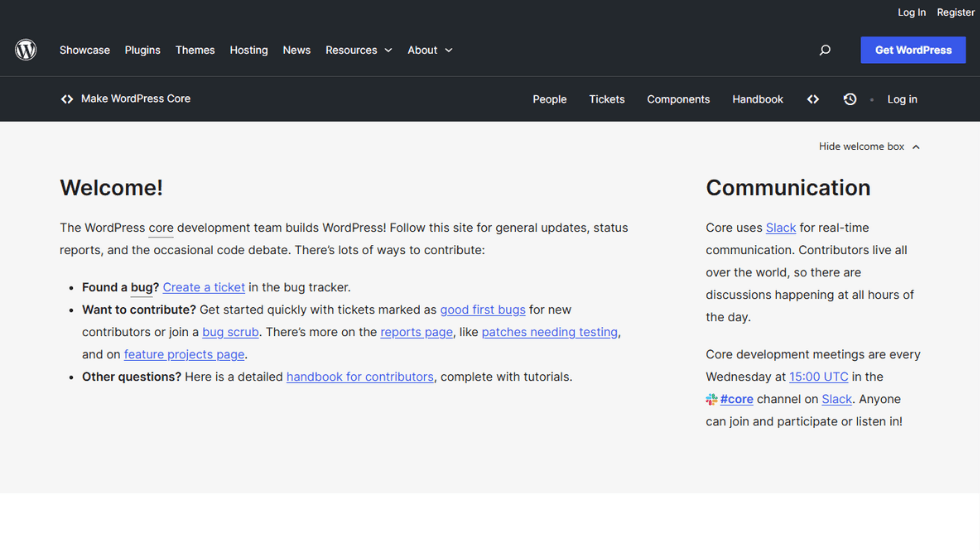
You don’t need to be a full-time developer to contribute. Translation, documentation, and testing are just as valuable as code, and they’re a great entry point if you’re new to open source.
Common misconceptions about WordPress core
A few myths come up often. Clearing them up helps you work with WordPress more confidently.
- Myth: WordPress core includes themes and WordPress plugins
- Themes and WordPress plugins live in /wp-content/, which is technically separate from core. The default themes (like Twenty Twenty-Four) ship with WordPress for convenience, but they aren’t part of the core codebase itself.
- Myth: You can delete /wp-includes/ if you don’t use it
- The /wp-includes/ folder contains most of the functionality that powers your site. Deleting it will break WordPress entirely.
- Myth: WordPress core is slow
- WordPress core is optimized and usually gets faster with most large releases. WordPress 6.9 alone delivered roughly 2.8% to 5.8% performance improvements over 6.8. When a WordPress site feels slow, the cause is almost always a heavy theme, bloated plugins, weak hosting, or an unoptimized database. The core itself is rarely the culprit.
- Myth: The block editor is a plugin you can remove
- The block editor (Gutenberg) became part of WordPress core in version 5.0 (December 2018). You can install the Classic Editor plugin to switch back to the older interface, but Gutenberg is now part of the standard experience and is where most ongoing development is focused.
FAQs about WordPress core
Understanding WordPress core
Knowing how WordPress core works changes how you manage your site. You’ll troubleshoot faster, customize more confidently, and avoid the most common mistakes that break WordPress installs.
Here are the main things to remember: never modify core files directly, keep WordPress updated to the latest version, use hooks and filters or child themes for customizations, and back up before any major change.
Tools like Kadence Backups automate the backup side, Kadence Security handles the security and update management, and Kadence Central lets you manage updates and maintenance across multiple sites from one dashboard.
If you’re ready to give your WordPress website a stable foundation, Liquid Web’s managed WordPress hosting handles the underlying infrastructure, with automatic core updates, daily backups, and 24/7 expert support included.
Additional resources
What is managed WordPress hosting? →
Get details and decide if managed WordPress hosting is right for you.
How to push specific pages in WordPress →
Easily push specific pages from staging to live in WordPress without affecting the entire site.
A complete guide to WordPress shortcodes →
Shortcodes make life easier. Learn how to get started!