◦ Comprehensive security
◦ 24/7 support
WordPress Guide → Build → Menu Icons
WordPress menu icons: how to add images to your navigation

Adding icons to your WordPress menu can make your site easier to navigate, especially on mobile devices. They give your visitors a quick visual cue, help your navigation stand out, and can even reinforce your brand identity. But WordPress doesn’t offer a built-in way to do it—you’ll need to use a plugin, a theme that supports icons, or a little custom code.
Let’s walk through the most popular ways to add menu icons in WordPress, from beginner-friendly plugins to advanced customizations.
Get fast, reliable hosting for WordPress
Power your site with the industry’s fastest, most optimized WordPress hosting
When should you use menu icons?
Menu icons aren’t a must-have for every site, but they can boost usability and polish when used strategically. They’re especially helpful when:
- You want to enhance your site’s design and make your navigation look more modern.
- Your menu includes actions like login, search, cart, or language switching that benefit from visual cues.
- You’re building a mobile-first experience where text-only links might be harder to tap or read.
- You run a site like a portfolio, restaurant, or ecommerce store where visuals support branding.
Method 1: Add menu icons using a plugin (best for beginners)
Plugins are the easiest way to add icons without editing code or switching themes. These tools work with most themes and let you choose from built-in icon libraries or upload your own images.
1.1 Use the Menu Icons by ThemeIsle plugin
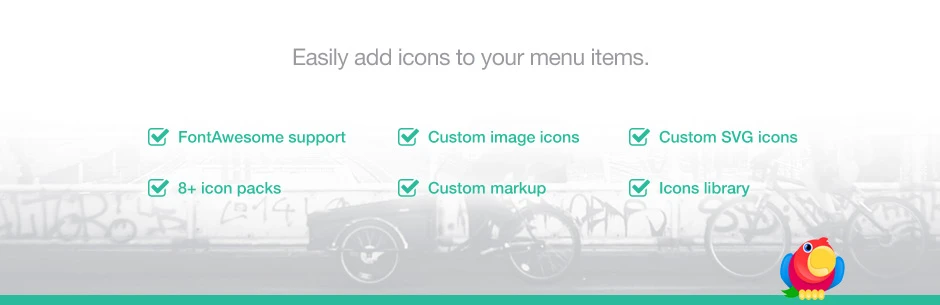
This popular plugin lets you assign icons from libraries like Dashicons, Font Awesome, or Genericons to each menu item.
- Go to Plugins > Add New in your WordPress dashboard.
- Search for “Menu Icons by ThemeIsle“ and click Install Now, then Activate.
- Navigate to Appearance > Menus.
- Open the menu item you want to add an icon to.
- Look for the new Icon option. Click Select to choose from Dashicons, Font Awesome, or upload your own.
- After selecting an icon, you can adjust its position (before or after the text), choose size, and optionally hide the label.
- Click Save Menu to apply your changes.
This method works well with most WordPress themes and keeps your icons consistent with your site’s style.
1.2 Use the WP Menu Icons plugin (for image uploads)

If you want to use your own image icons instead of icon fonts, this plugin offers more flexibility.
- In your dashboard, go to Plugins > Add New.
- Search for “WP Menu Icons“, install it, and activate it.
- Go to Appearance > Menus.
- Click a menu item to expand its settings.
- You’ll see a new Menu Icon section. Click Select Image to upload or choose from your Media Library.
- You can change the icon alignment, padding, and whether the label is shown.
- Click Save Menu to confirm your updates.
This option is ideal if your site relies on custom branding or illustrations that don’t exist in icon libraries.
Method 2: Add custom menu icons with a theme that supports it
Some WordPress themes come with built-in icon support for menus. This is common in multipurpose or premium themes that include mega menus, ecommerce features, or mobile navigation enhancements.
Themes that support this out of the box include:
- Astra: Integrates with popular page builders and has icon support in its Pro version.
- OceanWP: Offers a native icon picker in its menu settings.
- Neve: Lightweight and includes icon options with ThemeIsle’s plugin.
- Avada: Uses its own menu builder with advanced icon support.
To add icons with a supported theme:
- Go to Appearance > Customize or your theme’s menu settings panel.
- Find the navigation or header section and look for a setting that lets you add icons to menu items.
- Select from icon libraries or upload your own images.
- Save your changes and preview your site.
This method is theme-dependent, so if you switch themes later, you may lose your icon settings.
Method 3: Add menu icons manually with HTML or CSS
If you’re comfortable editing code and want full control without plugins, you can manually add icons using HTML in your menu labels and style them with CSS.
3.1 Add icons via a child theme and Font Awesome
Font Awesome is a widely used icon library you can add to WordPress manually or via plugin.
- Add Font Awesome to your site:
- Either use a plugin like Font Awesome (official plugin) or enqueue the stylesheet in your child theme’s functions.php:
function add_font_awesome() {
  wp_enqueue_style( 'font-awesome', 'https://cdnjs.cloudflare.com/ajax/libs/font-awesome/6.5.0/css/all.min.css' );
}
add_action( 'wp_enqueue_scripts', 'add_font_awesome' );- Go to Appearance > Menus.
- In Screen Options (top right), enable CSS Classes and Description.
- Edit a menu item. In the Navigation Label field, insert your icon HTML:
<i class=”fas fa-home”></i> Home - Save the menu. Font Awesome icons should now appear next to your labels.
3.2 Style icons with CSS for positioning and custom images
You can also assign a class to a menu item and use CSS to apply a background image.
- Assign a CSS class to a menu item under CSS Classes (e.g. menu-home).
- Add custom CSS in Appearance > Customize > Additional CSS:
.menu-home a {
  background-image: url('https://yourdomain.com/wp-content/uploads/home-icon.png');
  background-repeat: no-repeat;
  background-size: 16px 16px;
  padding-left: 24px;
}
This method gives you total control over icon design but requires more maintenance.
Optional: Use SVGs or custom images for better branding
SVGs and custom PNGs are ideal if your brand uses a unique icon set or if you want more visual control than font libraries allow.
To safely use SVGs in WordPress:
- Install the Safe SVG plugin.
- Upload your SVG icons to the Media Library.
- Use them with the WP Menu Icons plugin or add them manually in your menu labels if your theme supports raw HTML.
Custom images should be sized appropriately (16×16 or 24×24 pixels) and compressed for performance.
Tips for accessibility and performance
A few best practices will keep your menu icons helpful and lightweight:
- Use aria-label or title attributes for icons that don’t include visible text.
- Don’t use too many icons—too much visual noise can be distracting.
- Optimize image sizes and use lazy loading where possible.
- Prefer font icons for scalability on retina or mobile screens.
Troubleshooting common menu icon issues
Here’s how to solve a few problems you might run into:
- Icons not appearing: Make sure the icon library (like Font Awesome) is properly loaded. Check your browser console for 404 errors.
- Icons overlapping with text: Adjust padding or spacing in your CSS or plugin settings.
- Icons not showing on mobile: Check if your theme uses a different mobile menu. Some themes hide icon HTML in mobile views.
- Cache not updating icons: Clear your site cache and any CDN caches (like Cloudflare).
Getting started with WordPress menu icons
Adding icons to your WordPress menu can improve usability, visual appeal, and mobile navigation—without much effort. Whether you prefer plugins, a theme-based solution, or a custom-coded approach, there’s a method that fits every skill level.
Start by trying a plugin like Menu Icons by ThemeIsle for the fastest results. Want more control or need to match branding? Use custom image icons or Font Awesome manually.
Ready to upgrade your WordPress experience? Professional hosting improves speeds, security, and reliability for a website and a brand that people find engaging and trustworthy.
Don’t want to deal with server management and maintenance? Our fully managed hosting for WordPress is the best in the industry. Our team are not only server IT experts, but WordPress hosting experts as well. Your server couldn’t be in better hands.
Click through below to explore all of our hosting for WordPress options, or chat with a WordPress expert right now to get answers and advice.
Additional resources
How to build a WordPress site →
A complete beginner’s guide that covers 9 key steps to a successful launch
The WordPress category page: a complete guide →
Learn how to create and customize a WordPress category page to improve navigation and user experience.
How to use WordPress Gutenberg blocks →
A complete beginner’s guide to Gutenberg blocks