◦ Comprehensive security
◦ Support
WordPress Guide → Build → Change Font
How to change a WordPress font

Fonts are a great way to make your website stand out and infuse your brand personality into it. And they have a strong impact on how your brand is received.
In fact, 73% of all Fortune 500 companies use sans-serif fonts in their logos, likely due to their greater legibility and more minimal appearance.
Most WordPress themes have built-in options to change default fonts, at least within a few pre-selected choices. But this is not always the case.
There are some additional options for changing fonts in WordPress if your theme doesn’t offer a font that you want, and that’s precisely what we’ll discuss here today.
Why change your WordPress font?
Changing the default WordPress font isn’t just about aesthetics—it’s a strategic decision that can significantly impact your website’s performance in several key areas:
- Brand identity: Custom typography helps establish a consistent brand voice and presence across all your digital touchpoints. A distinctive font can even become part of your visual signature.
- User experience: The right font choices improve readability and content consumption, keeping visitors engaged longer on your pages.
- Accessibility: Thoughtfully selected fonts make your content more accessible to all users, including those with visual impairments or reading disabilities.
- Conversion optimization: Professional typography builds trust and credibility, potentially improving conversion rates for your business goals.
When your WordPress site uses unique, purposeful typography rather than default fonts, you’re making a statement about your brand’s attention to detail and commitment to user experience.
How to choose fonts for your WordPress site
Before we get into the tutorial, let’s first discuss how the process of font selection typically goes and what you should keep in mind when choosing a font.
It’s best to:
- Make sure that the font is easy to read. If it’s not legible, then it’s not of any use. View any potential fonts on multiple sizes, heading styles, colors, and font weights to get a real sense of how it’ll look. Likewise, view it on multiple devices in a live preview.
- Keep in mind your existing website and brand style. Your chosen font should complement it, not send an entirely different message. If you’re building a new website from scratch, you can disregard this advice. Instead, you can take this opportunity to build your brand style around your font selection(s).
- Ensure that individual letters look good in large and small sizes. It’s not enough that your font of choice looks great when displayed as a header in bold. It needs to look good and be legible when formatted as body text, too, especially if you plan to use it for body copy.
- Ensure the font is in the correct format (WOFF/WOFF2 or EOF format). That way, it’ll display properly in all browsers. You can use the Webfont Generator to convert your fonts into a web-friendly format.
With these tips in mind, we can move on to the process of changing fonts in WordPress.
How to change fonts in WordPress
WordPress offers several ways to change your site’s fonts, from simple built-in options to more advanced customization methods. Let’s explore each approach so you can choose the one that best fits your needs and technical comfort level.
Using built-in options
The WordPress block editor (Gutenberg) comes with some basic typography controls that let you adjust fonts without any technical knowledge:
- Block-level typography: Select any text block and look for the Typography panel in the right sidebar. Depending on your theme, you might be able to change font size, line height, and other text properties.
- Global Styles: If you’re using a block theme (Full Site Editing compatible), you’ll have access to Global Styles by clicking the “Styles” icon in the top-right corner of the editor. This allows you to set typography rules that apply to your entire site.
- Site Editor customization: Also available with block themes, the Site Editor lets you modify typography settings that apply to different parts of your site, like headers, footers, and content areas.
Using theme customization options
The easiest way to change fonts in WordPress is by using the Live Customizer. All you have to do is:
- Access the WordPress customizer in the WordPress dashboard by clicking Appearance > Customize.
- If your theme offers font customization support, you should see a tab on the left-hand sidebar that says Fonts or Typography.
- Click it to make your theme selections.
In some cases, your WordPress theme might use a separate theme options panel for font customization. In that case, you can change the fonts using the settings provided there. If you have questions, be sure to reference your theme’s documentation.
Using a page builder
Page builders provide an intuitive interface for customizing your site’s appearance, including fonts. Popular options include:
- Elementor: Offers extensive typography controls in its Style tab.
- Beaver Builder: Provides font customization through its modules.
- Divi Builder: Features a robust typography system with numerous options.
With page builders, you can browse through numerous template options to find one that includes a font selection and color palette that matches your company’s or personal branding and style.
Using plugins
When built-in options don’t provide enough flexibility, plugins can expand your typography capabilities:
- Typography plugins: Dedicated tools like “Easy Google Fonts” or “Typography” give you granular control over your site’s text.
- Theme enhancers: Plugins like “Microthemer” or “Yellow Pencil” let you customize fonts along with other design elements.
- Custom CSS helpers: Tools like “Simple Custom CSS” allow you to implement custom font rules sitewide.
But what if you want to add new fonts to WordPress — not just select from the options provided by your theme or page builder? There’s a solution for that, too.
How to add fonts to WordPress
Sometimes you’ll want to go beyond the standard font options in your theme and introduce completely new typefaces to your WordPress site. Here’s how to add custom fonts to your WordPress website.
Using the Full Site Editor
The Full Site Editor provides the easiest method for adding new fonts to your WordPress site. You can upload them in supported formats like .ttf and .otf, or you can connect your site to Google Fonts and access its vast library.
Whatever your preferred route, here’s how to do it:
1. From your admin dashboard, go to Appearance > Editor to open the Site Editor.
2. Click on Styles, then the pencil icon to edit your styles.
3. From the menu on the right, click Typography.
4. Click the settings icon next to Fonts to open the font manager.

5. If you already have a font file you want to add, use the Upload tab. Otherwise, use the Install Fonts tab to connect to allow access to Google Fonts in one click.

Using plugins
Font plugins offer the easiest way to expand your typography options without any coding knowledge.
Easy Google Fonts
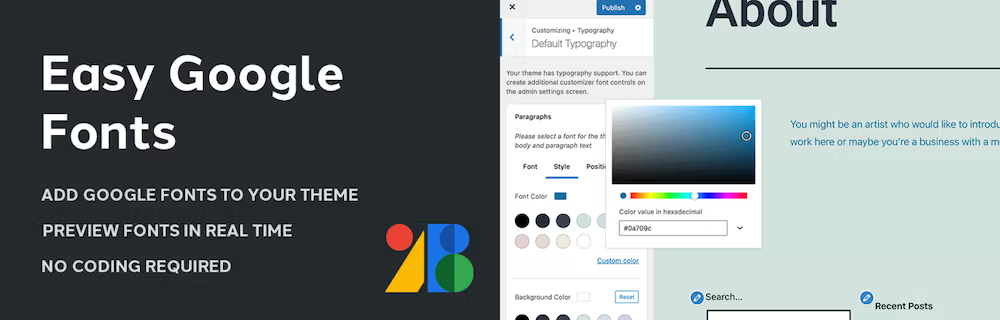
Easy Google Fonts is a popular choice that gives you access to Google’s extensive font library:
- Install and activate the plugin from the WordPress repository
- Go to Appearance > Customize > Typography
- Browse and select from hundreds of Google Fonts
- Apply them to different elements of your site
- Save your changes
The plugin interface makes font selection intuitive, and you can preview changes in real-time before applying them to your live site.
Use Any Font
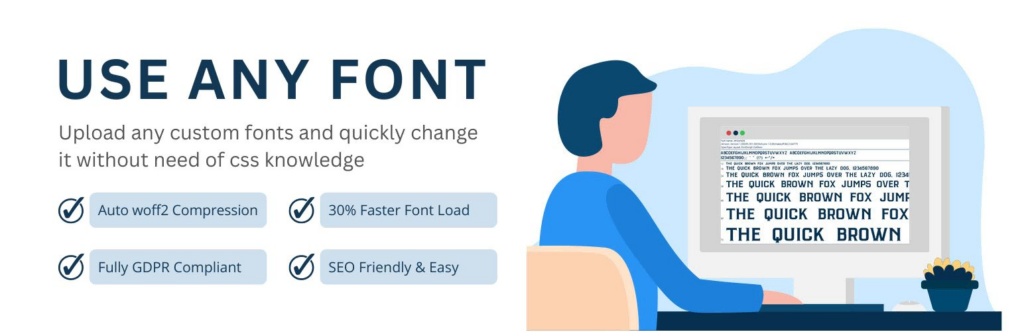
For fonts that aren’t available through Google, Use Any Font allows you to upload custom font files directly to your WordPress site:
- Install and activate the plugin
- Obtain an API key (free for limited use, paid for more uploads)
- Upload your font files through the plugin interface
- Assign your custom fonts to different elements
- Save your settings
This approach works well when you have purchased custom fonts or need to use your organization’s proprietary typefaces.
Custom font upload
For those comfortable with code, you can manually add custom fonts to WordPress. This method gives you complete control and avoids plugin dependencies.
Supported file formats
When adding custom fonts, ensure they’re in web-compatible formats:
- WOFF2: The most efficient and modern format (primary choice)
- WOFF: Good fallback with broad browser support
- TTF/OTF: For supporting older browsers
- EOT: Required only for Internet Explorer support
Implementation
Here’s how to add custom fonts manually:
1. Prepare your font files: Convert your fonts to web formats using a service like Transfonter or Font Squirrel
2. Upload your font files: Add them to a /fonts/ directory in your child theme
3. Enqueue the fonts: Add this code to your child theme’s functions.php file:
function enqueue_custom_fonts() {
  wp_enqueue_style('custom-fonts', get_stylesheet_directory_uri() . '/fonts/fonts.css');
}
add_action('wp_enqueue_scripts', 'enqueue_custom_fonts');
4. Create a fonts.css file: Define your @font-face rules:
@font-face {
  font-family: 'YourFontName';
  src: url('yourfont.woff2') format('woff2'),
       url('yourfont.woff') format('woff');
  font-weight: normal;
  font-style: normal;
  font-display: swap;
}
5. Apply your fonts: In your style.css file, use your custom font:
h1, h2, h3 {
  font-family: 'YourFontName', sans-serif;
}
For Google Fonts specifically, the process is even simpler:
1. Select a Google font. Click the + icon next to it, then copy the link to the font.
2. Open your theme’s functions.php file. Paste in a code snippet containing your font’s link. Save your work.
3. Open the style.css file. Add custom CSS code to style whichever elements you’d like the font to be applied to.
Typography best practices for WordPress
Creating an effective typography system for your WordPress site involves more than just picking fonts you like. Follow these key practices to ensure your font choices enhance readability and user experience.
Font pairing fundamentals
Limit your site to 2-3 font families for a clean, professional look:
- Use one font for headings and another for body text
- Ensure strong contrast between your selections (pair a serif with a sans-serif)
- Maintain consistency throughout your site
Accessibility considerations
Make your content readable for all users:
- Maintain a minimum font size of 16px for body text
- Ensure sufficient color contrast (4.5:1 ratio for normal text)
- Use real text instead of text within images when possible
- Avoid extremely thin or decorative fonts for main content
Performance optimization
Font files can impact your site speed:
- Limit the number of font weights and styles you load
- Use system fonts for less important elements
- Consider using font-display: swap to prevent content from being hidden during font loading
- Leverage browser caching for font files
Implementing these typography best practices while changing your WordPress fonts will help ensure your site remains professional, accessible, and fast-loading.
Next steps for changing fonts and leveling up your WordPress site
Changing fonts in WordPress is not difficult. And you have several options:
- Using the built-in customization options in your theme or page builder.
- Using a plugin.
- Enqueuing the desired font options in your child theme.
All you have to do is to use one of these methods to change the fonts on your website and add a touch of personality or branded cohesiveness to your web presence.
And if you’re just getting started with WordPress—or you’re ready to elevate your hosting—you’ll want to check out all the hosting options Liquid Web offers specifically for WordPress sites. The widest range of hosting options is at your fingertips, even fully managed solutions, where our experts handle the server so you can concentrate on the site.
Click below to explore or start a chat to get more details!
FAQs about changing WordPress fonts
1. How do I change font size in WordPress?
You can change font size in WordPress through several methods:
- Block Editor: Select your text block, then use the Typography panel in the sidebar to adjust the font size.
- Customizer: Many themes include font size controls in Appearance > Customize > Typography.
- CSS: Add custom CSS like .entry-content p { font-size: 18px; } to your theme or through Appearance > Customize > Additional CSS.
- Plugins: Typography plugins like “Advanced Typography” give you precise control over font sizes throughout your site.
Remember that different methods may affect different parts of your site, so choose the approach that best fits your specific needs.
2. Will changing fonts affect my site’s performance?
Yes, adding custom fonts can impact your site’s performance, but the effect can be minimized:
- Web fonts add additional HTTP requests and increase page weight
- Each font weight and style counts as a separate font file
- System fonts (like Arial or Georgia) have zero performance impact
- Using font-display: swap helps prevent content from being hidden during font loading
- Limiting your site to 2-3 font families helps maintain good performance
- WOFF2 format provides the best compression and fastest loading times
With proper optimization, the performance impact of custom fonts can be kept to a minimum while still enhancing your site’s appearance.
3. How do I change fonts in my WordPress menu/header?
To change fonts specifically in your WordPress menu or header:
- Theme Customizer: Some themes have dedicated typography controls for menus and headers.
- Custom CSS: Add targeted CSS like .site-header { font-family: ‘YourFont’, sans-serif; }
- Page Builder: If your header is built with a page builder, edit the header template and adjust typography settings there.
- Font Plugins: Many typography plugins let you target specific elements like menus and headers.
For the most precise control, use the browser inspector tool to identify the exact CSS classes of your menu and header elements, then target those in your custom CSS.
Additional resources
How to build a WordPress site →
A complete beginner’s guide that covers 9 key steps to a successful launch
Beginner’s guide to WordPress plugins →
A simple definition, examples of our favorites, how to use them, and more
What is managed WordPress hosting? →
What it really looks like, benefits, and how to decide if it’s for you

Maddy Osman is a WordPress expert, WordCamp US speaker, bestselling author, and the Founder and SEO Content Strategist at The Blogsmith. She has a B.A. in Marketing from the University of Iowa and is a WordCamp Denver organizer.