◦ Comprehensive security
◦ Support
WordPress Guide → Build → Add a Sidebar
How to add a sidebar in WordPress

If you’re new to WordPress, you may be wondering about sidebars. A sidebar is a section of a WordPress website that displays additional information or a navigation menu alongside the main content. It’s normally a vertical column on either side of a page, but it can also be seen under the footer.
Keep reading to learn how to add a sidebar in WordPress.
What is a WordPress sidebar?
A sidebar is a widgetized section of your WordPress site where you can display content that isn’t on the main page. Widgets are used to bring secondary material to your website. For example, a widget may display a list of your most recently published blogs, a tag cloud, or a search bar. A WordPress sidebar can be changed based on the pages it appears on, or it can be populated with the same content on every page.
A blogger can use the sidebar across an entire website, or construct multiple iterations of sidebars for different pages and topics. These parameters are adjusted in WordPress using the active WordPress theme or a plugin.
WordPress sidebar examples
Some of the most popular websites in the world, including eBay, Wikipedia, and Amazon, feature sidebars. We’ll use a red box to emphasize the sidebar section in each example below.
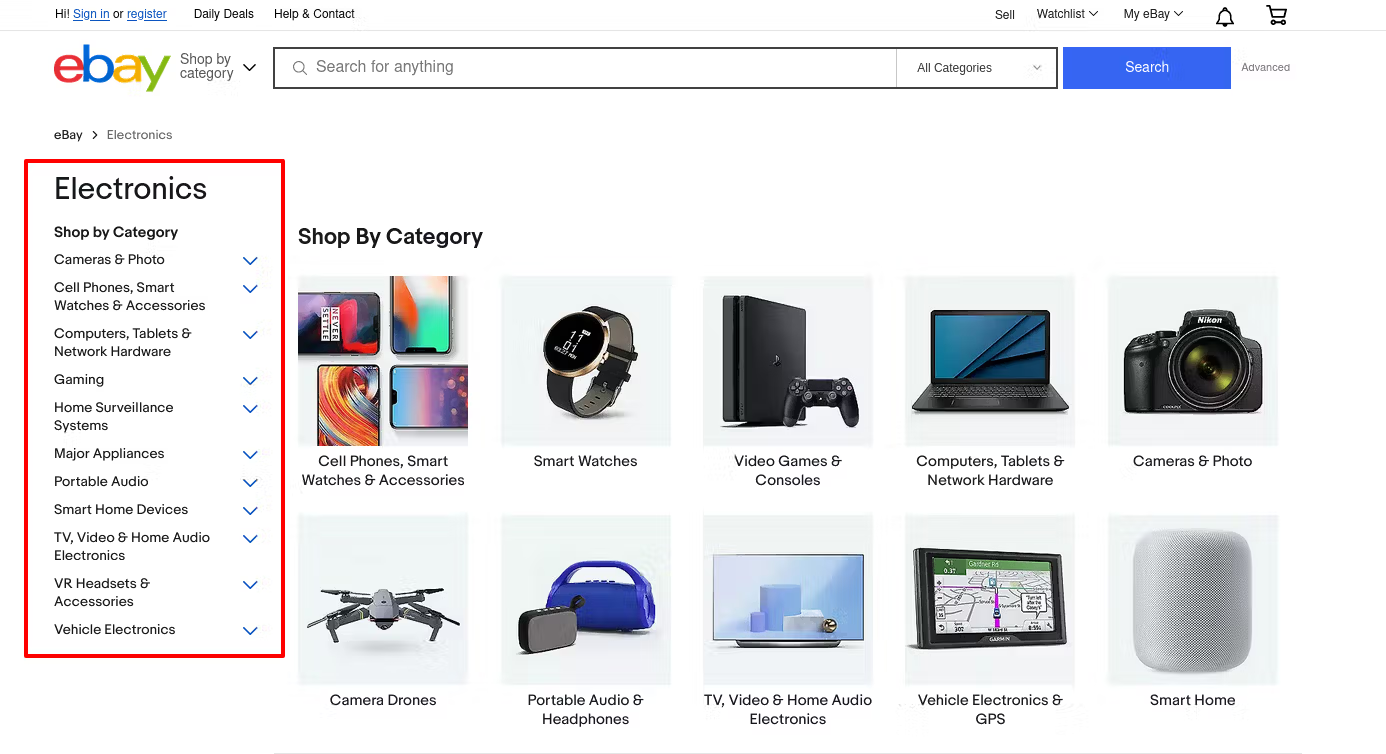
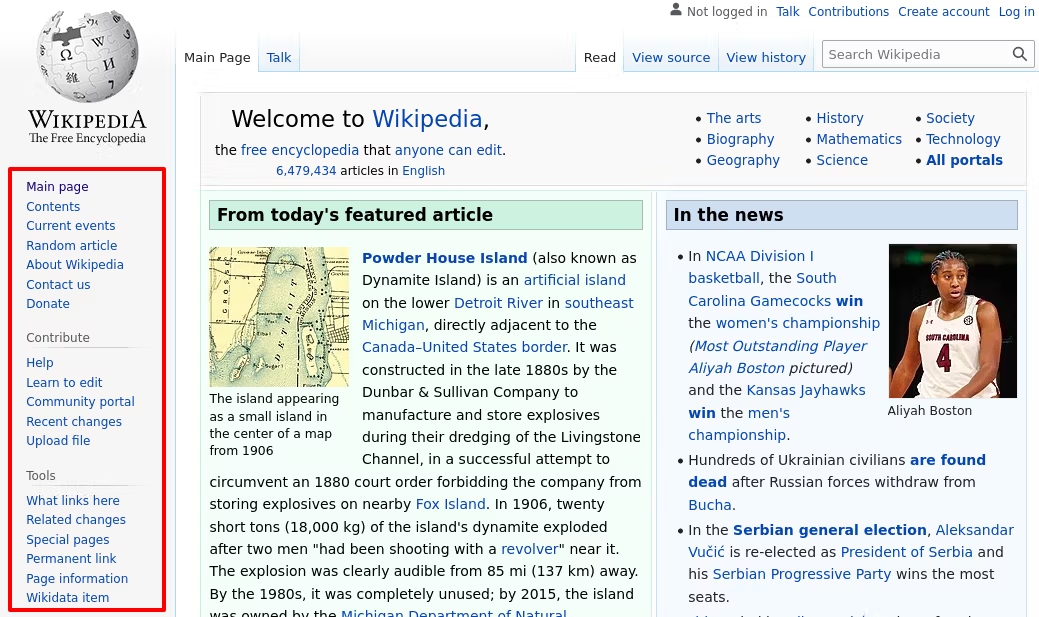
Practical applications for WordPress sidebars
Sidebars come in handy in a variety of situations. You can combine several tactics at the same time. You could, for example, include a search box, navigation links, adverts, and more in one WordPress sidebar. Consider the following scenarios:
Add a search bar
You can add a search box to your sidebar to make it easier for people to find material. Instead of combing through your content archives, visitors can use a search bar to find information using a keyword or phrase.
Provide navigational assistance
You can utilize your sidebar to provide navigational assistance as well. In WordPress sites, navigation menus are frequently found in the headers. However, you might find that adding some navigational links to your sidebar — or even shifting your entire navigation menu to the sidebar — is a better fit for your design.
Promote social media
Another use of a WordPress sidebar is to encourage your site visitors to follow you on social media. One of the most effective ways to grow your audience is through social media. You can send updates to readers across many websites by linking to your social media platforms, such as Facebook and LinkedIn. You could also include a button that allows users to share your content on social media.
Generate income with ads
If you rely on advertisements to make money, your sidebar is an excellent location for them. To make money, place adverts in your sidebar section. You can use the WordPress Custom HTML widget to add pay-per-click ad modules from Google AdSense and other ad networks to your sidebar.
Feature specific content
Include your most popular posts, recent posts, related content, and more in a featured content sidebar. Use the sidebar to direct readers’ attention to your most popular or recently published blog entries. This will boost your SEO performance and attract more traffic to your content.
How to add a sidebar in WordPress, Method 1: Using WordPress Customizer
1. Go to Appearance > Customize > Sidebar.
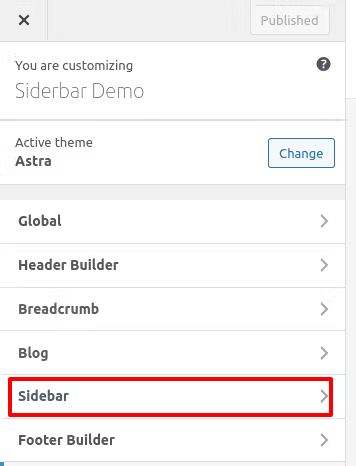
2. You must select the right or left sidebar from the corresponding dropdown menu to make your sidebar visible.
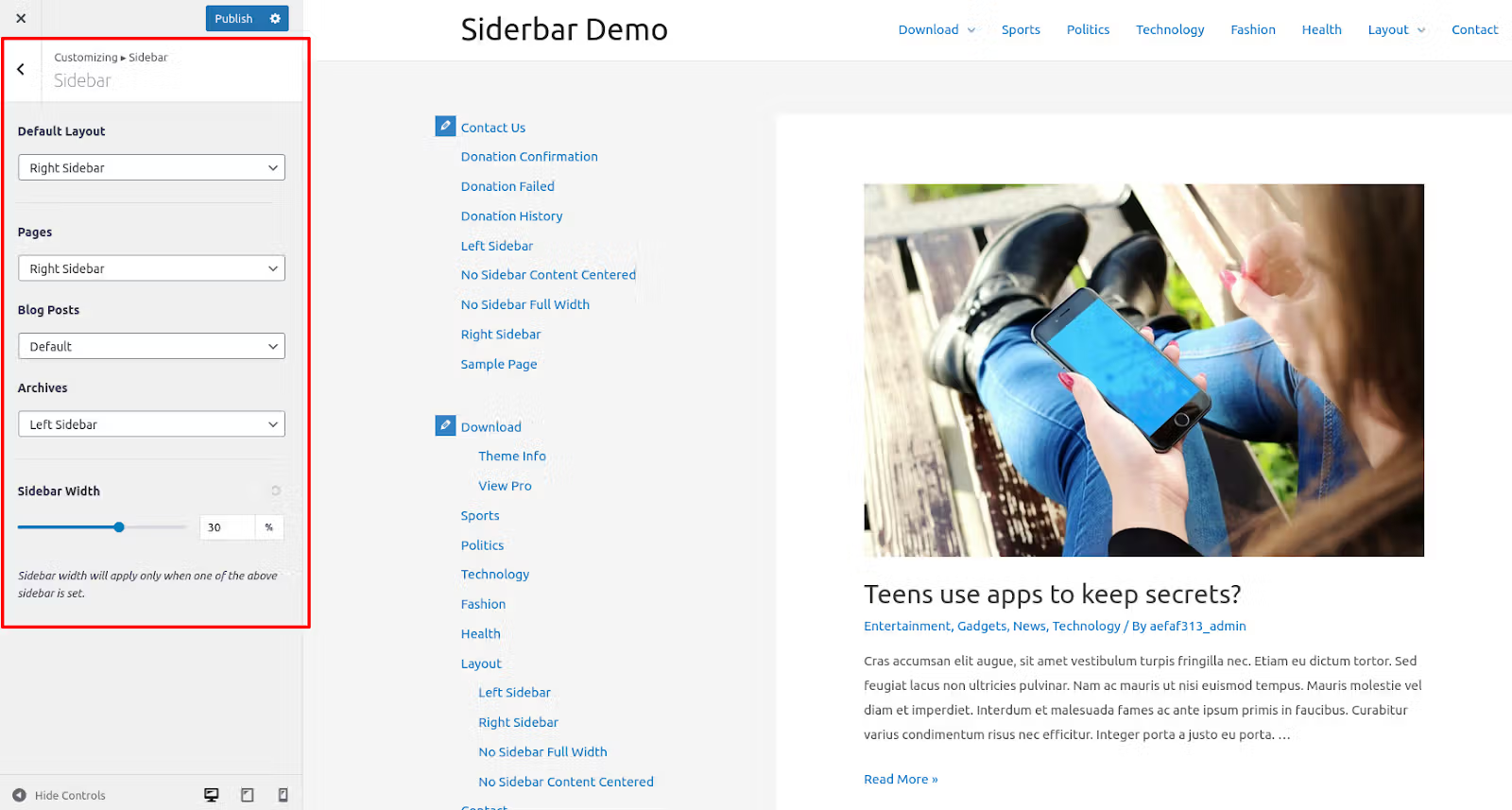
3. The default layout dropdown menu allows you to choose a sidebar for the entire site. You can also customize a sidebar for each of the following locations: Pages, Blog Posts, and Archives.
4. Select the “No Sidebar” option in the dropdown menu to remove the sidebar from any of these locations.
5. You can alter the WordPress sidebar template, such as sidebar width, once at least one of your sidebars is configured. You can specify how much of your content area the sidebar will occupy.
6. Click “Publish” to save the sidebar settings.
7. Finally, go to Dashboard > Appearance > Widgets to start adding stuff to your dashboard.
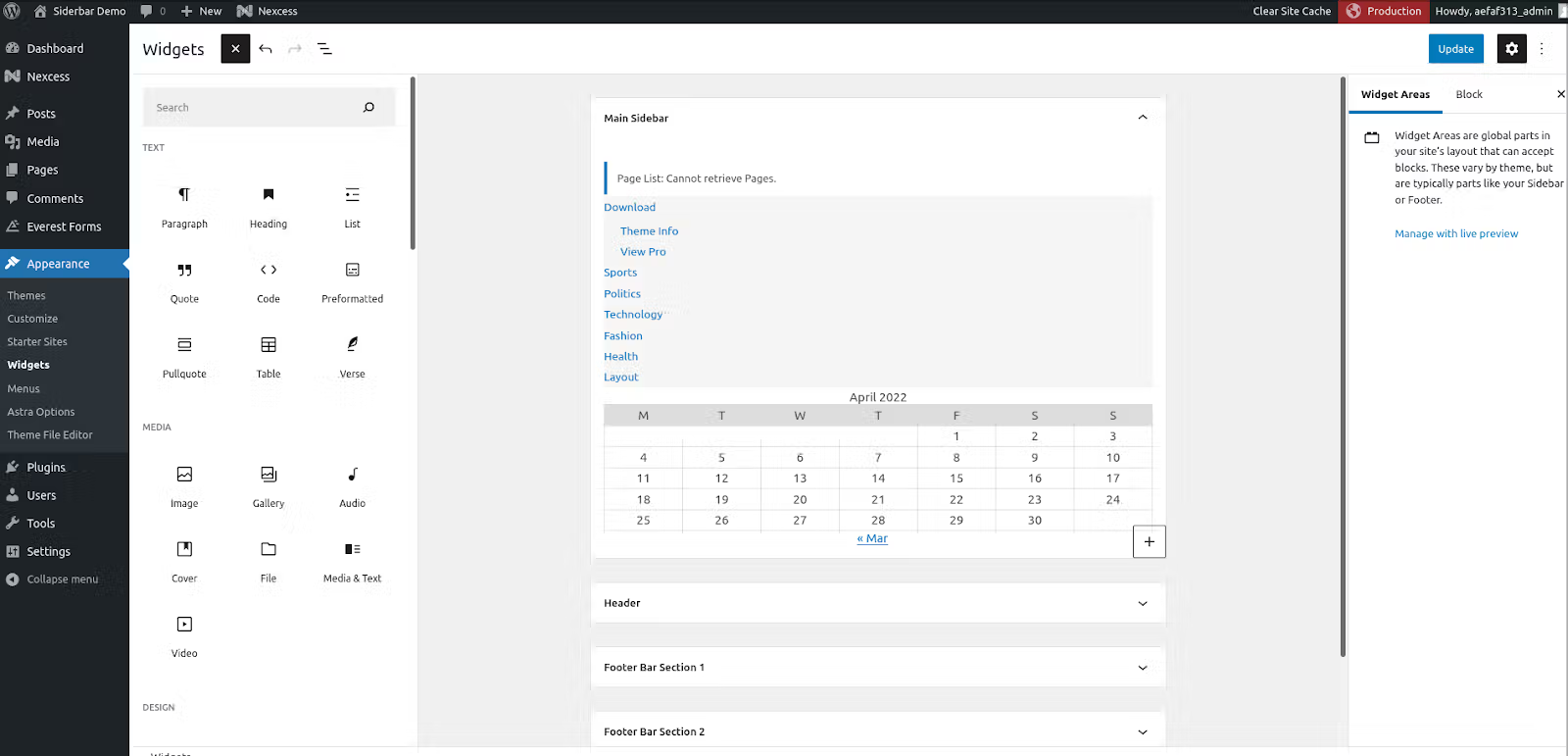
How to add a sidebar in WordPress, Method 2: Using a WordPress plugin to create a custom sidebar
The methods below demonstrate how to add a sidebar in WordPress using a WordPress plugin.
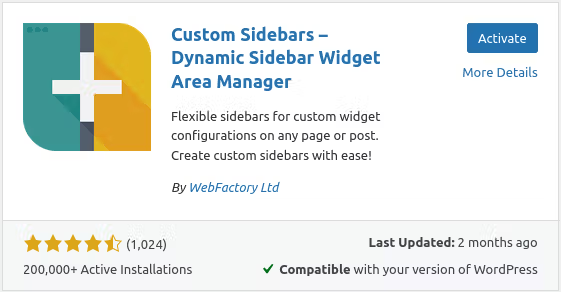
To begin, choose a WordPress plugin for the sidebar. The Custom Sidebars plugin has been used in this case. You can use it to maintain and replace your website’s sidebars. It works with any theme and requires no coding. We can divide this process into two sections.
How to make your first WordPress sidebar: Step-by-step instructions
1. 1. Go to Plugins > Add New and install the Custom Sidebars plugin.
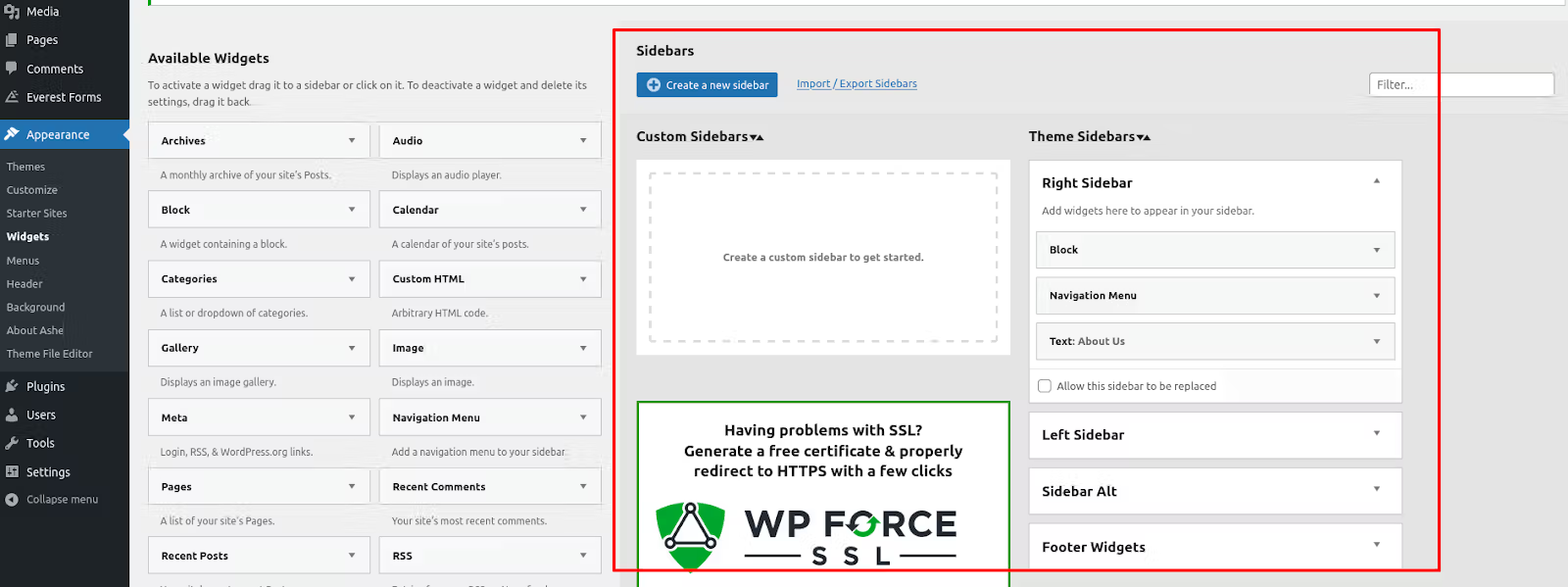
2. Once the plugin is installed and activated, go to Appearance > Widgets on your dashboard and select “Create a New Sidebar.” When you click it, you’ll be able to give your custom sidebar a name and a description.
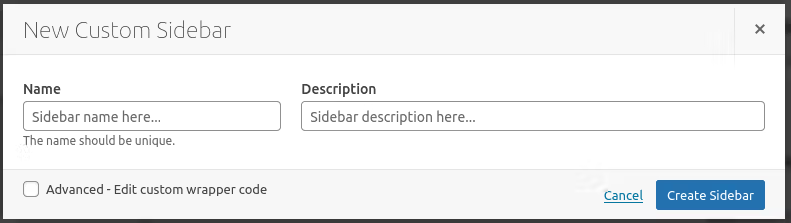
3. If you’re going to create more than one sidebar, give each one a specific title so you can remember which one is which.
4. Your new item will now appear under the custom sidebars area.
5. All you simply have to do now is drag and drop the elements you want to your new WordPress sidebar template from the Available Widgets column.
6. Choose where your new sidebar will appear.
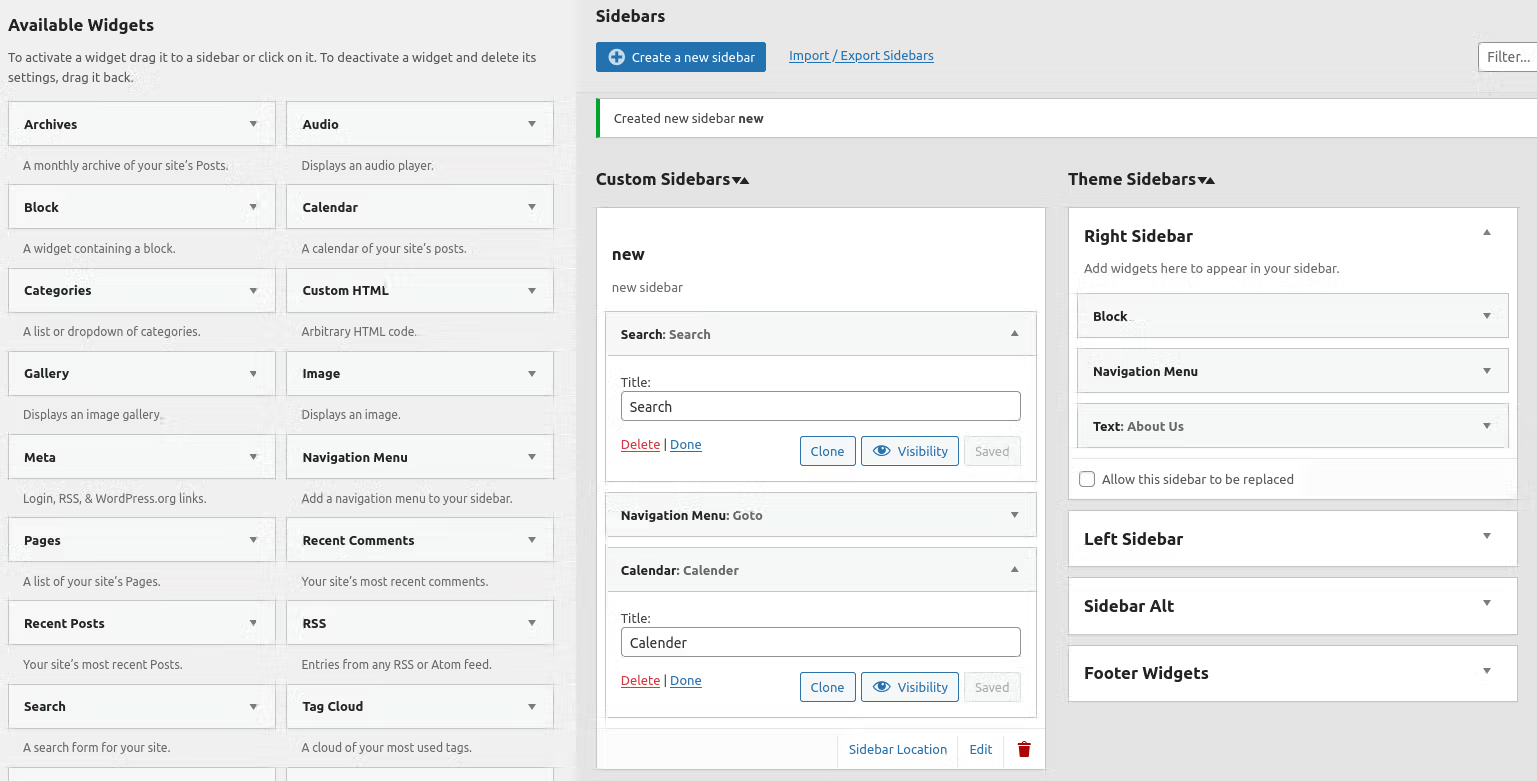
A custom sidebar called new Sidebar with a search bar, calendar, and navigation widget.
How to make your new WordPress sidebar visible
When you build a new custom sidebar, it won’t appear on the front end unless you tell the plugin where it should be placed. To determine where the new WordPress sidebar will appear, follow these steps.
1. Go to Appearance > Widgets Custom Sidebars section.
2. Find the sidebar you want to add to your site and click on “Sidebar Location.”
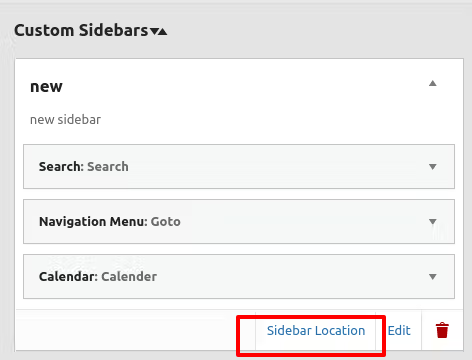
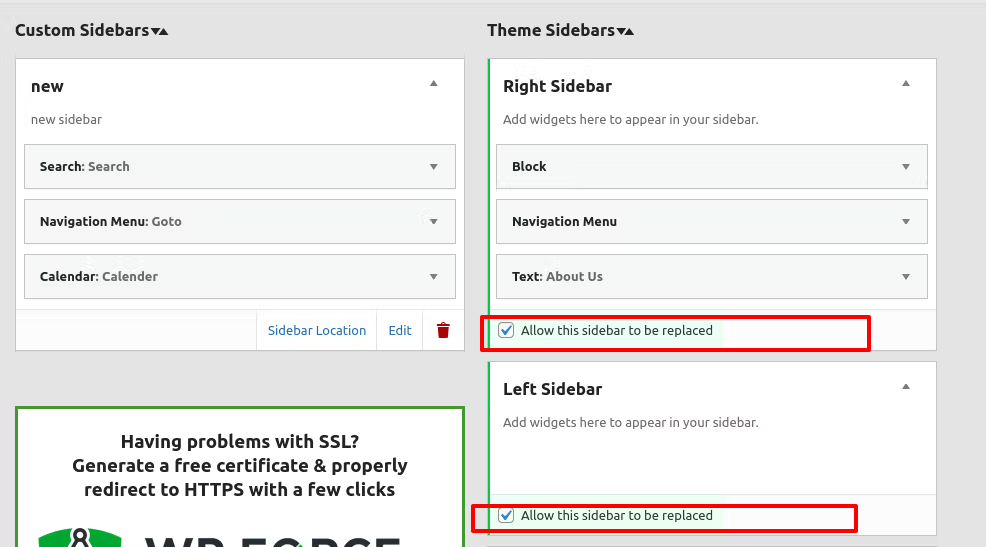
If you get a popup that says, “There are no replaceable sidebars. Please allow at least one as replaceable,” make sure to check the checkbox that says “Allow sidebar to be replaced” under the theme sidebar section.
3. On the next screen, you’ll have the choice of selecting from a long list of criteria, including sidebar and footer options. Selecting the sidebar for the chosen categories option, for example, allows you to determine which categories the sidebar should display on.
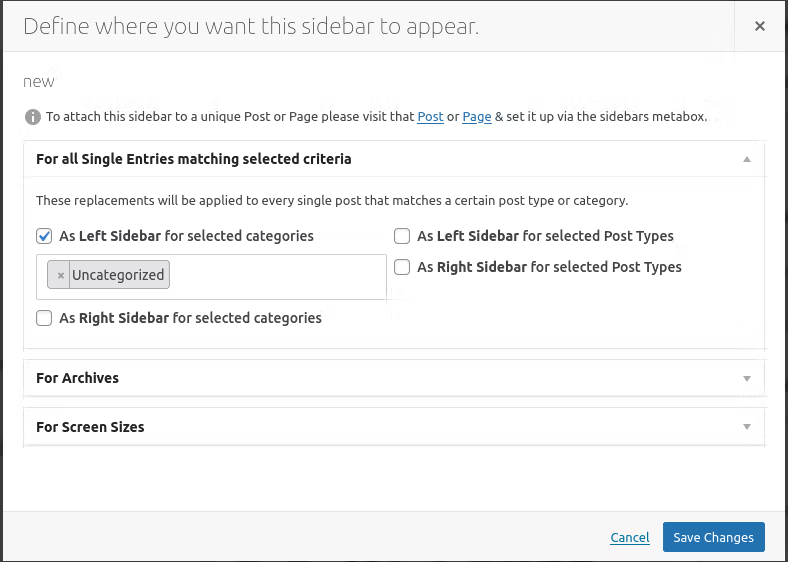
4. Ensure you save your changes after you’ve chosen your criteria, and you’ll be all set.
5. If you want to add a custom WordPress sidebar to a certain post or page, on the other hand, you’ll need to update that individual page. When you enable the plugin, a new sidebar widget appears in the WordPress editor for new and existing posts.
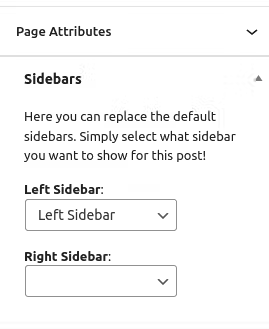
6. All that you have to do now is to select the custom sidebar(s) you want for the different locations. Simply leave the rest blank if you only want to use one option, and WordPress will use your default settings instead.
Start improving your WordPress site today
Keeping your sidebars updated and user-focused is key to a great WordPress site. An engaging and informative sidebar (or two) elevates the user experience, encourages people to stay on your site, and even helps your site’s SEO.
Maintaining a top tier website starts, of course, with the best possible hosting for WordPress sites. Liquid Web has been leading the industry for decades with the fastest WordPress hosting, secure and reliable servers, and premium support.
Explore all of our WordPress hosting options below or start a chat to find out more.
Additional resources
How to build a WordPress site →
A complete beginner’s guide that covers 9 key steps to a successful launch
How to edit a WordPress footer→
Design and build a professional footer for your
What is managed WordPress hosting? →
What it means, how it can help, and how to decide if it’s right for you