◦ Comprehensive security
◦ 24/7 support
WordPress Guide → Build → Classic Editor
WordPress Classic Editor: What it is and how to use it
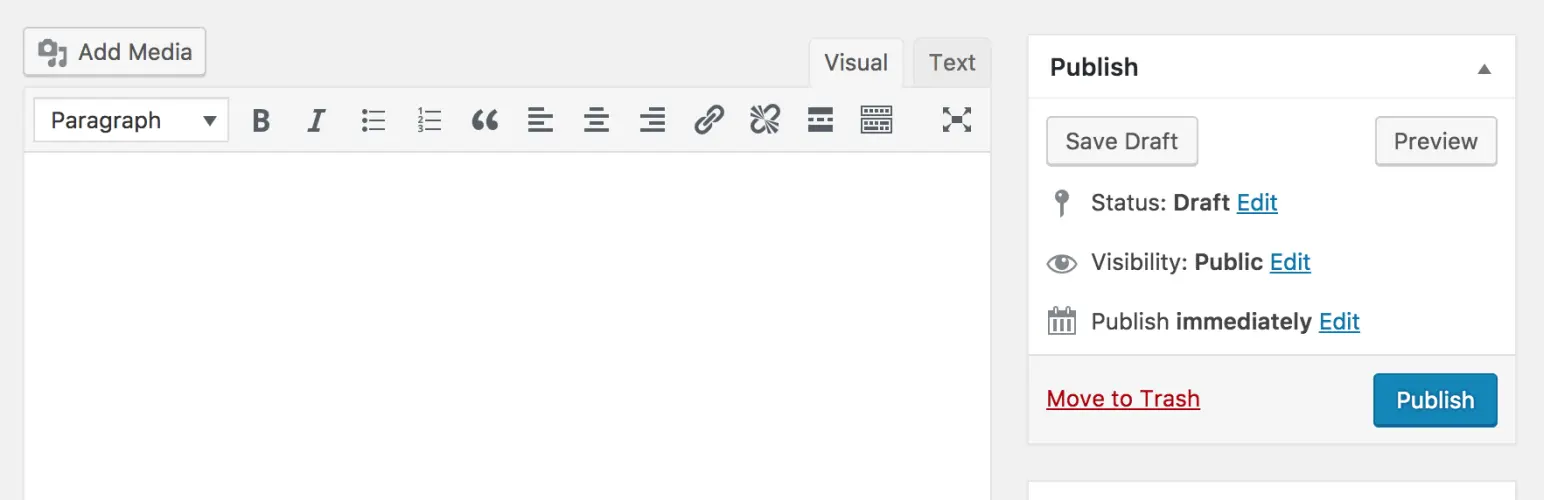
Miss the old WordPress editor? You’re not alone. The Classic Editor is still alive and well, offering a simple, distraction-free alternative to the block-based editor (Gutenberg). Whether you’re looking to stick with a familiar workflow or you need compatibility with older plugins, this guide covers everything you need to know.
Get fast, reliable hosting for WordPress
Power your site with the industry’s fastest, most optimized WordPress hosting
What is the WordPress Classic Editor?
The Classic Editor is the original content editing interface in WordPress. It relies on a simple, single-field design powered by the TinyMCE text editor, similar to what you’d find in traditional word processors.
What is the WordPress Classic Editor?
WordPress introduced the Block Editor (also called Gutenberg) in version 5.0. It uses blocks to build layouts—each paragraph, image, or widget is its own separate unit. This allows more flexibility for page design, but also introduces a steeper learning curve.
The Classic Editor, on the other hand, offers:
- A single text box for all content.
- A familiar toolbar with options like Bold, Italic, Lists, and Add Media.
- No layout blocks or drag-and-drop elements.
Many users still prefer it for its speed, simplicity, and compatibility with older plugins or custom post types that don’t work well in Gutenberg.
Why WordPress replaced it (and why it’s still supported)
WordPress launched Gutenberg in 2018 to give users more control over page design without needing page builder plugins. It was a major change, but not everyone welcomed it.
Due to high demand, the WordPress team created the Classic Editor plugin, which restores the old interface. As of now, it’s officially supported through at least 2026, meaning you can safely keep using it without worrying about security or compatibility issues.
Who should use the Classic Editor?
The Classic Editor isn’t just for nostalgic users. It solves real problems for specific types of site owners.
- Beginners: If you’re new to WordPress and just want a clean space to write and publish posts, the Classic Editor gets you there with zero fuss.
- Writers and bloggers: Content-focused users often find the Classic Editor faster and less distracting.
- Sites using legacy plugins: Some plugins weren’t designed for Gutenberg and only work correctly in the Classic Editor environment.
- Teams with established workflows: Businesses and agencies may already have training or documentation centered around the old editor.
How to install and activate the Classic Editor
To start using the Classic Editor, you’ll need to install a free plugin from the official WordPress Plugin Directory.
Install the plugin from your WordPress dashboard
Here’s how to find, install, and activate it:
- Log in to your WordPress dashboard. This is usually found at yoursite.com/wp-admin.
- Go to Plugins > Add New. You’ll find this in the left-hand sidebar of your dashboard.
- Search for “Classic Editor.” Use the search bar in the upper-right corner and look for the plugin developed by the WordPress Contributors team.
- Click “Install Now.” This will download and install the plugin on your site.
- Click “Activate.” Once activated, your post and page editors will automatically switch to the Classic interface.
Configure the settings
After activating the plugin, you can customize how it behaves.
- Go to Settings > Writing in your dashboard.
- You’ll see an option labeled “Default editor for all users.”
- Choose Classic Editor if you want to force it site-wide.
- Choose Block Editor to use Gutenberg by default, but allow users to switch.
- Choose Classic Editor if you want to force it site-wide.
- Below that, toggle “Allow users to switch editors.”
- Enabling this gives users the choice per post.
- Disabling it keeps everyone on the same interface.
- Enabling this gives users the choice per post.
- Click “Save Changes” to lock in your preferences.
How to use the Classic Editor
Once activated, the Classic Editor interface will look and feel like WordPress did pre-2018. It’s fast, minimalist, and intuitive.
Navigating the editor interface
When you open a post or page, you’ll see:
- Title field: This is where you add your post or page title.
- Content editor: A large textbox for writing, with formatting tools along the top.
- Toolbar buttons: Options like Bold, Italic, Blockquote, Add Media, and more.
- Visual and Text tabs: Switch between the WYSIWYG view and raw HTML.
If you’ve ever used Microsoft Word or Google Docs, the interface will feel familiar.
Adding and formatting content
Here’s how to create a polished post or page using the Classic Editor:
- Type your content in the editor: Just start writing. Use the toolbar to format text as headings, paragraphs, or lists.
- Add images and media: Click the “Add Media” button above the toolbar. You can upload files or choose existing ones from your Media Library.
- Insert links: Highlight your text and click the chain-link icon. Enter a URL and choose whether to open it in a new tab.
- Use categories and tags: On the right sidebar, select or create categories and tags to organize your content.
- Set a featured image: Scroll down the sidebar to choose an image that represents your post visually on blog pages and social feeds.
Switching between Classic Editor and Block Editor
If you or your team want the flexibility to use both editors, the plugin lets you enable switching.
When switching is allowed:
- Each post will display a button at the top labeled “Switch to Block Editor” or “Switch to Classic Editor.”
- WordPress remembers which editor you used last for that post.
- Be aware that switching a post written in Gutenberg to Classic Editor may strip some formatting or blocks.
To disable the option entirely, go back to Settings > Writing and uncheck “Allow users to switch editors.”
Pros and cons of using the Classic Editor
It helps to compare both editors side by side before committing.
| Feature | Classic Editor | Block Editor |
|---|---|---|
| Learning curve | Very low | Moderate |
| Layout control | Minimal (single column) | High (full layout customization) |
| Compatibility | Best for legacy plugins and themes | Best for modern themes and new plugins |
| Speed and simplicity | Fast, distraction-free | Slower but more flexible |
| Custom design options | Limited to theme shortcodes or HTML | Extensive via blocks, widgets, and patterns |
Troubleshooting common Classic Editor issues
While the plugin is stable, a few issues occasionally pop up.
- Visual tab missing: Usually caused by JavaScript errors from other plugins or themes. Try disabling plugins one at a time to identify the culprit.
- Posts open in the Block Editor: Double-check your settings under Settings > Writing. Also confirm you haven’t enabled switching between editors.
- Plugin conflicts: Some block-based plugins may not behave well with the Classic Editor. Use older or Classic-compatible versions if needed.
- Toolbar formatting missing: Enable the “Toolbar Toggle” button to show extra options like text color, heading levels, or underline.
Alternatives to the Classic Editor
If you want more control without using Gutenberg, a few alternatives exist:
- Disable Gutenberg: A plugin that fully removes all traces of the Block Editor.
- Classic-style editors built into themes: Some premium themes come with their own visual editors styled like the Classic Editor.
These alternatives offer a middle ground for users who want simplicity but need a bit more flexibility.
WordPress Classic Editor FAQs
Next steps for using the WordPress Classic Editor
The Classic Editor gives you the no-nonsense editing experience many WordPress veterans still love. It’s lightweight, intuitive, and surprisingly flexible with the right plugins.
If you’re ready to stick with the old-school interface—or need it for plugin compatibility—installing and setting it up only takes a minute.
Ready to upgrade your WordPress experience? Professional hosting improves speeds, security, and reliability for a website and a brand that people find engaging and trustworthy.
Don’t want to deal with server management and maintenance? Our fully managed hosting for WordPress is the best in the industry. Our team are not only server IT experts, but WordPress hosting experts as well. Your server couldn’t be in better hands.
Click through below to explore all of our hosting for WordPress options, or chat with a WordPress expert right now to get answers and advice.
Additional resources
How to build a WordPress site →
A complete beginner’s guide that covers 9 key steps to a successful launch
How to add a Google Map in WordPress →
Learn how to add a Google Map to your WordPress site manually or via a plugin.
How to use WordPress Gutenberg blocks →
A complete beginner’s guide to Gutenberg blocks