◦ Comprehensive security
◦ 24/7 support
WordPress Guide → Build → Breadcrumbs
WordPress breadcrumbs: A beginner’s guide

A breadcrumb in WordPress is a secondary navigation element that shows visitors their current location on your website. Like the trail of breadcrumbs in the famous fairy tale, WordPress breadcrumbs create a path that leads users back through your site’s hierarchy – from their current page to your homepage.
Learning how to add breadcrumbs in WordPress is essential for any site owner. These navigational aids not only improve user experience (UX) but also boost your search engine optimization (SEO) efforts.
What are WordPress breadcrumbs?
Breadcrumbs (or breadcrumb trails) are secondary navigational links at the top of each post or page of your website.
Breadcrumbs help visitors understand where they are on your site. The trail shows the pages in a hierarchical order, making it easy for your visitors to track their way back to a relevant parent category or page.
In general, breadcrumbs improve the user experience and your website SEO.
Benefits of using breadcrumbs on your website
Every top website uses breadcrumbs, including this WordPress guide. If you’re building a new website, using breadcrumbs has certain benefits:
- Users can use breadcrumbs to map their way around your website, creating a satisfying customer experience.
- Breadcrumbs reduce your bounce rates by making website navigation more intuitive.
- Breadcrumbs improve your SEO. Using them leads to your website ranking higher in search engines and an improved click-through rate (CTR).
Here’s an example of what a breadcrumbs UX looks like:

Types of WordPress breadcrumbs
There are three types of WordPress breadcrumbs:
- Attribute-based breadcrumbs: This type of breadcrumbs is common in ecommerce websites. It shows the attributes the user searched for to get to the product they’re viewing.
- History-based WordPress breadcrumbs: This type leads users back to pages they came from as they navigate from page to page within your website.
- Hierarchy-based breadcrumbs: Hierarchical WordPress breadcrumbs show visitors where they are on your website. They also show the relationship between the page they’re on and higher pages.
Hierarchy breadcrumbs are the most common of the three types.
How to add breadcrumbs in WordPress: 4 methods
Breadcrumbs aren’t a complex feature to add to your website. You can do it in several ways:
1. Using a WordPress breadcrumbs plugin
🚦Difficulty level: Beginner
⏱️ Time estimate: 10-15 minutes
🤔 Prerequisites: Admin access to your WordPress dashboard
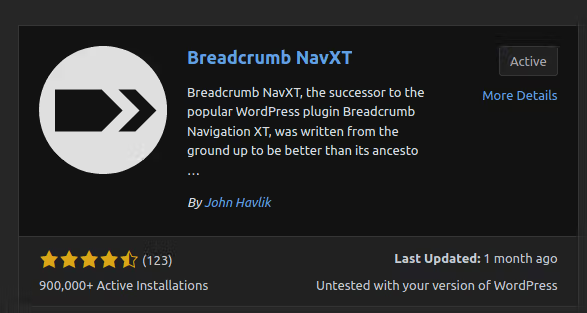
For those just starting with WordPress, a plugin-based approach offers the simplest way to add breadcrumbs. While Yoast SEO is a basic option that includes breadcrumb functionality, we recommend using Breadcrumb NavXT for more robust features and customization options.
Let’s walk through setting up Breadcrumb NavXT:
1. Go to Plugins > Add New and install and activate the Breadcrumb NavXT plugin.
2. In the left side panel, select Settings > Breadcrumb NavXT.
3. Once activated, this plugin loads default settings. However, you can change how breadcrumbs work on your entire website by selecting the General tab. The Post Types tab empowers you to specify the breadcrumbs format you prefer for posts and pages.
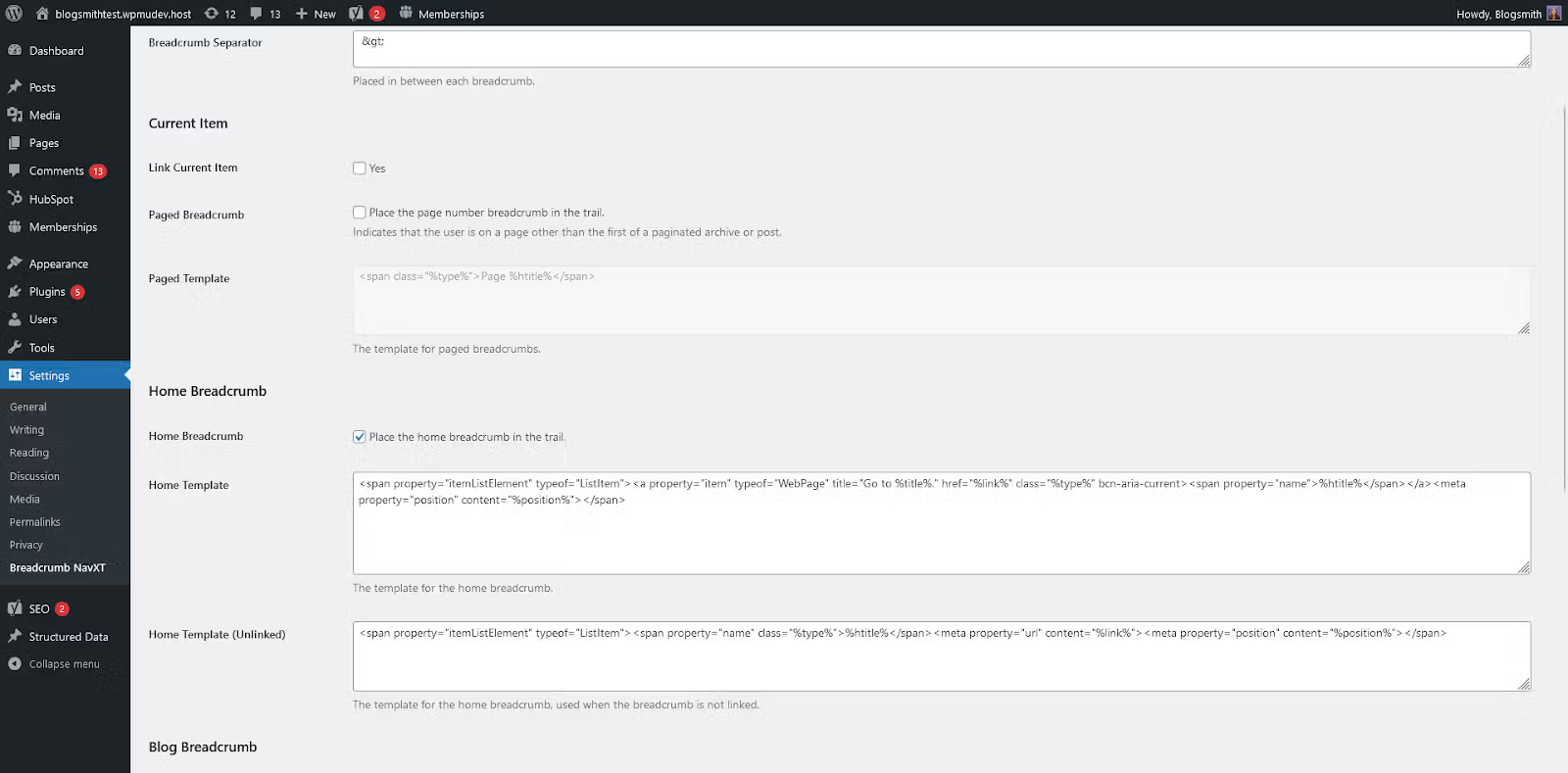
4. Once done, click Save Changes.
2. Using a WordPress theme with built-in breadcrumbs
🚦Difficulty level: Beginner to Intermediate
⏱️ Time estimate: 15-30 minutes
🤔 Prerequisites:
- WordPress admin access.
- A theme that supports breadcrumbs (like Astra Pro).
- Ability to customize theme settings.
Many modern WordPress themes come with built-in breadcrumb functionality. This approach is ideal if you’re:
- Building a new website from scratch.
- Planning to update your theme anyway.
- Looking for a solution that matches your site’s design out of the box.
This method is quick and easy and requires little effort on your part.
Once you upload a custom theme or install one from the WordPress theme directory, your new website layout will display breadcrumbs.
Here’s how to set up breadcrumbs on Astra Pro:
1. Navigate to Dashboard > Appearance > Customize.
2. Select the Breadcrumbs tab.
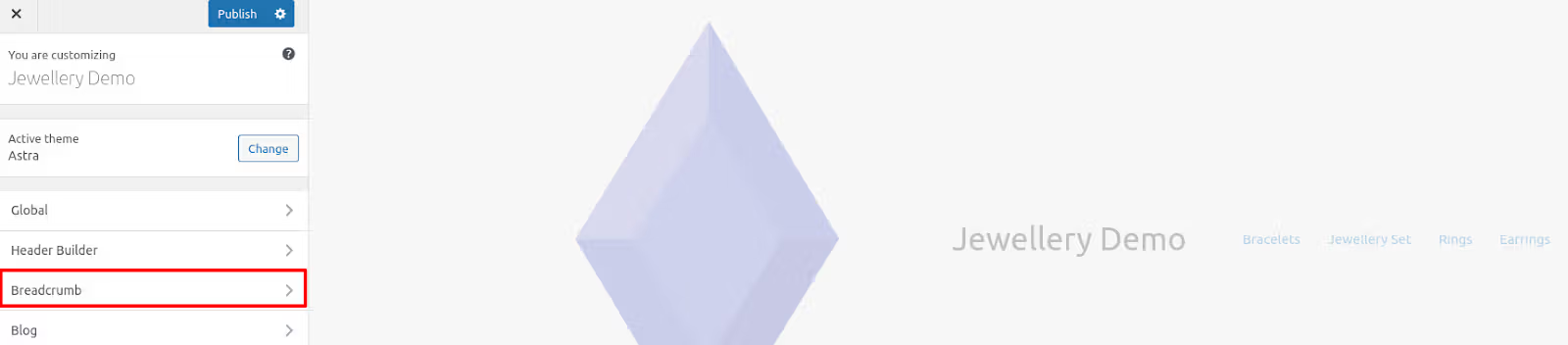
3. Under the Breadcrumbs tab, open the drop-down menu. Here, you can choose where you’d prefer your breadcrumbs to appear:
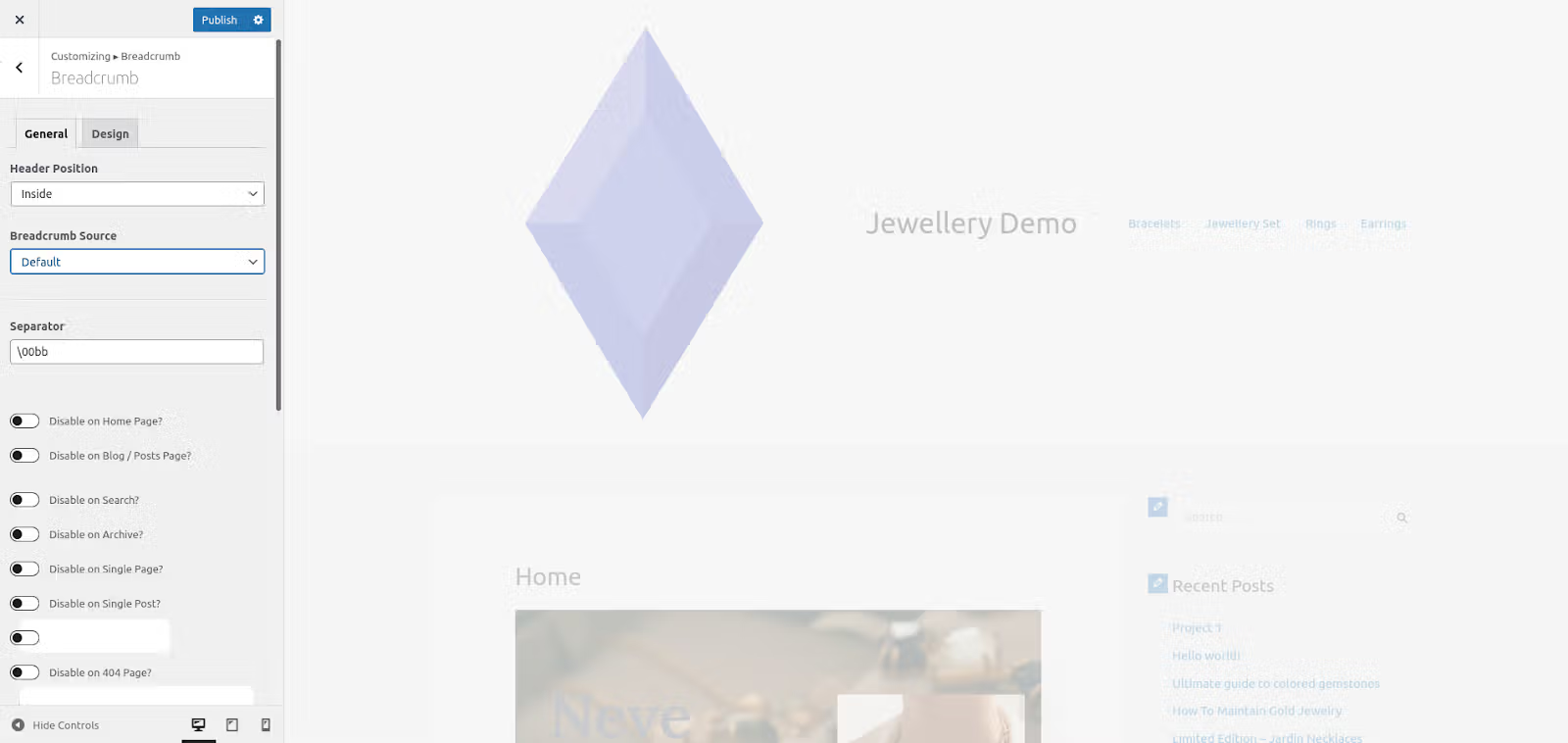
4. After you select the ideal location of your breadcrumbs, you can customize them in other ways, such as the type of Separator, Spacing, and Alignment.
5. Once done, you can publish your changes to the Astra Pro theme.
If you encounter any issues along the way, you can take the following actions to troubleshoot and solve:
- If breadcrumbs don’t appear after enabling them, try clearing your cache.
- Some themes may require you to activate breadcrumbs for specific content types separately.
- Check your theme’s documentation for specific implementation requirements.
- Consider mobile display settings – some themes need separate configuration for mobile breadcrumbs.
3. Setting up WooCommerce breadcrumbs
🚦Difficulty level: Beginner to Intermediate
⏱️ Time estimate: 20-30 minutes
🤔 Prerequisites:
- Active WooCommerce installation
- Admin access to WordPress
- WooCommerce-compatible theme
If you’re running an online store with WooCommerce, you have access to built-in breadcrumb functionality specifically designed for ecommerce navigation. This method is ideal for:
- Online stores and marketplaces
- Product catalogs
- Multi-category shopping sites
To use native WooCommerce breadcrumbs:
- Navigate to WooCommerce → Settings → Advanced
- Look for “Breadcrumb navigation” under “Page setup”
- Enable breadcrumbs by checking the box
- Save your changes
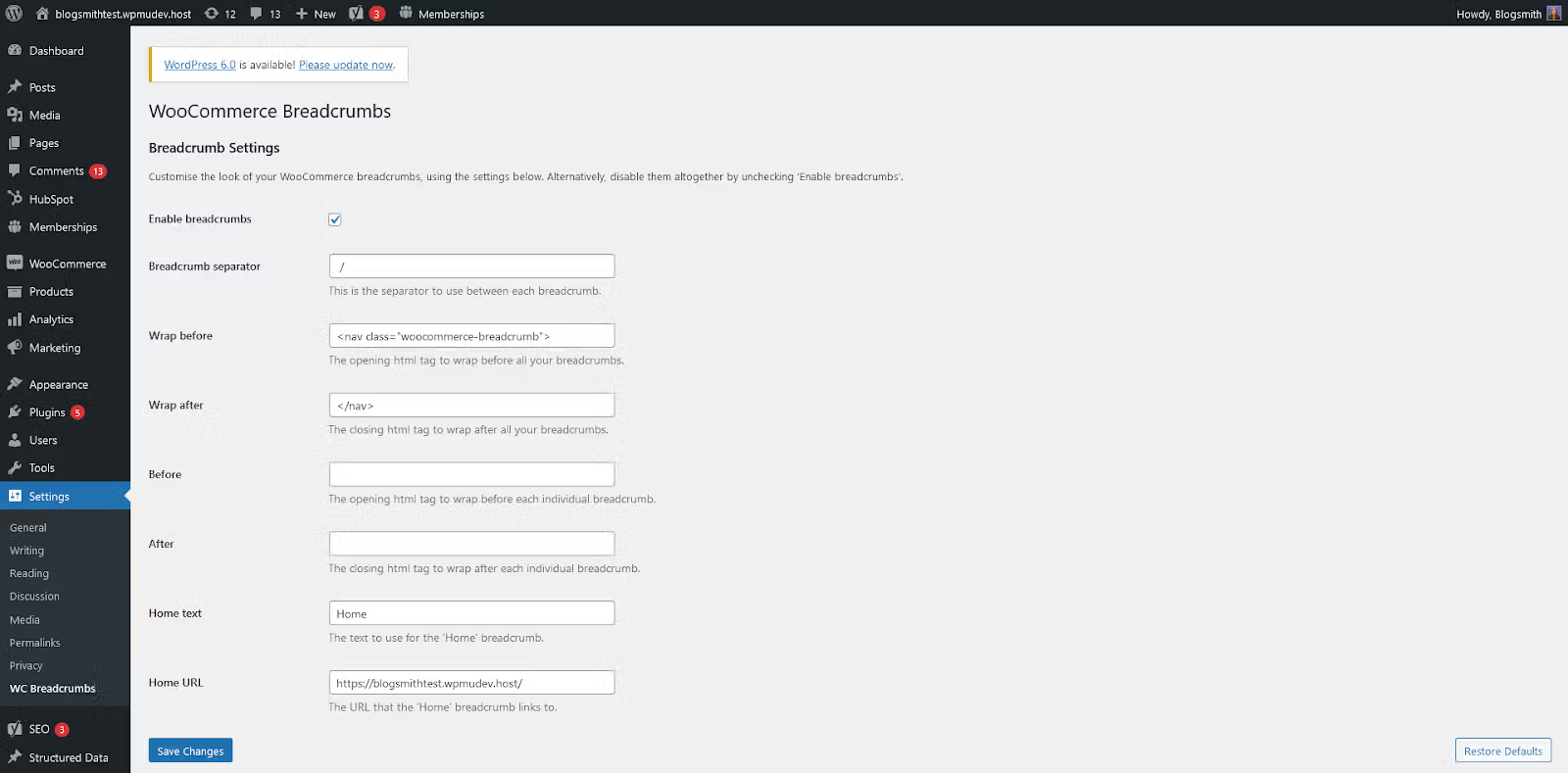
For more customization options, you can use this code in your theme’s functions.php file:
// Customize WooCommerce breadcrumbs
add_filter( 'woocommerce_breadcrumb_defaults', 'custom_woocommerce_breadcrumbs' );
function custom_woocommerce_breadcrumbs() {
    return array(
        'delimiter'   => ' › ',
        'wrap_before' => '<nav class="woocommerce-breadcrumb">',
        'wrap_after'  => '</nav>',
        'home'        => 'Home',
        'shop_page'   => 'Shop',
    );
}
For additional features, you can use the dedicated WordPress Breadcrumbs plugin as previously described.
Here are some of the common issues you may encounter and how to solve them:
- Breadcrumbs not appearing: Check if your theme overrides WooCommerce templates
- Styling conflicts: Review your theme’s CSS for breadcrumb-related classes
- Category hierarchy issues: Verify your product category structure
- Mobile display problems: Test responsiveness and adjust CSS accordingly
Pro Tip: When using WooCommerce breadcrumbs, ensure your product categories are properly structured before enabling the feature. This helps create more meaningful navigation paths for your customers.
4. Set breadcrumbs manually (Advanced method)
🚦Difficulty level: Advanced
⏱️ Time estimate: 1-2 hours
🤔 Prerequisites:
- Understanding of PHP and WordPress functions
- Access to theme files
- Recent backup of your website
For developers and advanced users who need complete control over breadcrumb implementation, manual coding offers the most flexibility. This method allows you to customize every aspect of your breadcrumbs to match your exact requirements.
Important: Be careful when editing code on your WordPress website. If you change certain functions, you may break some functionality or the entire website. Ensure you’re using the latest version of WordPress and back up your website before making any major changes. That enables you to restore your website to a previous version in case your site breaks.
Ensure you’re using the latest version of WordPress and back up your website before making any major changes. That enables you to restore your website to a previous version in case your site breaks.
To set breadcrumbs manually:
1. Access your functions.php file through the WordPress code editor.
2. Add the following code snippet:
<?php
/*=============================================
=            BREADCRUMBS			            =
=============================================*/

//  to include in functions.php
function the_breadcrumb() {

    $sep = ' > ';

    if (!is_front_page()) {

	// Start the breadcrumb with a link to your homepage
        echo '<div class="breadcrumbs">';
        echo '<a href="';
        echo get_option('home');
        echo '">';
        bloginfo('name');
        echo '</a>' . $sep;

	// Check if the current page is a category, an archive or a single page. If so show the category or archive name.
        if (is_category() || is_single() ){
            the_category('title_li=');
        } elseif (is_archive() || is_single()){
            if ( is_day() ) {
                printf( __( '%s', 'text_domain' ), get_the_date() );
            } elseif ( is_month() ) {
                printf( __( '%s', 'text_domain' ), get_the_date( _x( 'F Y', 'monthly archives date format', 'text_domain' ) ) );
            } elseif ( is_year() ) {
                printf( __( '%s', 'text_domain' ), get_the_date( _x( 'Y', 'yearly archives date format', 'text_domain' ) ) );
            } else {
                _e( 'Blog Archives', 'text_domain' );
            }
        }

	// If the current page is a single post, show its title with the separator
        if (is_single()) {
            echo $sep;
            the_title();
        }

	// If the current page is a static page, show its title.
        if (is_page()) {
            echo the_title();
        }

	// if you have a static page assigned to be you posts list page. It will find the title of the static page and display it. i.e Home >> Blog
        if (is_home()){
            global $post;
            $page_for_posts_id = get_option('page_for_posts');
            if ( $page_for_posts_id ) {
                $post = get_post($page_for_posts_id);
                setup_postdata($post);
                the_title();
                rewind_posts();
            }
        }

        echo '</div>';
    }
}
?>
3. After adding those lines, activate the functionality by adding:
<?php if (function_exists('the_breadcrumb')) the_breadcrumb(); ?>To customize your breadcrumbs further, you can add classes in your CSS file. This allows you to:
- Change fonts and colors
- Adjust spacing and alignment
- Match your website’s design
- Modify mobile display
Not working as expected? Troubleshoot with the following checks:
- Code not working: Verify PHP syntax and WordPress version compatibility
- Styling conflicts: Check your theme’s existing CSS
- Display issues: Test across different devices and screen sizes
- Navigation problems: Verify your page hierarchy structure
Getting started with WordPress breadcrumbs
If you’re looking to improve your customer user experience and site SEO, you can do so by using breadcrumbs. You can either use a theme, plugin, custom code, or WooCommerce. All those methods are easy to use — but take extra care when adding custom code to your website.
Another key to enhancing UX and SEO for your WordPress site is to partner with a hosting provider who specializes in solutions for WordPress. Liquid Web has been leading the industry for about three decades, with fast, secure servers and unbeatable customer support.
Click below to explore options or start a chat to get more details!
Additional resources
How to build a WordPress site →
A complete beginner’s guide that covers 9 key steps to a successful launch
The best managed WordPress hosting providers →
Six WordPress hosting providers compared
What is a WordPress plugin? →
A complete beginner’s guide, including what they are, a few favorites, and how to use them