◦ Comprehensive security
◦ 24/7 support
WordPress Guide → Build → Add Custom Fields
WordPress custom fields: a simple guide to getting started

Sometimes the default WordPress post and page options just aren’t enough—especially when you need to store extra info like notes, ratings, or metadata for a custom layout. That’s where custom fields come in.
Whether you’re building something simple or extending your theme’s functionality, adding custom fields gives you more control over your content.
Get fast, reliable hosting for WordPress
Power your site with the industry’s fastest, most optimized WordPress hosting
What are WordPress custom fields?
WordPress custom fields are extra pieces of information you can attach to posts, pages, or custom post types. They allow you to store and display metadata that goes beyond the default fields like title, content, or featured image.
For example, if you’re running a movie review site, you might add a custom field for “Director” or “Release Year.” If you’re running an ecommerce shop, you could use a custom field to store product specifications like “Material” or “Dimensions.”
In short, they let you personalize content by adding unique details that aren’t included in WordPress by default.
How custom fields work in WordPress
At their core, custom fields work through something called a key-value pair. The “key” is the field name, such as “Author Bio,” and the “value” is the information entered, such as “John Doe is a freelance writer and photographer.” Every piece of metadata is stored this way, giving you flexibility in structuring your content.
WordPress stores these key-value pairs in the database, attaching them to specific posts, pages, or custom post types. Once created, you can retrieve and display this data anywhere in your theme.
This setup gives you a lot of flexibility because you can create as many keys as you need and assign values on a per-post basis. The system makes it possible to expand WordPress from a simple blogging platform into a more dynamic content management system.
Why use custom fields?
Creating custom fields is simple once you know where to look.
- Log in to your WordPress dashboard and open the post or page editor.
- If you don’t see the custom fields option, click on the three-dot menu in the editor, select Preferences, then enable Custom Fields under the “Advanced” section.

- Scroll down below the content editor and find the “Custom Fields” box.
- Enter a field name in the “Name” field (this is the key).
- Enter the content you want in the “Value” field.
- Save or update the post, and your custom field will be stored in the database.
How to display custom fields
Once you’ve added a custom field, you’ll want it to show up on the front end of your site.
- Open your theme files in the WordPress theme editor or via FTP.
- Locate the template file where you want the custom field to appear, such as single.php for blog posts.
- Insert the following PHP snippet where you want the field displayed
<?php echo get_post_meta(get_the_ID(), ‘your_custom_field_name’, true); ?> - Replace ‘your_custom_field_name‘ with the key you created earlier.
- Save the file and refresh your site. You should now see your custom field’s value displayed.
This method requires editing theme files, so creating a child theme or working with a staging site is highly recommended before making changes.
Custom field plugins for WordPress
While WordPress has built-in custom field support, plugins make the process more user-friendly and powerful. They add visual interfaces, advanced field types, and easier ways to manage data.
Pods

Pods helps you manage custom fields and custom post types with an intuitive interface. It’s great if you want a full content management solution without writing code.
Key strengths include:
- Ability to create custom post types and taxonomies alongside custom fields.
- Support for relationships between content types.
- Templates that make it easier to display fields without PHP.
- Built-in migration tools for moving data.
PPOM
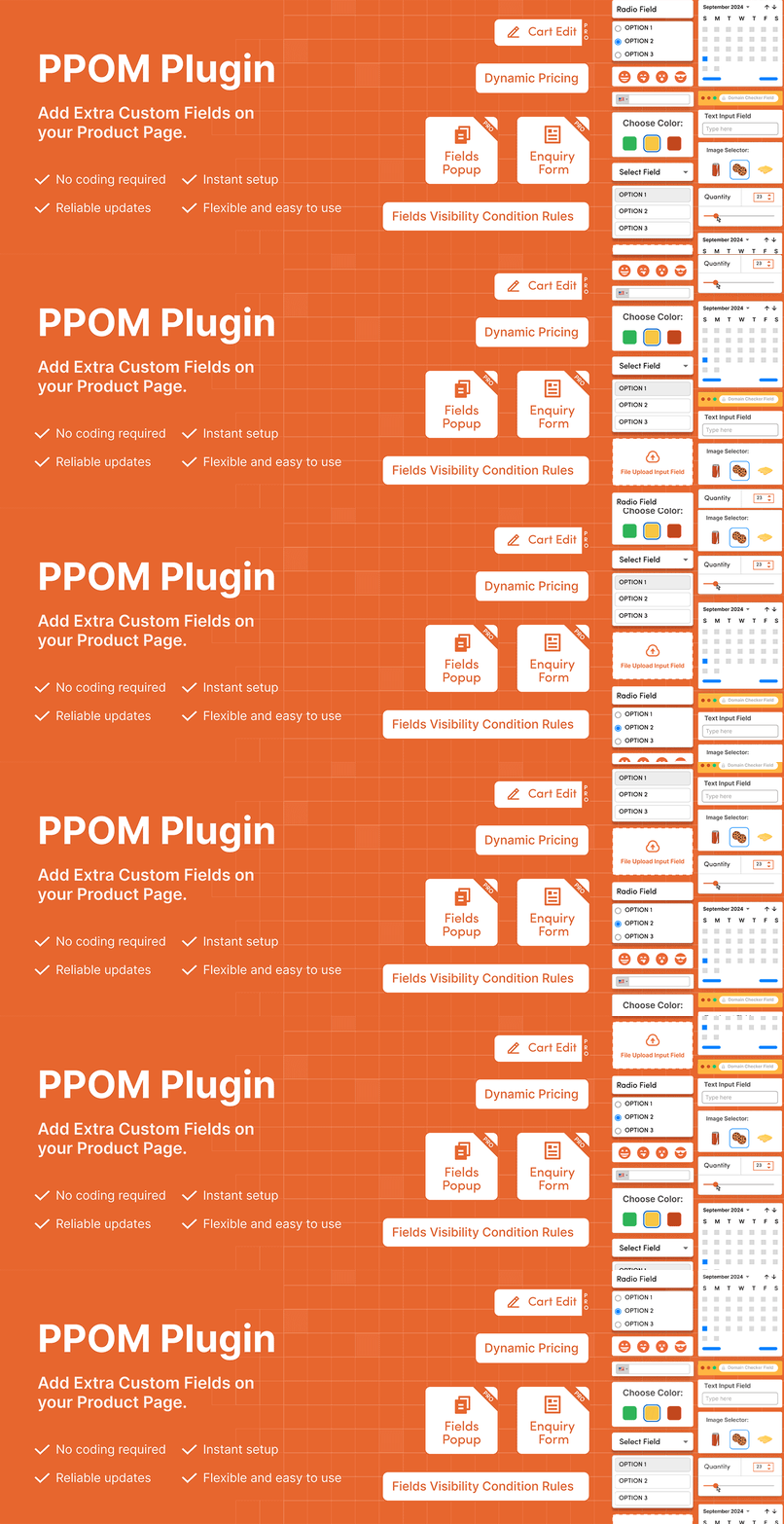
PPOM is designed for WooCommerce product customization. It lets store owners add extra fields to product pages for personalized shopping experiences.
Key strengths include:
- Multiple input types such as text, checkboxes, dropdowns, and file uploads.
- Useful for creating product add-ons like custom engraving or size selections.
- Conditional logic for displaying fields only when needed.
- Integrates directly with WooCommerce checkout.
Here are some additional options for plugins:
Custom field use cases
Custom fields open the door to countless possibilities depending on your website type.
- Real estate listings: Add fields for price, square footage, and location.
- Portfolios: Store project details like client name, completion date, and tools used.
- Online stores: Show extra product details or offer customizable options.
- Educational websites: Add fields for lesson length, difficulty level, or prerequisites.
- Nonprofits: Highlight donor names, campaign goals, or fundraising milestones.
Instead of relying on one-size-fits-all content structures, you can shape the data to fit your site’s purpose.
They also improve organization and consistency. By using structured fields, you avoid manually adding repetitive details to the body of each post. This not only saves time but also ensures that data is stored in a standardized way, which makes it easier to reuse and display across your website.
WordPress custom field FAQs
Upgrade your WordPress experience
Custom fields in WordPress enable you to incorporate extra metadata into your posts and pages, boosting the functionality and presentation of your content. By utilizing custom fields, you can craft personalized experiences for your visitors, showcase distinct information, or handle intricate data in ways that standard post editing cannot accommodate.
To get started, explore the custom fields feature in the WordPress dashboard and experiment with adding new fields to your posts.
Ready to upgrade your WordPress experience? Professional hosting improves speeds, security, and reliability for a website and a brand that people find engaging and trustworthy. Liquid Web’s WordPress hosting options configure business-class servers and support plans specifically for WordPress websites.
Don’t want to deal with server management and maintenance? Our fully managed WordPress hosting is the best in the industry. Our team are not only server IT experts, but WordPress hosting experts as well. Your server couldn’t be in better hands.
You can avoid site speed problems when you’re with Nexcess Fully Managed WordPress or Liquid Web’s suite of WordPress hosting solutions.
Additional resources
How to build a WordPress site →
A complete beginner’s guide that covers 9 key steps to a successful launch
How do I change the font size in WordPress? (the easy way) →
Learn how to change the font size in WordPress to improve readability and design flexibility.
How to use WordPress Gutenberg blocks →
A complete beginner’s guide to Gutenberg blocks