◦ Comprehensive security
◦ 24/7 support
WordPress Guide → Admin → Maintenance Mode
WordPress maintenance mode 101

Maintaining a WordPress site comes with no end of tasks, and making site changes can be a particularly delicate operation. The last thing you want is for visitors to encounter a broken or incomplete site while you’re working, and that’s why you need WordPress’s maintenance mode.
This super feature allows you to temporarily restrict access to your site, ensuring that updates, redesigns, or security fixes are completed without disrupting the user experience. But what do you do when maintenance mode gets stuck or if you need more control over the process?
Read on to explore the ins and outs of WordPress maintenance mode, including manual methods, common errors, and keeping your maintenance page on-brand.
Get fast, reliable hosting for WordPress
Power your site with the industry’s fastest, most optimized WordPress hosting
What is WordPress maintenance mode?
WordPress maintenance mode is a feature that temporarily restricts access to a website. It allows administrators to perform updates, redesigns, or security fixes without disrupting the user experience.
When activated, maintenance mode displays a customizable message to visitors, indicating that the site is temporarily unavailable. The mode can help prevent data loss, minimize downtime, and maintain a professional image during updates or major changes. It automatically activates during core, theme, or plugin updates but can also be manually enabled using plugins or custom code for extended periods.
Maintenance mode returns a 503 HTTP status code to search engines, signaling that the site is only temporarily down, which helps avoid SEO penalties.
Why is WordPress maintenance mode necessary?
The WordPress website maintenance mode comes in handy for several eventualities:
Making major design or content changes
When updating a website, you’re probably going to make a huge mess before things start coming together. Maintenance mode allows you to make changes without visitors seeing the chaos of the process.
Preventing lost orders or data
Depending on what types of updates your site needs, you risk losing vital information during the update process. Imagine if a customer started an order or a prospect began filling out a lead form right before you started making changes. The mode locks visitors out from completing forms or transactions to prevent any data loss while you are performing WordPress maintenance tasks.
Fixing major bugs or security issues
Suppose you’re trying to fix a major bug or recover from a security breach. Maintenance mode allows you to troubleshoot the issue without worrying about customers or hackers trying to use your site.
Theme updates and redesigns
Maintenance mode prevents visitors from seeing a broken or incomplete layout. It ensures that all changes are implemented without disrupting the user experience, maintaining your site’s professional image, and preventing potential SEO issues.
Plugin installations and updates
When installing or updating plugins, maintenance mode helps prevent compatibility issues or errors that might occur during the process. You can make sure plugins are integrated correctly before going live, reducing the risk of site malfunctions or security breaches.
Database optimizations
Database optimization may be essential for improving WordPress performance, but it can temporarily affect site functionality. Maintenance mode allows you to optimize your database without impacting visitors, ensuring that your site remains fast and reliable once the optimizations are complete.
Major content restructuring
When restructuring content, such as reorganizing categories or updating large volumes of posts, maintenance mode helps maintain a consistent user experience. It prevents visitors from encountering broken links or incomplete content during the restructuring process.
Security audits and fixes
During security audits or fixes, maintenance mode is vital for protecting your site from potential vulnerabilities. It ensures that visitors cannot access sensitive areas while you are resolving security issues, safeguarding both your site and user data.
How to put WordPress into maintenance mode
Putting your site into maintenance mode using the default WordPress maintenance mode requires no action on your part. When you run a plugin or core system update, WordPress activates and deactivates maintenance mode as a part of the process.
1. Using default WordPress maintenance mode
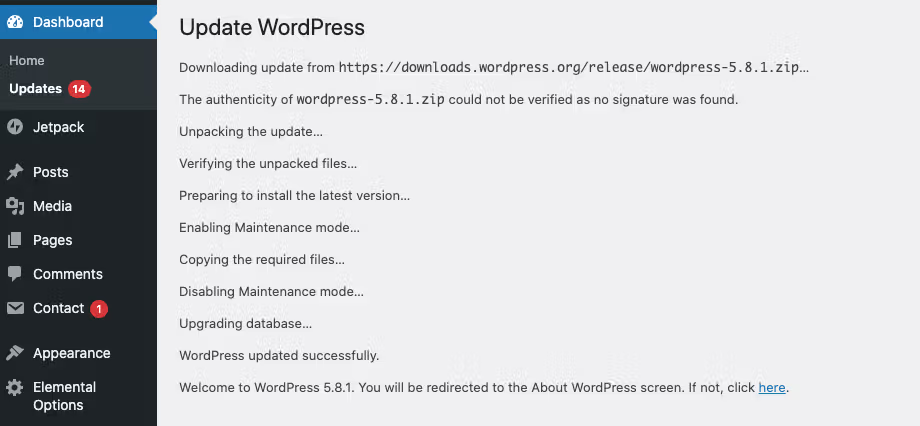
The default maintenance mode for WordPress only lasts as long as the update takes to execute. In this screen grab of a system update, the entire process took less than one minute!
2. Manual methods
i. Custom code: Adding code to functions.php
To manually enable maintenance mode using custom code, you can add a PHP snippet to your theme’s functions.php file. This method allows you to display a maintenance message to visitors while still allowing you to work on the site.
- Go to your WordPress dashboard.
- Click on Appearance > Theme File Editor.

- Open the
functions.phpfile for your current theme.

- Insert maintenance mode code snippet:
function enable_maintenance_mode() {
	if (!is_user_logged_in() || !current_user_can('manage_options')) {
    	wp_die('<h2>Site Update in Progress</h2><p>We're making some improvements! Please check back soon.</p>');
	}
}
add_action('template_redirect', 'enable_maintenance_mode');- Click Update File to save the changes.
- Test the maintenance mode by opening your site in an incognito window.
You can disable maintenance mode simply by removing the added code from functions.php.
💡 This approach is theme-specific, so if your maintenance process involves switching themes, the new theme’s functions.php could disable your site’s maintenance mode.
ii. Using .htaccess file
This method is useful when you need more control over the redirection process or when working with custom server configurations. However, it requires careful handling to avoid errors that could make your site inaccessible.
- Use a text editor to create an HTML file named maintenance.html.
- Add your desired maintenance message to this file. Here’s an example of what you could use:
<!DOCTYPE html>
<html lang="en">
<head>
	<meta charset="UTF-8">
	<meta name="viewport" content="width=device-width, initial-scale=1.0">
	<title>Maintenance</title>
</head>
<body style="text-align: center; padding: 50px; font-family: Arial, sans-serif;">
	<h1>Site Under Maintenance</h1>
	<p>We'll be back soon.</p>
</body>
</html>- Log in to your cPanel and navigate to the File Manager.

- Locate the
.htaccessfile in your site’s root directory. - If the
.htaccessfile is not visible, enable Show Hidden Files in the settings.

- Edit the
.htaccessfile and add the following code:
RewriteEngine On
RewriteBase /
RewriteCond %{REQUEST_URI} !^/maintenance\.html$
RewriteRule ^(.*)$ https://example.com/maintenance.html [R=307,L]- Save Changes to apply the modifications.
iii. Using hosting control panel
Liquid Web offers managed WordPress hosting solutions, including support for maintenance tasks. While we don’t provide a specific maintenance mode feature through our control panel, our expert support team can assist with enabling maintenance mode using plugins or custom methods. We’ll also ensure that your site remains secure and optimized during maintenance tasks.
3. Using WordPress maintenance mode plugins
If you want to put your WordPress site into maintenance mode for an extended time, a plugin is the best way to do it. But first, you need to choose the right plugin. Use the list below as a starting point:
i. SeedProd

SeedProd offers a drag-and-drop builder for creating custom maintenance pages. It integrates with Google Analytics and email marketing services, making it ideal for SEO and lead generation. While it requires a subscription for premium features, SeedProd provides extensive customization options and a user-friendly interface. It’s perfect for creating professional-looking maintenance pages without coding knowledge.
ii. WP Maintenance

WP Maintenance offers extensive customization options with ready-made themes. It provides SEO-friendly settings and allows for Secret Access Links, so site access can be given to a chosen few during maintenance time. The drag-and-drop builder requires no coding, so it’s ideal for anyone to use. This plugin is ideal for those who need advanced customization and control over their maintenance pages.
iii. Minimal Coming Soon

Minimal Coming Soon is designed for simplicity and ease of use. It offers a clean and responsive design, making it perfect for users who want a straightforward setup. While it lacks advanced customization options, it’s free and suitable for basic maintenance needs. It’s also ideal for users who prioritize simplicity and quick setup without needing extensive features.
iv. CMP

CMP (Coming Soon & Maintenance Page) is a free tool that offers basic maintenance mode functionality with responsive designs. It’s user-friendly and easy to set up, making it suitable for those on a budget. However, it lacks advanced features compared to paid options. CMP is ideal for users seeking a simple, cost-effective solution for basic maintenance needs.
Once you’ve decided on a tool to use, installation is easy:
- Turn off maintenance mode.
- Download, install, and activate your plugin.
- Configure your maintenance plugin – most allow you to customize your maintenance mode message. Be sure to check the setting and build out your ‘down for maintenance’ page according to your plugin’s instructions.
- Turn on maintenance mode.
- Load your website on a different device or in a private browser window to ensure the maintenance mode works.
- Complete your maintenance.
WordPress stuck in maintenance mode
Maintenance modes can sometimes stick to your website, even after removal. To disable it in such cases, you’ll likely need to remove the .maintenance file from your site’s root directory. Here’s how:
- Use an SFTP client like FileZilla or your hosting provider’s File Manager to connect to your site.
- Navigate to your site’s root directory (usually
public_html). - Right-click and delete the
.maintenancefile. If it’s hidden, enable ‘Show Hidden Files’ in your SFTP client. - Refresh your site in a new browser window to ensure it’s no longer in maintenance mode.
Alternative causes and fixes
WordPress can also get stuck in maintenance mode due to incomplete updates, plugin conflicts, or server issues. If deleting the .maintenance file doesn’t resolve the issue, try the following:
- Cache-related problems: Clear your browser and site cache to ensure you’re viewing the latest version.
- Plugin conflicts: Temporarily disable all plugins by renaming the plugins folder via SFTP. Reactivate them one by one to identify the problematic plugin.
- SFTP troubleshooting: Ensure the
.maintenancefile is fully deleted and check for any misconfigurations in yourwp-config.phpfile.
Other common WordPress maintenance mode errors
WordPress maintenance mode can sometimes lead to frustrating errors, disrupting your site’s functionality. Here are some common issues and their solutions:
- White Screen of Death (WSOD): The WSOD can be triggered by plugin conflicts, theme issues, or memory limits. Disabling all plugins via SFTP by renaming the plugins folder can help identify problematic plugins.
- Plugin conflicts: Incompatible plugins can cause maintenance mode to stick. Temporarily disable all plugins and reactivate them one by one to identify the issue.
- File permission issues: Incorrect file permissions can prevent WordPress from removing the
.maintenancefile. Ensure that directories have 755 permissions and files have 644 permissions. - Incomplete updates: If updates are interrupted, WordPress might remain in maintenance mode. Manually complete updates or restore from a backup if necessary.
You can’t always prevent glitches, but you can decrease the chances of a maintenance mode issue by keeping the following in mind:
- Not attempting several updates at the same time: If you try to update too many items at once, you’re more likely to run into a problem. If one plugin update fails, it can cause a cascading effect. Make updates in small batches to ensure the best chances for success and decrease the likelihood of an error.
- Using a compatible and well-rated plugin: Make sure the maintenance mode plugin you select is compatible with your version of WordPress. You can also check the plugin’s ratings to choose the best quality solution.
- Clearing your cache: After you’ve finished any updates and turned off maintenance mode, clear your cache. Caching could cause issues with your maintenance mode or keep visitors from seeing the site updates you completed.
Customizing your maintenance mode page
Customizing your maintenance mode page helps you maintain a professional image and can even engage visitors during site updates. Here are some key elements to include:
- Logo and branding: Incorporate your logo and brand colors to maintain consistency and reinforce your identity.
- Content: Include a clear message explaining why the site is in maintenance mode and what visitors can expect.
- Countdown timers: Add a countdown timer to create anticipation and provide a clear timeline for when the site will be available again.
- Contact information: Provide a contact form or email address for visitors to reach out with inquiries.
- Social media links: Link to your social media profiles to keep visitors engaged and expand your reach.
- Newsletter signup: Include a newsletter signup form to capture email addresses and keep visitors informed about updates and launches. This helps build anticipation and keeps your audience engaged during downtime.
Difference between ‘Maintenance Mode’ and ‘Coming Soon’ pages
A ‘maintenance mode’ page and a ‘coming soon’ page serve different purposes with distinct features that cannot be used interchangeably.
Maintenance mode
- Used when your site is temporarily down for updates or fixes to inform visitors.
- Includes a simple message, an estimated return time, and may feature branding elements.
- Prevents search engines from indexing incomplete content, protecting SEO rankings.
Coming soon page
- Ideal for pre-launch sites to build anticipation.
- Includes countdown timers, teasers, and email sign-up forms to capture leads.
- Allow search engines to index the page, helping new sites gain visibility before launch.
Make maintenance easier with Liquid Web
Liquid Web offers the greatest variety of hosting solutions for WordPress sites on the market, but if maintenance is a special headache, check out our fully managed WordPress hosting services.
Managed WordPress hosting from Liquid Web combines the fastest WordPress hosting solutions with the best support in the industry. Our support team members are experts in both hosting and WordPress, so you can concentrate on your business and leave the hosting maintenance to the pros.
Additional resources
How to use your WordPress admin login page →
How to find, use, and troubleshoot your admin page
What is managed WordPress hosting? →
Find out what sets managed hosting apart for WordPress sites.
Simple WordPress maintenance tips →
7 high-impact tips that anyone can do.

Lindsey Miller is a WordPress and WooCommerce expert and Chief Executive Officer of Content Journey. She has been working with WordPress since 2010 when she started her first WordPress blog. Since then she has attended WordCamps all over the world and had the honor of speaking at many WordCamps and other WordPress events such as WooSesh and WordFest.