WordPress Email Setup — Changing Sender Name/Address

WordPress email setup allows the administrator to receive important notifications related to the website functionality. For example, order information, account verification, and password resets — WordPress will ensure all these are sent to your website users from the default WordPress email account.
Although the default WordPress email configuration provides basic email functionality, it lacks many essential features that ensure good email deliverability and security.
Get fast, reliable hosting for WordPress
Power your site with the industry’s fastest, most optimized WordPress hosting
Changing the default WordPress email sender name/address
In this Nexcess Knowledge Base tutorial for WordPress, you will learn why you need to change the default WordPress email setup and how to change the sender address in WordPress emails.
How WordPress sends outgoing emails
WordPress allows you to send emails using the built-in wp_mail() function. The default behavior of the wp_mail() function provides basic functionality for sending emails from your WordPress website but has quite a lot of limitations that do now allow you to rely on the default WordPress email setup if you need to send a lot of emails on daily.
The wp_mail() function is a wrapper for PHP Mailer that allows you to send emails using a PHP script.
Unfortunately, this approach was designed for simplicity rather than robustness of functionality, which makes it the most significant disadvantage of using it for sending emails from your WordPress site. It does not support proper authentication, meaning the vast majority of messages sent will be marked as spam on the recipient’s side or won’t reach the destination.
As a result, it is generally not a secure way of sending emails, and hackers and spammers commonly exploit it.
WordPress transactional email and the default WordPress email account
WordPress can notify website administrators and users of events and send warning messages and password reset links. All these represent transactional emails sent out in response to some action a user has taken. It’s one of the most important ways your WordPress site communicates with visitors.
By default, WordPress uses the [email protected] email account as the sender address in the email sent to the recipient. However, the address does not represent a real email account on the server, as the wp_mail() function does not use authentication.
Due to this fact, often the messages you or your visitors receive will be marked as suspicious by their email service provider or even go to the spam folder directly.
As we can see in the screenshot below, you and your WordPress website users are very likely to see a warning message letting you know that your email service provider could not verify that the email you received from WordPress came from your website:
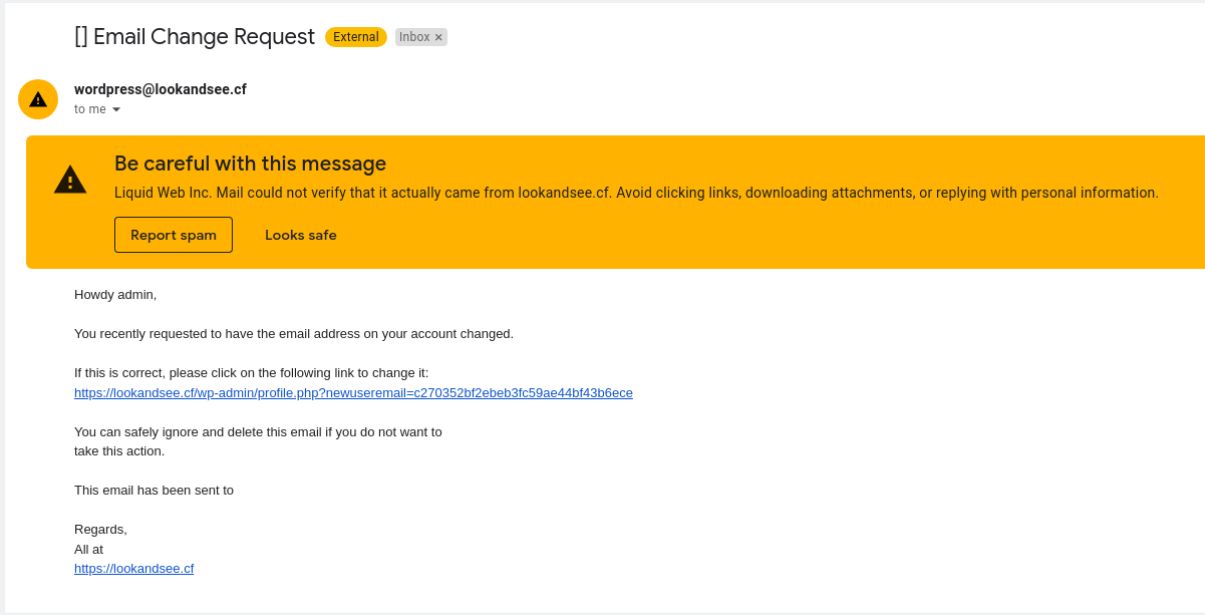
This suspicious flag does not benefit email deliverability and can harm your reputation. Your users can easily miss the transactional emails sent from your WordPress website or consider them spam and your business not generally trustworthy.
If you send a relatively large volume of emails on a daily basis, using the default WordPress email setup is not recommended. This reason is why you must make specific changes to the WordPress email configuration, including changing the WordPress sender address and using proper authentication to ensure excellent email deliverability and improve user experience.
Changing the WordPress email sender name/address
Two main options exist for changing the sender address in WordPress transactional emails. You can change the email sender address that wp_mail() will use or move to a more secure and reliable email delivery process by setting up SMTP on your WordPress website.
Which option to choose?
We recommend moving on to SMTP, even if you have a small blog that has few active users and send only a little email on a daily basis.
Thinking ahead, as your business grows and you implement more ways to communicate with your customers, you will need a great email solution. Changing the default WordPress email account used by the wp_mail() function manually is more of a temporary solution that you can implement before you are ready to set up SMTP. This change will make WordPress display another email address in transactional emails but will not address email deliverability issues.
Regardless of which email account appears as the sender address, most email service providers will still mark emails sent as suspicious if the sender does not use proper authentication.
Changing the WordPress email name/sender address manually
We do not recommend adding the code block described below into the function.php file of your active Kadence theme. The functions.php file for code snippets should only be edited if using a child theme. If a child theme is not used, then the recommendation would be to use a code snippets plugin or to add custom code into a site-specific plugin.
In the case of using a code snippets plugin, such as Code Snippets made by the company Code Snippets Pro, the documentation explains how using it will save you from the need to change the code in the functions.php file directly:
“Code Snippets is an easy, clean and simple way to run code snippets on your site. It removes the need to add custom snippets to your theme’s functions.php file. A snippet is a small chunk of PHP code that you can use to extend the functionality of a WordPress-powered website; essentially a mini-plugin with less load on your site. Most snippet-hosting sites tell you to add snippet code to your active theme’s functions.php file, which can get rather long and messy after a while. Code Snippets changes that by providing a GUI interface for adding snippets and actually running them on your site just as if they were in your theme’s functions.php file.”
If and when you are making changes to the functions.php file of the active theme using a child theme, below is how you can do it. You can change the email sender address that wp_mail() will use by adding a code block to your theme’s functions.php file.
In addition, the wp_mail() function is pluggable, meaning that you can change its functionality, thus modifying the default wp_mail() behavior.
- Add the code snippet below to functions.php to change the default [email protected] email sender address in WordPress transactional emails.
- Replace [email protected] and Your New Sender Name with the actual email address and the sender name you would like to see in the sender information of WordPress emails:
add_filter( 'wp_mail_from', 'sender_email' ); add_filter( 'wp_mail_from_name', 'sender_name' ); function sender_email( $default_sender_address ) { return '[email protected]'; } function sender_name( $original_sender_name ) { return 'Your New Sender Name'; }Please note that all changes to your theme’s functions.php file can be removed after updating the theme. You can modify the file directly from your theme’s folder in the wp-content directory via SSH, File Manager, or the WordPress Admin Interface. Open your WordPress Dashboard and choose Theme File Editor from the Appearance menu.
If you do not see it there, temporarily deactivate the Solid Security Pro plugin, which does not allow you to access the Theme File Editor interface by default:
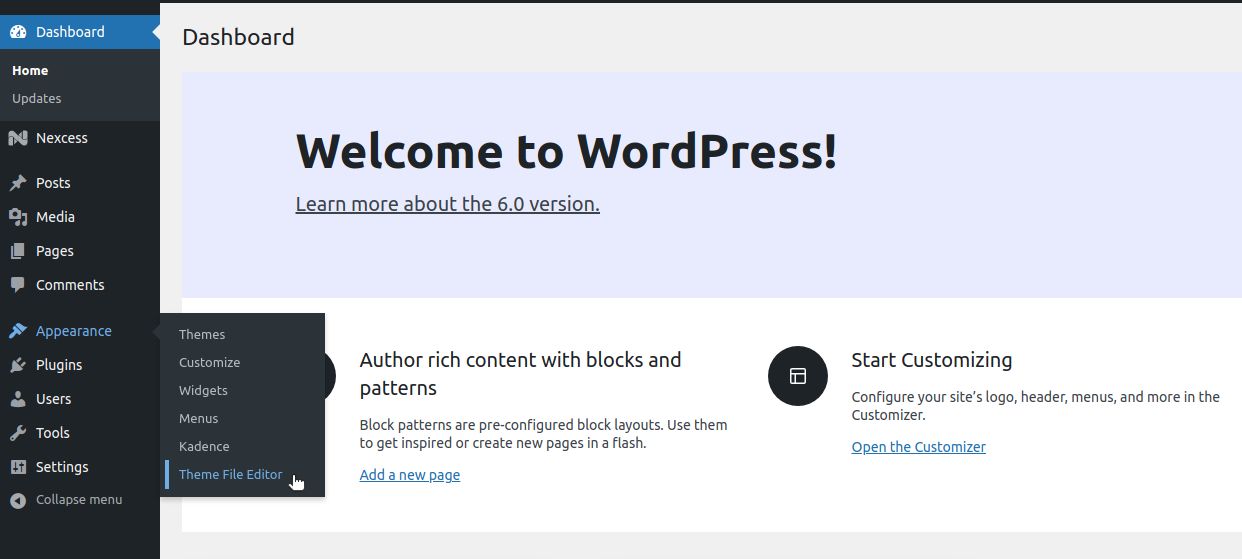
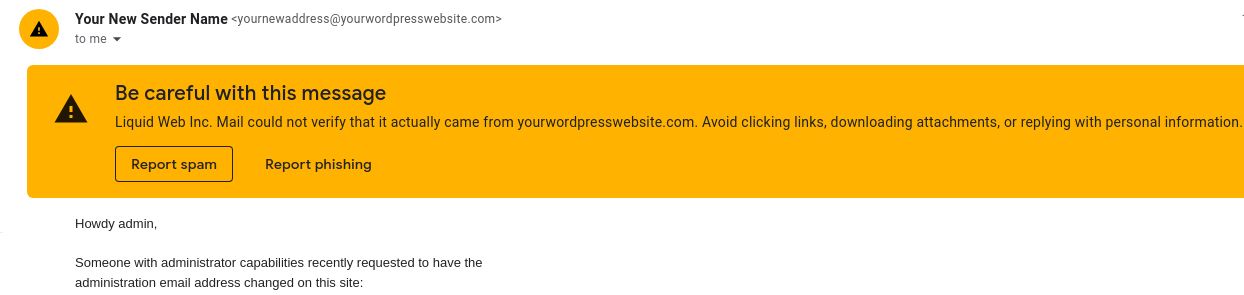
Choose functions.php from the list on the right and add the code snippet to the end of the file. Then, click the Update File button to save the changes you made. You will see that all new WordPress notifications will have the new sender name and address as we changed the default WordPress email configuration.
However, as we did not change the way WordPress sends emails, even with the new address used, messages will still be marked as suspicious or even go to the spam folder:
Changing the WordPress email sender name/address values using SMTP
Using SMTP can help you configure secure and reliable email for your WordPress website and change the default email address and sender name that WordPress uses.
The Simple Mail Transfer Protocol (SMTP) is a protocol mail servers use to send and receive email. SMTP has been there for several decades and is now considered the industry standard for reliable email delivery.
SMTP provides secure authentication and data encryption, ensuring that your information is protected at all data transmission stages. WordPress provides many options to configure SMTP for your WordPress site. You can use your local server to send emails from your site or sign up with a third-party email services provider like SendGrid or Gmail.
WordPress plugins for SMTP allow you to reconfigure the wp_mail() function, simplifying the configuration process. All SMTP plugins for WordPress offer similar functionality.
For example, you can use solutions like WP Mail SMTP or Easy WP SMTP to configure SMTP on your WordPress website.
The process of SMTP email configuration is rather easy and straightforward. To set up SMTP, you will need to connect your site to the chosen third-party email service provider by using an API Key or provide SMTP connection information if you would like to use Nexcess Email Services. The information you need to input manually includes:
- SMTP Host. Your SMTP mail server.
- Encryption. The chosen encryption method. TLS is the recommended option.
- SMTP Port. The port used to establish an SMTP connection. The 587 port is used with TLS.
- SMTP Username. The email address you would like to replace the default WordPress email account with.
- SMTP Password. The password to the email account you chose.
In this example, we are using the WP Mail SMTP plugin.
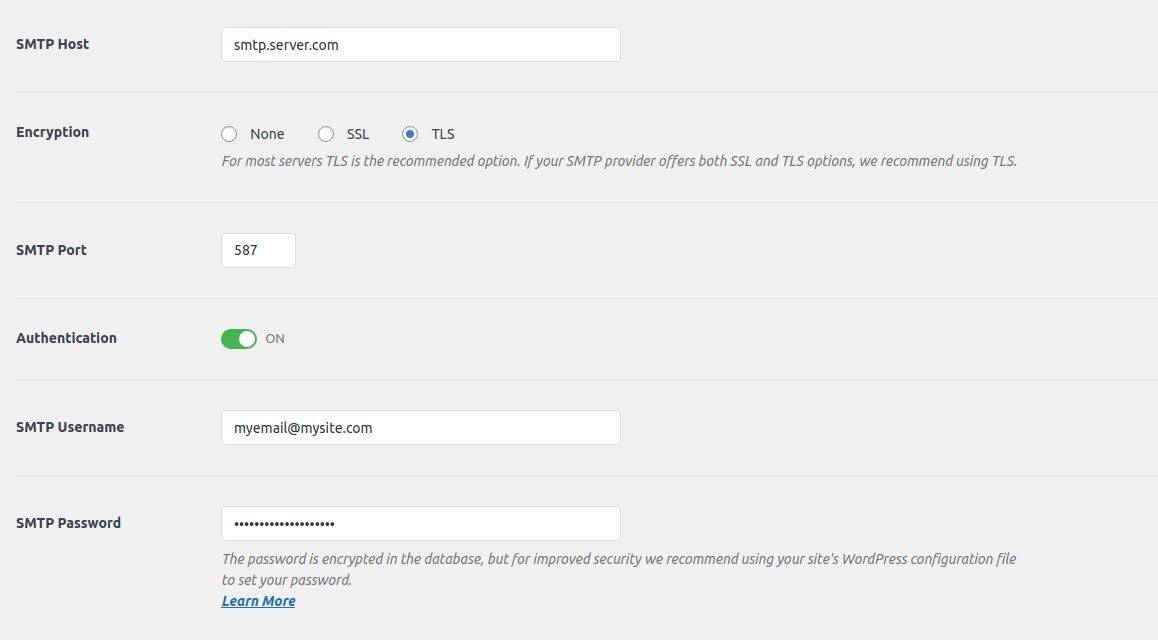
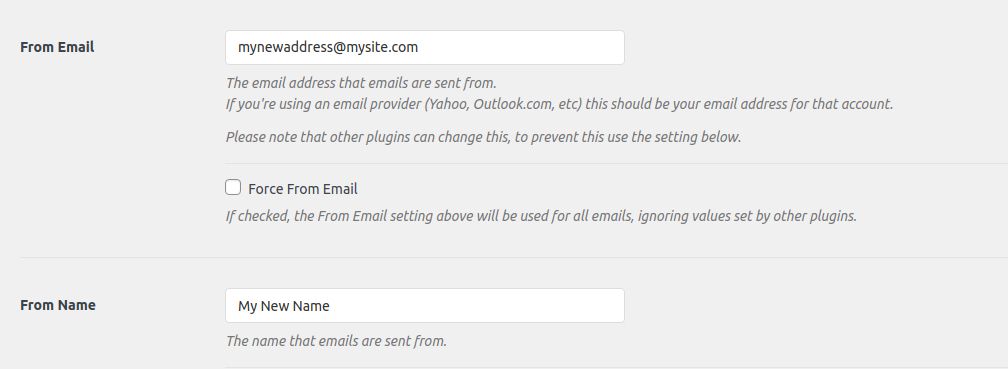
You can change the sender email address and sender name as shown below. Once you have included all information, you can use the email test interface the plugin provides to check whether everything is configured correctly and whether the emails you send reach the recipient’s inbox:
Getting started
Emails are critical when running a website of any kind. Unfortunately, the default WordPress email setup cannot provide the needed functionality for sending emails securely and reliably. One of the main issues WordPress website owners encounter is that transactional emails are sent from the default WordPress email account without proper authentication.
You can change the sender name and address for emails from WordPress by modifying the behavior of the wp_mail() function manually. Still, it’s a temporary solution that does not solve issues with email deliverability. SMTP ensures that your emails reach their recipients, so we strongly recommend switching from the built-in WordPress email options to using SMTP.
Additional resources
What is managed WordPress hosting? →
Get details and decide if managed WordPress hosting is right for you.
Must-have web development plugins to create WordPress websites at scale →
Explore the best web development plugins to enhance functionality, improve performance, and streamline your WordPress site.
A complete guide to WordPress shortcodes →
Shortcodes make life easier. Learn how to get started!