◦ Comprehensive security
◦ Support
WordPress Guide → Admin → Awesome Ways to Customize a WordPress Dashboard
7 awesome ways to customize a WordPress dashboard

Your WordPress dashboard is the centralized control area of your entire website. It lets you create new posts, change themes, add plugins, and manage your website as an admin.
However, every website is different, so your admin dashboard must be unique. A customized admin dashboard enables you to add relevant functionalities and remove features you don’t need.
You can customize your WordPress dashboard by assessing your website’s requirements and following the steps outlined in this guide.
We’ll go over the importance of WordPress dashboard customization, how to do it, and the common challenges you might face.
Get fast, reliable hosting for WordPress
Power your site with the industry’s fastest, most optimized WordPress hosting
What is a custom WordPress dashboard
A custom WordPress dashboard is a modified version of the default admin interface, tailored to match your specific workflow, branding, and user requirements.
The standard WordPress dashboard has features and functionalities for all website types. But you may want to tweak the dashboard to meet your requirements. The biggest benefits include:
- Personalization: You can add custom WordPress widgets and branding elements (e.g., logo and typography) to your WordPress dashboard. This enhances the user experience (UI) and helps your branding stay consistent.
- Decluttering: Have too many items on your WordPress dashboard? You can remove unnecessary widgets to make your dashboard load faster.
- Collaboration: If multiple people have access to the admin area, you can customize the dashboard to simplify workflow for your team. This involves providing easy access to collaboration tools to enhance communication and project management.
Customizing your WordPress dashboard enhances efficiency and productivity. We’ve put together five ways to customize the dashboard for WordPress according to your requirements.
1. Personalize the WordPress dashboard login page
A WordPress login page is the entry point where users authenticate to access the admin dashboard.
But all default WordPress login pages have the same look — the WordPress logo at the top, two text boxes to fill in your login details, and the monotonous gray-blue theme.
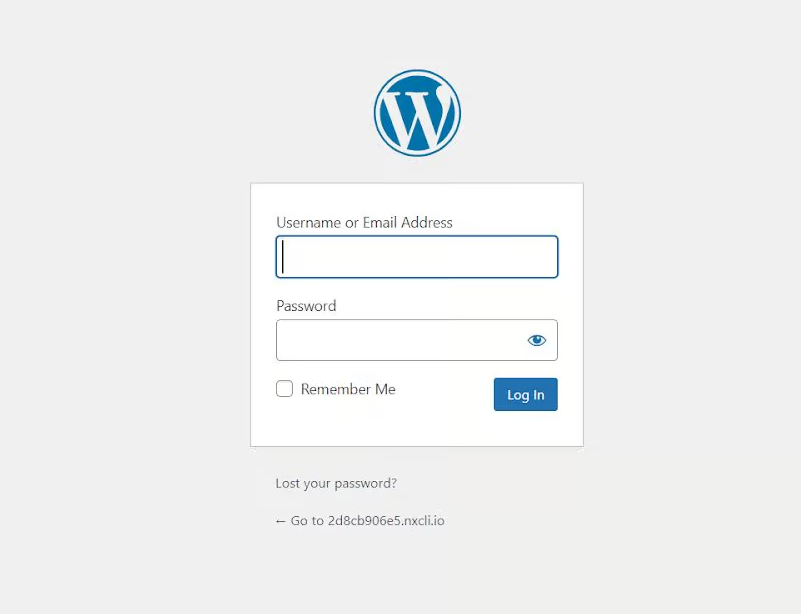
However, you can customize the login page to make it more colorful and unique. Customization provides three main benefits:
- Branding consistency: Match login page colors to your website theme
- Security enhancement: Add two-factor authentication or custom login URLs
- User experience: Create a professional appearance for client sites
There are several customizer plugins that help you personalize the login page. Through these plugins, you can:
- Change color schemes and button appearances.
- Add new background images and custom logos.
- Modify login and contact forms.
- Add custom CSS.
2. Add or remove WordPress dashboard widgets
WordPress dashboard widgets are modular content blocks that display information and controls on the admin homepage.
WordPress has many preloaded dashboard widgets: Quick Draft, WordPress News, Activity, and At a Glance. But cluttering your dashboard with widgets can hinder productivity.
WordPress allows you to remove widgets you don’t need. You might also want to add some custom widgets according to your requirements.
Modifying the widgets on the WordPress dashboard is easy.
- Click Screen Options in the top-right corner
- Check boxes to enable widgets
- Uncheck boxes to disable widgets
- Drag widgets to rearrange positions
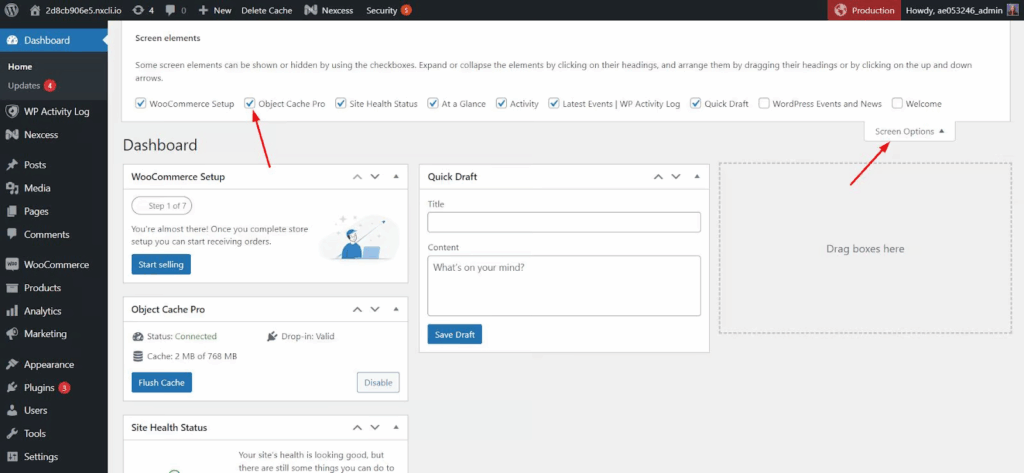
You can add new widgets to your WordPress dashboard using templates and plugins. Alternatively, you can manually add new widgets through the functions.php file.
3. Customize WordPress admin menu
The WordPress admin menu is the left sidebar navigation that provides access to all administrative functions.
If you have multiple people logging into the admin dashboard, you’ll want to control what each person can access from the menu. You can customize the WordPress dashboard with user-specific roles and limit the dashboard functionality for each user.
You can add, hide, or modify dashboard items and limit users to access only the features they need.
However, you’ll need to install the Admin Menu Editor Pro plugin to customize the dashboard for WordPress user roles. This plugin enables you to:
- Change menu permissions for each user.
- Apply your branding elements to the WordPress dashboard.
- Organize the WordPress dashboard using the drag-and-drop feature.
4. Customize the WordPress dashboard color scheme
WordPress color schemes are preset combinations of colors that style the admin interface. The default WordPress theme uses monotonous colors, which can make your website look dull. You can use custom WordPress dashboard colors to make your website more lively and in tune with your brand.
You can change the WordPress dashboard color scheme in three ways:
- Without a plugin
- Using a plugin
- Using a third-party website
Here is a step-by-step tutorial for each method.
Customize the dashboard color scheme without a plugin
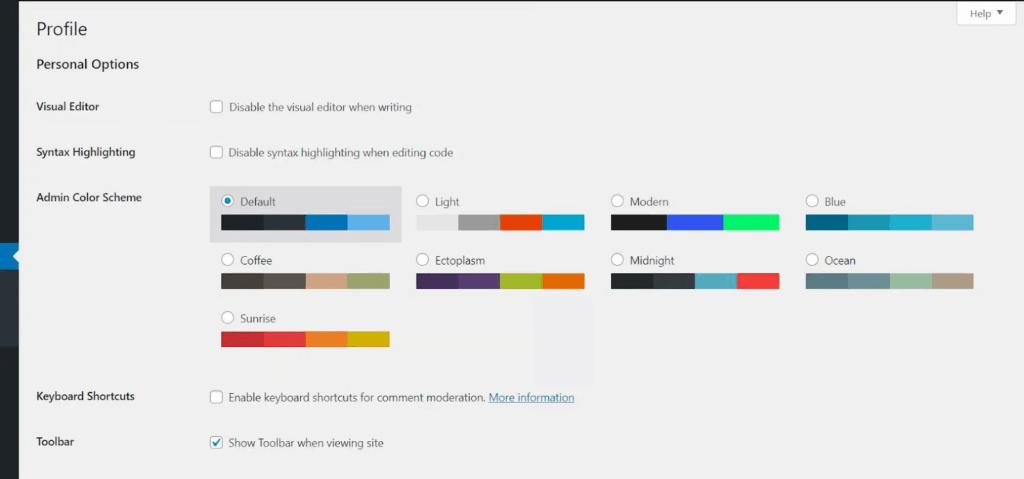
While most other dashboard modifications require plugins, WordPress allows you to change dashboard colors using its built-in settings. You can choose from WordPress’s collection of color themes (Default, Light, Modern, Blue, Coffee, Ectoplasm, Midnight, Ocean, and Sunrise) through the user menu.
To change the color scheme of the WordPress dashboard, customize it using the steps below.
- Navigate to Users > Profile.
- Locate Admin Color Scheme section.
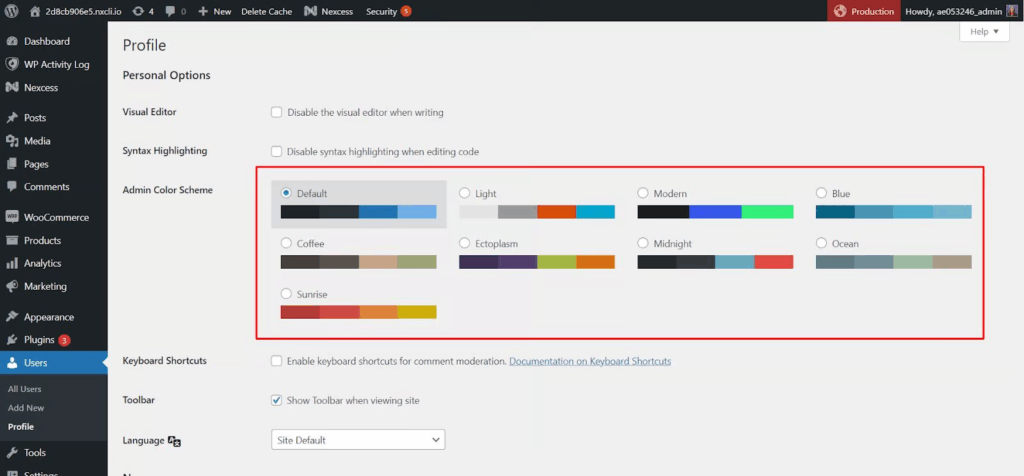
- Select a color scheme.
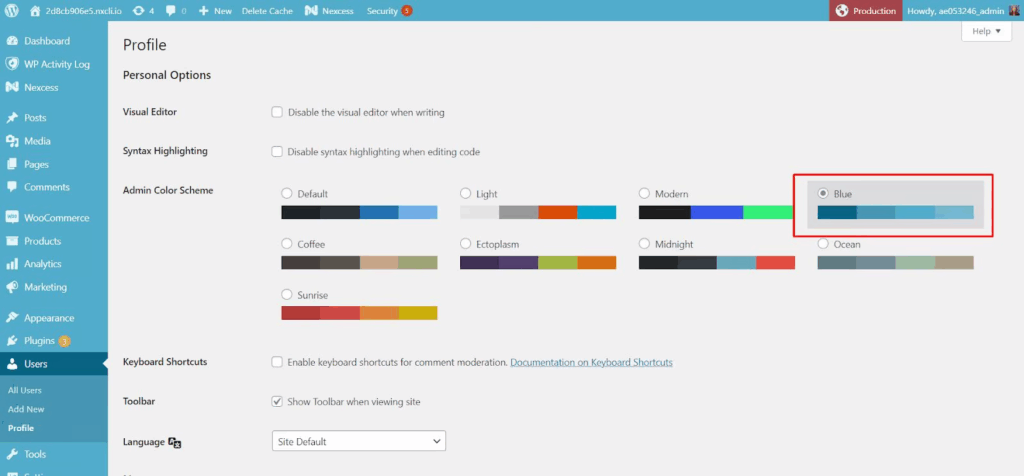
- Click Update Profile.
If you want more theme options, you can customize your WordPress dashboard via a different method (i.e., using a plugin or a third-party website).
Customize the dashboard color scheme with a plugin
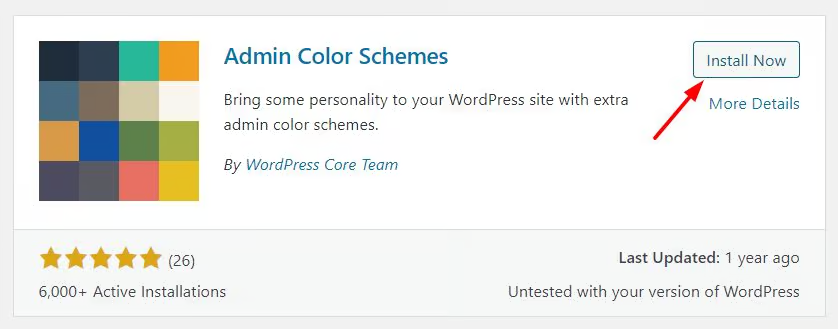
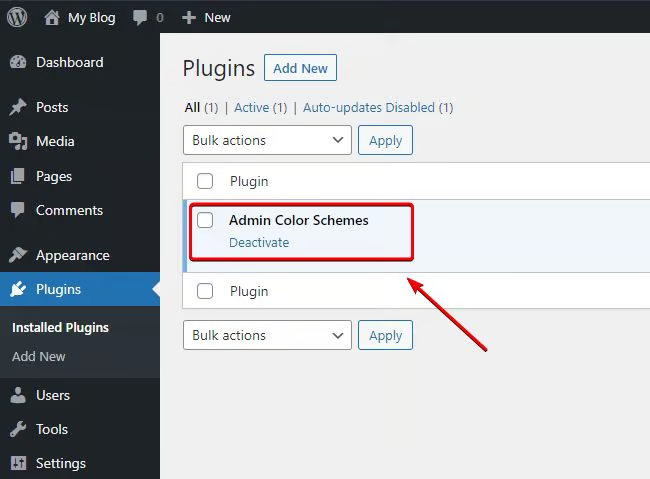
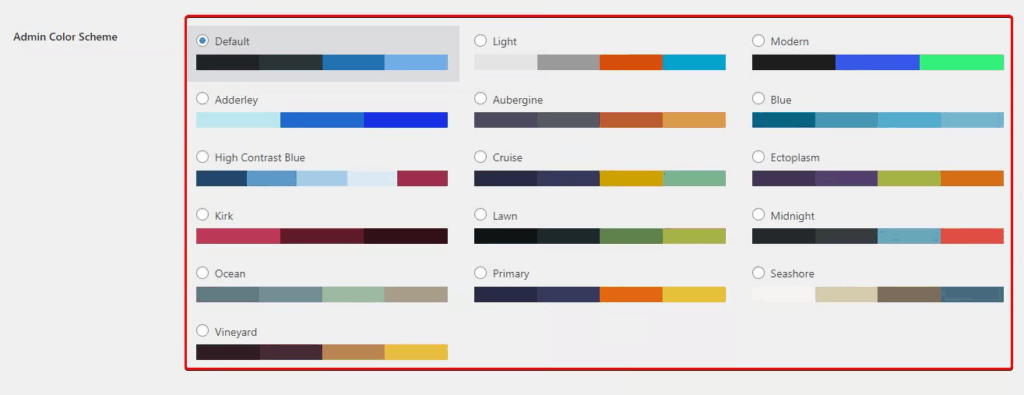
You can customize the dashboard colors through the Admin Color Scheme plugin, an official plugin from WordPress. You only need to follow three steps.
- Install the Admin Color Scheme plugin.
- Activate the plugin.
- Navigate to Users > Profile
- Select an option from the new plugin color themes.
Customize the dashboard color scheme with a third-party site
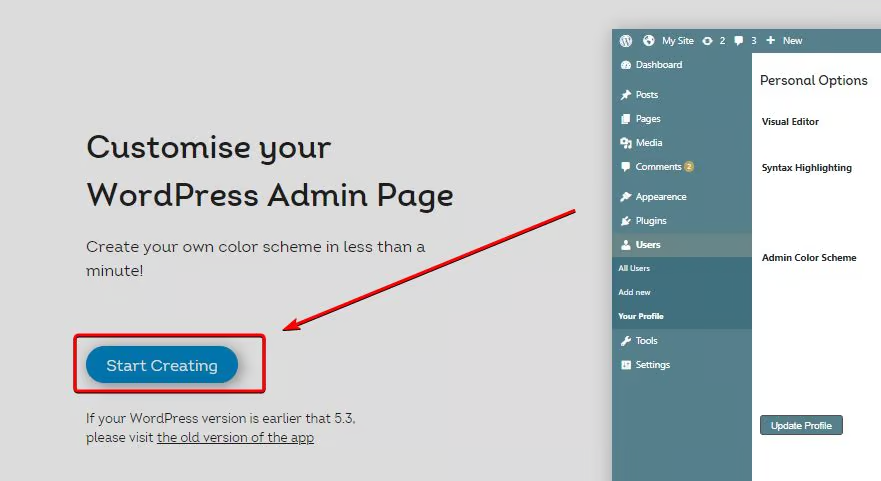
For more customization, you can create your own color schemes using the WordPress Admin Colors website. Here’s what you need to do:
- Visit the WordPress Admin Colors website.
- Click on Start Creating.
- Set your custom Color Scheme Name and ID.
- Pick your preferred colors.
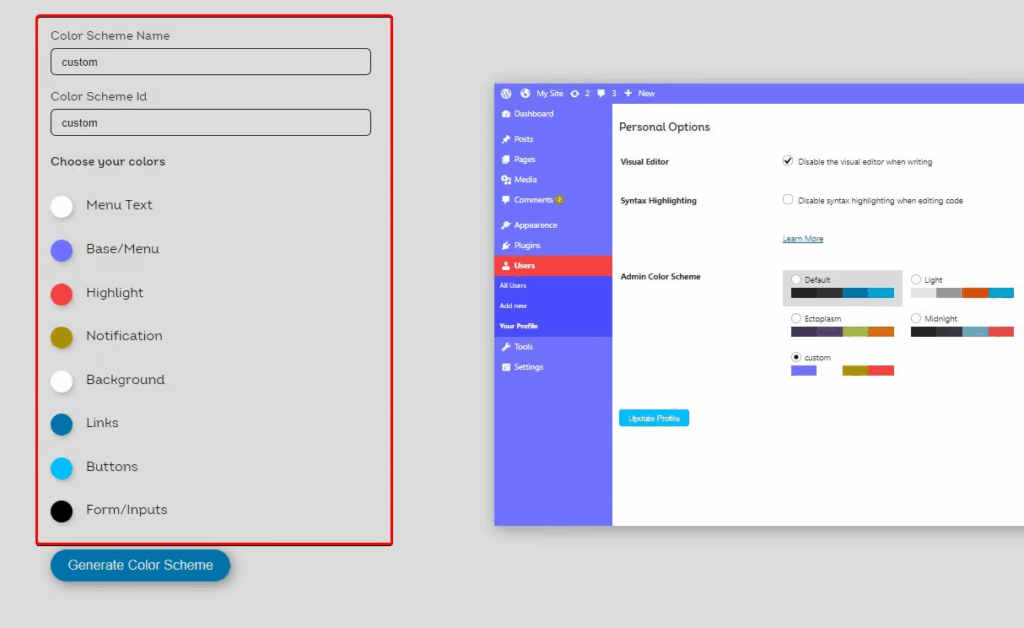
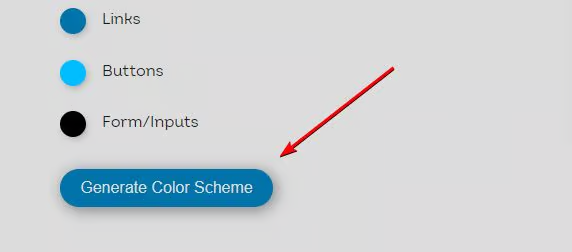
- Click on Generate Color Scheme at the bottom. Once your color scheme is ready, you’ll receive a stylesheet and a code with which you can customize your dashboard.
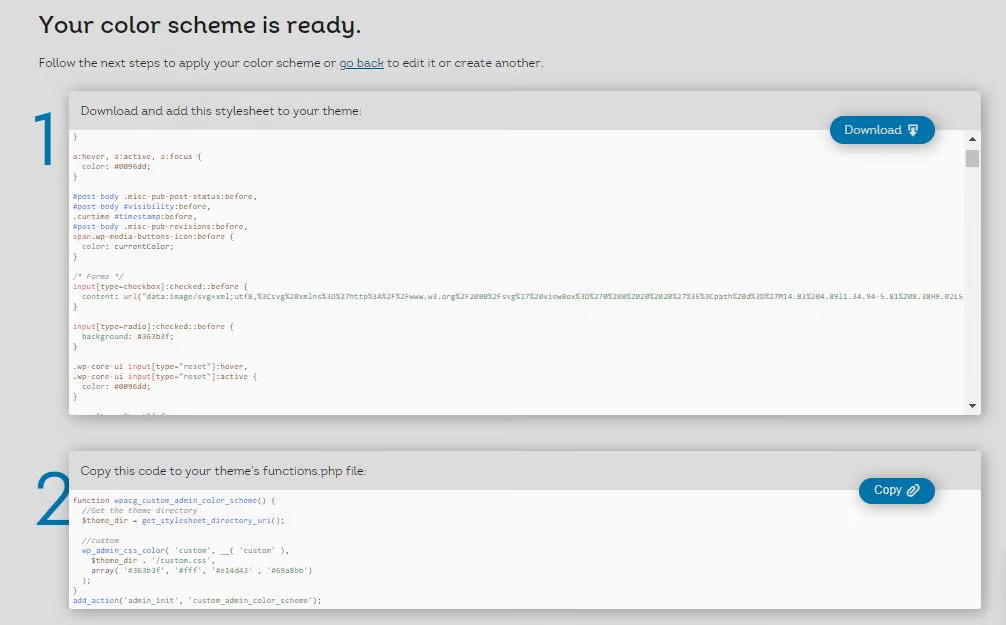
- Download the .css file (i.e., the spreadsheet).
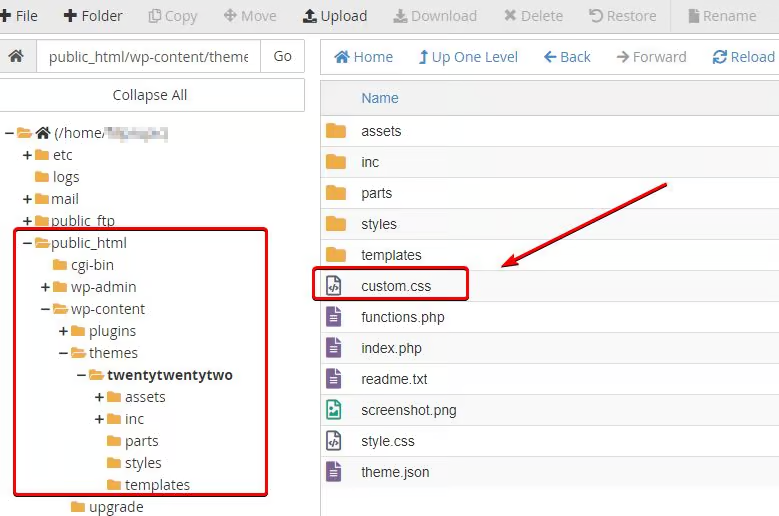
- Add it to your WordPress theme directory. The path in our example is /public_html/wp-content/themes/twentytwentyfive.
- Copy the generated code from the WordPress Admin Colors website, and add it to your functions.php file.
- Install the WPCode plugin and activate it
- Click on Add New.
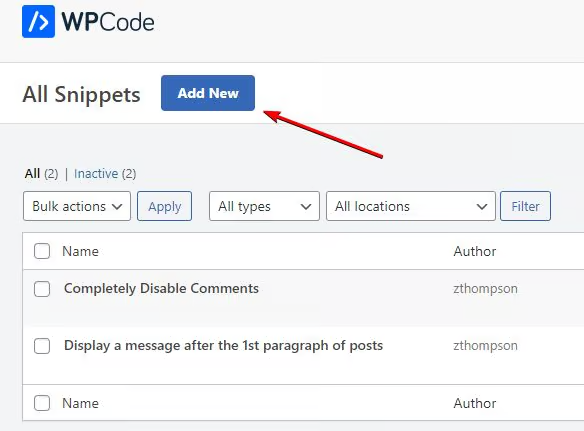
- Click on Add Your Custom Code (New Snippet).
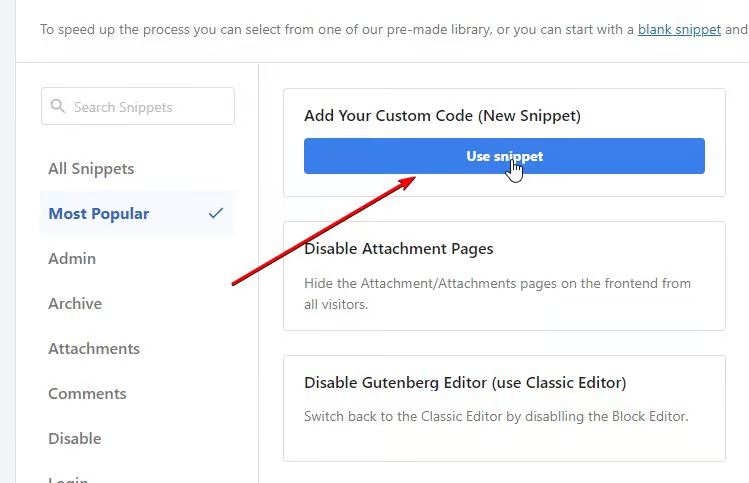
- Name your code snippet and set it to PHP.
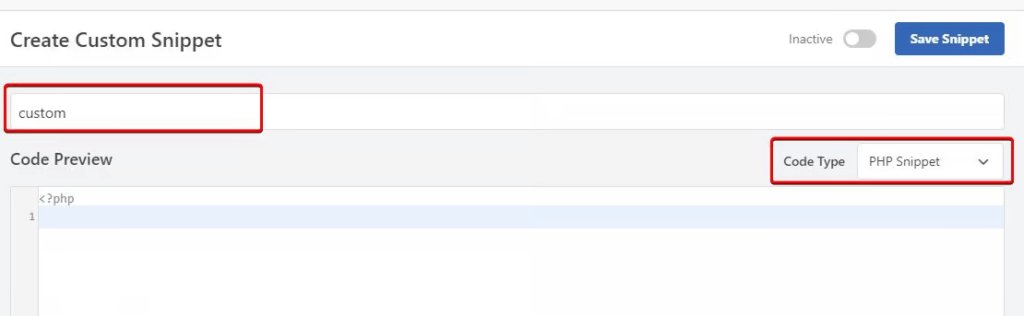
- Paste your code, activate it, and save it.
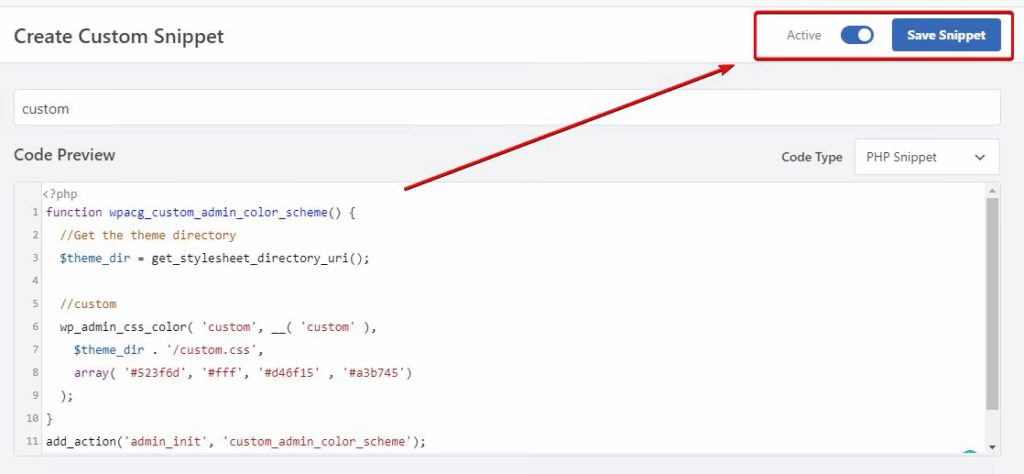
Now your new custom color scheme will display under Users > Profile.
5. Install a WordPress admin theme
WordPress admin themes are plugins that completely redesign the dashboard interface and user experience.
Admin themes modify these elements:
- Dashboard layout
- Typography styles
- Icon designs
- Widget appearances
- Menu structures
- Color palettes
Popular admin themes include: Tamed Admin Theme and Fancy Admin UI.
To install an admin theme:
- Search for admin themes in Plugins > Add New.
- Install your chosen theme.
- Activate the plugin.
- Configure theme settings.
Admin themes affect all users and may conflict with other plugins, so make sure to test themes on staging sites first.
6. White label the WordPress admin area
White labeling WordPress is the process of removing WordPress branding and replacing it with custom branding throughout the admin interface.
White labeling benefits agencies and developers by creating a professional appearance for client sites and other benefits:
- Brand consistency: Maintain professional appearance across client sites.
- Client confidence: Reduce confusion about platform management.
- Support reduction: Minimize clients clicking WordPress help links.
Through white label plugins, you can modify these elements:
- WordPress logo on login page.
- Admin bar WordPress logo.
- Dashboard footer text.
- WordPress menu items.
- Help and documentation links.
- WordPress.org widget feeds.
- Update notifications text.
Some popular white label plugins include:
- White Label CMS: $39 per year for unlimited sites.
- WP White Label: Free version available.
- Branda: Included with WPMU DEV membership.
- Admin Menu Editor Pro: Includes white label features.
Important: White labeling requires a lot of careful testing and remember that some plugins affect WordPress updates. We recommend that you always maintain backup access to wp-admin and document custom login URLs for clients for easy access and reference.
7. Create custom admin pages
Custom admin pages are specialized screens in the WordPress dashboard designed for specific functions or information display.
They’re often preferred by agencies because they help organize complex functionality, provide dedicated interfaces for custom post types, settings, or reports, and let users access features without navigating multiple screens.
There are three ways to do this:
Method 1: Use a plugin
Admin page builder plugins simplify creation:
- Admin Page Framework: Free, code-based approach.
- Toolset Types: $69 per year, visual builder included.
Method 2: Add code to functions.php
Basic admin page code structure:
- Register menu item with add_menu_page()
- Create callback function for page content
- Add form handling for settings
- Include nonce for security
Method 3: Build with a page builder
Some page builders create admin pages:
- Elementor Pro includes admin customization.
- Beaver Builder supports dashboard widgets.
- Divi allows custom admin modules.
Common custom admin page uses:
- Client dashboards: Display website statistics and reports.
- Team directories: Manage staff information.
- Resource libraries: Organize documentation and assets.
- Custom settings: Group plugin or theme options.
- Import/export tools: Handle data management.
To create a basic custom admin page:
- Choose your creation method.
- Define page purpose and features.
- Design the interface layout.
- Add necessary functionality.
- Set user permissions.
- Test with different user roles.
Challenges with WordPress dashboard customization
WordPress allows you to customize your admin dashboard according to your needs. However, you’ll need to install plugins and templates to completely customize the dashboard. This poses challenges such as:
- Finding reliable plugins: Third-party plugins can pose security threats if they come from unreliable sources. If you’re looking for specific features, then finding up-to-date and reliable plugins can be a challenge.
- Compatibility issues: Customizing your WordPress dashboard with third-party plugins can cause compatibility issues. This could result in broken layouts, performance issues, or even the loss of certain functionalities.
- WordPress updates: Sometimes, WordPress updates can reset all the dashboard customization you have already done. This can be difficult to reconfigure, so it is important to back up your entire website at least once a week.
While a WordPress custom dashboard has its challenges, you can overcome these issues by installing plugins from trusted sources and regularly backing up your website.
Custom WordPress dashboard FAQs
Create your awesome WordPress dashboard
Customizing your WordPress dashboard helps you improve admin functionality and simplify website management. Using the methods outlined in this guide, you can customize your dashboard to suit your website’s requirements.
However, dashboard customization isn’t enough to ensure your website runs smoothly. You also need a hosting plan that can keep your website running with optimal speed and near 100% uptime.
Liquid Web provides secure website hosting plans with customer support for seamless website management.
Ready to improve your WordPress website? Check out managed WordPress hosting plans or start a chat with one of our WordPress experts.
Additional resources
How to use your WordPress admin login page →
How to find, use, and troubleshoot your admin page
How to fix a slow WordPress admin page →
13 common issues and simple solutions
WordPress widgets: How to add and use them →
The best widgets, how to add them, and common issues

Freddy Reese works in the Liquid Web Managed Hosting Support team with a strong passion for all things related to Linux administration, cybersecurity, and aviation. In his free time, he likes to keep up with the latest news on topics ranging from fusion to space technologies and play with his dog Chupko.