◦ Comprehensive security
◦ Support
WordPress Guide → Admin → Change admin password
How to change WordPress admin password (Using multiple methods)

Managing your WordPress admin password is crucial for maintaining the security of your website. Whether you need to update your password regularly for security purposes, have forgotten your current password, or need to help another administrator regain access, there are several reliable methods available.
This comprehensive guide walks you through five proven ways to change or reset your WordPress admin password, from using the built-in user interface to advanced methods like database manipulation and command-line options.
We’ll also cover essential password security practices and provide expert tips to keep your WordPress site protected, arming you with the knowledge to manage your admin passwords effectively and securely.
Get fast, reliable hosting for WordPress
Power your site with the industry’s fastest, most optimized WordPress hosting
When you need to change or reset your WordPress admin password
Regular password updates are a cornerstone of robust WordPress security. There are several scenarios where changing your admin password becomes necessary or recommended. First, periodic password changes help prevent unauthorized access and protect against potential security breaches.
You might need to reset your password if you suspect your credentials have been compromised or if you’re implementing new security protocols across your organization. Additionally, WordPress administrators often need to change passwords when team members leave the organization or when transitioning between different roles within the website management structure. Understanding when and why to update your admin password is just as important as knowing how to do it.
For optimal security, consider changing your WordPress admin password at least every three months and immediately after any suspected security incident. This proactive approach, combined with other WordPress security best practices, helps maintain the integrity of your website.
Best practices for WordPress password security
Creating and maintaining secure passwords is essential for protecting your WordPress site from unauthorized access. As highlighted in our WordPress security guide, implementing strong password practices is your first line of defense against potential threats. Here are key guidelines for maintaining robust password security:
- Use passwords that are at least 12 characters long
- Combine uppercase and lowercase letters, numbers, and special characters.
- Avoid using common words or personal information.
- Use unique passwords for each website or service.
- Consider implementing two-factor authentication.
- Regularly audit user access and remove unused admin accounts.
For comprehensive WordPress security, it’s crucial to understand that WordPress is inherently secure when properly maintained. Following admin security best practices alongside strong password management will significantly enhance your website’s security posture.
Multiple methods for changing your WordPress admin password
Let’s explore the five most effective methods for changing your WordPress admin password, starting with the most user-friendly approach through the WordPress dashboard.
Method #1: WordPress admin dashboard user interface option
This method shows how to change your password through the WordPress Admin Dashboard by following the steps below:
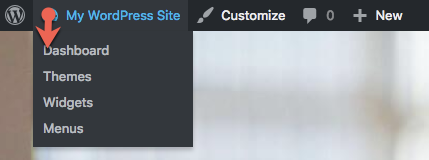
1. Navigate to your administrative login page. Log in using your existing WordPress Admin Account credentials and then navigate to your WordPress Admin Dashboard:
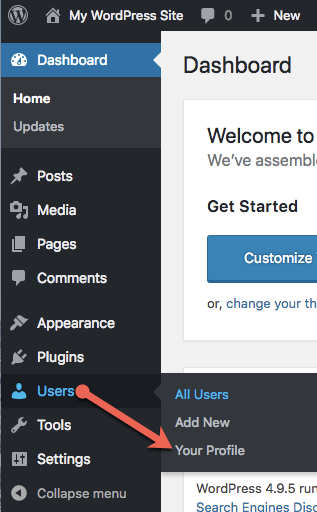
2. From the WordPress Admin Dashboard, select Users > Your Profile:
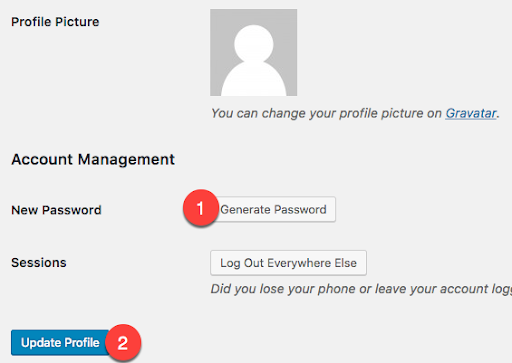
3. Scroll to the Account Management section. Click Generate Password. You may either use the generated password or create one yourself. Save your password in a secure location and then click Update Profile:
Method #2: Lost password link option
First things first, it would help if you had your current WordPress Admin Account password to properly administer your site. If you have forgotten it, navigate to your login page, then click the Lost your password?
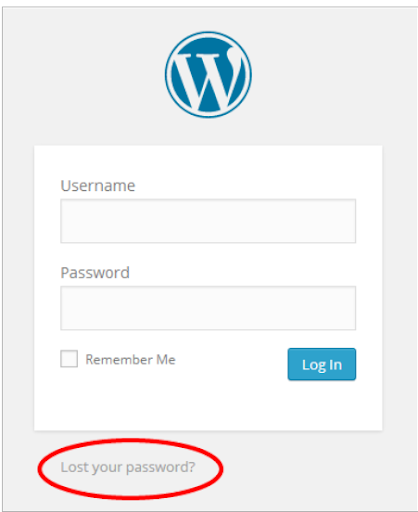
You need to provide the email address used for the admin user, and they will be sent an email with the steps for resetting the lost password. Then, click on the confirmation link inside that email.
Method #3: MySQL database
In your hosting client portal you should be able to access the phpMyAdmin utility from the panel and reset the admin password. The phpMyAdmin utility is a popular and free open-source tool used for administering MySQL with a web browser. Typical operations such as the management of databases, tables, indexes, permissions, and so on are executed with the user interface. Administrators can also use the phpMyAdmin utility to execute any SQL statement directly.
To access the phpMyAdmin utility from the Liquid Web Panel, the MySQL option would be shown as follows:
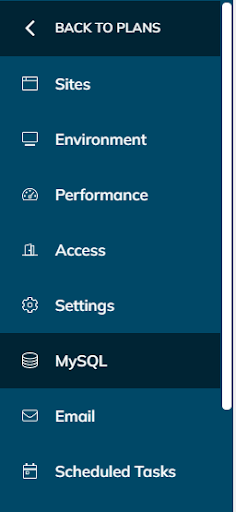
Then you will click the option to Launch phpMyAdmin from the panel after clicking MySQL.
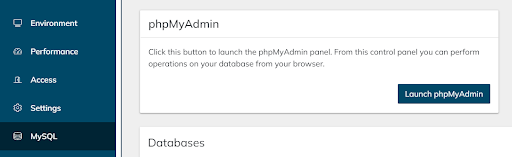
Please note, that to access the database from outside the environment, you may use third-party tools. However, the phpMyAdmin utility access can be done only from the Nexcess Panel.
After launching the phpMyAdmin application, select the database corresponding to the application, and from the database tables listed, access the Users table (wp-users in lowercase text).
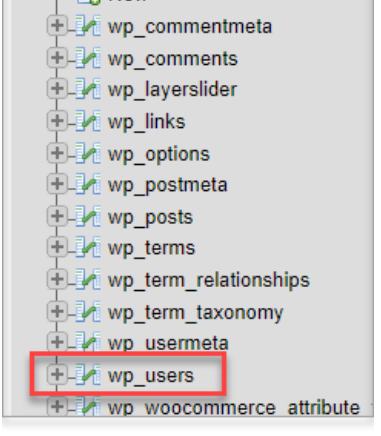
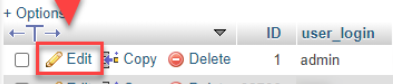
Then select the user to edit, and in this case it would be the admin user, and click the Edit option.
Then, as you scan the user details to edit, go to the user_pass field. Type the password in normal text, allowing the system to store the password in the encrypted format selected via the value in the Function field. In case shown in the image below, the MD5 encryption algorithm is being used, which is recommended.

Provide the secure password you wish to use and then click Go.
Method #4: WordPress command line interface (WP-CLI) option
To reset your WordPress Admin Account password from the command line using WP-CLI, which allows users to manage WordPress blogs from a terminal, follow the steps below.
To view the list of WordPress users of your application so that you can get the needed admin user details for the password reset, use the # wp user list command from the WordPress site document root location.
Check the available users that are authorized to edit your WordPress site, including the WordPress Admin Account, with the following:
# wp user listThis command will show the username, email associated, user ID, and other account details. For the password reset, we need to use user ID or username:
# wp user update <id> --user_pass=<password>Here, <ID> is the user ID and <password> is the new password to be set for the user with the ID mentioned above. Or execute the following command:
# wp user update <username>--user_pass=<password>Here, you replace <username> with the username and <password> with the new password you want to set for the user with the username mentioned above.
To reset the password for two users and send them the change email use following command:
$ wp user reset-password admin editorHere, you have reset passwords for the admin and editor users:
In this example above, the usernames are being used for admin and editor.
You may also refer to the official documentation from WordPress relating to WP-CLI Commands > wp user reset-password.
Method #5: Change your WordPress admin account password with Liquid Web
If you’re hosting is with Liquid Web, you can easily change your WordPress Admin Account password directly in the database. To do so, access your database in the phpMyAdmin utility and open the Users table. Find the record for your WordPress Admin Account and enter the new password using MD5 as the Function value for the encryption method.
- As the existing admin user, log in to your WordPress site and go to the WordPress Admin Dashboard.
- Click Users from the left menu.
- Click Add New in the top area.
- Fill out the user details and set the role to Administrator.
- Click Add New User in the bottom area.
Alternative methods of changing WordPress admin account passwords
For other ways of resetting your password, including those listed below, see the Resetting Your Password page on the WordPress.org website:
- Changing/Resetting Your WordPress Admin Password via the User Interface
- Changing/Resetting Your WordPress Admin Password via Automatic Emailer
- Changing/Resetting Your WordPress Admin Password via MySQL Command Line
- Changing/Resetting Your WordPress Admin Password via phpMyAdmin
- Changing/Resetting Your WordPress Admin Password via FTP
- Changing/Resetting Your WordPress Admin Password via the WP-CLI Command Line
- Changing/Resetting Your WordPress Admin Password via Emergency Password Reset Script
Next steps
A truly secure WordPress site, of course, starts with the best possible hosting. Liquid Web has specialized in hosting for WordPress sites, for decades. Our uptime guarantees lead the industry and our security standards can’t be beat.
Check out our WordPress hosting plans to get started today.
Additional resources
How to use your WordPress admin login page →
How to find, use, and troubleshoot your admin page
Troubleshooting a slow WordPress admin page →
13 solutions anyone can put into action
How to create a sitemap in WordPress →
Three strategies that will help you get set up quickly