

How to change Magento 2 admin login URL
Key takeaways
- Changing the Magento 2 admin URL can reduce bot and login attempt exposure.
- The CLI method is often the cleanest way to update the admin path.
- You can also use the admin panel or edit app/etc/env.php.
- Pair a custom admin URL with 2FA, strong passwords, IP restrictions, backups, and documentation.
Changing your default Magento 2 admin login URL is just one minor adjustment you can use to implement greater security for your online store. This step supports your overall Magento security efforts.
A custom admin URL can help reduce automated login attempts, brute force traffic, and scans aimed at common admin paths. However, it’s only one layer of protection. It works best when paired with 2FA, strong passwords, IP restrictions, backups, and regular security updates.
Host Magento at full throttle.
Get secure, reliable Magento hosting so you can scale faster.
What is the Magento 2 admin login URL?
The Magento 2 admin login URL enables you to access the store’s backend and then change and handle administrative activities. The full admin URL is the complete address admins use to log in. For example:

The admin path, also called the backend frontName, is only the final part of that URL. For example:

The CLI and env.php methods usually update the admin path, while the admin panel can also include custom admin URL settings.
Why change the Magento 2 admin login URL?
Common admin paths like admin, backend, or login are easier for bots to guess. Changing the Magento 2 admin login URL helps reduce traffic aimed at predictable login paths.
A custom admin URL is a helpful security step, but it only protects one access point. You’ll still need a broader admin security plan to protect the store.
Before you change the Magento admin URL
Before you change the admin URL, prepare carefully so you don’t lock yourself out.
Start with these steps:
- Take a full backup of the codebase, database, and configuration
- Confirm you have SSH access
- Confirm you can access app/etc/env.php
- Test the change in staging when possible
- Avoid common paths like admin, backend, login, storeadmin, or your company name
- Record the new URL in a secure internal location
This is a small change, but it can affect how your team accesses the Magento backend.
Method 1: change the Magento 2 admin URL using CLI
The CLI method is often the cleanest option if you have SSH access. It changes the backend frontName, then applies the change after cache is flushed.
From the Magento root directory, run:
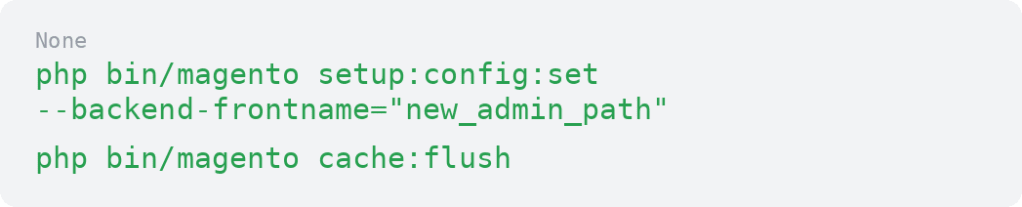
Replace new_admin_path with the custom path you want to use.
For example:

Then test the new login URL:

You can also check the current admin URI with:

After testing, save the new URL securely and update any internal documentation your team uses.
Method 2: change the Magento 2 admin URL from the admin panel
You can also update the admin URL from the Magento admin panel.
To create a custom Magento 2 admin login URL from the Magento 2 admin panel, follow the steps below.
- From your Magento 2 admin panel, go to Stores > Settings > Configuration
- Under Advanced, select Admin
- Expand Admin Base URL
- Uncheck Use system value if needed
- Set Use Custom Admin URL to Yes
- Enter your custom admin URL
- Set Use Custom Admin Path to Yes
- Enter your custom admin path
- Once everything is completed, click the Save Config option
- Log out
- Flush the Magento cache if needed
- Log in using the new URL
This method is helpful if you prefer working in the browser, but use it carefully. A wrong custom URL or path can block admin access until you fix the setting from the server.
Method 3: Change the admin path in app/etc/env.php
You can also update the admin path by editing the frontName value in app/etc/env.php.
Open the /app/etc/env.php file.
Default admin path example:

Change the frontName value to your new admin path:

Save the file, then flush the cache:

Then test the new URL in a private browser window.
Use this method carefully. A typo in env.php can cause access problems, so make a backup before editing the file.
How to choose a safe custom admin path
Choose a unique admin path that’s hard to guess and stored securely for the right people. Keep it lowercase, avoid spaces, and don’t publish it anywhere public.
Avoid admin paths like:
- admin
- backend
- login
- storeadmin
- administrator
- Your brand name
- Your domain name
- Your own name
What to do after changing the Magento admin URL
After you change the admin URL, confirm the change works and update any tools or people that rely on the old path.
Check these items:
- Test the new login URL in a private browser window
- Confirm admin users can log in
- Confirm 2FA still works
- Update bookmarks and password managers
- Update internal documentation
- Tell the right admins and developers
- Review scripts, API tools, hardcoded links, or monitoring workflows that may reference the old admin URL
- Confirm cache has been flushed
What if the new Magento admin URL does not work?
If the new admin URL doesn’t work, start with the basics.
Check:
- Was the cache flushed?
- Was the path typed correctly?
- Did the env.php change save correctly?
- Are firewall, WAF, or IP restrictions blocking access?
- Is the browser using an old cached URL?
- Was the custom admin URL set from the admin panel and overriding env.php?
If you need to restore the default custom admin URL setting, run:

If you need to restore the default custom admin path setting, run:

You can also use this command to check the current admin URI:

If you still cannot access the admin panel, contact your hosting provider or Magento developer before making more changes.
Security checklist after changing the admin URL
Changing the admin URL helps reduce noise from automated attacks, but it doesn’t secure the admin area by itself.
Add these steps to your Magento admin security checklist:
- Enforce 2FA
- Use strong passwords
- Avoid shared admin accounts
- Review admin users and permissions
- Restrict admin access by IP or VPN when appropriate
- Use WAF and firewall rules
- Keep Magento and extensions patched
- Back up the store regularly
- Monitor admin login activity
Does changing the Magento admin URL affect the storefront?
Changing the Magento admin URL shouldn’t affect the customer-facing storefront when done correctly. It changes how admins access the backend.
However, mistakes in custom URL settings, cache, redirects, firewall rules, or server configuration can still block admin access. That’s why backups, testing, and documentation are important.
When to involve hosting support or a developer
Get help before changing the admin URL if:
- You don’t have SSH access
- You are unsure how to edit env.php
- Your store uses Adobe Commerce Cloud
- The admin area is behind a WAF, firewall, VPN, or IP restriction
- The new URL causes login loops or access errors
- You need to recover a lost admin URL
- You need to coordinate staging and production changes
Magento 2 admin login URL FAQs
How to change Magento 2 admin login URL next steps
Changing the Magento 2 admin login URL can help reduce predictable admin-path traffic and automated login attempts, but it should be handled carefully.
Start by backing up your store, testing the change in staging if possible, using the CLI method when you have SSH access, flushing cache, and documenting the new path securely.
Admin URL changes are easier when your Magento environment has reliable hosting, backups, security controls, and support if access breaks. Liquid Web Magento hosting gives ecommerce teams the performance, support, and reliability they need to manage Magento with confidence. Explore Liquid Web Magento hosting to find the right fit.
Ready to get started?
Get the fastest, most secure Magento hosting on the market
Additional resources
What is managed WordPress hosting? →
Get details and decide if managed WordPress hosting is right for you.
Must-have web development plugins to create WordPress websites at scale →
Explore the best web development plugins to enhance functionality, improve performance, and streamline your WordPress site.
A complete guide to WordPress shortcodes →
Shortcodes make life easier. Learn how to get started!
