How to back up your Magento 1 store

Learn how to create manual backups as well as schedule regular backups of your store.
Get fast, reliable hosting for WordPress
Power your site with the industry’s fastest, most optimized WordPress hosting
Attention
- Magento backs up files in the .gz format. The .tgz format is used for system, database, and media backups.
- Backup files are stored in the var/backups directory for your Magento file system.
- Files stored in the /var/cache, /var/log, and /var/report folders are exempt.
 Read Magento 1 End of Life: What You Need to Know.
Creating a single backup
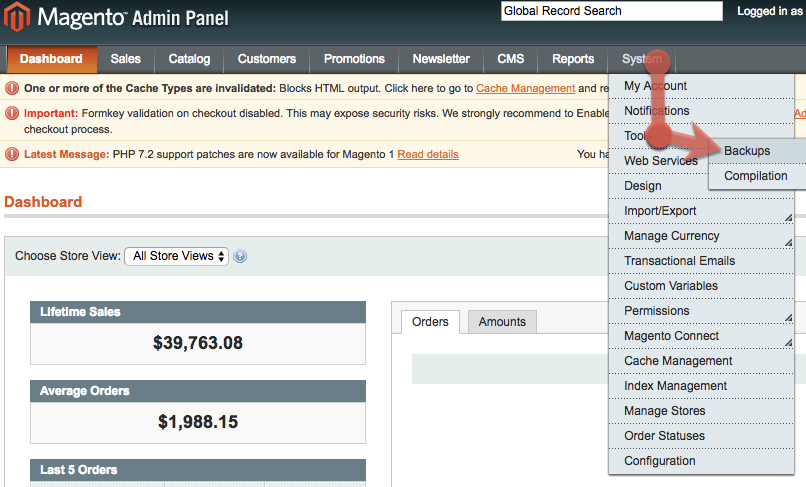
- From the Magento Admin Panel, select System > Tools > Backups.

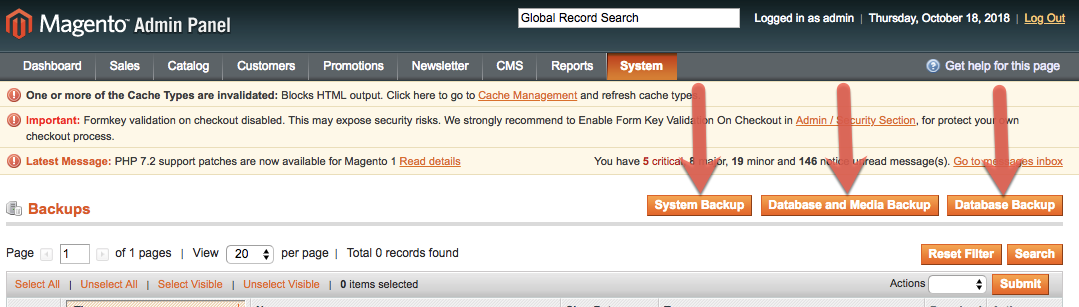
- Select your desired backup type: System Backup, Database and Media Backup, or Database Backup. System Backup creates a backup of the database and file system. The other two options are self-explanatory.

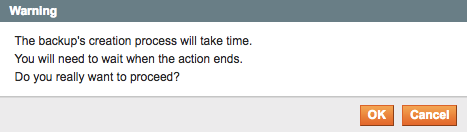
- Read the warning, then click OK when ready.

- If you chose System Backup, skip to Step 4b. Otherwise go to Step 4a.
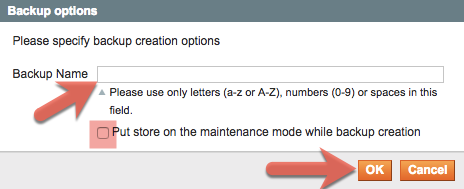
- Specify a Backup Name. If desired, select the Put store on the maintenance mode while in backup creation check box. Click OK when ready.
- Specify a Backup Name. If desired, select the Put store on the maintenance mode while in backup creation check box. If desired, select the Exclude media folder from backup check box. Click OK when ready.
- Specify a Backup Name. If desired, select the Put store on the maintenance mode while in backup creation check box. Click OK when ready.
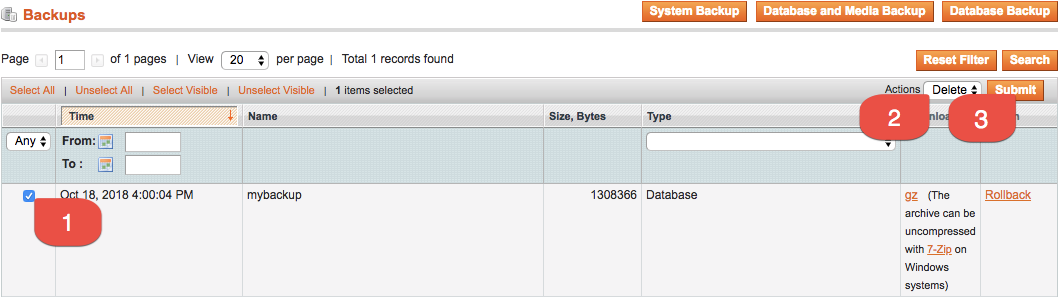
- You may view backups at any time by following Step 1. To delete a backup, select the corresponding check box, select Delete from the Actions drop-down menu, then click Submit.


Scheduling regular backups
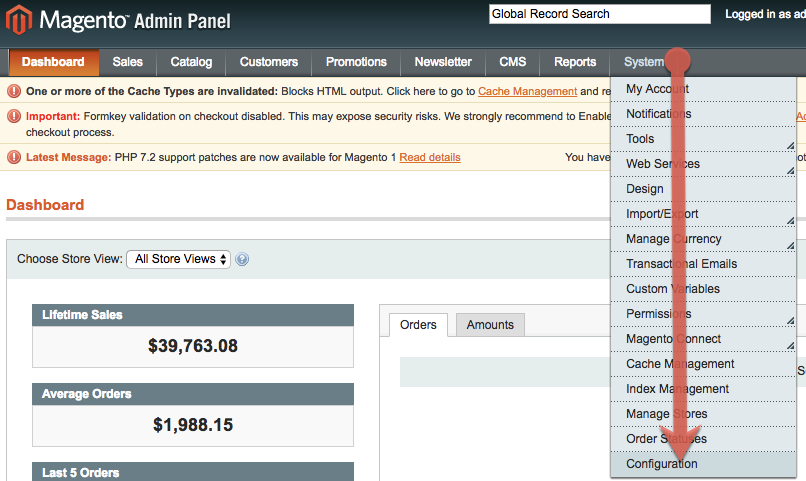
- From the Magento Admin Panel, select System > Configuration.

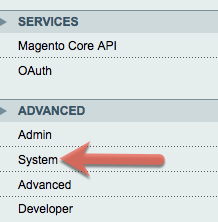
- In the Configuration menu on the left, scroll to the ADVANCED menu, then select System.
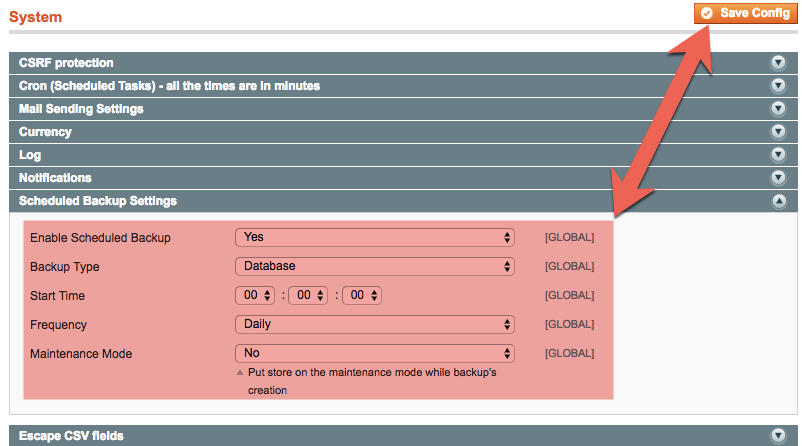
- Expand the Scheduled Backup Settings section. From the Enable Scheduled Backup drop-down list, select Yes. Designate your desired Backup Type, Start Time, and Frequency. If you wish to put your store into maintenance mode during these backups, select Yes from the Maintenance Mode drop-down list. Click Save Config when done.

For 24-hour assistance any day of the year, contact our support team by email or through your Client Portal
Additional resources
How to backup my cms tables on Magento →
Learn how to back up cms tables to protect important store content.
Magento security guide: 11 best practices →
Strengthen your store with practical security guidance.
A guide on how to backup your Magento 2 store →
Create a backup to protect your store before major changes.
