

How to enable & review system error logging in Magento
Key takeaways
- Magento error logs help teams troubleshoot store errors, failed processes, checkout issues, and performance problems.
- Magento log files are usually stored in the var/log directory, with key files like system.log, exception.log, and debug.log.
- Debug logging can be enabled through the CLI, then followed by a cache flush.
- Logs should be reviewed, protected, and cleaned up carefully so they don’t create disk space, performance, or security issues.
Optimize your Magento store by enabling system error logging when you need to investigate errors, failed processes, or unexpected site behavior. This guide explains where Magento logs are stored, how to review them, and how to manage log files safely.
Host Magento at full throttle.
Get secure, reliable Magento hosting so you can scale faster.
What is system error logging in Magento?
System error logging in Magento records messages, warnings, errors, exceptions, and debugging details that help developers and store teams find what went wrong.
Magento logs can help troubleshoot:
- Blank pages
- 500 errors
- Checkout failures
- Cron issues
- Extension conflicts
- Deployment problems
- Failed imports or exports
- Unexpected admin or storefront behavior
Logs reduce guesswork and can help show whether an issue comes from Magento, a module, PHP, the web server, a database connection, or another service.
Where can I see Magento logs?
In Magento 2, logs are usually available in:
<project_root>/var/log/
Depending on the issue, you may also need to check var/report/, PHP logs, web server logs, cloud logs, or hosting control panel logs. Some problems happen before Magento can write to its own log files.
Common Magento log files and what they mean
| Log file or location | What it’s for | When to check it |
| var/log/system.log | General system messages, warnings, and non-critical issues | Store behavior issues, module warnings, recurring system messages |
| var/log/exception.log | Exceptions and stack traces | 500 errors, crashes, checkout errors, broken admin or storefront actions |
| var/log/debug.log | Detailed debug messages when debug logging is enabled | Short-term troubleshooting in development, staging, or controlled debugging |
| var/report/ | Report ID files for critical errors shown on the storefront | When a shopper or admin sees a report ID error |
| Web server / PHP logs | Server-level errors that may occur before Magento writes a log | Blank pages, PHP crashes, permissions issues, web server errors |
How to enable debug logging in Magento 2
For Magento 2, debug logging is usually enabled from the command line.
Run:

When you’re done troubleshooting, disable it:

How to enable syslog logging in Magento
Syslog logging can be helpful when your team wants Magento logs sent into server-level or centralized logging workflows.
Exact setup depends on your hosting environment, Magento edition, and logging stack. If you’re using Adobe Commerce Cloud, self-managed infrastructure, or a managed host, confirm where application, PHP, web server, and system logs are stored before troubleshooting.
How to view Magento logs from the command line
From your Magento root directory, use commands like:
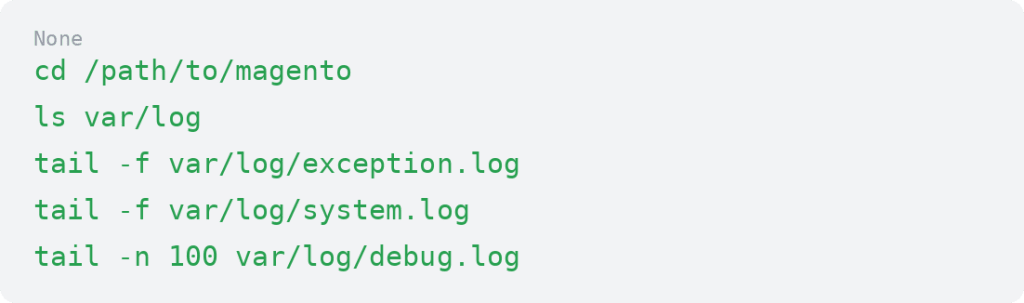
The tail -f command is useful when you want to watch errors appear in real time while testing a specific action, such as checkout, an import, an extension update, or an admin page.
How to read a Magento log entry
A Magento log entry may include:
- Timestamp
- Log level, such as INFO, WARNING, ERROR, or CRITICAL
- Message
- File path
- Line number
- Stack trace
- Module or process involved
A single log line may not tell the whole story. Repeated messages, recent deployments, cron timing, and the action that triggered the error can provide important context.
Developer mode vs production mode
Developer mode can show more error details and make troubleshooting easier. Production mode limits visible error details for security and performance reasons.
To check the current mode, run:

To switch to developer mode, run:

Developer mode isn’t intended for live production stores unless a qualified developer uses it briefly in a controlled situation.
Common Magento errors and where to check first
| Issue | Check first |
| Blank page | Web server logs, PHP logs, exception.log |
| 500 error | exception.log, var/report/, web server logs |
| Checkout error | exception.log, system.log, payment logs, module logs |
| Cron issue | Magento cron logs, system.log, server cron output |
| Extension conflict | exception.log, system.log, recent module updates |
| Import/export failure | system.log, exception.log, import/export logs if available |
| Report ID shown on storefront | var/report/ |
Custom logging in Magento 2
Developers can add custom log messages in Magento 2 using Magento’s PSR-3-compatible logging approach and Psr\Log\LoggerInterface.
Custom logs can help troubleshoot integrations, checkout flows, imports, or custom modules. They shouldn’t log passwords, tokens, payment details, or unnecessary customer data.
Log cleanup, rotation, and disk space
Logs are helpful, but unmanaged logs can become a maintenance problem.
Large log files can take up disk space and make troubleshooting harder. Debug logging can also create extra log noise if it stays enabled after the issue is resolved.
To manage logs safely:
- Review log file size regularly
- Rotate logs at the server level where appropriate
- Disable debug logging after troubleshooting
- Archive or remove old logs carefully
- Investigate recurring errors instead of letting logs grow
- Watch disk space so logs don’t affect store performance
Security and privacy considerations
Log files can include technical details, file paths, customer actions, URLs, integration messages, or other sensitive operational information.
To protect your logs:
- Restrict log file access
- Don’t expose var/log publicly
- Avoid sharing full logs outside trusted teams
- Redact sensitive data before sending logs to vendors
- Don’t log passwords, tokens, payment details, or unnecessary customer data
When Magento logs are not enough
Some problems happen before Magento can write a log. If Magento logs are empty or incomplete, check PHP, web server, database, hosting, cache, CDN, queue, search, or external service logs.
Hosting support or a Magento developer may be needed for recurring 500 errors, server-level failures, file permission issues, database connection problems, disk space problems, or unclear stack traces.
Magento log monitoring workflow
Magento logs are most useful when teams review them regularly, not only after something breaks.
A simple workflow can include:
- Review critical errors after deployments or extension updates
- Watch logs while testing checkout, imports, cron, and custom modules
- Review recurring errors weekly
- Check log file size and disk space regularly
- Clean or rotate logs as part of maintenance
- Escalate repeated CRITICAL or checkout-related errors
Magento system error logging FAQs
Magento system error logging next steps
Magento error logging helps teams troubleshoot faster by showing system messages, exceptions, debug details, report IDs, and server-related clues.
Start by checking var/log/system.log, var/log/exception.log, and var/report/. Then enable debug logging only when you need more detail.
Magento logging works best when the hosting environment gives teams access to the right logs, stable performance, and support when errors point beyond the application. Liquid Web Magento hosting gives ecommerce teams the performance, support, and reliability they need to keep stores running with confidence. Explore Liquid Web Magento hosting to find the right fit.
Ready to get started?
Get the fastest, most secure Magento hosting on the market
Additional resources
Magento admin training: top online resources →
Explore admin training resources to manage your store with more confidence.
Magento product recommendations: a complete guide →
Learn how Magento product recommendations can boost sales.
Magento security guide: 11 best practices →
Discover security best practices to help protect your store, customers, and data.
