Speeding Up a Slow-Loading Magento 2 Dashboard – Nexcess

Magento 2 Dashboard: Optimize loading performance for speed! Troubleshoot and resolve the most common issues slowing down loading times for your dashboard!
Get fast, reliable hosting for WordPress
Power your site with the industry’s fastest, most optimized WordPress hosting
Magento 2 Dashboard: Optimize loading performance for speed! Troubleshoot and resolve the most common issues slowing down loading times for your dashboard!
How to Troubleshoot a Magento 2 Dashboard That’s Slow
Clients have raised concerns about their Magento 2 dashboard loading slow.
There can be several reasons that cause dashboard loading performance to be sluggish. This article will walk the reader through the troubleshooting and optimal resolution steps for the most common issues on a per-reason basis. It applies to the following general product configuration categories:
- Magento 2 Very Slow
- Magento 2 Dashboard Not Working
The five major reasons that can cause your Magento 2 dashboard to load slowly are:
Low PHP Memory Limit (low memory_limit value)
Unused Extensions that Increase Database Reading Time
Automated Reindexing After Each Product or Catalog Change
Multiple JavaScript Files Instead One Merged JavaScript File
Disabled Caching
Now on a per-reason basis, let us review the best practices for speeding up a slow-lowing Magento 2 dashboard.
Reason #1: Low PHP Memory Limit (low memory_limit value)
Best Practice #1: Increasing the PHP Memory Limit
The PHP Memory Limit sets the maximum amount of memory in bytes that a script is allowed to allocate.
The PHP Memory Limit (memory_limit value) is per script, just as a highway’s speed limit is per vehicle. So, for example, although the PHP Memory Limit may be set high to 1 GB, that does not mean that scripts will pile up to use that 1 GB.
We can tweak this value by creating a file named .user.ini in your site’s document root folder with the following memory_limit value:
memory_limit = 2048M
The default parameters, including the PHP Memory Limit, can be found in the article that covers the PHP defaults for customers.
Reason #2: Unused Extensions that Increase Database Reading Time
Best Practice #2: Removing Unused Extensions
One effective way to improve the Magento 2 Dashboard’s performance is to remove unused extensions. Even if we deactivate an extension, it will still exist in the database. Leaving the unused extension will increase your database’s size and therefore, also the database’s reading time. So, the additional step of removing any unused extensions is a best practice.
Once your remove the unwanted extension, the reading time of the database will be reduced and help the Magento 2 Dashboard load more quickly.
Reason #3: Automated Reindexing After Each Product or Catalog Change
Best Practice #3: Turning Off Automated Reindexing Updates After Each Product or Catalog Change
Reindexing is one other reason for the slow performance of the Magento 2 Dashboard while saving a product. The reason is because whenever you save a product, the Magento 2 Dashboard will start to reindexing it. And, if there are many products, then it will take a lot of time to reindex them.
It is not possible to disable reindexing. However, we can turn off automated reindex updates after each product or catalog change.
To turn off automated reindexing, follow these steps:
>> Navigate to System > Index Management.
>>> Check all the items from the table.
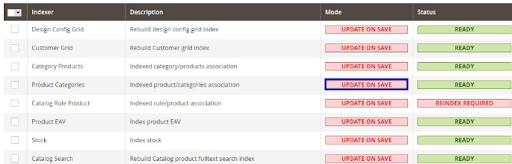
>>>> Change from UPDATE ON SAVE to UPDATE BY SCHEDULE.
Reason #4: Multiple JavaScript Files Instead of One JavaScript File
Best Practice #4: Enabling JavaScript File Merging
This option combines all JavaScript files into one file, thus reducing the number of HTTP requests made to the server by the Magento site.
To enable JavaScript file merging, follow the below steps:
>> In the Magento 2 Dashboard, select System > Configuration > Developer.
>>> Under JavaScript Settings, from the Merge JavaScript Files dropdown list, click YES.
For more details on how to optimize Magento performance, refer to the How to optimize Magento performance
Additional resources
What is managed WordPress hosting? →
Get details and decide if managed WordPress hosting is right for you.
Must-have web development plugins to create WordPress websites at scale →
Explore the best web development plugins to enhance functionality, improve performance, and streamline your WordPress site.
A complete guide to WordPress shortcodes →
Shortcodes make life easier. Learn how to get started!
