

Magento 1 SMTP settings: configuring outgoing SMTP email
Key takeaways
- Magento 1 outgoing email is configured under System > Configuration > Advanced > System > Mail Sending Settings.
- You’ll need your SMTP host and port; port 587 is recommended for authenticated submission.
- Magento 1’s built-in mail settings are limited, so many stores add an SMTP extension for authentication and better deliverability.
- Always send a test email after configuring to confirm messages are actually being delivered.
- Magento 1 reached end of life in June 2020 and no longer receives security updates.
Outgoing email is how your store sends order confirmations, shipping updates, password resets, and account notifications. If those messages aren’t reaching customers, the cause is almost always your mail configuration. Magento 1 sends through SMTP (Simple Mail Transfer Protocol), the standard that hands your messages off to a mail server for delivery. Configuring it correctly is what keeps your store’s communications reliable and out of the spam folder.
This article walks through setting up outgoing SMTP email in the Magento 1 admin, how to confirm it’s working, and what to check when mail isn’t sending.
Host Magento at full throttle.
Get secure, reliable Magento hosting so you can scale faster.
Setting up outgoing SMTP email
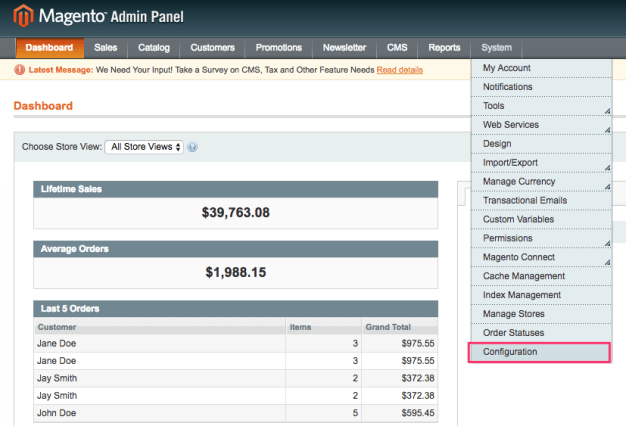
- From the Magento Admin Panel, click System > Configuration.
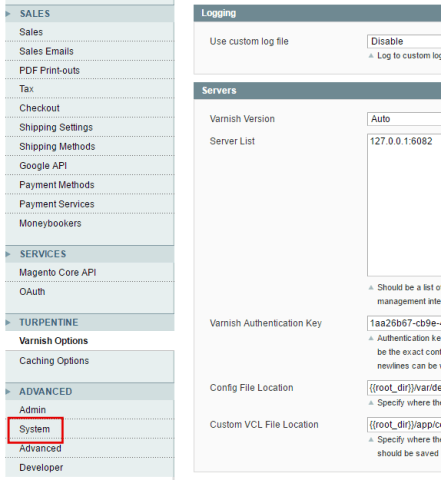
- Scroll down to the ADVANCED sub-menu, then click System.
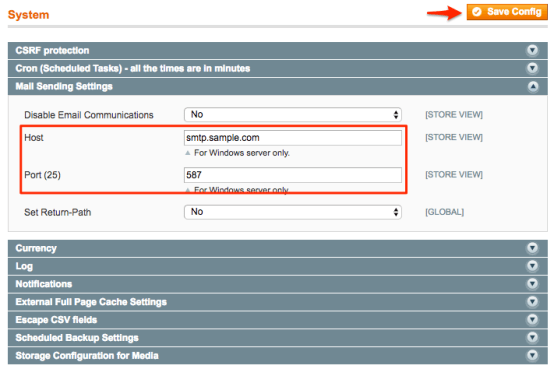
- From the System section, click Mail Sending Settings.

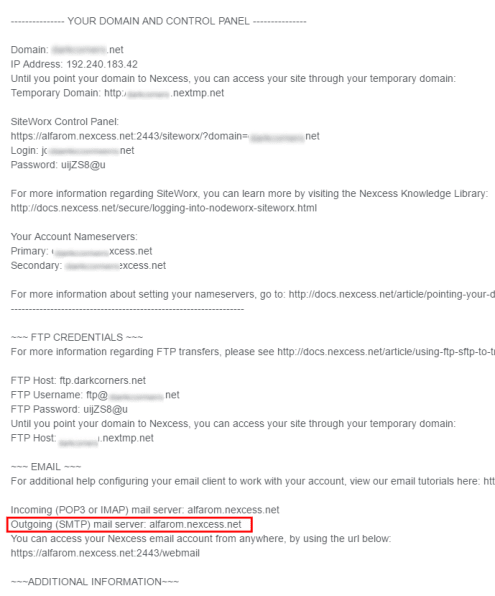
- Enter the correct information in the Host and Port(25) fields: In the Host field, enter your outgoing SMTP mail server hostname. If you do not know the hostname, either locate it in your Welcome Email or contact our Support Team.
The Port field defaults to 25. Enter 587 instead, then click Save Config. Port 587 is the standard port for authenticated email submission and is less likely to be blocked than port 25. If your mail provider requires SSL, use port 465.
A note on Magento 1 and SMTP extensions
Magento 1’s native Mail Sending Settings cover the host and port, but they don’t include fields for SMTP username and password authentication. Many mail servers require authentication to accept and deliver messages.
If your messages aren’t sending after setting the host and port, you likely need an SMTP extension that adds authentication and lets you connect to a service like Gmail, Amazon SES, or a dedicated SMTP provider. For a simple internal mail server that doesn’t require authentication, the built-in settings may be enough.
Verifying your configuration
After saving, confirm mail is actually being delivered rather than assuming it works:
- Trigger a real transactional email, such as placing a test order or requesting a password reset on a test account.
- Check that the message arrives at the destination inbox, including the spam folder.
- If you have server access, check your mail log to confirm the message left the server.
If the email arrives, your configuration is working. If it doesn’t, move to troubleshooting below.
Troubleshooting common issues
Emails are landing in spam. This is usually a sender-reputation issue, not a Magento setting. Add SPF and DKIM records for your sending domain so receiving servers can verify your mail is legitimate.
Authentication errors. Magento 1’s built-in settings don’t pass a username and password. If your server requires authentication, install an SMTP extension (see above).
Nothing sends and port 25 is in use. Many hosts and ISPs block outbound port 25 to limit spam. Switch to port 587, or 465 if your provider requires SSL.
Mail sends but arrives slowly or intermittently. This often points to an overloaded or shared mail server. A dedicated SMTP service or a mail server with proper resources will give more consistent delivery.
Magento email FAQs
Getting started with Magento outgoing SMTP
Configuring outgoing SMTP email in Magento 1 comes down to pointing your store at the right mail server and port, confirming the messages actually arrive, and adding authentication through an extension if your server requires it. Done correctly, your order confirmations, password resets, and customer notifications send reliably instead of silently failing.
Your next step: send a test email now using the verification method above. It’s the fastest way to know whether your configuration is complete or whether you need to address authentication or DNS records.
One thing worth keeping in view is that Magento 1 no longer receives security updates, and email deliverability problems often trace back to the underlying mail server and hosting environment rather than the store software itself. If you’re running a store on aging infrastructure, performance and reliability tend to be the next things to give.
For 24-hour assistance any day of the year, contact our support team by email or through your Client Portal.
Ready to get started?
Get the fastest, most secure Magento hosting on the market
Additional resources
A guide on how to cancel orders in Magento 2 →
Learn how to cancel Magento orders from the admin panel.
10 Magento & Magento 2 automation tools and tips →
Explore automation tools to simplify everyday admin tasks.
A beginner’s guide to Magento 2 modes →
Discover modes for development, deployment, and performance.
