How to flush your Magento cache

How to flush the Magento 1.x and Magento 2 cache with either the Magento admin interface or SSH.
 Read Magento 1 End of Life: What You Need to Know.
Get fast, reliable hosting for WordPress
Power your site with the industry’s fastest, most optimized WordPress hosting
For memcached and redis users
If your store uses memcached, use the procedure in How to flush memcached instead of any provided below.
If your store uses redis, use the procedure in How to flush redis instead of any provided below.
Magento 1.x
This section offers two methods. The Admin Panel is most appropriate for users unfamiliar with SSH and CLI commands.
Using the admin panel
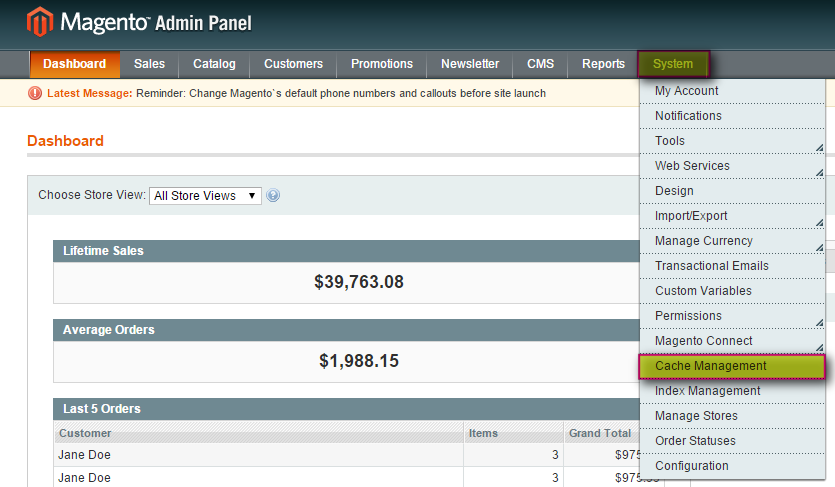
- Log in to your Magento Admin Panel.
- From the System tab, click Cache Management.

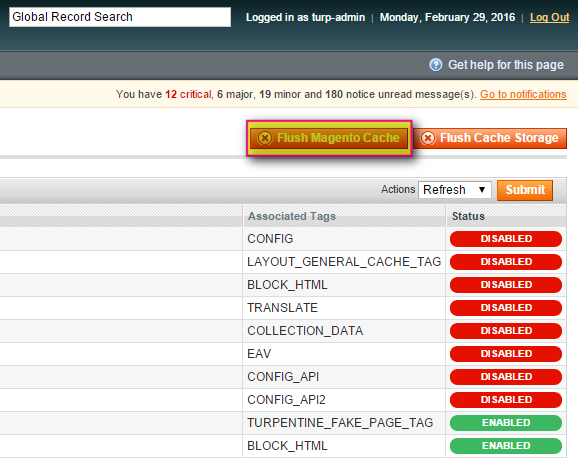
- Click Flush Magento Cache. If successful, you will see the message, “The Magento cache storage has been flushed.”

Using SSH
You must have SSH access to your server in order to use this method. If you do not have SSH access, see How to obtain SSH access from Liquid Web for details.
After you log in to your server, run the following command from your site’s root folder:
php -r 'require "app/Mage.php"; Mage::app()->getCacheInstance()->flush();'
Magento 2
This section offers two methods. The Dashboard is most appropriate for users unfamiliar with SSH and CLI commands.
Using the dashboard
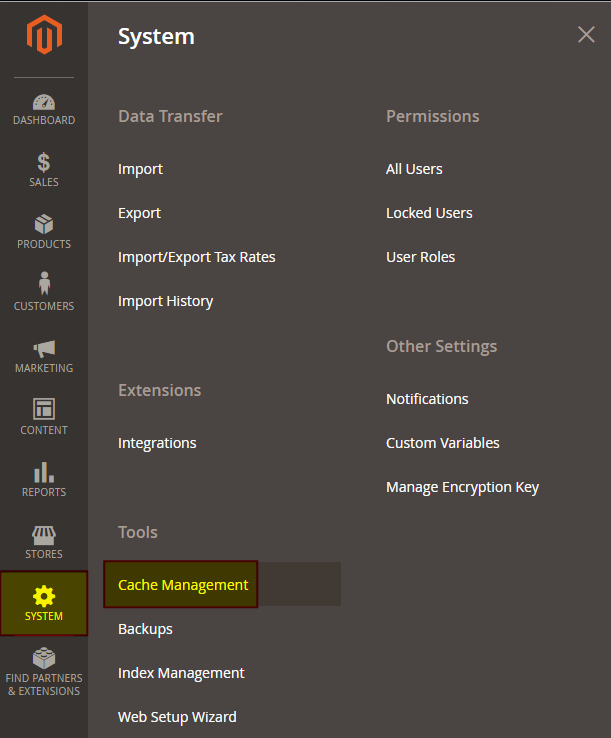
- Log in to your Magento Dashboard.
- From the System tab, click Cache Management.

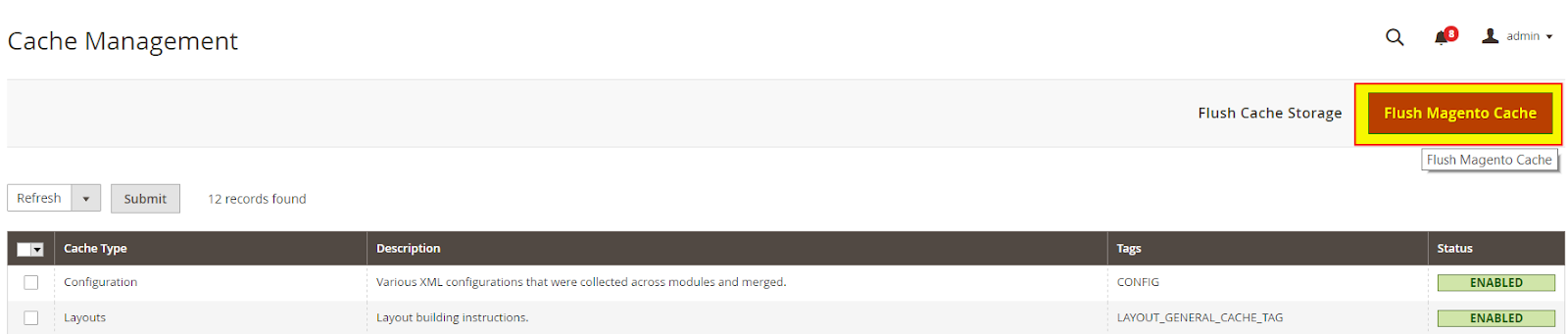
Click Flush Magento Cache. If successful, you will see the message, “The Magento cache storage has been flushed.”

Using SSH
You must have SSH access to your server in order to use this method. If you do not have SSH access, see How to obtain SSH access from Liquid Web for details.
After you log in to your server, run the following command from your site’s root folder:
php bin/magento cache:flush
For 24-hour assistance any day of the year, contact our support team by email or through your Client Portal.
Additional resources
How to change the admin password in Magento →
Change your admin password using the login page, CLI, or database.
Magento admin training: top 5 online resources →
Build Magento admin skills with these five online training resources.
How to reindex in Magento 2 (from admin) →
Manage Magento reindexing from admin to keep store data accurate.
