How to change base URLs in Magento 2

Three methods of changing base URLs for your single-store Magento 2 installation.
Get fast, reliable hosting for WordPress
Power your site with the industry’s fastest, most optimized WordPress hosting
Attention
These methods work only for sites using a single-store Magento setup, not a multi-store setup.
Method 1: dashboard
- Log in to your dashboard. From the main menu, select Stores > Configuration.
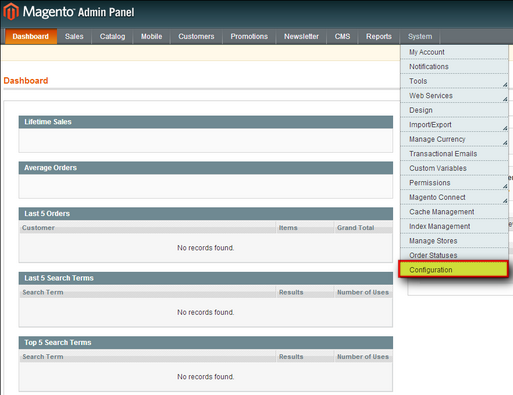
- On the upper right, click System >Configuration.

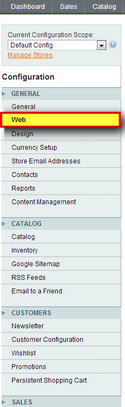
- From the main menu, under the General list, click Web.

- Open the Unsecure and Secure drop-down lists, locate the base URL line, and replace this with the new URL.
- Clear the Magento cache and your browser’s cache. The site should now load properly.
Method 2: PhpMyAdmin
- Log in to your SiteWorx account.
- If you do not know your password, click Forgot your password on the login page.
- If you do not know the web address for your SiteWorx login page, either refer to your Welcome Email, or contact our 24/7 support team.
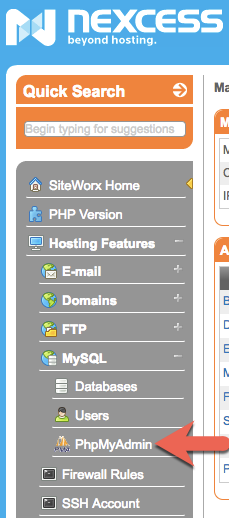
- From the main menu, click Hosting Features > MySQL > PhpMyAdmin.

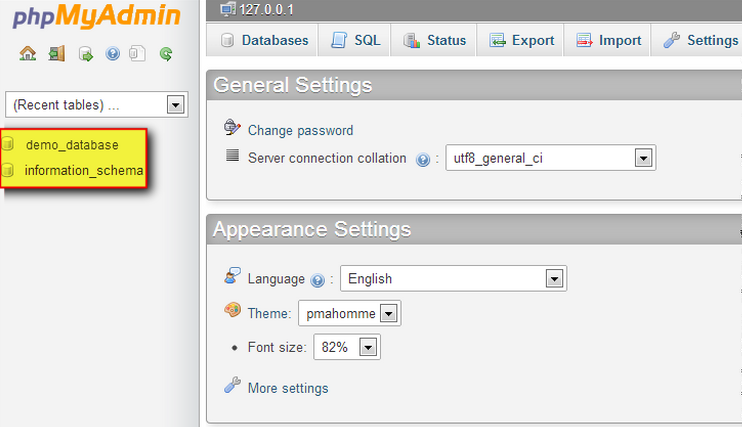
- You will see the main menu for phpMyAdmin. On the left, locate and click the name of the Magento database corresponding to URL you want to change.

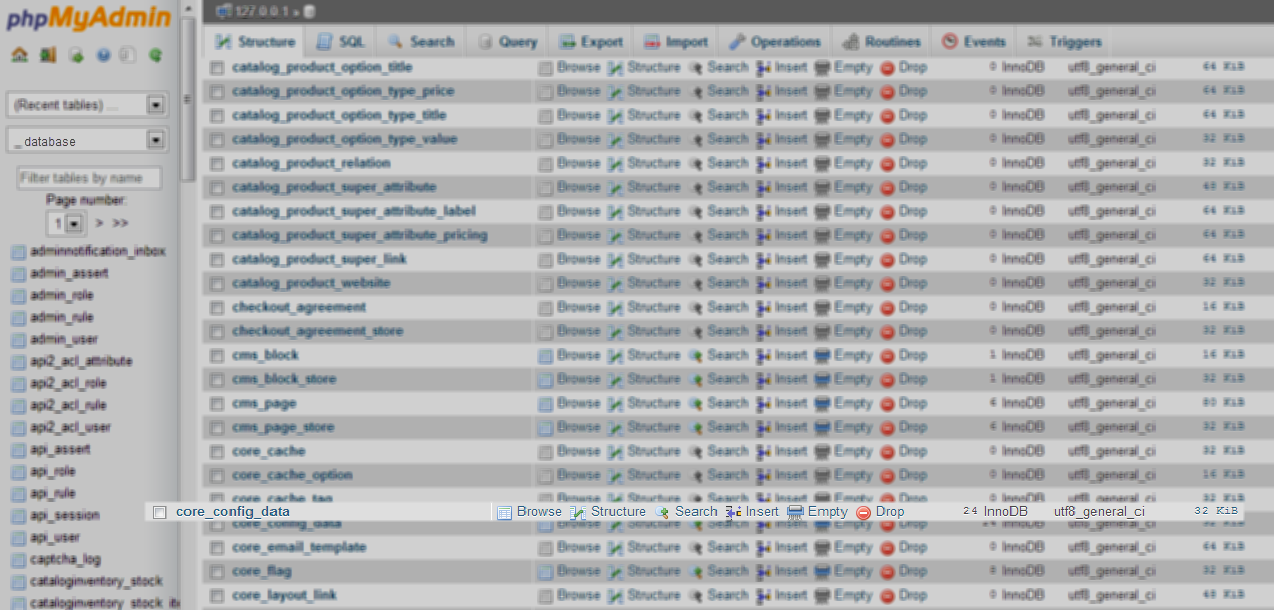
- You will see a list of all the tables in the database in alphabetical order. Search for the core_config_data table and click Browse.

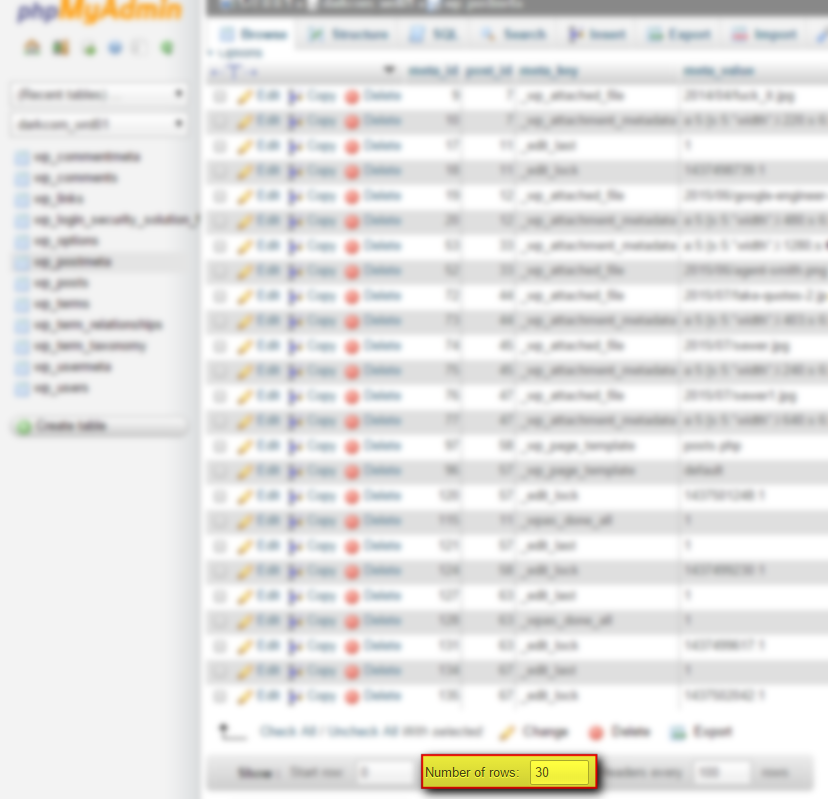
- Expand the viewing area of phpMyAdmin. At the bottom of the main panel, locate the grey box and change the Number of rows to a larger number, such as 30.

- Locate the rows web/unsecure/base_url and web/secure/base_url and click Edit next to the corresponding lines. Change the base URL to the intended string, and click OK.
- Within the Value column, update the value of each specific secure and unsecure URL to the intended URL.
- Flush the Magento cache, and the site should load with the set base URLs properly now.
Method 3: command line
ATTENTION: Only use this method if you are familiar with the command line and MySQL queries. ATTENTION: Angled brackets (<>) indicate placeholder information. Replace the brackets and everything between them with the indicated information.
- Use SSH to log in to the server hosting the Magento installation’s database.
- Enter the following command:
mysql -u <$database_user> -p <$database_name>
- Enter your password when prompted.
- Access their database using the following command:
use
- Execute:
select * from core_config_data where path like '%base%url%';
- This will display the current base_urls set in Magento.
- To change the base URLs, execute:
update core_config_data set value = 'http://domainname/' where path = 'web/unsecure/base_url'; update core_config_data set value = 'http://domainname/' where path = 'web/secure/base_url';
For 24-hour assistance any day of the year, contact our support team by email or through your Client Portal.
Additional resources
How to change the admin password in Magento →
Reset your admin password with reliable recovery methods.
How to log into the Magento admin panel →
Manage your admin panel with these helpful tools and tutorials.
How to install Magento extensions →
Discover how to install extensions to add features and customize your store.
