

How to set Magento file permissions
Key takeaways
- Magento file permissions control access to store files and directories.
- Common settings include 770 for directories and 660 for files.
- Ownership matters because the web server and CLI user need the right access.
- Avoid permanent 777 permissions because they create security risks.
Magento file permissions help protect your store while allowing Magento, the web server, and the command-line user to perform required tasks.
The right Magento file permissions depend on your hosting environment, PHP execution model, file ownership, web server user or group, and whether the store runs on shared hosting, VPS, cloud, or dedicated infrastructure. The safest setting depends on how the server runs Magento.
Host Magento at full throttle.
Get secure, reliable Magento hosting so you can scale faster.
What are Magento file permissions?
Magento file permissions are Linux/Unix access rules that control who can read, write, and execute files or directories in a Magento installation.
- Read lets a user view a file or list a directory.
- Write lets a user modify a file or directory.
- Execute lets a user run a file or enter a directory.
Correct Magento file permissions help support security, updates, cache generation, media uploads, static content deployment, and admin/frontend functionality.
Recommended Magento file permissions
A common starting point for Magento file permissions is 770 for directories and 660 for files when ownership and groups are configured correctly.
| Environment | Directory permissions | File permissions |
| Standard / secure setup | 770 | 660 |
| Alternative / shared setup | 755 or 775 | 644 or 664 |
The 770/660 setup can work well when the Magento file owner and web server group are configured correctly. In environments that don’t support that setup, 755/644 or 775/664 may be used depending on hosting requirements. Don’t apply these values blindly. Confirm your hosting setup, PHP execution model, and file ownership first.
Magento file ownership comes first
Magento usually needs the command-line user and web server user or group to access the right files.
The exact setup can vary by server, but common web server groups include www-data, apache, or nginx.
Example commands:

Replace the username, group, and Magento root path with the correct values for your server.
Environmental considerations
Before installing Magento, first consider the environment in which you’re hosting your site. Linux runs within two main environments: PHP scripts that use mod_php or equivalent, and PHP scripts that use an intermediate construct.
Because PHP may run as the web server user, as the account user, or through another execution model, the hosting environment affects which user needs read and write access to Magento files.
Mod_php or equivalent PHP scripts
PHP scripts that use mod_php or equivalent are executed as the webserver user. When your script is running, it can read and sometimes write with the same privilege level as the web server.
This setup can create more risk in shared environments because the web server user may have broader access than intended.
PHP scripts running using an intermediate construct
Other PHP scripts use an intermediate construct such as suPHP, PHP suEXEC, PHP-FPM, and so on. In this case, your scripts run under a more secure overall configuration when running on a shared server, and our team prefers this setup.
This method is also preferred because Linux provides an extra level of security when the permissions are configured correctly.
In these environments, file ownership and user-based permissions can often be configured more tightly.
Before you run Magento permission commands
You must have SSH access to execute any of the changes shown below. If you don’t have SSH access, contact the Liquid Web Support Team for assistance.
Before changing permissions:
- Confirm the Magento root directory
- Confirm ownership details
- Back up files if needed
- Avoid running Magento commands as root
- Know whether the server uses shared hosting, VPS, cloud, or dedicated infrastructure
- Know whether PHP runs as the account user, web server user, or through PHP-FPM, suPHP, or a similar setup
- Avoid recursive chmod or chown commands unless you are sure of the path
How to check current Magento permissions
Check the current ownership and permissions before changing them.
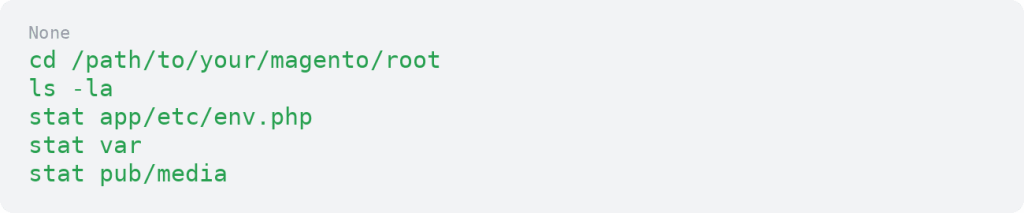
This helps you avoid overwriting a working setup or making sensitive files too open.
How to set Magento file permissions
The commands below should be run from the Magento root directory. Replace /path/to/your/magento/root with the correct path for your store.
Option 1: Standard / secure setup
Use this option when the owner and web server group are configured correctly.

Directories need execute permission so users can enter them. Files usually don’t need execute permission unless they are meant to run, such as bin/magento.
Option 2: Alternative / shared hosting setup
Use this option when the server setup doesn’t support 770/660.

Some environments may use a stricter shared setup:

Don’t use 777 as a permanent workaround.
Magento 1 permission commands
For Magento 1 environments, some setups use more restrictive permissions for files, directories, PHP files, and local configuration files.
In those setups, regular files are often limited so the owner can read and write them, while other users can only read them. Directories may allow the owner to read, write, and enter them, while other users can only enter them. PHP scripts and local Magento configuration files are usually locked down further so only the owner can access them.
This approach is most relevant to Magento 1 and server setups where PHP runs as the account user. Confirm your hosting environment and ownership setup before applying more restrictive permissions.
Special Magento directories and files
Some Magento directories need write access because Magento generates cache, media, static content, and compiled files.
| Path | Why it matters |
| var/ | Cache, logs, sessions, reports, and generated files depending on version |
| generated/ | Generated classes and code in Magento 2 |
| pub/static/ | Static view files |
| pub/media/ | Uploaded product, category, and customer media |
| app/etc/ | Sensitive configuration files |
Protect sensitive configuration files carefully. Magento 2 files such as app/etc/env.php and app/etc/config.php, and Magento 1 local configuration files, can contain sensitive store details.
Production mode permission restrictions
In production mode, Magento code and configuration directories should be more restricted so the web server cannot modify code unnecessarily.
Example:

Make sure your deployment workflow can still write what it needs during deployments.
Why you should avoid 777 permissions
Using 777 as a permanent production fix creates serious security risks. If 777 appears to fix a permission issue, the real problem is usually ownership, group membership, PHP execution model, or writable-directory configuration.
Common Magento file permission errors
| Symptom | Possible cause |
| Permission denied errors | Wrong ownership, wrong group, or restrictive file permissions |
| Cache will not write | var/ permissions or ownership issue |
| Static content deploy fails | pub/static, generated, or ownership issue |
| Media uploads fail | pub/media is not writable |
| Admin or frontend errors after deployment | Incorrect generated, static, or cache permissions |
| Magento commands fail | Running as the wrong user or root-created files |
| 403 or 500 errors | Web server cannot read or execute required directories |
How to fix Magento permission denied errors
Start with the specific error message and affected path. Check file ownership, confirm whether the Magento CLI user belongs to the web server group, and fix ownership if needed.
Then apply the appropriate file and directory permissions for your hosting environment. Clear cache and test the affected action again.
Avoid “fixing” every permission issue with 777. That can hide the real problem and create security risk.
Magento file permissions best practices
Match permissions to the hosting environment. Set ownership before changing permissions, avoid running Magento CLI commands as root, and keep sensitive configuration files restricted.
Use staging before changing production permissions, monitor for unexpected permission changes, and work with hosting support if the PHP execution model is unclear.
Post-change checklist
After updating permissions:
- Clear Magento cache
- Test the frontend
- Test the admin
- Test media uploads
- Run needed Magento CLI commands
- Test static content deployment if applicable
- Check logs for permission errors
- Confirm sensitive files are not too open
- Confirm no public directories are left at 777
Magento file permissions FAQs
Getting started with Magento file permissions
Magento file permissions should balance security and functionality. The right setup depends on ownership, web server access, PHP execution model, and hosting environment.
Confirm your Magento root, file owner, web server group, and hosting setup before running recursive permission commands.
Magento file permissions are easier to manage when hosting, file access, PHP setup, and support are clear. Explore Liquid Web Magento hosting for infrastructure built to help manage Magento stores with confidence.
Ready to get started?
Get the fastest, most secure Magento hosting on the market
Additional resources
8 Magento seo tips →
Discover seo tips to help improve visibility and bring more shoppers to your store.
A guide on how to cancel orders in Magento 2 →
Learn how to cancel an order and manage order updates in your store.
10 Magento & Magento 2 automation tools & tips →
Explore automation tools that help simplify everyday admin tasks.
