How to add admin users in Magento 1.x

Learn how to give a developer or another individual temporary admin access to your store.
This is far preferable to divulging your personal credentials, and also allows you to easily revoke the account when no longer needed.
Read Magento 1 vs Magento 2: Should You Stay or Should You Go?
Get fast, reliable hosting for WordPress
Power your site with the industry’s fastest, most optimized WordPress hosting
1: Add user role
If you wish to grant complete admin access to the user, you may skip to 2: Add the user instead of creating a specific role. This will, however, involve granting the new user complete admin access and therefore access to all of your store’s most critical areas. Use care when assigning the Administrator role.
- Log in to your Magento Admin panel.
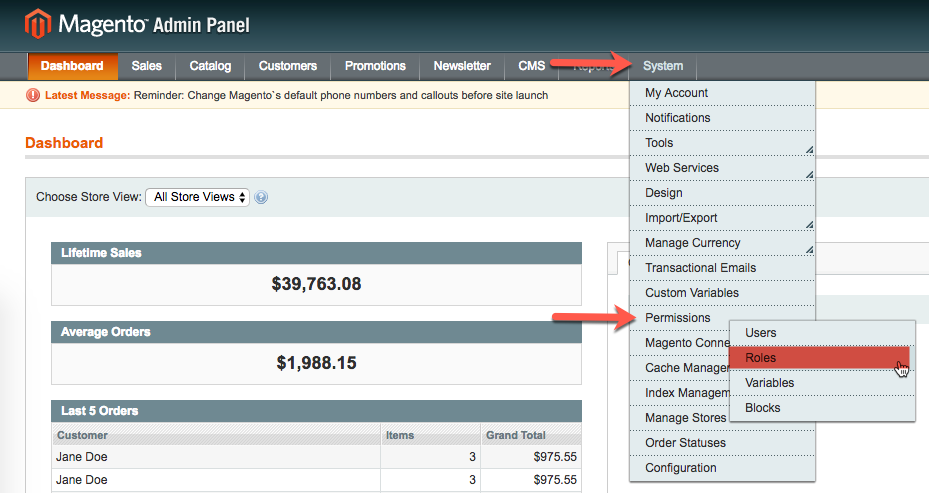
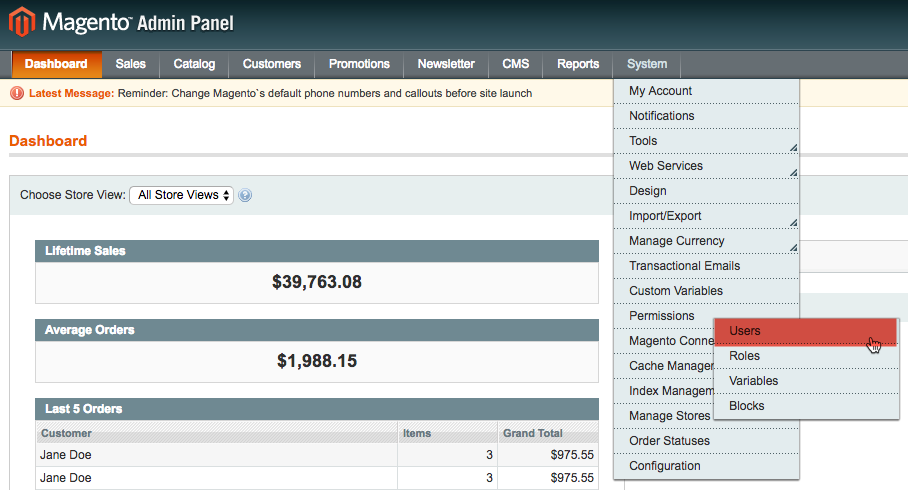
- From the Admin Panel, select System > Permissions > Roles.

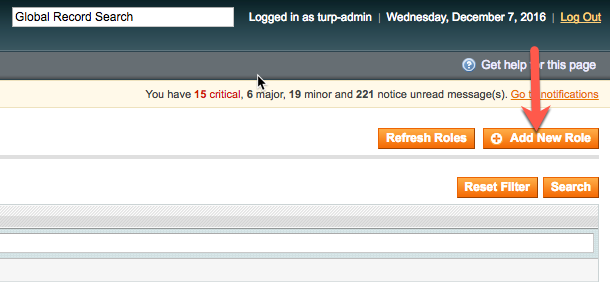
- Click Add New Role.

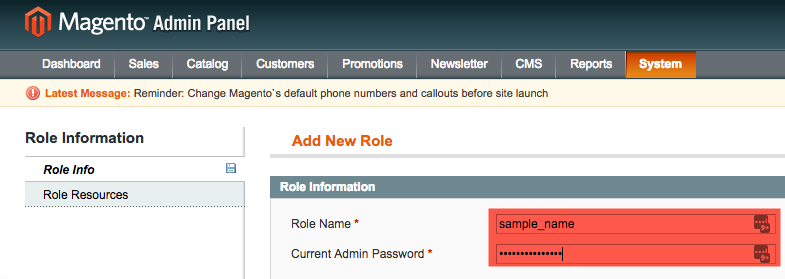
- In the Add New Role section, enter the desired name in the Role Name field and your current password in the Current Admin Password field.

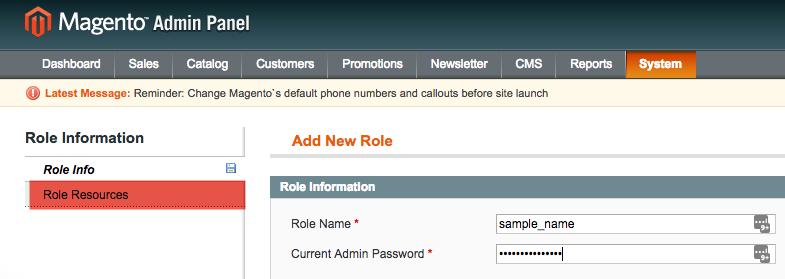
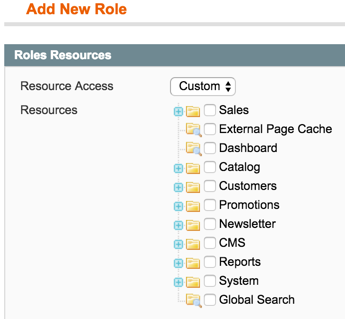
- In the Role Information section on the left, select Role Resources.

- ATTENTION: In this step, you will choose which permissions to assign to the new role. If you are unsure, consult with your developer. As always, take care when assigning permissions, as many grant secure access to critical areas of your store.From the Resource Access drop-down list, select Custom if not already selected. Assign permissions as desired.

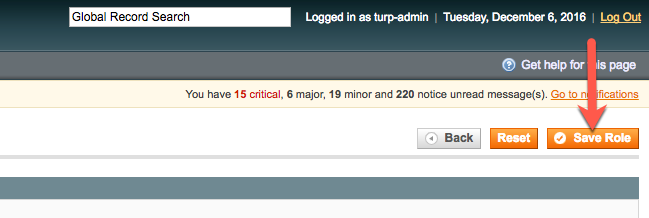
- Click Save Role.

2: Add user
- From the Admin Panel, select System > Permissions > Roles.

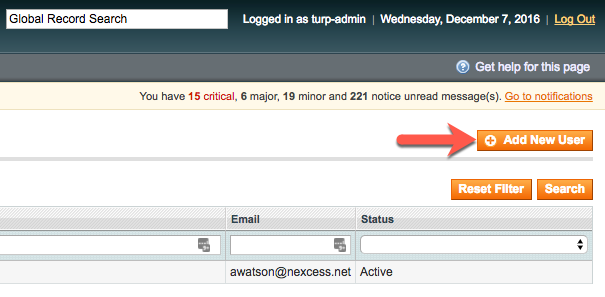
- Click Add New User.

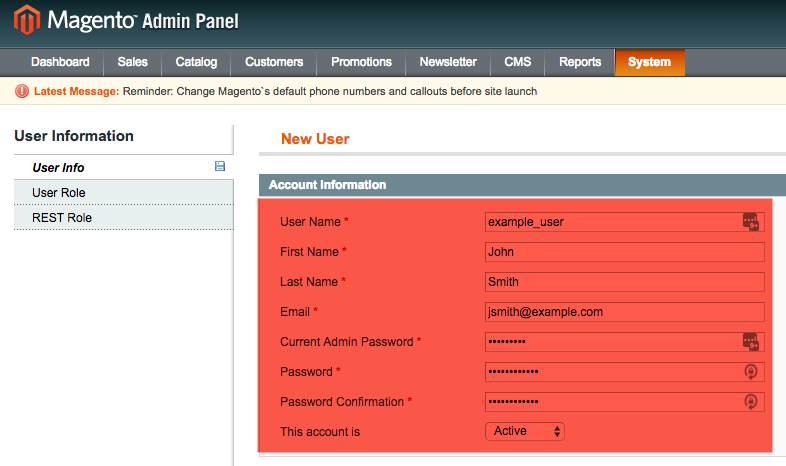
- In the Account Information section, fill all fields, then from the This account is drop-down list, select Active if not already selected.

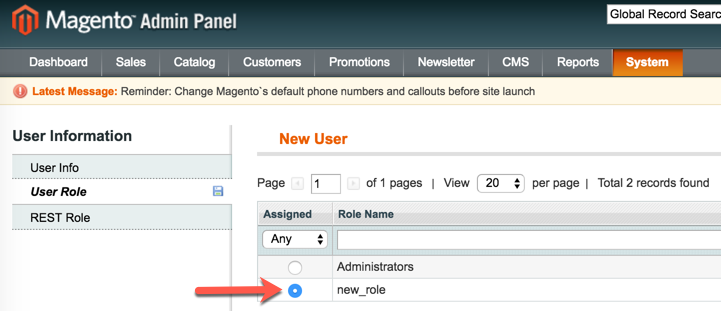
- ATTENTION: Iff you are assigning the default Administrators role instead of a custom role, be aware you are granting this user complete access to all of your store’s most critical areas. Use care when assigning this role.On the left, click User Role, then select the check box corresponding to the role you created in the “1: Add user role” section. If you want to grant complete admin access, select the Administrators check box.

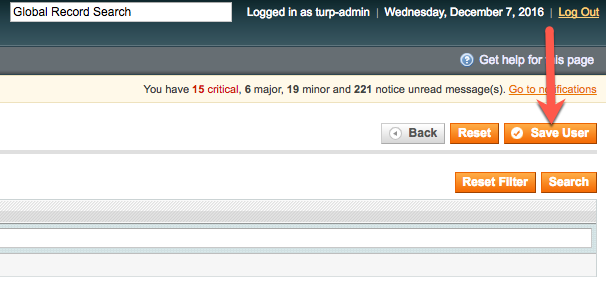
- Click Save User.

- Test the newly created login credentials.
For 24-hour assistance any day of the year, contact our support team by email or through your Client Portal.
Additional resources
Magento admin training: top 5 online resources →
Train your team with admin resources and tutorials.
Magento security guide: 11 best practices →
Secure your store with practical security guidance.
Magento extensions: a complete beginner’s guide →
Enhance your store with extensions that add useful features.
