 Liquid Web
 What is DNS?
DNS stands for Domain Name System. When you access a website, you use this service to locate the server where the domain’s website is. When browsing the web, you usually type in a domain name like www.google.com into your browser. This is better than trying to remember an IP address linked to a Google server.
Behind the scenes, a conversion happens using this service, which converts www.google.com to 172.217.12.46. The IP address determines the location of a web server on the internet, and the nameserver that the domain is using is queried for any entries for the domain. This conversion process is called DNS resolution. This is an integral part of how DNS works to help devices communicate over the internet. Here is a review of the step-by-step query process to better understand exactly how it works.
How Does the DNS Process Work?
Step 1: Requesting Website Information
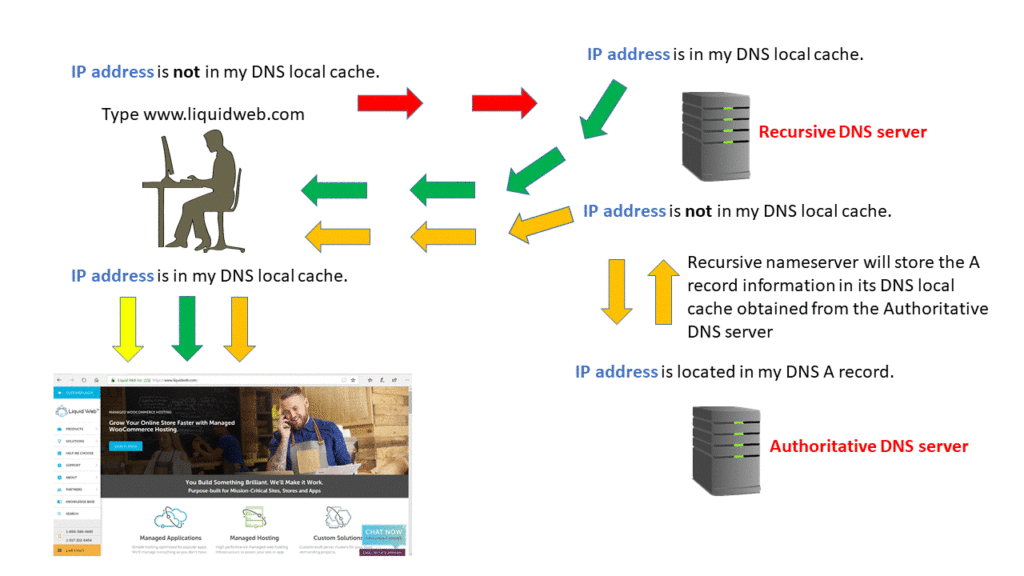
Visit a website by typing a domain name into a web browser. Your computer will start resolving the hostname, such as www.liquidweb.com. Your computer will then search for the IP address for the domain name in the local DNS cache. This cache stores any information that our computer has recently saved.
If a site’s information is present locally, then the website will begin to load relatively quickly. If your computer does not have the data (that is, if it’s your first time visiting a particular site), it will perform a DNS query to retrieve the correct information. New sites may take a few milliseconds longer than a site from your local cache.
Step 2: Contact the Recursive DNS Servers
When the information is not in your computer’s local cache, it will query another server. Recursive DNS servers have their own local cache, much like your computer.
Another name for recursive DNS servers is DNS resolvers. It’s possible that a common domain name is already in its cache. If the domain is cached, the query will end here, and the website will display to the user.
Step 3: Query the Authoritative DNS Servers
If a recursive DNS server or servers do not have information stored in cache memory, it looks elsewhere. The query will continue up the chain of authoritative DNS servers.
The server continues its search until it finds a nameserver for the domain. These authoritative nameservers store these records for their respective domain names.
Step 4: Access the DNS Record
To locate the IP address for liquidweb.com, query the authoritative nameserver for the A record. A recursive DNS server reads the address record for liquidweb.com from the authoritative nameservers. It then stores the record in its local cache.
If some other query requests the A record for liquidweb.com, the recursive server will have the answer. All DNS records have a Time-to-Tive (TTL) value, which shows when a record will expire. After expiration, the recursive DNS server will ask for an updated copy of the records.
Step 5: Final DNS Step
The recursive DNS server holds the associated information and returns the A record to your PC Your computer will then store the record in the local cache. The IP address is read from the DNS record and passed it to your web browser. Your browser will then connect to the server associated with the A record’s IP and render corresponding website.
What DNS does, from start to finish, takes only milliseconds to complete. For a better understanding, here’s a breakdown of the components that make up the lookup process.
Types DNS Servers
Authoritative DNS Server
An authoritative nameserver is a server that stores DNS records (A, CNAME, MX, TXT, etc.) for domain names. These servers will only respond to queries for locally stored DNS zone files.
Any nameserver can store a zone file for a domain, but that doesn’t make it authoritative. A nameserver becomes authoritative if the domain’s registrar points the internet to that nameserver for the domain’s information.
Recursive Nameserver
A recursive nameserver is a DNS server that receives queries for informational purposes. These types of servers do not store DNS records.
When a query is received, it will search the cache memory for an address linked to the IP address. If the recursive nameserver has the information, then it will return a response to the query sender. If it doesn’t have the DNS record, the query will be forwarded to other recursive nameservers. This process continues until it reaches an authoritative DNS name server that can provide the IP address.
DNS Zones
A DNS zone is a subset of the Domain Name System (DNS) that holds administrative and authoritative information about a domain. When a domain is registered, it must be assigned an IP address so that it may be accessed through the internet. DNS zones aid in resolving domain names to IP addresses.
A DNS zone is a database of numerous records that give domain information, such as IP addresses of connected servers and other services. It includes A records, CNAME records, MX records, PTR records, NS records, and others.
DNS zones enable the delegation of authority for subdomains to multiple nameservers and offer precise control over domains or subdomains. If your domain name is example.com, you may create a separate DNS zone for blog.example.com, handled by a different set of nameservers. This provides more granular control over several aspects of your Domain Name System.
DNS Zone File
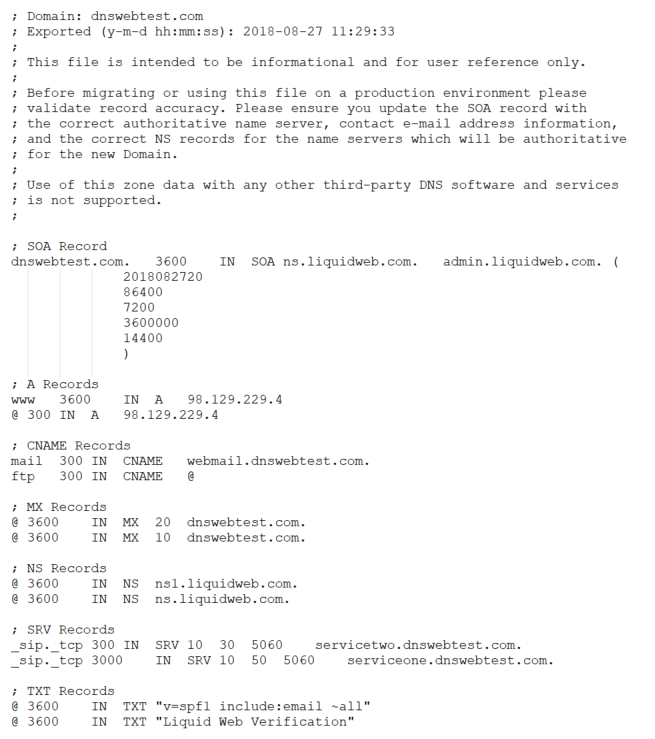
A DNS zone file is essentially a text file stored on a server. Each domain has its own file with subdomains containing individual records.
The zone file must have the TTL (Time to Live) listed. Depending on the record and the nameserver type, it is listed before any other information. The TTL specifies how long a DNS record is in the server’s cache memory.
The zone file can only list one record per line. It will display the Start of Authority (SOA) record listed first. The SOA record contains information essential to what DNS is, including the primary authoritative nameserver for the DNS Zone.
DNS Record Types
Authoritative servers store DNS records. The DNS records provide attributes associated with a domain, which include the IP address for each domain.
All domains will have a specific set of default DNS records. The list below provides the most common record types. The most frequently used DNS records are described in detail for the benefit of the reader.
(Address) Record
An A record (or Address Record) points a domain name to an IP address. For example, when you type www.google.com in a web browser, the DNS will translate that domain name to the IP address of 172.217.12.46 using the A record information stored in a DNS zone file. The A record links a website’s domain name to an IP address that points to the server where the website’s files live.

CNAME (Canonical Name) Record
A CNAME record is a DNS record that connects an alias name to its actual or canonical domain name. It allows a subdomain to use the same A record as the main domain. This record does not contain an IP address.
We can utilize this type of record only when no other records exist on that domain name. Otherwise, the other records introduce a conflict that would interfere with its resolution.
As an example, the following CNAME record maps the FTP service to the main domain, and mail to the webmail service on a server.

MX (Mail Exchanger)
The MX record routes email messages to a specific mail server linked to a domain from a designated mail host on a different server. MX records use a priority system if there is more than one MX record for a domain using more than one mail server.

The priority number to the right of the MX specifies the order of access to the mail servers. The lower the number is, the higher the priority.
For example, the priority number of 10 set within the MX record (seen above) will receive the email messages first. The MX record with the priority number of 20 will be a backup if the MX record with the priority of 10 is unavailable.
TXT (Text) Record
A TXT record is utilized for information and verification purposes. The TXT record discloses information about your domain to other servers, such as what services the domain is using. A Sender Policy Framework (SPF) record is an example of a TXT record that is added to help identify, verify, and confirm that an email message is actually coming from the server it is being sent from.

NS (Name Server) Record
The NS, or Nameservers, record denotes which DNS server is authoritative for a domain. This simply means it identifies which server contains the current records for a particular domain. NS records listed in the zone file must match what is listed for the domain with the registrar.

Root DNS Server
These servers are usually found at a registrar, ISP, or hosting company. The highest level of authority comes from the 13 top-level DNS servers, which actually contain all the active records for every domain. These servers track and share DNS information with all the other DNS servers at the businesses noted above.
SOA (Start of Authority) Record
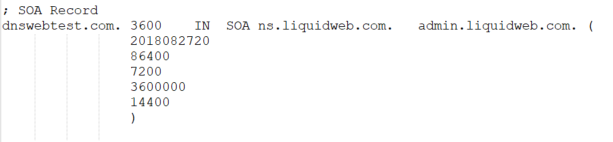
The SOA record is a resource record which stores information regarding all the DNS records within a given zone. An SOA record contains properties of a zone such as:
- The name of the primary DNS server.
- The Email address of the responsible party for that zone.
- The serial number that is used by a secondary DNS server to assess if the information a zone contains has changed.
- If the information within a zone has changed on the primary server, those changes are shared to other DNS servers and this updates the serial number on the zone file to indicate and update has taken place.
- Refresh Interval or TTL
- This shows how frequently the DNS servers check for updates or changes to any of the records, as determined by the TTL or Time to Live. This number can be modified to increase or decrease the timeframe when those changes occur.
- Retry Interval
- The retry interval displays how frequently the secondary DNS servers should retry checking if any changes are made to the zone if the first refresh fails.
- Expire Interval
- Shows how long the zone TTL will be valid after a refresh.
- Minimum (default) TTL (Time to Live)
- The SOA records are outlined in https://www.ietf.org/rfc/rfc1035.txt under the “Domain Names – Implementation and Specification” section.
SRV (Service) Record
The SRV (Service) record, a lesser used record, is created to establish connections between services and hostnames. For example, if an application is searching for the location of a service that it needs, it will look for an SRV record with that information. When the app finds the correct SRV record, it will filter through the list of services to find the following information:
- Hostname
- Ports
- Priority and Weight
- IP Addresses
Here is an example of two SRV records:
_sip._tcp.example.com.   3600 IN SRV 10 50 5060 serviceone.example.com.
_sip._tcp.example.com.   3600 IN SRV 10 30 5060 servicetwo.example.com.
Note: _sip is the name of the service and _tcp is the transport protocol.
The content of the SRV record defines a priority of 10 for both records. The first record has a weight of 50, and the second has a weight of 30. The priority and weight values promote the use of specific servers over others. The final two values in the record describe the port (5060) and hostname (serviceone.example.com) to connect to for accessing any services.
SRV records are not typically used on web servers but can be used depending on the application.
PTR (Pointer) Record
A PTR (Pointer) record is attached to email messages and is generally used for reverse DNS (rDNS) functions. The purpose of the PTR record is verifying the sender matches the IP address they claim to be using. Not all DNS hosting providers offer this type of record.
Common DNS Issue Troubleshooting
Now that you have reviewed the DNS services and components, you can begin to troubleshoot DNS issues that can arise. Below is a list of common DNS troubleshooting tips:
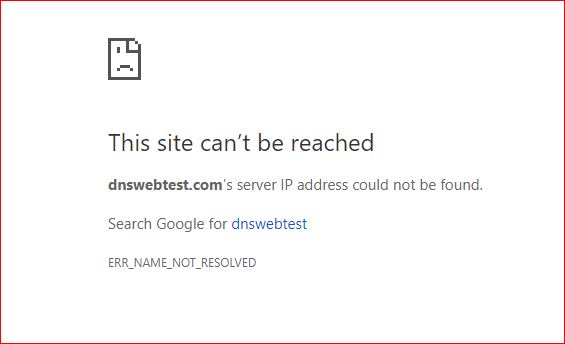
- If your website displays “Server IP address could not be found,” it’s possible that the A record is missing. You will need to add an A record to your DNS zone:
- Check to see if you have any improperly configured DNS records.
- Check the domain’s registrar to make sure that the proper nameservers for the domain are set and that they resolve to an IP.
Although DNS can be a complex issue, a better understanding of the process is always helpful. These troubleshooting tips can prepare you to work with DNS. The following tools are useful when checking DNS propagation or records.
DNS Propagation
When you change your nameservers, you need to wait for the nameservers to propagate. The propagation can take 24 to 48 hours to complete across the internet fully.
Check to see if you have high TTL (Time to Live) values. If you update an A record that has a default TTL value of 86400 seconds (24 hours), propagation will then take 24 to 48 hours to disperse. It is better to change the TTL value to 300 seconds, which is 5 minutes. It is important to learn more about TTL values to know how to reduce the amount of time that any change will take to propagate.
Great resources to help with DNS propagation are:
DNS Cache Poisoning
Occasionally, hackers can infiltrate the DNS process and manipulate it to gain control of vital DNS servers. This attack method is known as cache poisoning.
With all these DNS queries and transmissions happening in milliseconds, it can be challenging to decipher whether a server communication is valid. The best solution for troubleshooting cache poisoning at this point is using a Domain Name System Security Extension (DNSSE).
DNS Spoofing
DNS spoofing is similar to cache poisoning, but they’re not the same. Cache poisoning attacks DNS servers that contain IP addresses. On the other hand, DNS spoofing attacks focus on DNS records.
Spoofing can also be handled by using a DNSSE. You can also protect yourself against one of these attacks by ensuring the website you’re connecting to is secure. If you’re using the Chrome browser, a gray lock icon will show up in the URL bar if you’re on a secure site.
The other precaution web users can take is to mask their identity when surfing the web. Using a VPN is the most typical and straightforward way to do this.
Editing Your Host File
If you use a third-party proxy server, and your website is not displaying, you can use the local host file to see where the issue occurs. For example, the website is called dnswebtest.com, and this domain is using a third-party proxy server.
It is usually possible to locate where the error originates if there’s a connection error. To locate the issue with the host or the proxy server, you must investigate. To troubleshoot, modify the local host file. Then, add the website dnswebtest.com as an entry to the host file. Then, point it to the web hosting company’s IP address (e.g., 98.129.229.4).
If you visit the website and it displays correctly, you know the issue is with the third-party proxy server. Learn more about how to edit your host file. There are many tools available to see who is hosting a website that will show what IP address a website is resolving to.
DNS Frequently Asked Questions (FAQ)
1. What are the 3 Types of DNS?
The three main types of DNS servers are:
- Primary
- Secondary
- Caching
2. Where are DNS Servers Located?
DNS servers reside in your internet service provider’s data center. These servers contain the IP address and domain information for all the websites you may visit on the internet.
3. Who Controls the DNS Servers?
A global non-profit organization called the International Corporation for Assigned Names and Numbers (ICANN) manages all of the internet’s sensitive information. This includes any identifying information like DNS records, IP addresses, etc.
4. What is the Most Common DNS Type?
The most common DNS record types are:
- A – Address records
- AAAA – “Quad A” address records for the latest version of DNS protocol, IPv6
5. What Type of DNS Should I Use?
The best DNS for most is a public DNS, such as Cloudflare or Google Public DNS.
How Can We Help?
Should you have questions regarding the content in this article, we are available to answer your inquiries around the clock, 7 days a week, 365 days a year. We live up to the motto, The Most Helpful Humans In Hosting™!
Liquid Web’s Support Team is full of experienced Linux technicians and system admins with intimate knowledge of DNS and hosting.
As a Liquid Web customer, if you are a managed VPS server, cloud dedicated, private cloud powered by VMware , private VPS parent server, managed cloud servers, or a dedicated server owner and you are uncomfortable with trying to modify any changes outlined, we are happy to help. Our team can be reached a chat session, or support ticket to assist you with this process.