

File Permissions
File permissions define access to files and folders on a server or website, or the ability to execute a file/script/etc.
Roles
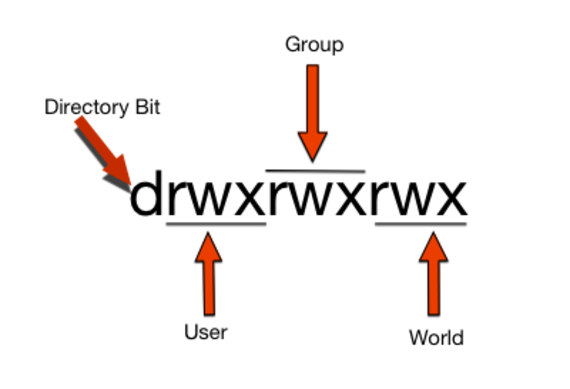
On a Linux server, file permissions are always displayed in sets of three, representing the permissions for three distinct roles. These roles include, the user who owns the file, the group the user is a part of, and everyone else (a.k.a. “world” or public permissions).
User – abbreviated as U, generally the person who created the file.
Group – abbreviated as G, anyone who belongs to the same group to which the file is assigned. Generally, when a file is created, it inherits the same group membership as the default group of the creator. Groups allow easy management of specific users.
World/Public – abbreviated as O because it also means “other.” This is everyone else who isn’t the user or the group.
Permission Types
Each of the permission sets has three different permission types: Read (r), Write (w) and Execute (x).
Below is a visual representation of a permissions string. The (d) at the front is the Directory Bit which indicates that the item is a folder/directory and not a normal file. A -(dash) would indicates a regular file and would look like this: -rwxrwxrwx.
Files Permissions
Read – Gives access to view the contents
Write – Access to modify the contents
Execute – Ability to execute the file
Folder/Directory Permissions
Read – Access to list the contents of the directory
Write – Gives access to add or remove entries from the directory
Execute – Allows the user to traverse the directory
When setting directory permissions, think of a directory as a special file that contains other files and folders.
Write access to a directory lets you add or remove these entries (like files or subfolders), but it doesn’t grant permission to modify the content of files within it. You’ll need separate Read, Write, and Execute permissions for the directory itself, and then individual permissions for the files inside.
Octal Permissions
An easier way to remember and organize permissions is by using Octal Permissions. Each level of access is represented by the numbers 0-7. These eight (octal) digits give the three access levels an assigned number from high to low; read write execute.
Octal permission sets are grouped together in a “UGP” format which represents ‘who’ has access, and at what level. The “U” is User, “G” is Group and “P” is Public/World. Breaking down an example permission set of 641, we can see:
- The User that owns the file is granted a (6) giving them read, write, and execute permissions.
- Anyone belonging to the Group that owns the file is granted a (4), giving them read, and execute permissions.
- Everyone else that can potentially access the file is granted a (1), only having execute permissions.
Octal | Read Permissions | Write Permissions | Execute Permissions |
|---|---|---|---|
0 | |||
1 | |||
2 | |||
3 | |||
4 | |||
5 | |||
6 | |||
7 |
Change permissions via CLI with chmod
Changing permissions is a simple process using the command line tool after you SSH into your server.
- Using the ‘ls’ command, confirm the current permissions of the file (or folder) you wish to adjust:
ls -l sharedFile
This should output the current file permissions. Here is an example:-rw-r--r-- 1 suser 57 Nov 30 10:13 sharedFile - To change the permissions, run the ‘chmod’ command, along with your desired level of access. In this example we are setting a ‘755’ :
chmod 775 sharedFile - Running another ‘ls’ command should show you the changes:
ls -l sharedFile
This should output something similar to the following:-rw-r--r-- 1 suser 57 Nov 30 10:13 sharedFile
Adjust file or folder permissions with a Control Panel
Updating permissions via a control panel is easy when using the provided File Manager software. We’ve detailed how in the following articles: