Use SMS to Recover a Premium Business Email Password
Premium Business Email and Email Plus webmail applications have the functionality to provide password recovery via SMS. All you need is a phone number, and you can reset your password easily.
Premium Business Email and Email Plus webmail applications have the functionality to provide password recovery via SMS. All you need is a phone number, and you can reset your password easily. If you have Hosted Exchange, you can reset your password using the user control panel, see how in our article Changing Your Email Password.
Note: If you choose not set up SMS password recovery, you will need to contact your email administrator to reset your password if it is ever forgotten or lost. If you are an administrator, please see our article Resetting a User Password as an Administrator in Premium Business Email for information on how to reset a password.
Set Up SMS Password Recovery
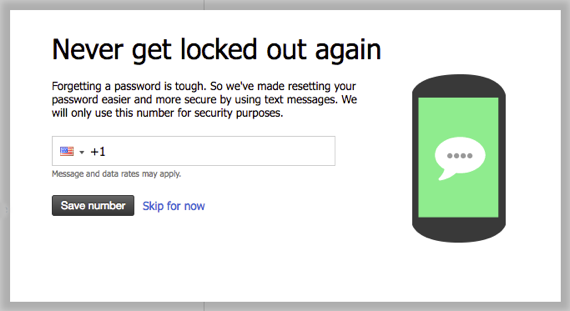
- When you first log into your webmail, a pop-up will appear, asking you to set up SMS password recovery.

Skip SMS Recovery
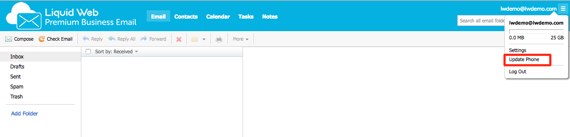
You are not required to enter your phone number. You can select Skip for Now if you choose to do so. You can enable or update your phone number at any time using the Update Phone link in the menu. 
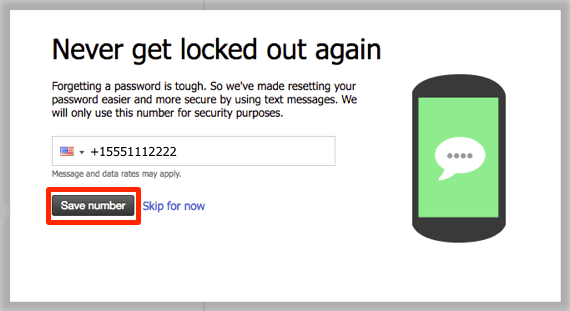
- Enter your phone number in the space provided and click Save number.
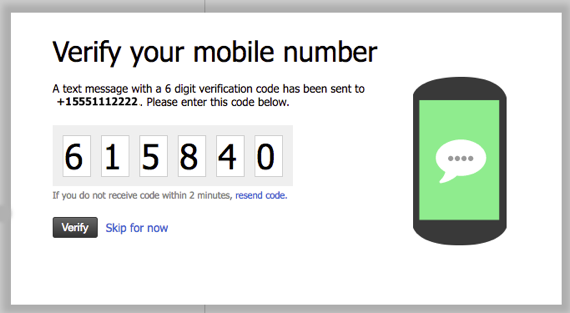
- You will receive a text with a security passcode. Enter the number and select Verify.

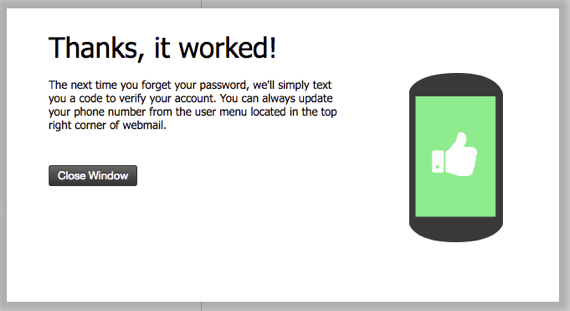
- SMS password recovery is now enabled.
Recover Your Password via SMS
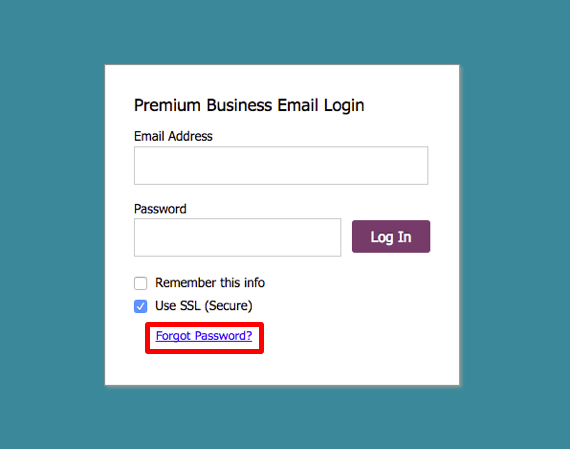
- If you’ve set up SMS password recovery, click on the Forgot Password link on the login page for your webmail.

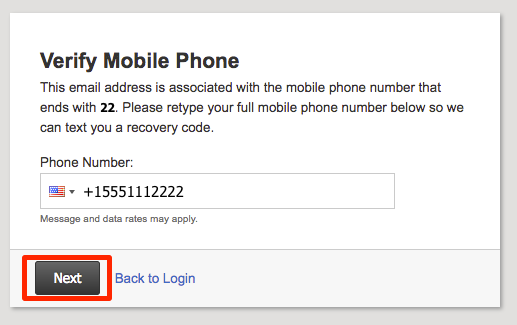
- You will be asked to enter your phone number, enter the full phone number and click Next.

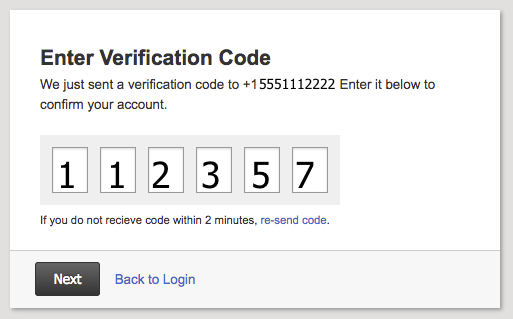
- A security passcode will be texted to you, enter this number in the space provided on the login recovery page.

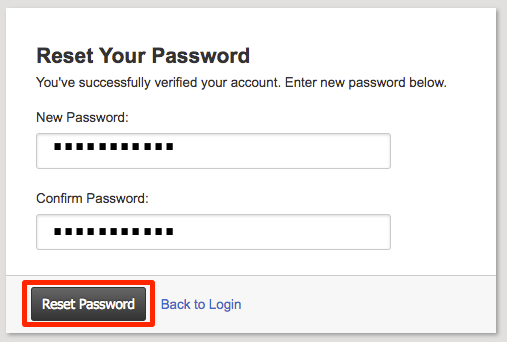
- Enter your new password twice and click Reset Password.

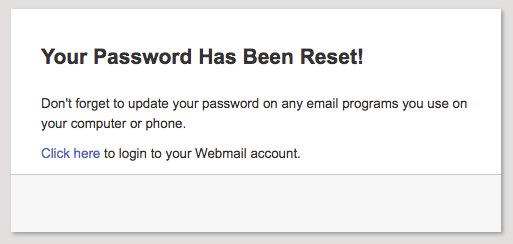
- Once your password is reset, you can return to the login page to log into your webmail.