

Using AnyConnect with your hardware firewall
A corporate VPN (Virtual Private Network) offers several advantages for businesses and their employees. Here are the key benefits:
- Secure Remote Access: Corporate VPNs enable employees to securely access company networks and resources from anywhere, as if they were physically at the office. This is crucial for remote work, especially when accessing sensitive information or developing on a locked down server.
- Data Encryption: VPNs encrypt data transmitted over the internet, which prevents hackers from intercepting sensitive business data like customer information.
- Improved Security: When employees use public Wi-Fi networks (such as those in coffee shops or airports), a VPN helps protect against common security threats like man-in-the-middle attacks, ensuring the integrity of communication.You also don’t need to open up ports for your developers which can be a security risk.
- Reduced Risk of Cyberattacks: By tunneling data through secure channels, VPNs help minimize the risk of attacks like phishing, malware, or ransomware, which could be a threat to corporate networks.
- Compliance: For organizations that need to meet regulatory standards (like HIPAA, GDPR, etc.), a corporate VPN can assist in ensuring that data is transmitted securely and that privacy laws are adhered to.
To utilize a VPN with your Liquid Web account, you will need to connect to your hardware firewall. If you haven’t done so yet, please reach out to our Networking team for assistance in getting this configured. Using the VPN, you can manage your servers with enhanced security by restricting access based on VPN credentials rather than relying on IP whitelisting, which can be difficult to maintain and prone to misconfiguration—potentially leaving your servers vulnerable to unauthorized access.
The simplest way to use a VPN to connect to your servers is to use the AnyConnect Secure Mobility Client from Cisco.
Step 1: Download and install AnyConnect Secure Mobility Client from Cisco.
You can use the links to below to get directions on downloading and installing the client for various desktop platforms.
- Download and install AnyConnect for Windows
- Download and install AnyConnect for Mac
- Download and install AnyConnect for Ubuntu
Step 2: Connect to the firewall
Now that you have installed the Cisco AnyConnect Secure Mobility Client, you can use the application to make a secure connection to your hardware firewall.
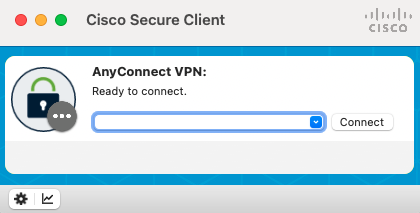
- Open the Cisco AnyConnect Secure Mobility Client
- Enter the address provided by our networking team for your hardware firewall
(for example: fw01.example.tld).
- Click Connect.
- Enter the username and password associated with your hardware firewall. You should have received these credentials in a Secure Note in your Liquid Web account.
- Click OK.
You should now be connected to the hardware firewall and therefore to your private network of servers via the VPN connection. You can now use your regular management tools like RDP and SSH to manage your servers, knowing the connection is secure.
Using the VPN to manage your server
Now that you or your developer is securely connected to your server’s private network. You can securely develop on the server without needing to open ports to the general internet. Included below are some common help articles you may find useful.
NOTE: Please remember to use the private IP (172. Or 192. Or 10.) for your development work while on the VPN. The Public IP should not be used as it should be locked down.
Windows:
- Using Remote Desktop Protocol (RDP) to Log into Your Windows Server Using RDP
- Adding Remote Desktop Users