

Uploading public_html Files in cPanel
One way to develop your website is to create webpages using a program on your computer. Then, you upload the HTML to your website, specifically the public_html directory. This is different than using a Content Management System (CMS) to manage your site using themes and plugins.
Creating your website using a program like Adobe Dreamweaver helps you build a custom website, but it has drawbacks. For example, you may have to create a new page every time you want to add or change content on your site. CMS’s often have ready-made solutions to fit your website’s needs—you don’t have to start from scratch.
If you decide to upload your own code, there are two recommended methods: using File Manager in cPanel or using the SSH File Transfer Protocol (SFTP). In this article, we’ll cover using File Manager.
File Manager in cPanel is great for uploading individual files or compressed files to your domain. It could take a longer time to upload than SFTP, but you can access File Manager anywhere you have an internet connection. With SFTP, you have to download an SFTP client to your local computer.
- Log into your domain’s cPanel account. If you don’t have a cPanel account, read Creating a cPanel User Account.
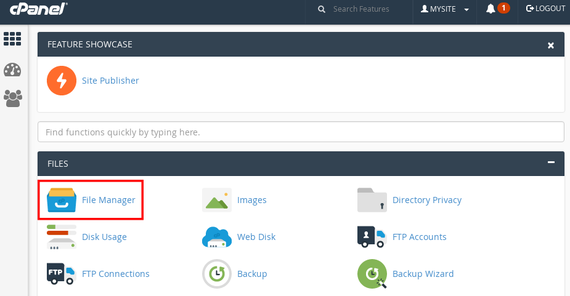
- On the cPanel home page, click File Manager.

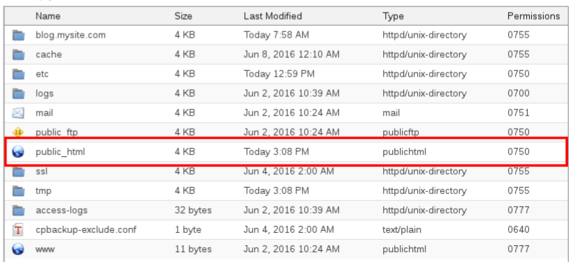
- Take a look at all the directories and files on your domain. Click around and get familiar with the types of files you already have on your domain. Each folder has specific information:
- Name: The name of the folder or file. On your server, files and folders are case-sensitive. So, Mywebsite.html is a completely different file than myWebsite.html.
- Size: How much space the folder or file is taking up.
- Last Modified: The last time a file was modified on your server.
- Type: This shows the different types of directories on your server. All directories that are httpd/unix directory are related to Apache, and other types usually correspond to the directory name.
- Permissions: Who can access and edit your files? Your server uses a system called octal permissions to decide how files are accessed and changed.
The important folder for your webpages is public_html. If you want a file to be shown on your website, you upload it here.

- Click on public_html to open the folder. Inside, you should see a directory called cgi-bin. This directory is only for scripts and putting files in this folder is an advanced technique.

- You’ll be uploading your code directly into the public_html folder. Click Upload in the top menu of File Manager and choose the files you’d like to upload.
Tip: index.html
For this example, we’re uploading an index.html file. The home page for your website should always be named index.htm, index.htm, or index.php. When your domain is choosing which files to display, it will always look for an index file first. If it doesn’t find one, it will just display a list of all the other files: not very pretty! Here is our sample index.html file: <!DOCTYPE html>
<html>
<head>
<title>Hello world!</title>
</head>
<body>
This is my first webpage.
</body>
</html> - When your upload is finished, click Go Back to /home/mysite/public_html.

- Visit your website to confirm your pages are working correctly.
Troubleshooting |
| If your pages are not working correctly, check with your developer or your web development software to make sure you have uploaded all the necessary files. Then, make sure you’re uploading the files to the public_html folder of the domain you’re building. |
You can now upload and manage website files using cPanel’s File Manager. If you’re uploading a lot of files, you might want to start Uploading Files Using FTP in cPanel.