

Upload Files Using FTP in Plesk
You may have heard of FTP—File Transfer Protocol. FTP moves files from your local computer to your domain. However, FTP is not a secure file transfer method. Malicious attacks often target FTP.
If you are have a Windows server or are using Plesk on a Linux server, we recommend you use FTPS. FTPS is FTP that uses an SSL connection. Just like FTP, it’s easy to use FTPS with a desktop FTP client.
Most people use FTP clients to upload files with FTP and FTPS. To do this, you need to download an FTP client, configure your FTP client, and then upload the files you need.
Warning: |
| This article is designed for people who are comfortable downloading software to their computer. Every FTP client is different; the process for the FTP client you choose may be slightly different than the steps outlined here. |
Downloading Your FTP Client
To upload files to your domain, you need to securely connect your local computer to your server. You do this by downloading an FTP client. You can choose any FTP client you’d like, some common programs include Filezilla, CoreFTP, and Cyberduck. If you have never used FTP before, using one of these clients will make the setup easier.
Every client has different download and installation instructions. Follow your normal process for downloading and installing software to your computer.
Configuring Your FTP Client
When you connect to your Plesk server using an FTP client, you’ll need your domain IP address and your FTP username and password. You can find this information in Plesk.
If you already know your FTP credentials, you can skip to step 4.
- Log into your Plesk control panel.
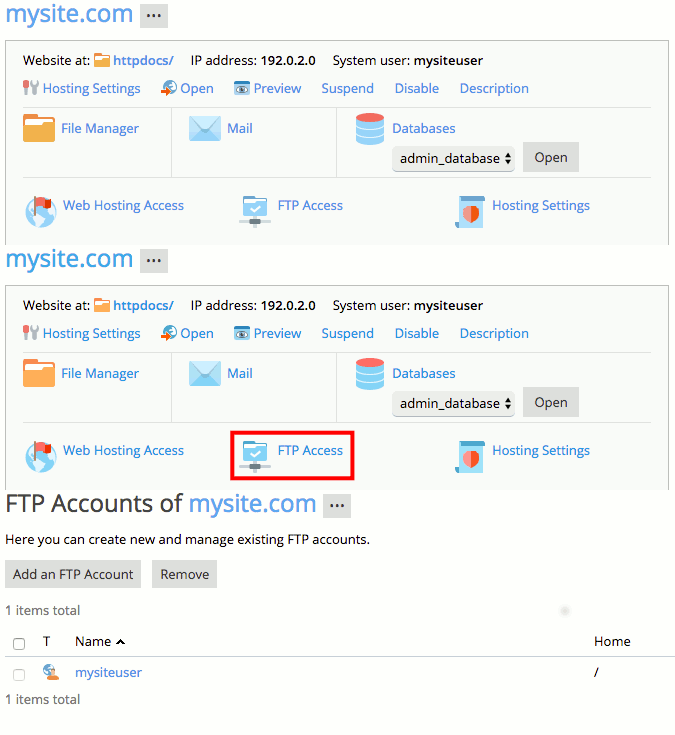
- Find the domain you want to connect to via FTP. In Power User view, click on Websites & Domains in the left navigation menu to see a list of your domains. In Service Provider view, click on Domains in the left navigation menu and then click on the domain you need.
- Click on FTP Access. You’ll be able to see any users authorized to connect to the server via FTP. If you need to reset passwords or add users, you can manage that here.

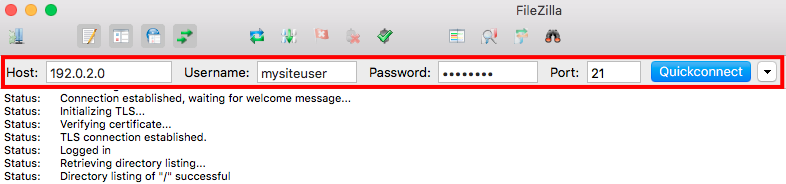
- Once you know your FTP username and password, open your FTP program. In this example, we’ll be using Filezilla, which has a quick connection option. Enter your domain’s IP address, your FTP username and password, and designate port 21 as the connection port. Then click Connect to start your FTP session.

Forcing FTPS Connections
If you have an updated FTP client, it will likely automatically attempt to use a secure connection for FTP. If you have an older client or want to make sure you’ll always use FTPS, it’s easy to turn on in Plesk! FTPS works for both Windows and Linux servers.
- Log into your Plesk control panel.
- In the left navigation menu, click on Tools & Settings.
- In the Security section, click on Security Policy.
- On the Security Policy settings page, you’ll see a section called Secure FTP. In this section, click the radio button next to Allow only secure FTPS connections.
Uploading Files with FTP
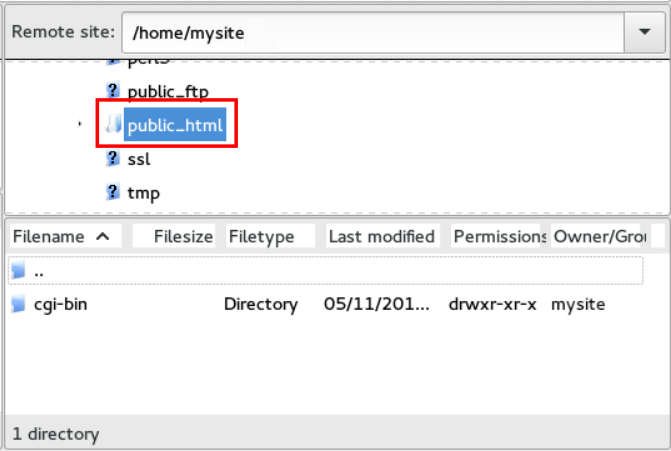
Once you’ve opened an FTP connection to your server, you’re all set to start uploading the files you need. In this example, we’ll be using Filezilla, but most FTP clients are simple drag and drop interfaces. In this example, we’ll upload files to the public_html directory on a Linux server, but you can upload files to any directory you need. On a Windows Plesk server, you’ll upload your website content to the httpdocs directory.
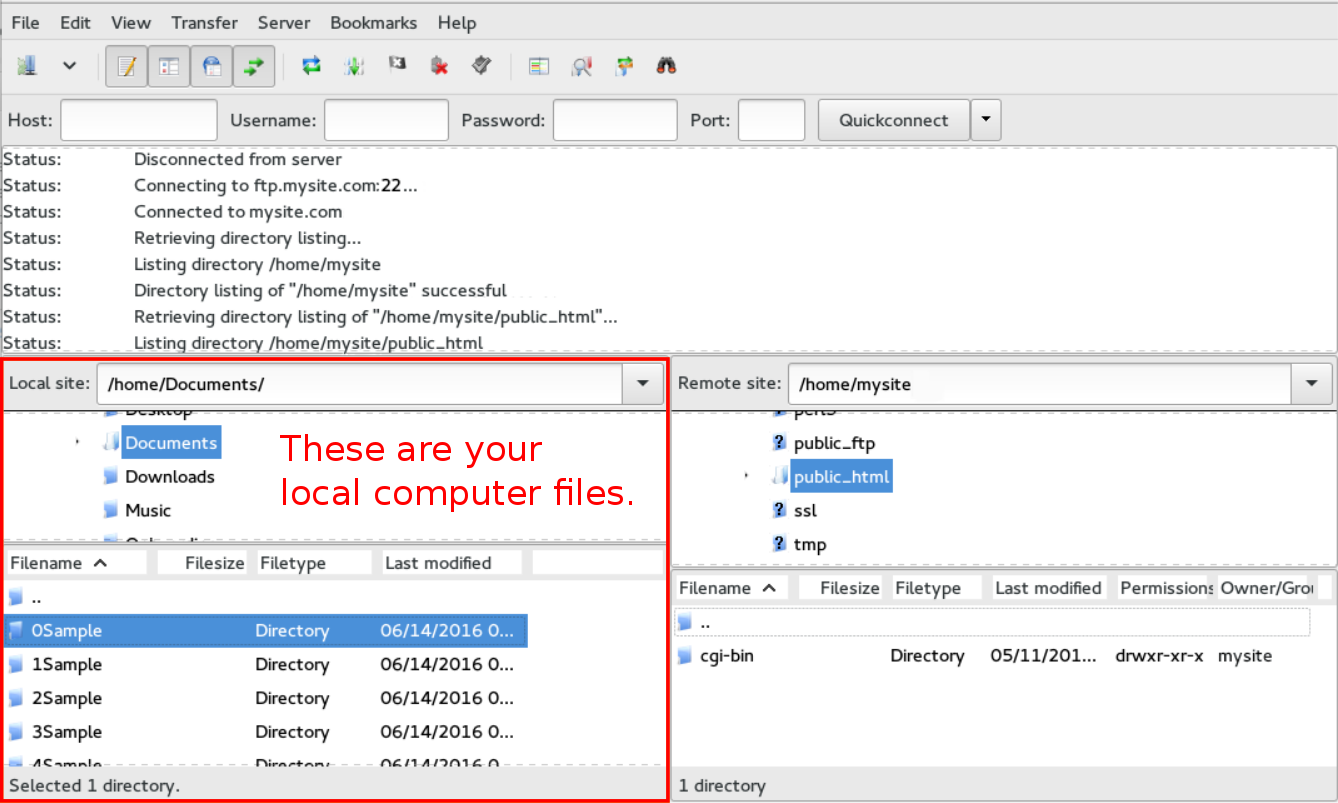
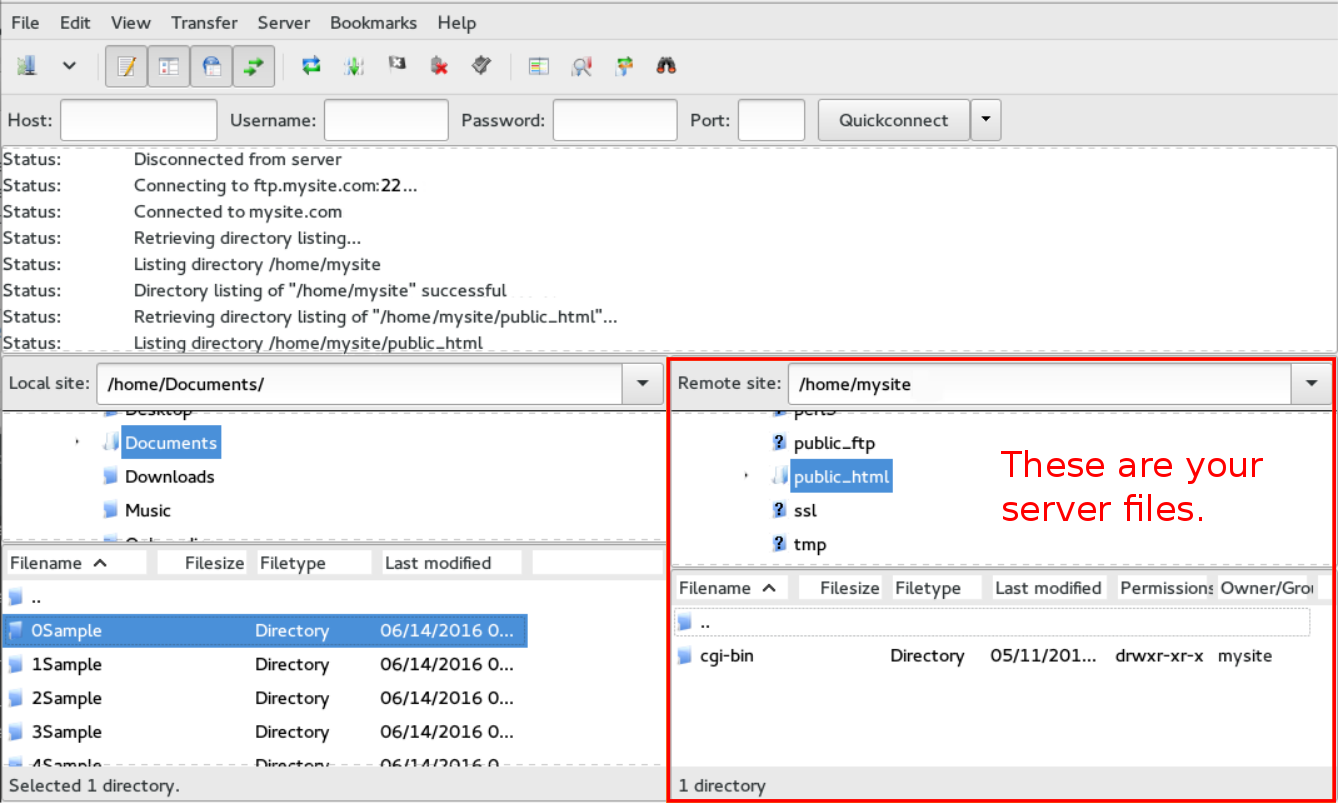
- On one side of your screen, you’ll see a listing of directories and files on your local computer. On the other side of your screen, you’ll see a list of directories and files on the part of your server dedicated to your domain.

- Find the public_html folder (or httpdocs for Windows) in your directory listing and click on the folder to open it.
- Locate the files on your local computer that you want to move to your server.
- Then, click and drag the files to the public_html (or httpdocs) folder on your server. Depending on how large your files are, it may take a little bit of time to transfer the files.

- Visit your website to confirm your pages are working correctly.
Troubleshooting
If your pages are not working correctly, check with your developer or your web development software to make sure you have uploaded all the necessary files. Then, make sure you’re uploading the files to the public_html or httpdocs folder of the domain you’re building.
When you are done uploading files, disconnect from your server.