

Update WHM/cPanel
cPanel often releases new features and upgrades for WHM and cPanel. Keeping your control panel updated means you will always have access to the newest features. Keeping your control panel up to date will also help protect your from security vulnerabilities that have been identified in earlier releases of the software. This article will cover:
- Checking Your WHM/cPanel Version
- Enabling Automatic Updates
- Upgrading WHM/cPanel Manually
- Upgrade Blockers
Checking Your WHM/cPanel Version
It’s easy to check what version of WHM you have. Log into your WHM control panel and look in the upper right hand corner of the screen. WHM displays the version number here. This server is currently running version 59.
If you are familiar with the command line, you can run a simple command to get the same information:
/usr/local/cpanel/cpanel -V
Enabling Automatic Updates
- Log into WHM.
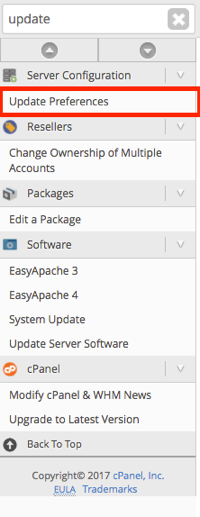
- Search for “update” in the left search menu. Then, click on Update Preferences under Server Configuration.

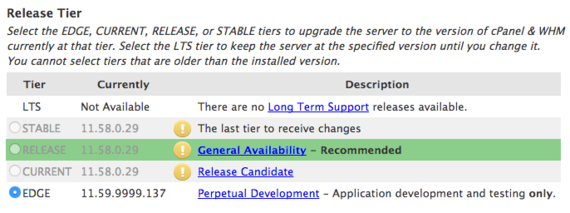
- There are five different development release tiers to choose from:
- LTS
- Stable
- Release
- Current
- Edge
Select the radio button next to the tier you’d like to use. Most people use Release, which is cPanel’s recommended option. If you want the most recent updates, you can select Current or Edge, but you may encounter some bugs.

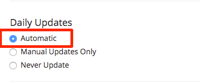
- In Daily Updates, select Automatic.
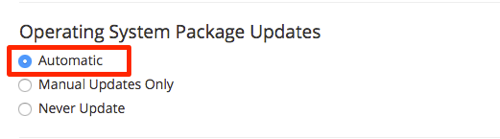
- Now scroll down to Operating System Package Requirements and select Automatic again.
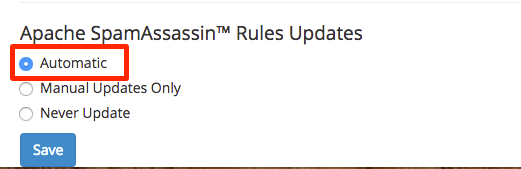
- The last update to automate is Apache SpamAssassin Rules Updates. Again, select the Automatic radio button.

- Once you’ve enabled all these automatic updates, make sure to click Save.
Upgrading WHM/cPanel Manually
- Log into WHM.
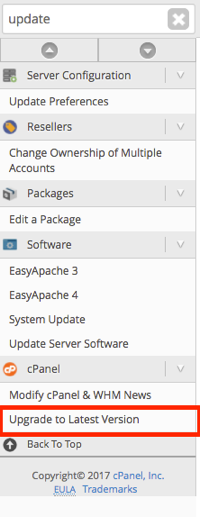
- Search for “upgrade” in the left search menu. Then, click on Upgrade to Latest Version under cPanel.
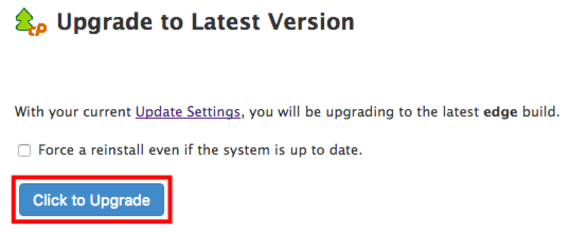
- Click Click to Upgrade.

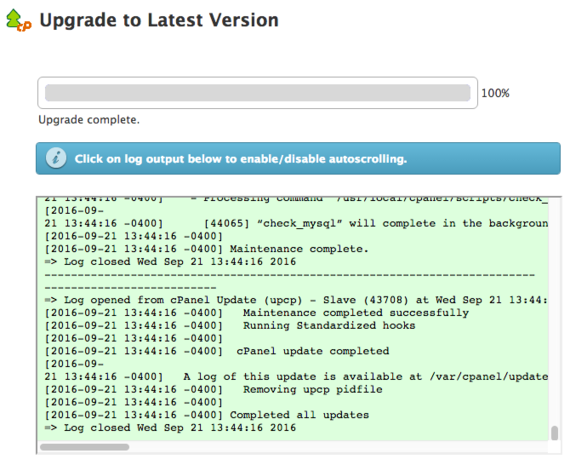
- You’ll see the log file and status bar update as the newest version is installed. Once the installation is complete, you’ll see a success message.

Upgrade Blockers
Sometimes, your server configuration will prevent a WHM/cPanel update. This usually involves your core server setup, such as your operating system. cPanel calls these problems “upgrade blockers,” and they keep an updated list on their website.