

Troubleshooting: RBLs and Email Delivery Problems (Rejected Email Messages)
Problem
Sometimes, you’ll see email you send bounce back to your inbox with an error message that looks something like:
Mail delivery failed: returning message to sender
These messages can be failing for multiple reasons. This article will show you how to diagnose the specific problem and work toward a solution.
Common Bounceback Errors
When mail fails to send, the returned mail should have a status code and explanation attached. This will give you clues about why your email was rejected. Here are some example error messages:
530 Sender verify failed. Delivery to the following recipient failed permanently: myname@mysite.com. Technical details of permanent failure: Tried to deliver your message, but it was rejected by the server for the recipient domain.
530 host.mysite.com ESMTP MailEnable Service, Version: 9.00-- denied access
SMTP error from remote mail server – 541 myname@mysite.com : Recipient address rejected – Access Denied”
Your access to this mail system has been rejected due to the sending MTA's poor reputation.
These types of error messages are usually due to other servers viewing your mail as potential spam. This does not necessarily mean your server is sending spam! Fixing these delivery problems could be as easy as adding and editing your DNS records.
Solution
Improving email reputation and fighting spam is a multi-step process. This article will lay out common ways to minimize rejected mail and investigate potential spam. If you’re seeing bouncebacks in your mail queue, the first step is to figure out why your email is getting rejected. Most likely, this is related to RBLs.
Checking RBLs
Remote block lists (RBLs) are lists of IP addresses the RBL compiler thinks could be malicious for one reason or another. If your IP address is listed on one (or more) of these lists, you could have problems sending email.
Use an online RBL checker like MX Toolbox to see if your domain is on any RBLs. If your IP address is listed on a public RBL, the list should tell you why your IP is listed and how to remove the listing.
Along with these public RBLs, every internet service provider (ISP) maintains its own private RBL. Online RBL checkers can’t check your IP against these lists, but any error message you receive will tell you if a provider like AT&T or Google has blocked your email and why.
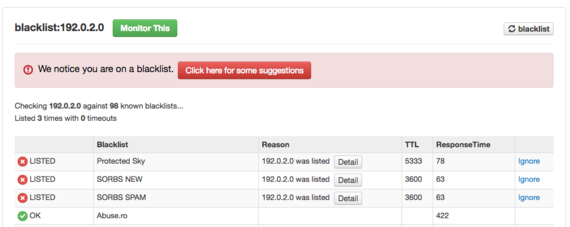
The most common reasons your IP might be on an RBL is not having (or having incorrectly formatted) SPF, DKIM, and DMARC records. If your IP is listed on an RBL for not having those records, follow our instructions on how to add each record:
- Adding a Sender Policy Framework (SPF) Record
- Enabling DomainKeys Identified Mail (DKIM)
- Enabling DMARC
Because these records are DNS records, they can take a little bit of time to start working. You can check to see if your DNS records are propagating using online tools (like https://www.whatsmydns.net) and within 48 hours, you should be receiving fewer bouncebacks. This could be the only change you need to make to your server to improve your email reputation, but we recommend looking into a few more possibilities before submitting delisting requests to any RBLs your IP is listed on.
If you have SPF, DKIM, and DMARC records for all your domains, the next step is to check any email forwarders you may have.
Reconfiguring Email Forwarders
If you receive email to your server at a specialized domain email address (e.g., myname@mysite.com) and forward this mail to another service (like Gmail), you could be accidentally spamming your Gmail account. Because mail forwarding simply forwards all the mail from one account to another, it forwards any spam that lands in your email, too. Forwarders take precedence over email filters, so even if you have anti-spam measures in place, all your email will be forwarded before it’s scanned. When your other email service receives the regular spam, it looks like it’s coming from your server. We do not recommend using email forwarders for this reason. Instead, other email providers (e.g., Google) usually have a method of importing messages from a different server to prevent this very problem.
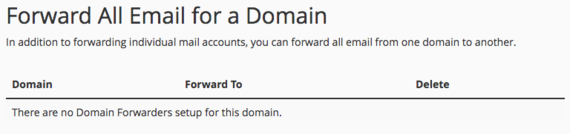
On a cPanel server, you can see any forwarders you have set up by logging into cPanel and clicking Forwarders in the Email section.
On a Plesk server, you can see any forwarders you have by logging into Plesk, choosing the domain you need, clicking on Mail, clicking on the specific email address, and then clicking the Forwarding tab.
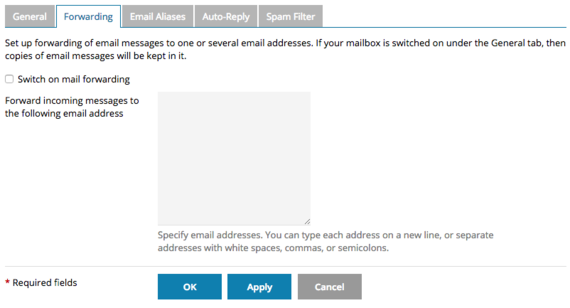
If you do use email forwarders, switching to importing your mail instead should help your email reputation. Once you change these settings, or if you don’t use email forwarders, you can see if there’s actual spam on your server.
Checking the Mail Queue for Spam (cPanel Only)
If you have a cPanel server, you can use the Mail Queue Manager in WHM to see if there are potential spam messages being sent from your server. Usually, this means there is a compromised account on your server, instead of someone purposely sending spam messages. Here’s how to use Mail Queue Manager to see if your server is sending spam. If you have a Plesk server and suspect spam, contact our Support team for additional help.
- Log into WHM.
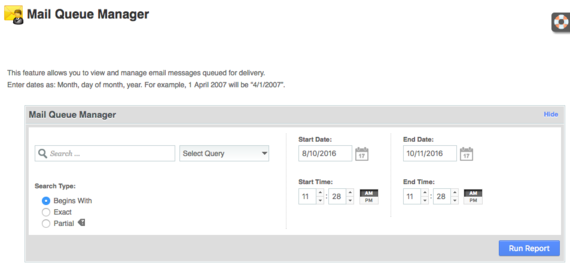
- In the left search bar, search for “Mail Queue.” Then click on Mail Queue Manager in the Email section.

- Mail Queue Manager will list everything that’s in your mail queue waiting to be sent out. There are a few indicators of potential spam:
- A large number of messages waiting to be sent (thousands to hundreds of thousands).
- If you look at a few random emails, you might see spammy subjects or email content.
- You might see sending email addresses where the domain is familiar but the actual email address is unfamiliar.
Submitting RBL Delisting Requests
Once you’ve made all the changes suggested by RBLs that are listing your IP, you can submit delisting requests to be removed from their block lists. If an email account on your server is compromised and continues sending spam emails, submitting delisting requests will not help your email be delivered. It’s vital that you are sure you’ve made all the necessary changes before submitting delisting requests. If you have a spam investigation case open, you’ll be notified when you can begin submitting delisting requests. Other RBLs have time-limited listings, so you only have to wait a few days and the listing will be automatically removed.