

Migrating Recurring PayPal Subscriptions from Standard to Checkout
LearnDash introduced support for the PayPal Checkout API (see PayPal Checkout API Overview) in version 4.25, in response to PayPal’s upcoming retirement of their IPN (Standard) connection by the end of 2026. This legacy IPN system has already been deprecated.
Because PayPal does not allow subscription payments to be transferred between platforms, LearnDash has introduced a workaround to help customers with active recurring payments using the Standard gateway.
This guide explains how to:
- Locate users currently enrolled via PayPal Standard recurring payments
- Set up a migration page using a custom shortcode
- Understand how the migration process works
- Communicate with affected subscribers
Before You Start
Ensure that both PayPal Standard and PayPal Checkout gateways are enabled and in live mode (not test mode) before beginning the migration process.
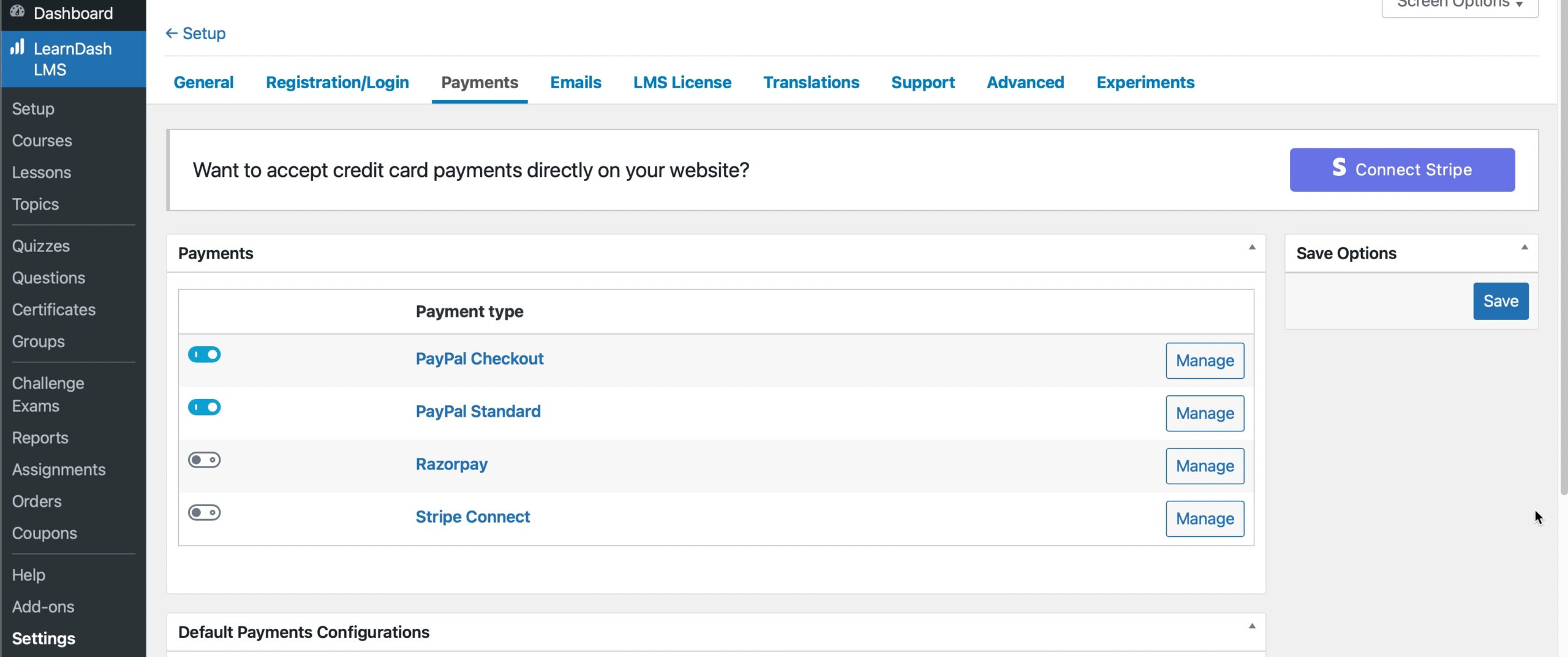
How to Find All Subscribers with Recurring Payments Using PayPal Standard
Users who need to migrate will appear under:
LearnDash > Settings > PayPal Standard / Manage
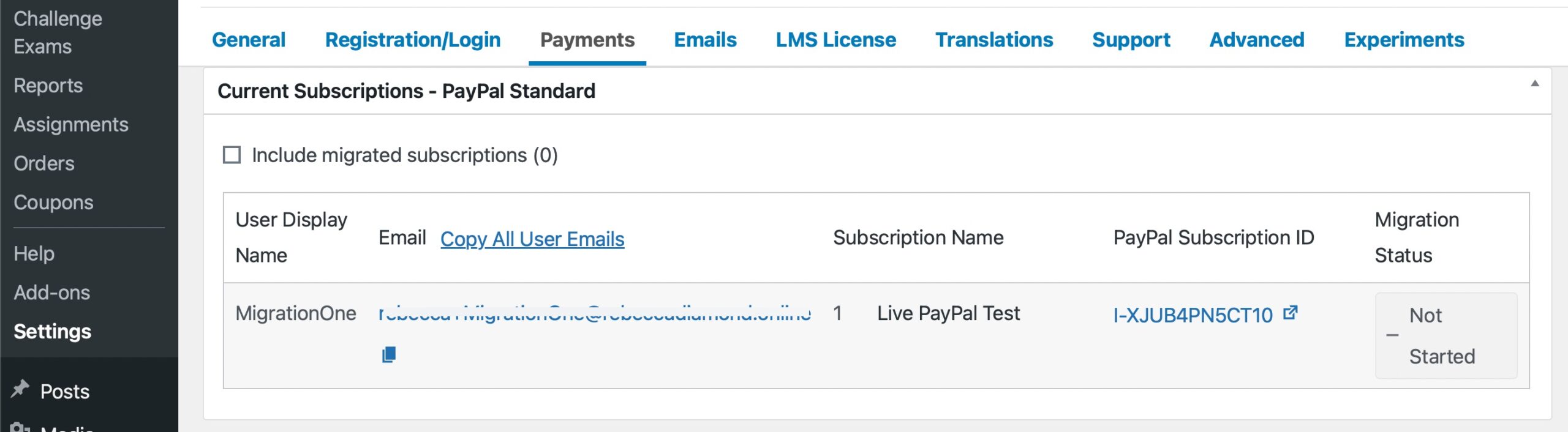
Use the “Copy All User Emails” button to capture the list of subscribers. This list can be pasted into your preferred email or CRM tool for outreach.
Tick the checkbox labeled “Include migrated subscriptions” if needed. By default, this view excludes users who have already migrated, allowing you to focus on those who still need action.
Setting Up Your Migration Page
Create a new page in WordPress:
WordPress Dashboard > Pages > Add New
Use the following example to help inform the page content:
Title: Update Your Payment Method
Content:
We’re migrating to a new system!
Update your payment information to keep your subscription active.
We will charge you on your next renewal date.
[ld_migrate_paypal_subscription]

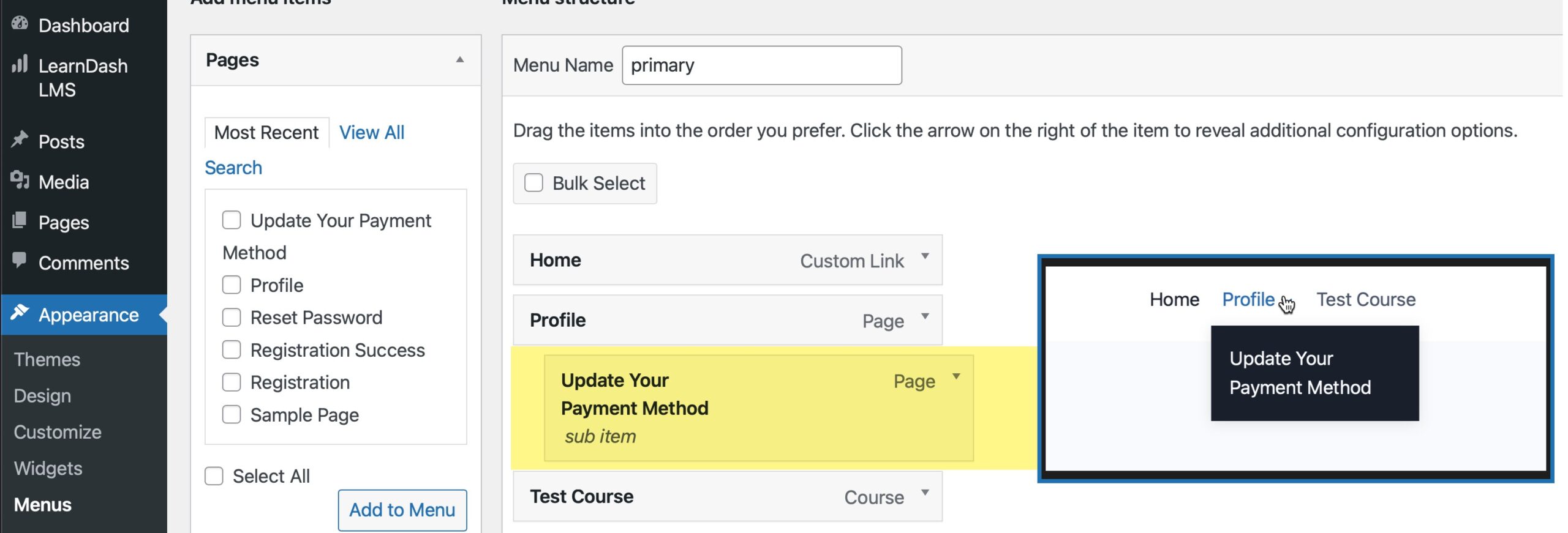
Tip: Add this page to your site navigation.
Go to Appearance > Menus and include it as a submenu item beneath “Profile.” This places the migration option conveniently under the user’s profile dropdown.
Once the shortcode is in place, the page will display a form where users can update their payment information.

After completing the form, users will see a confirmation message.

How the Migration Works
This process is not a full data migration. Instead, LearnDash creates a new subscription using PayPal Checkout and ends the previous one from PayPal Standard.
Here’s how it works:
- The user visits the migration page and sees a list of their active recurring-payment courses or groups.
- Based on the messaging added to the page, they are prompted to update their payment method.
- Users fill out the payment form generated by the
[ld_migrate_paypal_subscription]shortcode.- Important: Updating payment information from the “Saved Cards” area in the profile block will not migrate subscriptions.
- Once submitted:
- The subscription using PayPal Standard is cancelled
- PayPal saves the new payment method in the PayPal Vault
- On the user’s next renewal date, LearnDash starts a new subscription via PayPal Checkout
- The saved card will now appear in the user’s LearnDash profile, along with all associated subscriptions
Communicating with Your Customers
Once the migration page is ready, send a series of drip emails to affected customers to guide them through updating their payment method.
Consider the following:
- Start with a clear announcement about the required action and deadline
- Include a direct link to the migration page
- Remind users that updating is necessary to avoid interruptions
- Use follow-up reminders for those who haven’t completed the process
This outreach ensures subscribers remain enrolled without disruption, and that future renewals are processed through the new PayPal Checkout gateway.