

How to Enable Right-to-Left (RTL) Language Support
Introduction
Enabling RTL support in your LearnDash App provides a seamless experience for users of right-to-left languages like Arabic or Hebrew.
This guide walks you through translating app text, enabling RTL layout, and verifying proper direction across the app interface.
Translate App Text Strings
- In your WordPress Dashboard, go to LearnDash App > Translations.

- Use the search bar to find any string (e.g., About Course).
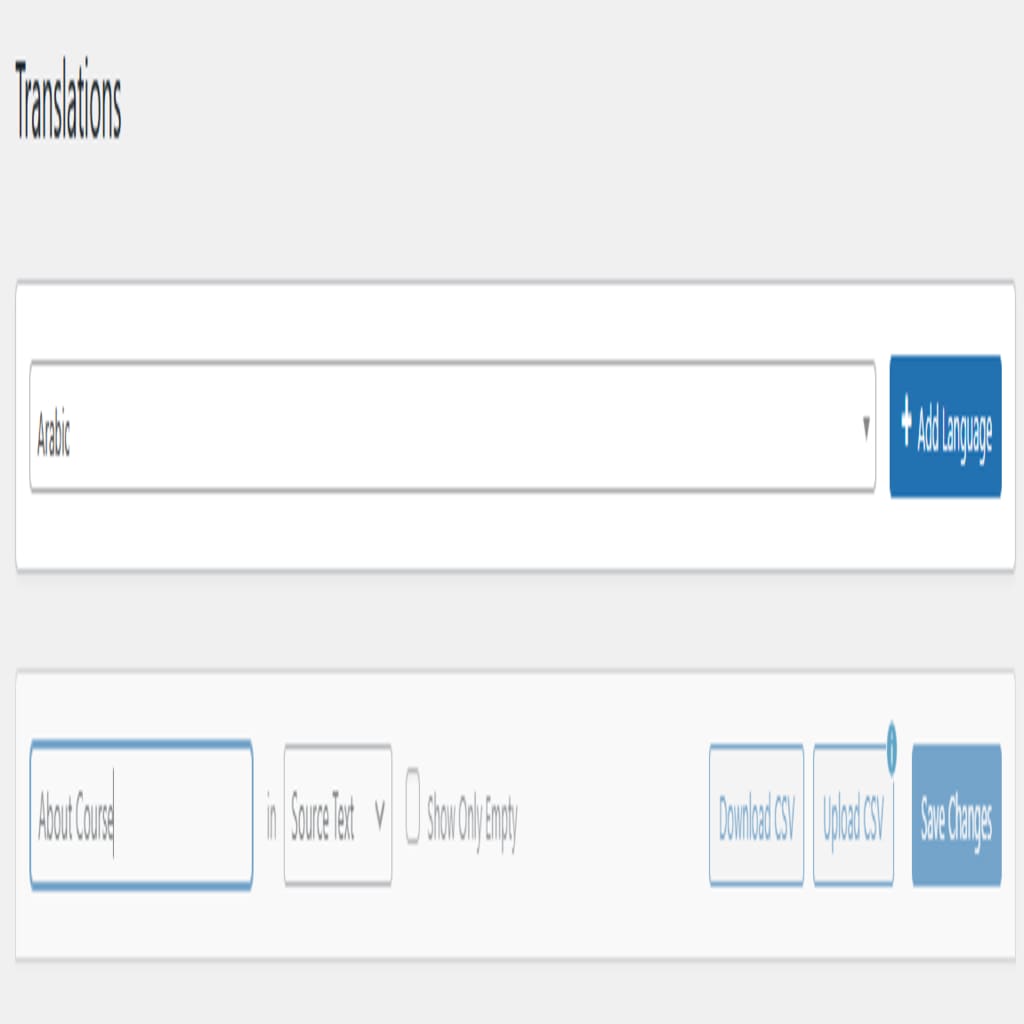
- In the translation field, enter the RTL equivalent (e.g., in Arabic).
- Click Save Changes.
- Repeat for other key terms like Unfollow, Send Message, etc.
Switch Site Language to RTL
- Go to Settings > General in your WordPress Dashboard.
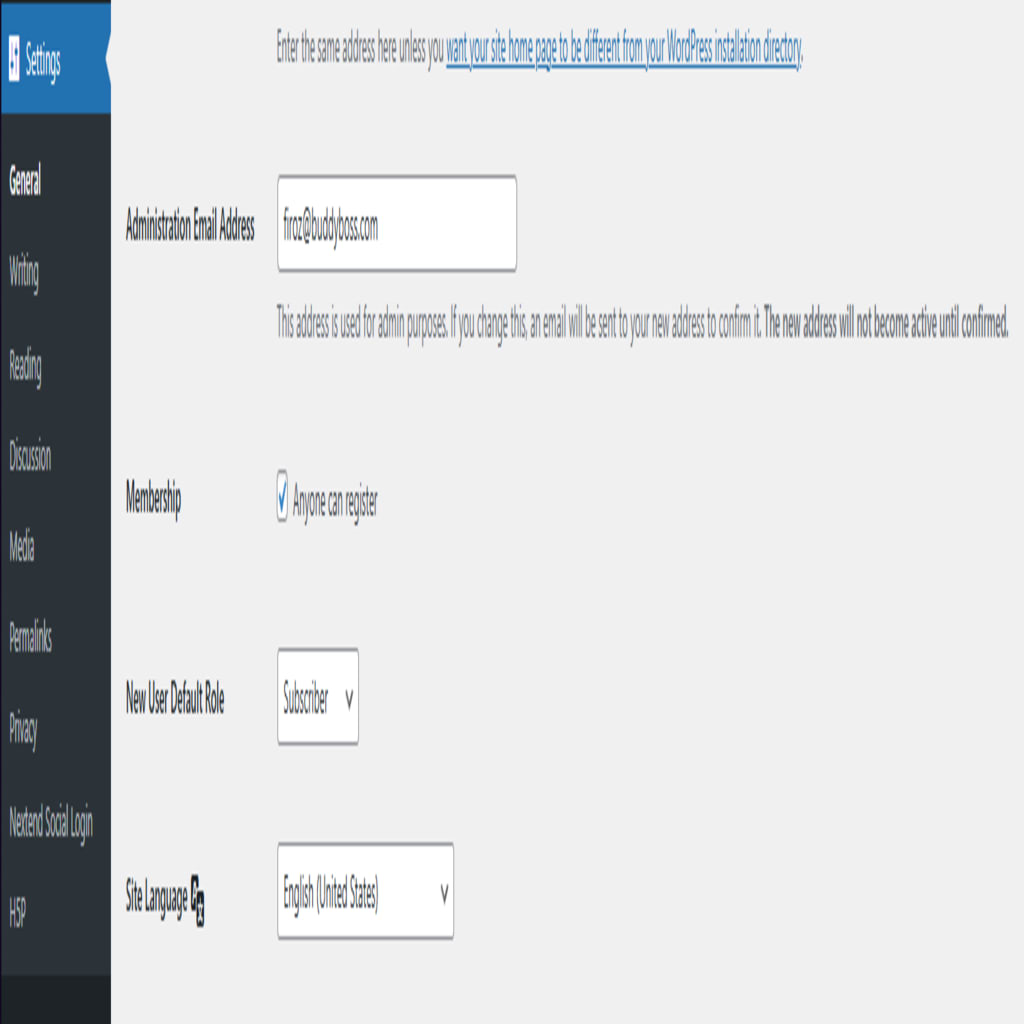
- Under Site Language, select an RTL language (e.g., العربية).
- Click Save Changes.
- Your admin panel and site theme will now switch to RTL.
Preview RTL Layout in the LearnDash App
- Force-close and reopen the LearnDash App on your mobile device.
- Check that the tab bar and header icons appear in right-to-left order.
- Open any translated screen (e.g., Members) and verify text and menus are RTL.
- Navigate through the app to confirm back arrows, animations, and content flow match RTL direction.
Troubleshooting and FAQs
Q: Why is some text still left-to-right (LTR)?
A: Confirm you translated the correct strings in LearnDash App > Translations, then relaunch the app to refresh.
Q: Why didn’t all UI elements flip direction?
A: Ensure your site language is set to an RTL language.
Q: Can I apply RTL to specific screens only?
A: No. RTL applies globally based on your WordPress Site Language setting.